
Dell Latitude D620 ATG: Bottom View Using a Battery Battery Performance
Bottom View Using a Battery Battery Performance: Dell Latitude D620 ATG
Table of contents
- Notes, Notices, and Cautions Abbreviations and Acronyms
- Contents
- Finding Information What Are You Looking For? Find It Here
- What Are You Looking For? Find It Here
- What Are You Looking For? Find It Here
- What Are You Looking For? Find It Here
- Setting Up Your Computer
- About Your Computer Front View
- Left Side View Right Side View
- Back View
- Bottom View Using a Battery Battery Performance
- Checking the Battery Charge Dell™ QuickSet Battery Meter
- Microsoft Windows Power Meter Charge Gauge Check the Battery Charge
- Check the Battery Health Low-Battery Warning Charging the Battery
- Replacing the Battery
- Storing a Battery Troubleshooting Lockups and Software Problems The computer does not start up The computer stops responding A program stops responding or crashes repeatedly A program is designed for an earlier Microsoft Windows operating system
- A solid blue screen appears Other Software Problems BACK UP YOUR FILES IMMEDIATELY. Dell Diagnostics When to Use the Dell Diagnostics
- Starting the Dell Diagnostics From Your Hard Drive Starting the Dell Diagnostics From the Drivers and Utilities CD
- Dell Diagnostics Main Menu Option Function Tab Function
- Tab Function
- Index
- 24 Index
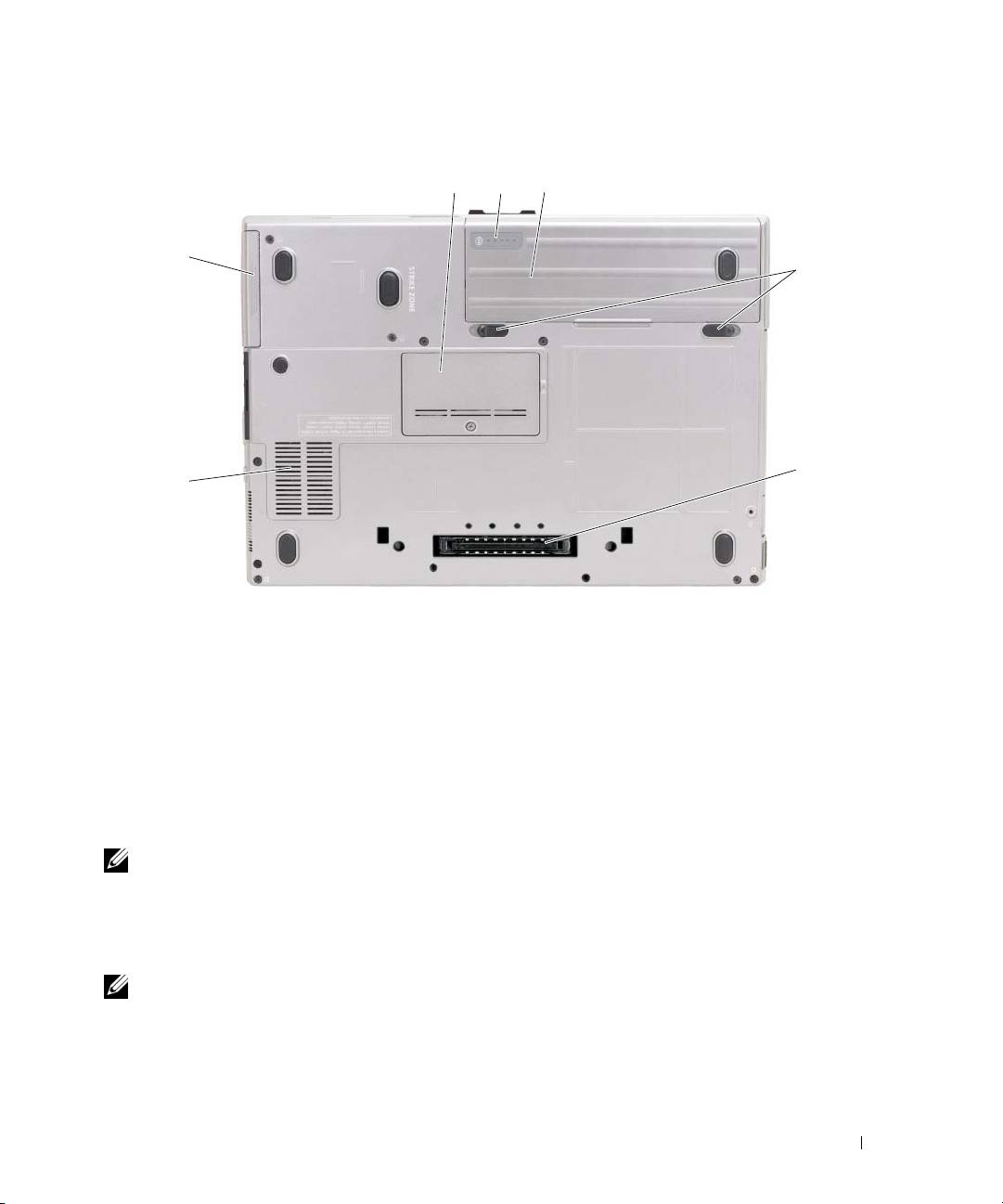
Bottom View
1 23
7
4
5
6
1 memory module cover 2 battery charge
3 battery
gauge/health gauge
4 battery-bay latch
5 docking-device
6 air vents
releases (2)
connector
7 hard drive
Using a Battery
Battery Performance
NOTE: For information about the Dell™ warranty for your computer, see the Product Information Guide or separate
paper warranty document that shipped with your computer.
For optimal computer performance and to help preserve BIOS settings, operate your Dell portable
computer with the main battery installed at all times. One battery is supplied as standard equipment in
the battery bay.
NOTE: Because the battery may not be fully charged, use the AC adapter to connect your new computer to an
electrical outlet the first time you use the computer. For best results, operate the computer with the AC adapter
until the battery is fully charged. To view battery charge status, click the Start button→ Settings→ Control Panel→
Power Options→ Power Meter tab.
Quick Reference Guide 13
