
Dell LATITUDE D400: Finding Information for Your Computer What are you looking for? Find It Here
Finding Information for Your Computer What are you looking for? Find It Here: Dell LATITUDE D400
Table of contents
- Notes, Notices, and Cautions Abbreviations and Acronyms
- Contents
- CAUTION: Safety Instructions General
- CAUTION: Safety Instructions (continued) Power
- CAUTION: Safety Instructions (continued) Battery
- CAUTION: Safety Instructions (continued) Air Travel Electromagnetic Compatibility (EMC) Instructions
- When Using Your Computer
- When Using Your Computer (continued) Ergonomic Computing Habits When Working Inside Your Computer
- When Using Your Computer (continued) Protecting Against Electrostatic Discharge
- Finding Information for Your Computer What are you looking for? Find It Here
- What are you looking for? Find It Here
- Setting Up Your Computer
- 4 Open the computer display and press the power button to turn on the computer.
- Connecting the Dell™ D/Bay
- About Your Computer Front View
- Left View Right View
- Back View
- Bottom View Removing a Battery
- Installing a Battery Running the Dell Diagnostics
- 3 Connect the computer to an electrical outlet.
- Tab Function Tab Function
- Regulatory Notices
0T842bk0.book Page 12 Thursday, April 10, 2003 1:21 PM
Finding Information for Your Computer
What are you looking for? Find It Here
• A diagnostic program for my computer
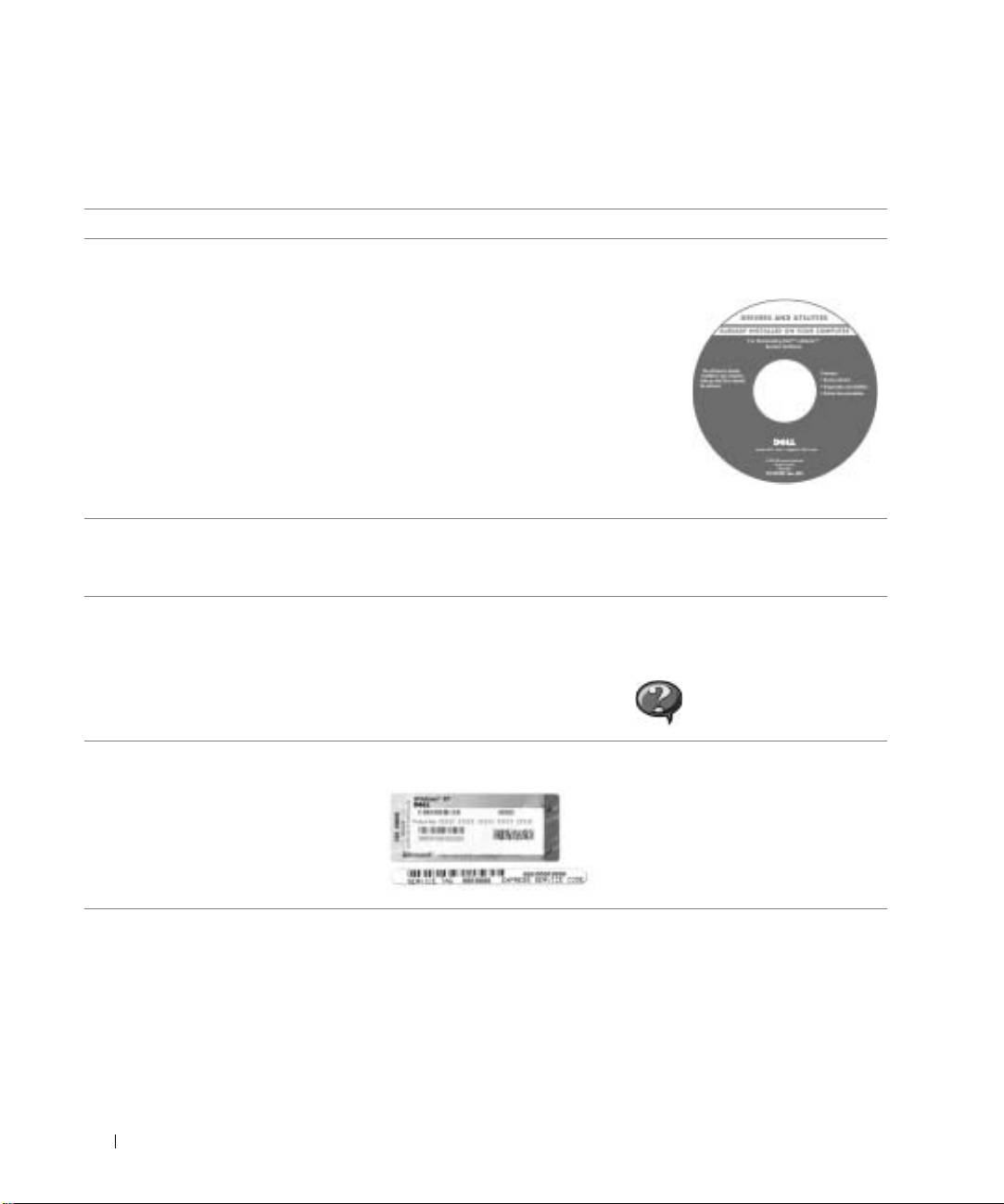
Drivers and Utilities CD (also known as the
• Drivers for my computer
ResourceCD)
• My computer documentation
Documentation and drivers are already
• My device documentation
installed on your computer when shipped
from Dell. You can use the CD to reinstall
drivers, run the Dell Diagnostics, or access
your documentation.
Readme files may be included on your CD
to provide last-minute updates about
technical changes to your computer or
www.dell.com | support.euro.dell.com
advanced technical-reference material for
experienced users or technicians.
• How to set up my computer
Dell System Information Guide
• Warranty Information
NOTE: This document is available in pdf form on support.dell.com.
• Safety Instructions
• How to remove and replace parts
User’s Guide—Windows Help and Support Center
• How to obtain technical specifications
1 Click the Start button and click Help and Support.
• How to configure system settings
2 Click User’s and system guides and click User’s guides.
• How to troubleshoot and solve
Microsoft Windows 2000
problems
Double-click the User’s Guides icon on your desktop.
• Express Service Code and Service Tag
Express Service Code and Product Key
®
®
• Microsoft
Windows
License Label
These labels are located on your
computer.
12 System Information Guide
