
Toshiba Gigaframe L80-81: инструкция
Раздел: Аксессуары для фото- и видеотехники
Тип:
Инструкция к Toshiba Gigaframe L80-81
Оглавление
- Содержание
- Рамка Gigaframe L80/L81
- Введение Проверьте наличие компонентов Что еще вам понадобится:
- Важная информация Правила техники безопасности Требования к системе
- Общие сведения о рамке Gigaframe Вид спереди Вид снизу
- Вид сзади Вид слева
- Приступаем к работе Размещение устройства Подключение к источнику переменного тока Включение рамки Gigaframe Зарядка батареи (входит в комплект поставки некоторых моделей)
- Соединения Карта памяти: Подключение через шину USB
- Основные операции Фоторежим Последовательность демонстрации слайдов
- 3. Выберите Последовательность демонстрации слайдов (Slideshow Sequence) и нажмите кнопку OK. 4. Выберите последовательность: Подряд (Sequential) или Случайно (Random), затем нажмите кнопку OK.
- Эффект перехода
- Частота
- Цвет фона
- Эффект
- Поворот
- Режим времени и даты Установка времени и даты
- Установка времени Установка даты
- Установка будильника и выбор его звукового сигнала Установка будильника
- Включение и выключение Выбор звукового сигнала будильника
- Чтобы внести аудиофайл в список звуковых сигналов будильника:
- Добавление фотографий в фотокалендарь Режим «Фото + Аудио»
- Видеорежим
- Значения значков режима воспроизведения видеозаписей
- Аудиорежим
- Вы также можете выполнять следующие действия: Воспроизведение одним нажатием
- Копирование и удаление файлов
- Чтобы скопировать файлы на другое устройство хранения данных: Чтобы скопировать все файлы, находящиеся на устройстве хранения данных, на другое устройство:
- Чтобы удалить файлы: Чтобы удалить все файлы, находящиеся на устройстве хранения данных:
- Функция «Дополнительное представление»
- Чтобы перевести рамку Gigaframe в режим «Расширенный»:
- Чтобы перевести рамку Gigaframe в режим «Клонирование»:
- Для воспроизведения видеозаписей на экране рамки Gigaframe ее необходимо выбрать в качестве основного монитора. Программное обеспечение 3D Album Установка 3D Album 1. Вставьте компакт-диск с программным обеспечением в
- 2. Щелкните Да, соглашаюсь (Yes, I agree), чтобы принять 3. В поле Путь установки (Install path) выберите место, куда
- 4. После того, как установка будет выполнена, откроется окно Функции 3D Album
- Преобразование фотографий
- Создание трехмерного альбома
- Настройки системы Яркость
- Язык
- Функция таймера (автоматическое включение и выключение)
- Чтобы задать время автоматического выключения: Чтобы задать время автоматического включения:
- Восстановление настроек, используемых по умолчанию Проверка состояния рамки Gigaframe
- Автоматический наклон (функция реализована в некоторых моделях)
- Автосвет (функция реализована в некоторых моделях)
- Обновление встроенного программного обеспечения Поддерживаемые видеоформаты
- Ответы на часто задаваемые вопросы Поддержка корпорации TOSHIBA
- Регламентирующие положения Заявление о соответствии требованиям стандартов ЕС
- Условия эксплуатации
- Изложенная далее информация актуальна только в странах-членах ЕС: Утилизация изделий Утилизация батарей и/или аккумуляторов
- Заявление об авторских правах Товарные знаки

User’s Manual
Gigaframe L80 / L81
CZ GR PT
DE
HU RU
DK
IT SE
ES NL
SK
FI NO TR
FR
PL

Gigaframe L80 / L81
Table of Contents
Introduction............................................................................................ 4
Check the components......................................................................... 4
Important Information ........................................................................... 5
Safety Instructions.......................................................................... 5
System Requirements .................................................................... 5
Gigaframe Overview.............................................................................. 6
Front View........................................................................................ 6
Bottom View ....................................................................................6
Rear View.........................................................................................7
Left View .......................................................................................... 7
Getting Started....................................................................................... 8
Placing the Unit............................................................................... 8
Connecting to the A/C Power......................................................... 8
Turning on the Gigaframe .............................................................. 8
Charging the battery (included with some models)..................... 8
Connections .................................................................................... 9
Memory Card:.................................................................................9
USB Connection .............................................................................9
Basic Operations.................................................................................10
Photo Mode ...................................................................................10
Slideshow Sequence ....................................................................10
Transition Effect............................................................................11
Frequency.....................................................................................12
Background Color.........................................................................13
Effect.............................................................................................14
Rotate ...........................................................................................15
Time and Date Mode ..................................................................... 16
Set Time and Date........................................................................16
Set Alarm Clock and Alarm Tone..................................................18
Adding Photos to the Photo Calendar...........................................20
Photo + Audio Mode ..................................................................... 21
Video Mode....................................................................................22
Video Playback Mode Icons Definition..........................................23
Audio Mode ...................................................................................24
One click playing................................................................................. 25
Copy and Delete Files .........................................................................26
Sub View Function ..............................................................................29
EN-2 User’s Manual

Gigaframe L80 / L81
3D Album.............................................................................................. 32
Installing the 3D Album................................................................ 32
3D Album Functions..................................................................... 34
Converting Photos........................................................................ 35
Create a 3D-Album....................................................................... 36
System Settings .................................................................................. 37
Brightness ..................................................................................... 37
Language....................................................................................... 38
Timer Function (Auto On/Off) ...................................................... 39
Restore to Default Settings.......................................................... 41
Checking the Status of the Gigaframe........................................ 41
Auto Tilt (included with some models) ..................................... 42
Auto Light (included with some models)................................... 43
Firmware Upgrades............................................................................. 44
Supported Video Format .................................................................... 44
Frequently Asked Questions.............................................................. 44
TOSHIBA Support ............................................................................... 45
Regulatory statements........................................................................ 45
EU Declaration of Conformity...................................................... 45
Working Environment .................................................................. 46
Following information is only for EU-member states: .............. 47
Disposal of products .................................................................... 47
Disposal of batteries and/or accumulators ................................ 47
Copyright Statement........................................................................... 48
Trademarks.......................................................................................... 48
User’s Manual EN-3
Gigaframe L80 / L81
Introduction
Welcome and thank you for choosing a TOSHIBA product.
For your convenience, your TOSHIBA product is furnished with two
guides:
a) a Quick Start Guide, and
b) this comprehensive PDF User’s Manual.
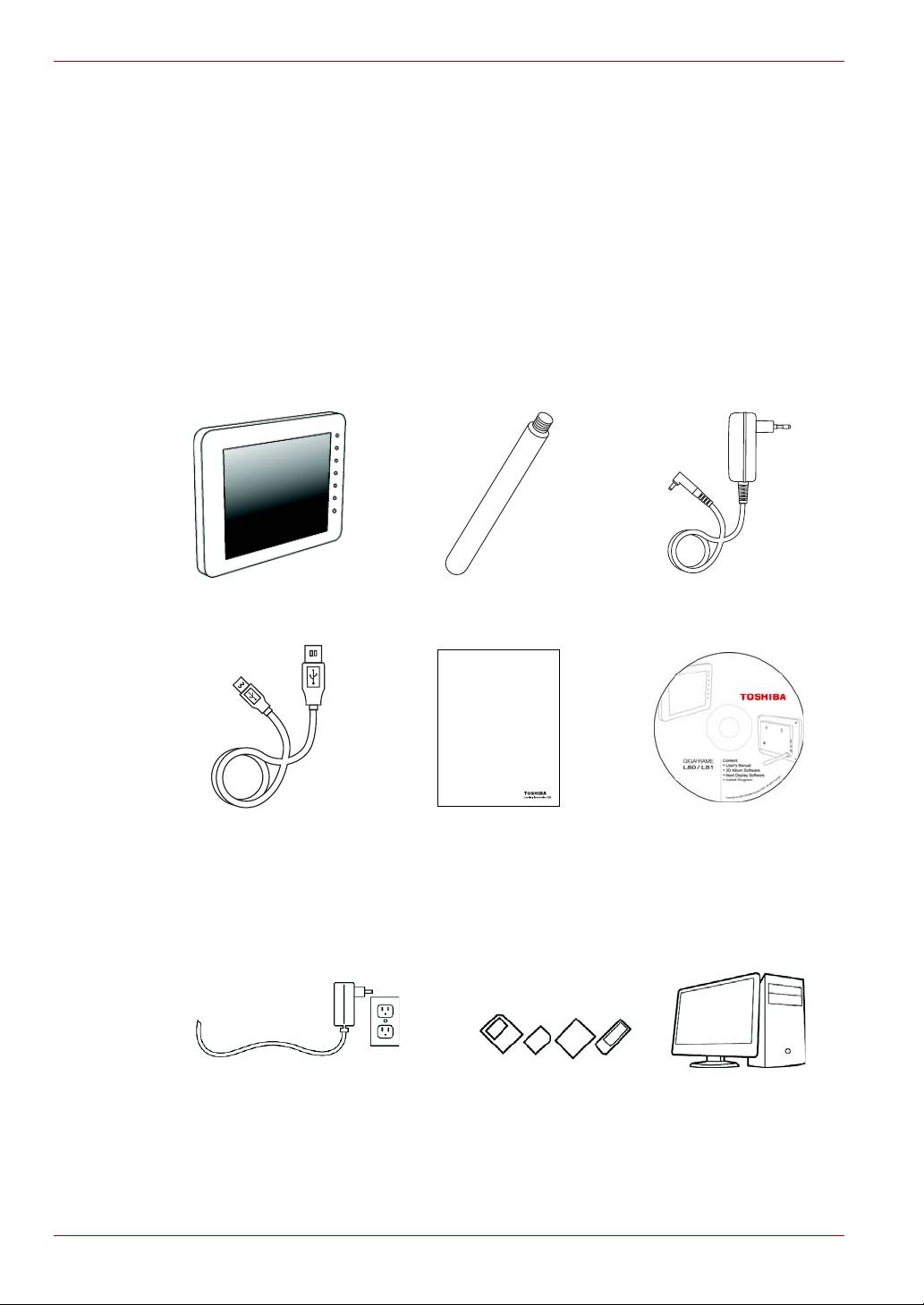
Check the components
Gigaframe Frame Stand AC Adapter
USB Cable Quick Start Guide CD with Software &
User’s Manual
What else you’ll need:
EN-4 User’s Manual
Quick Start Guide
Gigaframe L80 / L81
DE
IT
DK
NL
ES
NO
FI
PT
FR
SE
DE
IT
DK
NL
ES
NO
FI
PT
FR
SE
Power outlet Digital photos on memory card or PC

Gigaframe L80 / L81
Important Information
Safety Instructions
Before operating this unit (Gigaframe), please carefully read
and follow the instructions below.
n The operating temperature is between 0 and 40 degrees Celsius.
n Do not use or store this unit in the environments listed below:
n Direct sunlight
n A high-humidity area such as bathroom
n Dusty places
n Next to an air conditioner, electric heater or other heat sources
n In a closed car that is in direct sunlight
n Unstable locations
n If this unit becomes wet, wipe it with a dry cloth as soon as possible.
n Salt or seawater may cause severe damage to this unit.
n Do not use solvents (such as alcohol) to clean this unit.
n If the screen is dirty, use a lens brush or soft cloth to clean the screen.
n To prevent electric shock, do not attempt to disassemble or repair this
unit by yourself.
n Water may cause a fire or electric shock. Therefore, store this unit in
a dry place.
n Do not use this unit outdoors when it is raining or snowing.
n Do not use this unit in or near water.
n If a foreign substance or water gets in this unit, please turn the power
off immediately and disconnect the power adapter. Next, remove the
foreign substance or water, and then send it to your nearest service
center.
System Requirements
n Windows XP/Vista
n USB 2.0 Interface
User’s Manual EN-5
Gigaframe L80 / L81
Gigaframe Overview
Front View
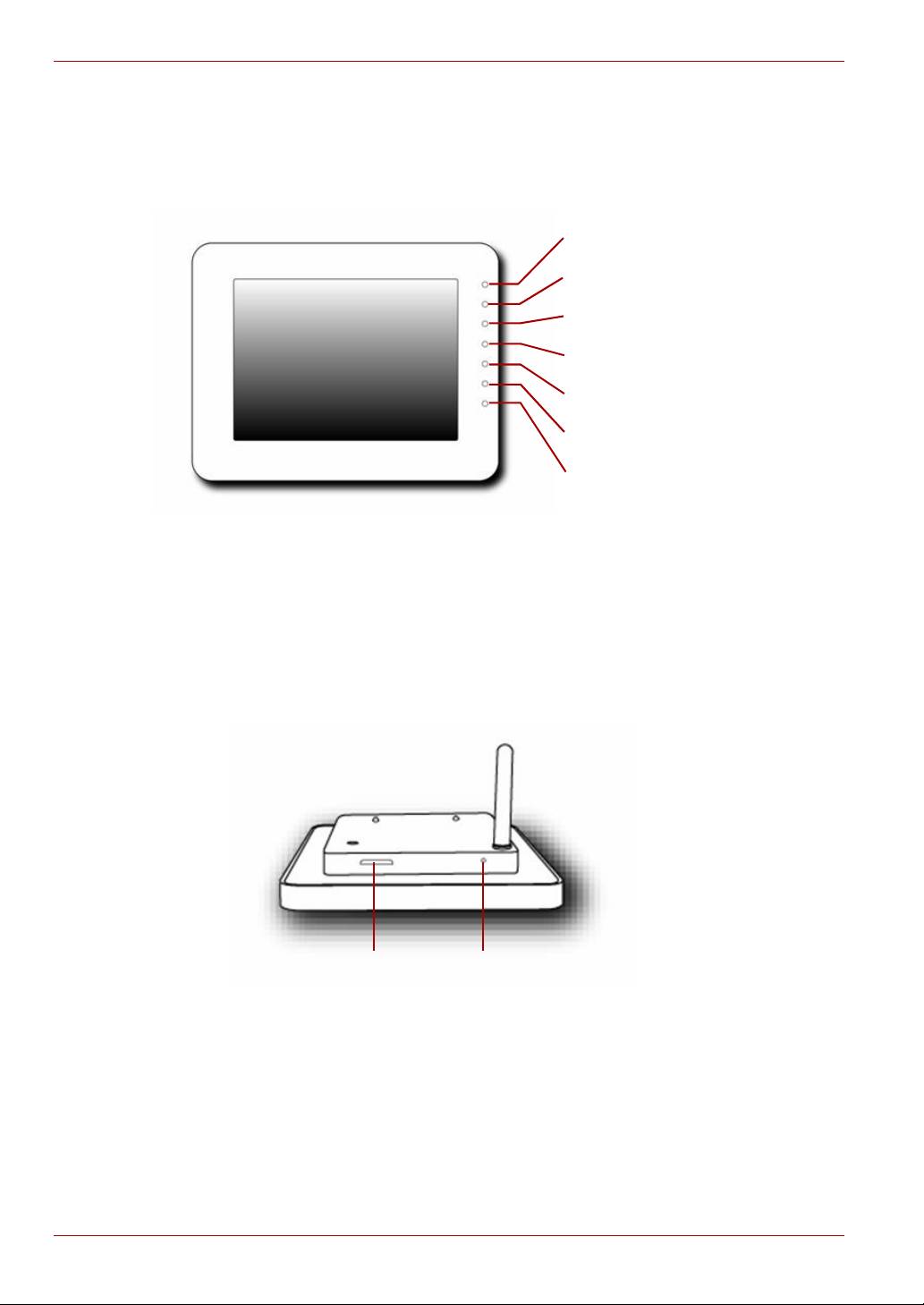
Control Buttons Operate the photo frame by pressing the control
buttons in the front panel.
The LCD also shows the function icons for each
button in the corresponding position.
Bottom View
EN-6 User’s Manual
Back Button
Home Button
Up Button
Down Button
Left Button
Right Button
Enter Button
Reset Button To reset the Gigaframe, press the Reset button
on the bottom of the frame stand.
Reset ButtonMemory Card Slot
Gigaframe L80 / L81
Rear View
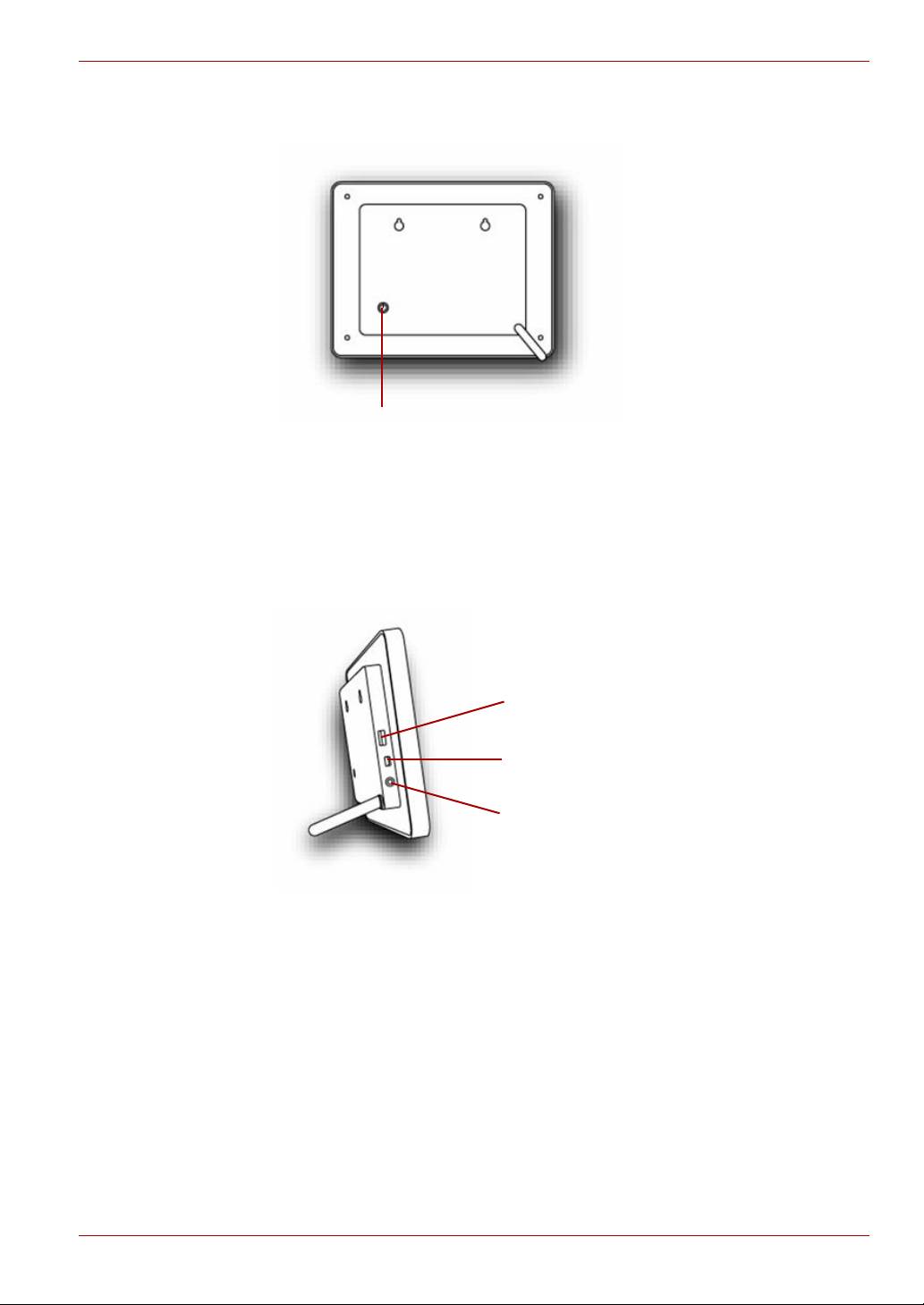
Power Button To turn on the Gigaframe, press the Power
button on the back of the display.
Left View
User’s Manual EN-7
Power Button
Power Port The Power Port is where you will connect the
power adapter.
USB port for PC This USB port connects the Gigaframe to your
PC.
USB port for
This USB port connects the Gigaframe to other
storage devices
storage devices.
USB Port for storage devices
USB Port for PC
Power Port
Gigaframe L80 / L81
Getting Started
Placing the Unit
The Gigaframe should be placed on a flat surface or hung on sturdy
hooks, close to a power socket. Do not expose to high temperatures or
high levels of moisture.
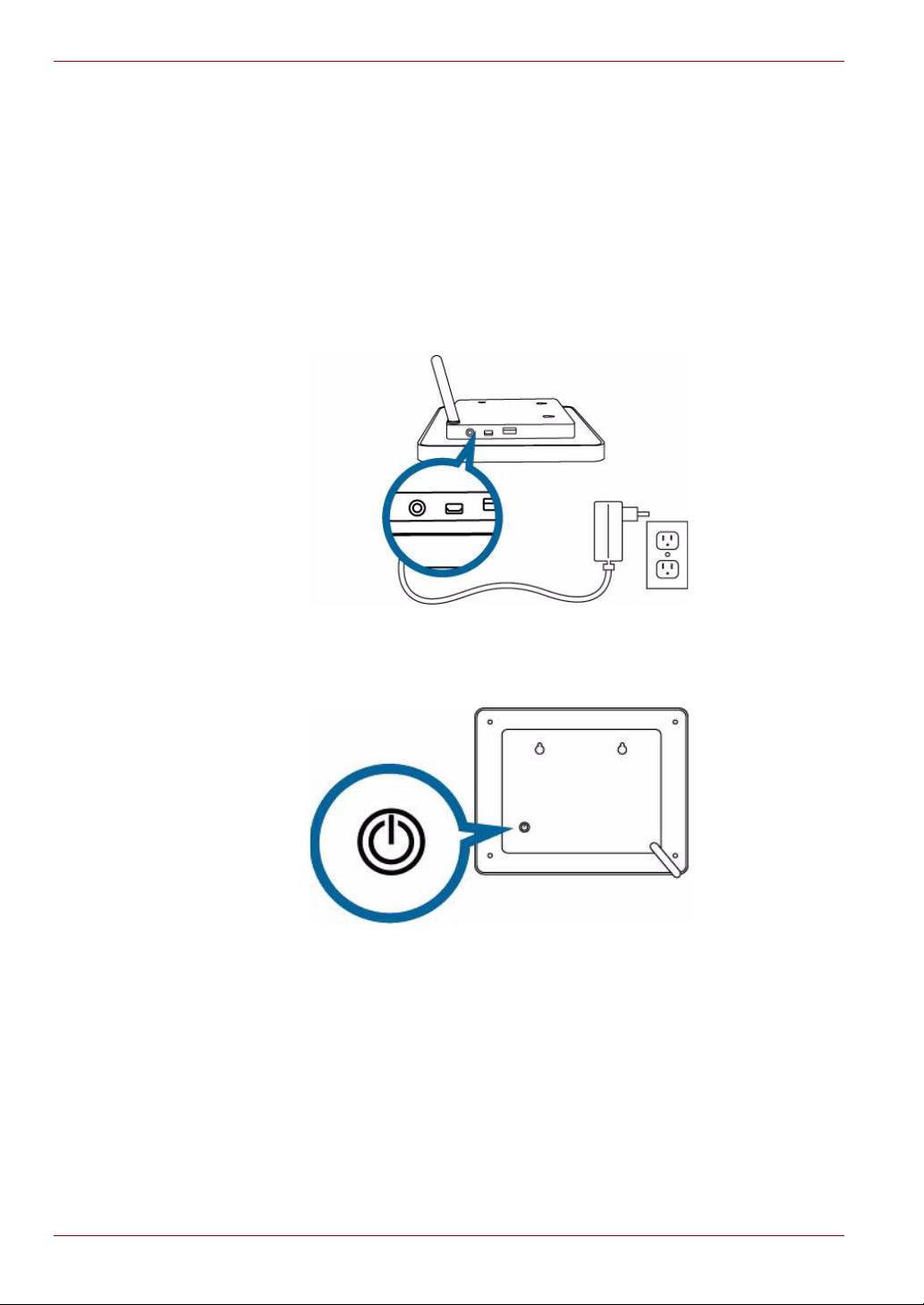
Connecting to the A/C Power
Connect the supplied power cable to a power outlet.
Turning on the Gigaframe
Press the power button on the back of the display.
Charging the battery (included with some models)
The Gigaframe is equipped with a built-in lithium polymer battery.
To charge the battery, follow the steps below:
1. Connect one end of the AC power adapter to the power jack on the
back of the Gigaframe.
2. Connect the other end to a power outlet.
EN-8 User’s Manual

Gigaframe L80 / L81
3. Place the Gigaframe horizontally or vertically on a stable surface, and
then keep the power connected until the battery is fully charged.
When the battery charge is running out of power, a warning message
will appear on the screen. Charge the battery as described above.
The fully charged battery usually lasts about 50 minutes, depending on
your use and settings.
Power system and plug types may vary depending on your country/
region.
Do not disassemble or modify the battery.
Connections
Memory Card:
Inserting a memory card:
1. Insert a memory card into the slot on the bottom edge of the display.
2. The Gigaframe supports SD, MMC, MS, MS Pro, xD and SDHC
memory cards.
3. A few seconds after inserting the card, the Gigaframe will begin
searching for photos in the memory card and will display them in
slideshow mode automatically.
4. Removing the memory card:
5. To remove the memory card, directly remove from the slot.
USB Connection
For Windows PC (XP & Vista)
1. The Gigaframe can be connected to a PC with the supplied USB
cable. The PC will recognize Gigaframe as a mass storage device.
2. Once the Gigaframe connects to a PC, it is not operable until it is
disconnected from the PC.
User’s Manual EN-9
Gigaframe L80 / L81
Basic Operations
Photo Mode
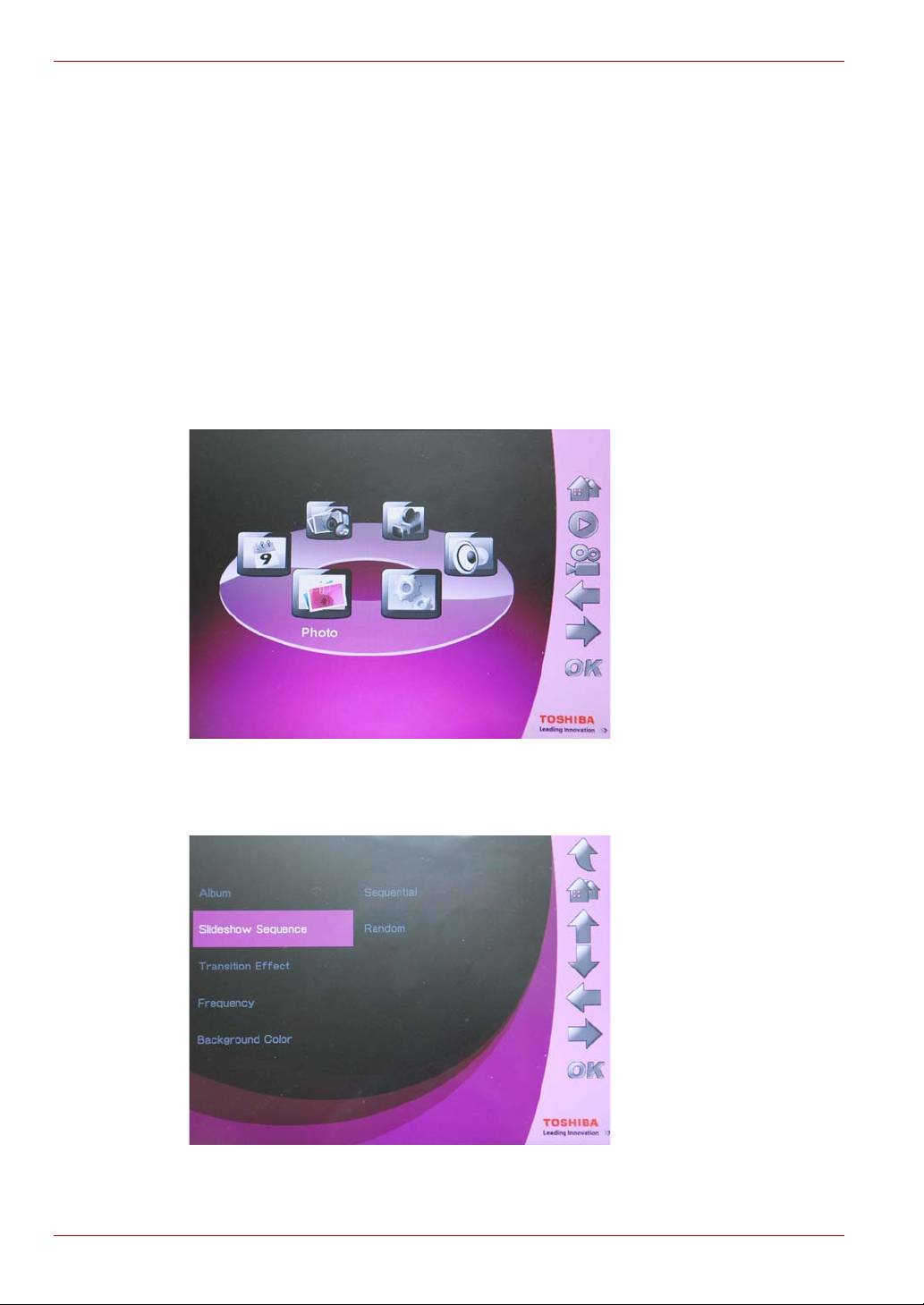
Use this section to set up Gigaframe slideshow sequences, transition
effects, time between photos, background color, special photo effects,
and rotation function.
Slideshow Sequence
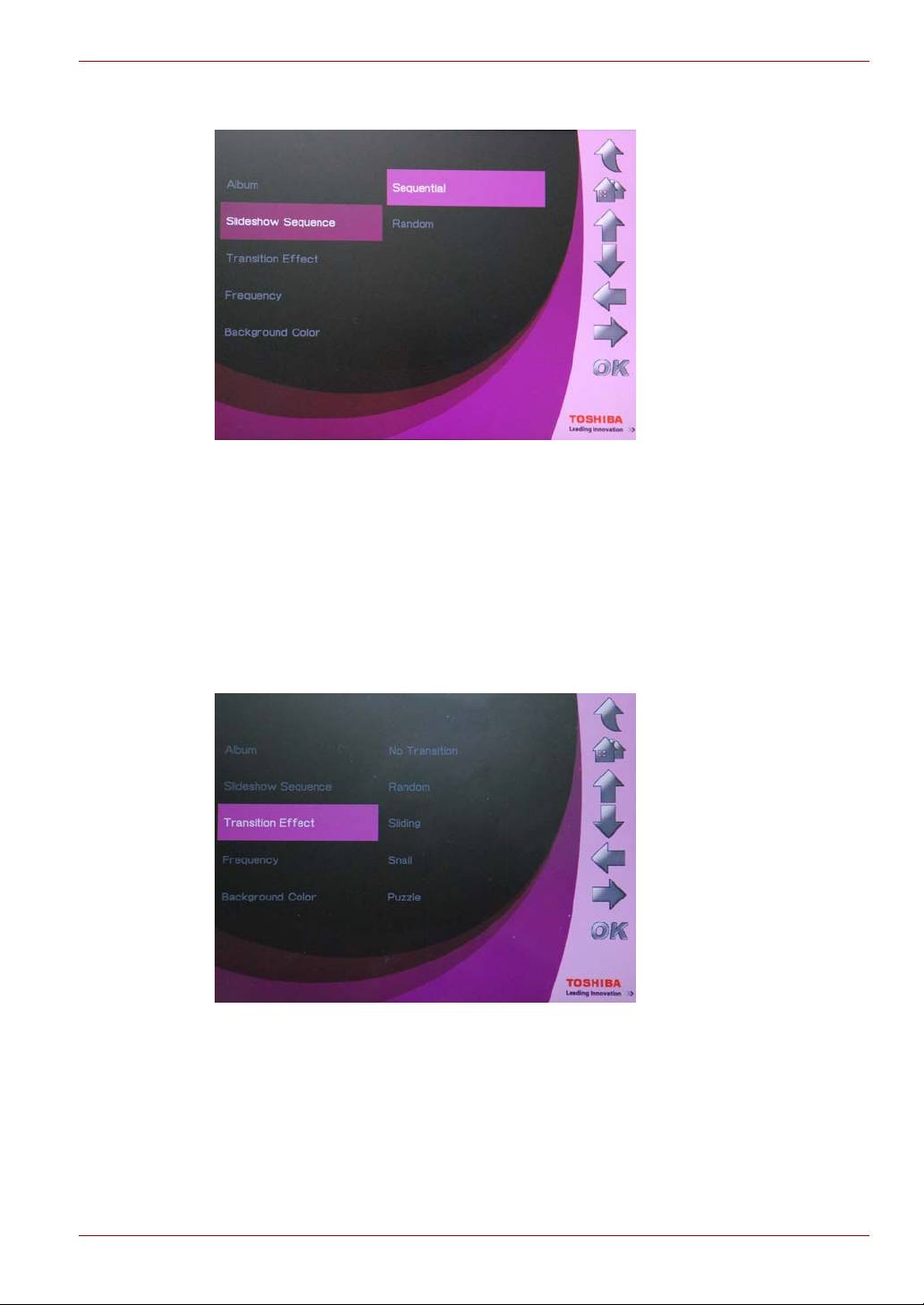
Slideshow can be played in one of two ways; Sequentially or Randomly.
To select a slideshow sequence:
1. In the main menu, select Photo and press OK to enter Photo Mode.
2. Select the storage device you want to access, then press OK.
3. Select Slideshow Sequence and press OK.
EN-10 User’s Manual
Gigaframe L80 / L81
4. Select a sequence: Sequential or Random, then press OK.
Transition Effect
Special transition effects can be applied to these photos. To select a
transition effect:
1. In the main menu, select Photo and press OK to enter Photo Mode.
2. Select a storage device you want to access, then press OK.
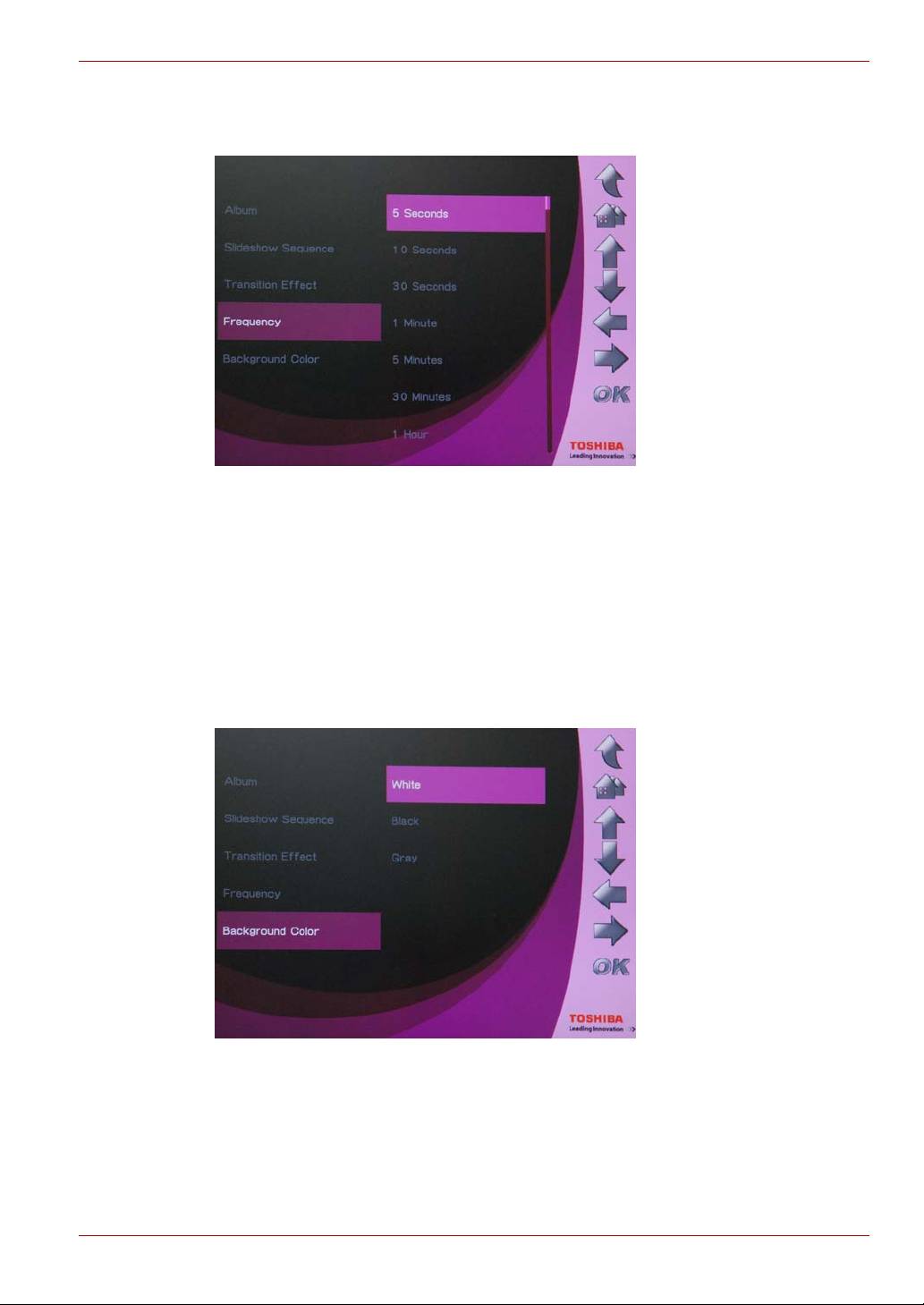
3. Select Transition Effect and press OK.
User’s Manual EN-11

Gigaframe L80 / L81
4. Select an effect from the list as follows: No Transition, Random,
Sliding, Snail, or Puzzle, then press OK.
Frequency
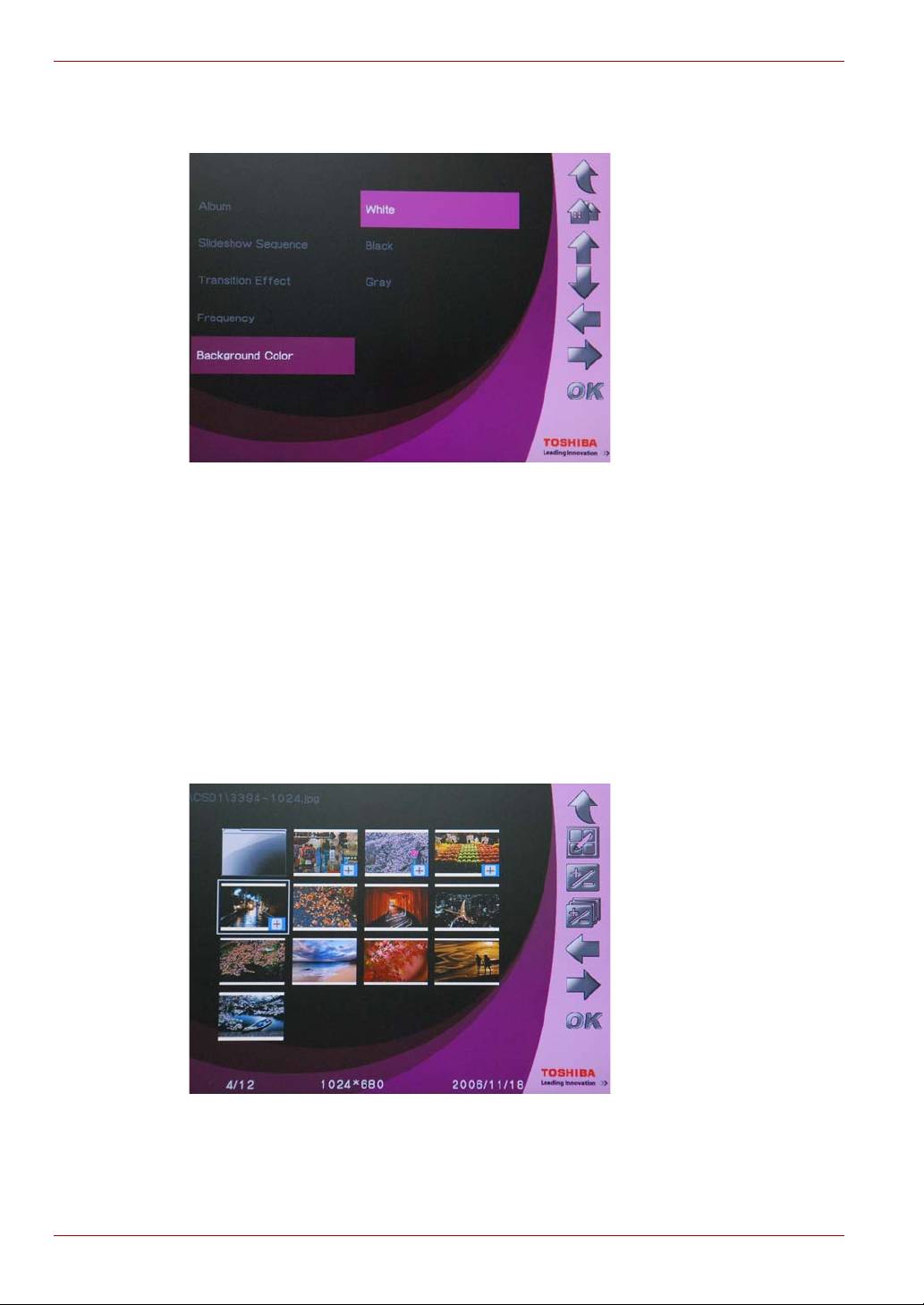
Use this option to decide how long each photo is displayed for during the
slideshow. To select a frequency:
1. In the main menu, select Photo and press OK to enter Photo Mode.
2. Select the storage device you want to access, then press OK.
3. Select Frequency and press OK.
EN-12 User’s Manual
Gigaframe L80 / L81
4. Select a display time from the list, then press OK. The shortest
possible display time is 5 seconds, and the longest is 1 day.
Background Color
Use this option to select the background color for photos that do not fill
the entire screen. To select a background:
1. In the main menu, select Photo and press OK to enter Photo Mode.
2. Select the storage device you want to access, then press OK.
3. Select Background Color and press OK.
User’s Manual EN-13
Gigaframe L80 / L81
4. Background colors include, White, Black, or Gray. Choose one and
press OK.
Effect
Use this function to add special effects to photos.
1. In the main menu, select Photo and press OK to enter Photo Mode.
2. Select the storage device you want to access, and then press OK.
3. Select Album and press OK.
4. Select ALL and press OK to display the photo files in the storage
device.
5. Select a photo you want to add an effect to and press Home.
EN-14 User’s Manual

Gigaframe L80 / L81
6. Select Effect and press OK.
7. Select an effect you want to add and press OK to confirm.
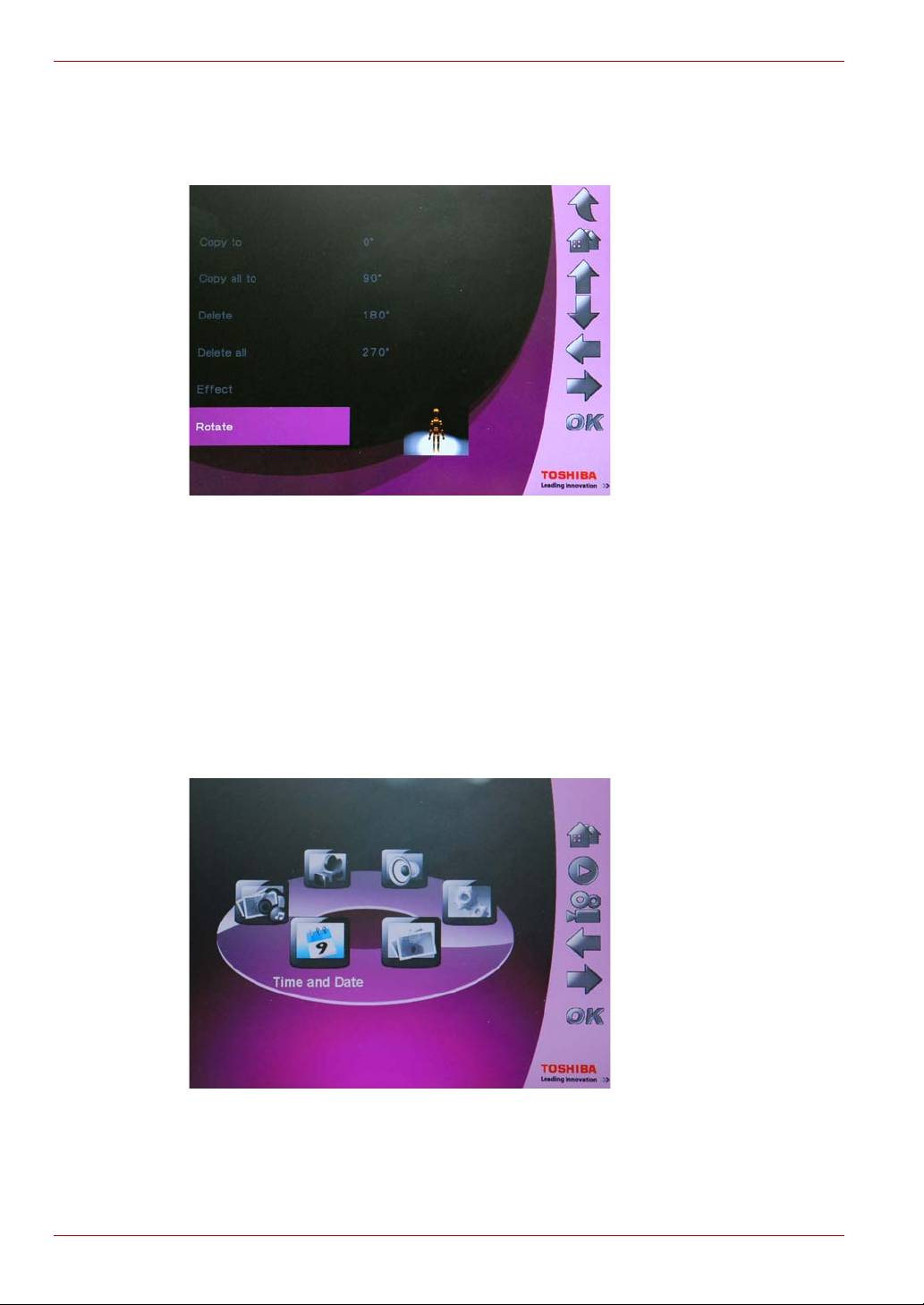
Rotate
Use this function to rotate photos to the desired position.
1. In the main menu, select Photo and press OK to enter Photo Mode.
2. Select the storage device you want to access, then press OK.
3. Select Album and press OK.
4. Select ALL and press OK to display the photo files in the storage
device.
5. Select the photo you want to rotate and press Home.
User’s Manual EN-15
Gigaframe L80 / L81
6. Select Rotate and press OK.
7. Select how many degrees you want to rotate the photo and press OK
to confirm.
Time and Date Mode
In Time and Date Mode you can set the time, date and alarm clock on the
Gigaframe. A photo calendar is also included in this mode.
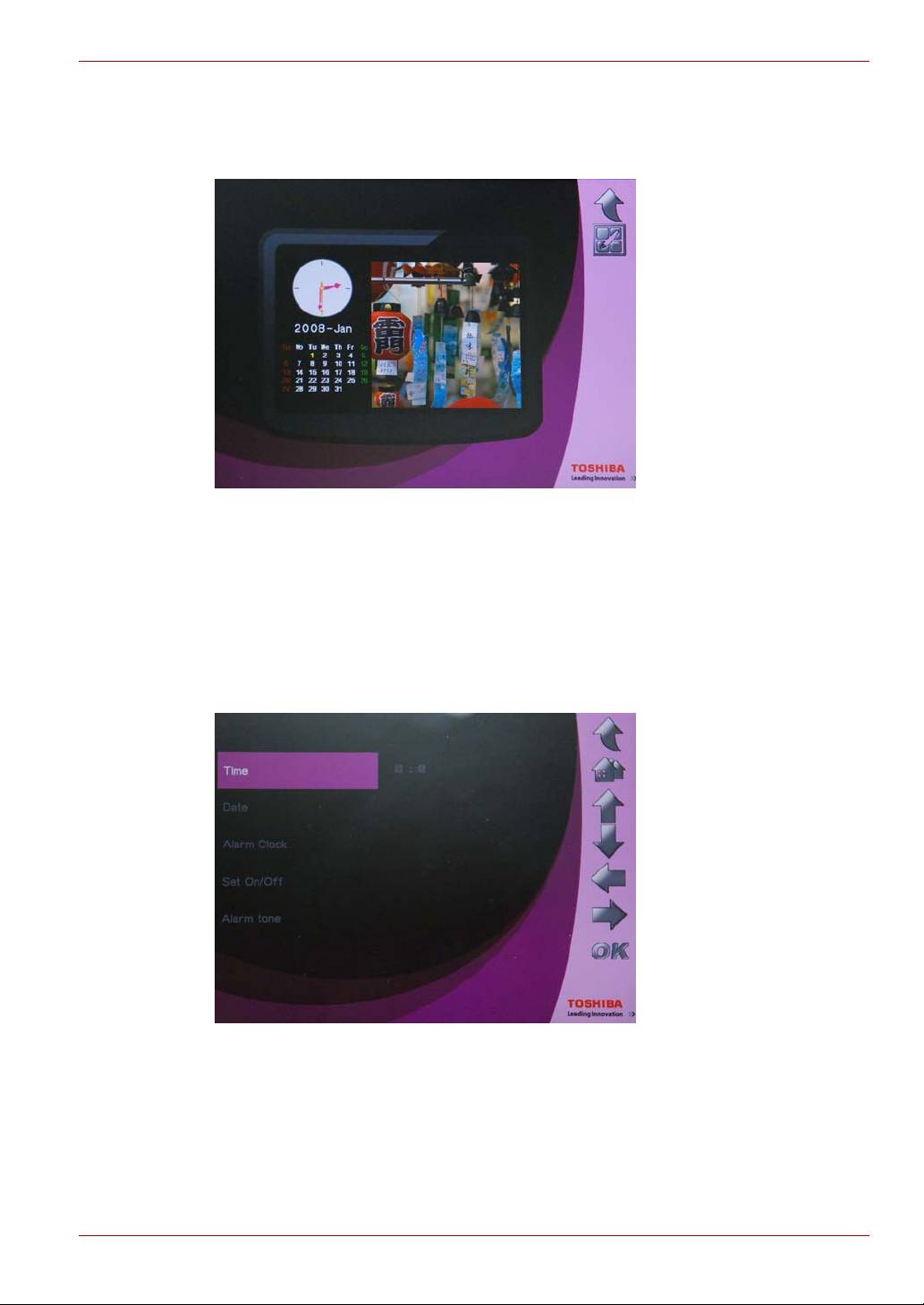
Set Time and Date
1. In the main menu, select Time and Date and press OK to enter Time
and Date Mode.
EN-16 User’s Manual
Gigaframe L80 / L81
2. After entering Time and Date Mode, the photo calendar will be
displayed. Press the Home button to access the screen to set the
time and date.
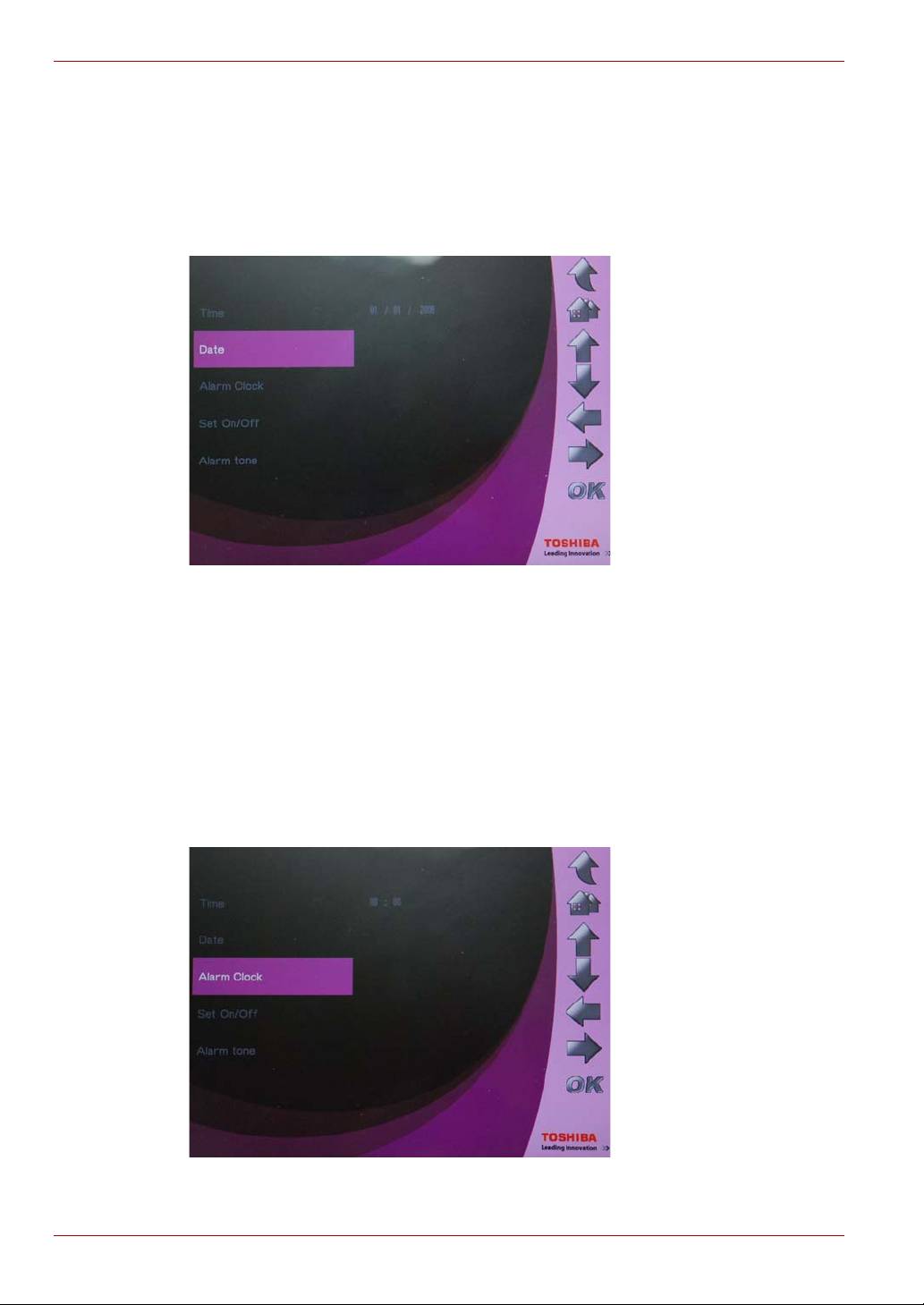
Time Setting
1. Select Time and press OK to set the time.
2. Press Up or Down to select the time function.
3. Press Left and Right to move between hours and minutes.
4. When the desired time has been set, press OK to confirm.
User’s Manual EN-17
Gigaframe L80 / L81
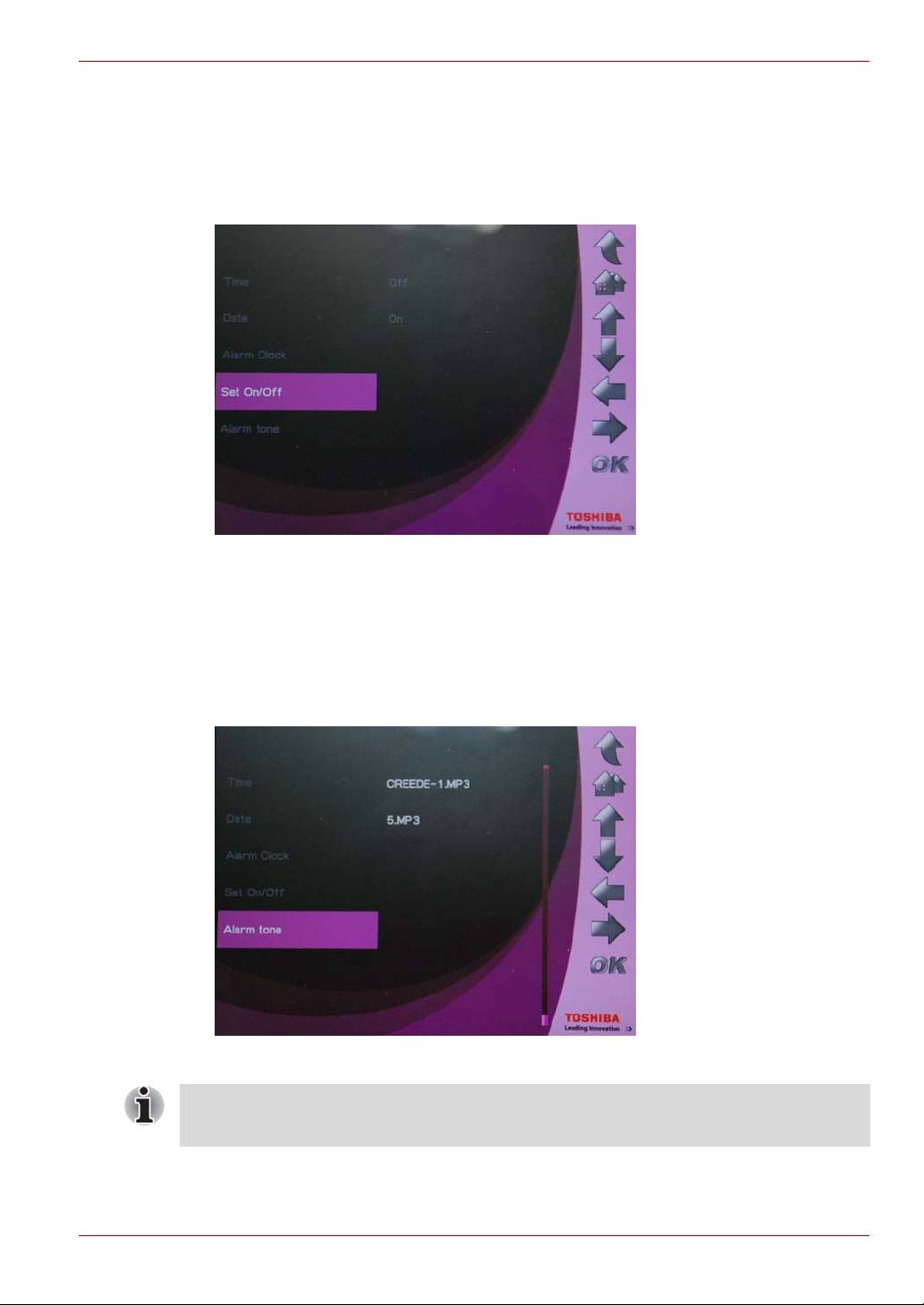
Date Setting
1. Select Date and press OK to set the date.
2. Press Up or Down to select the date function.
3. Press Left and Right to move between days, months and years.
4. When the disired date has been set, press OK to confirm.
Set Alarm Clock and Alarm Tone
Set Alarm Clock
1. Select Alarm Clock and press OK to set the time of the alarm.
2. Press Up or Down to select the time function.
3. Press Left or Right to move between hours and minutes.
4. When the disired time has been set, press OK to confirm.
EN-18 User’s Manual
Gigaframe L80 / L81
Set On/Off
1. Select Set On/Off and press OK to turn the alarm on or off.
2. To turn on the alarm clock, select On and press OK.
3. To Turn off the alarm clock, select Off and press OK.
Set Alarm Tone
1. Select Alarm tone and press OK to enter the alarm tone list.
2. Press Up or Down to select an audio file.
3. After the audio file is selected, press OK to confirm.
You can set any audio file Gigaframe supports (MP3, OGG) as the alarm
tone.
User’s Manual EN-19
Gigaframe L80 / L81
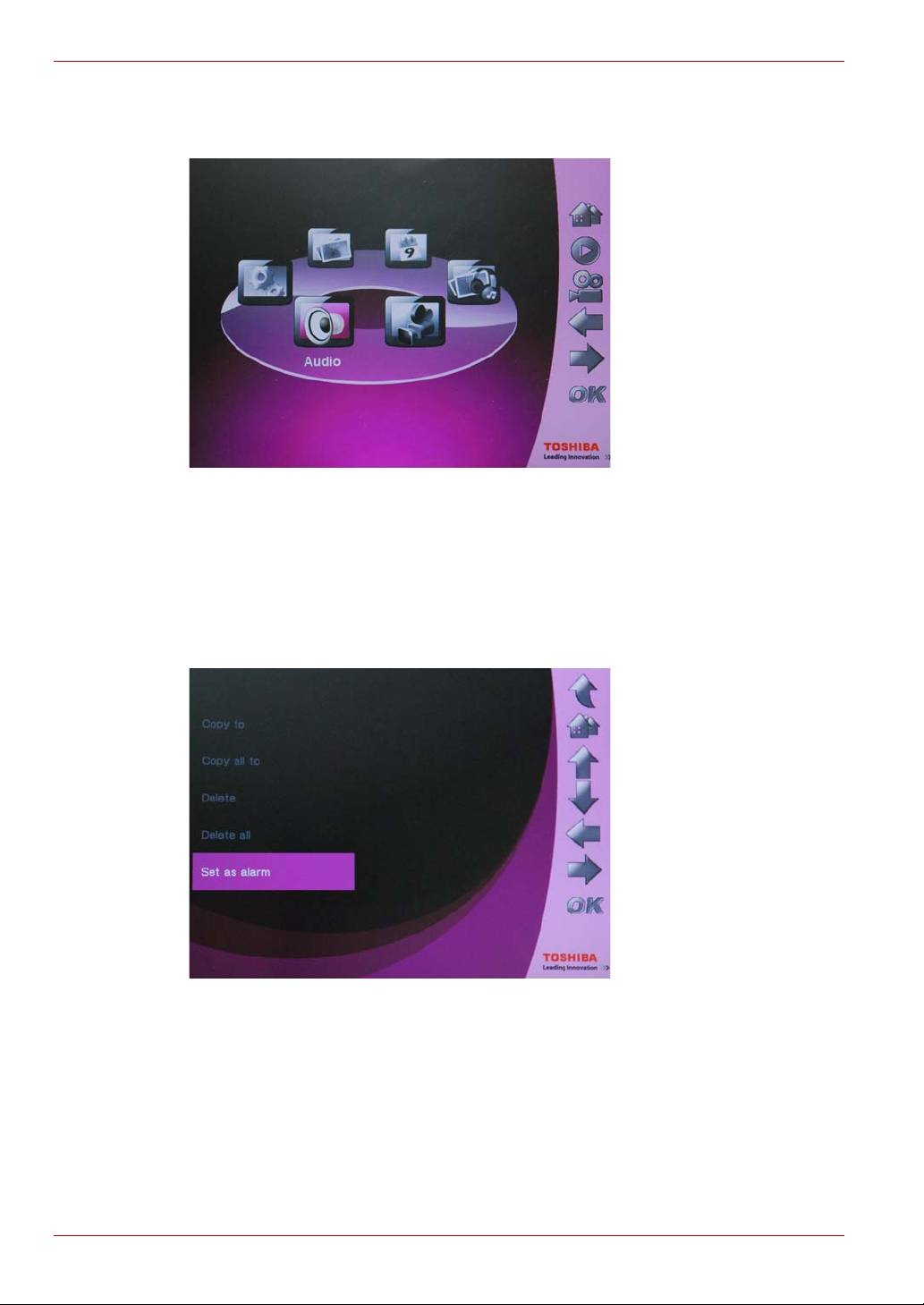
To set an audio file in the alarm tone list:
1. In the main menu, select Audio Mode and press OK.
2. Select a storage device and press OK.
3. Select ALL and press OK to display audio files in the storage device.
4. Select the file you want to use as your alarm tone and press Home.
5. Select Set as alarm and press OK to confirm, then the audio file will
be displayed in the alarm tone list.
Adding Photos to the Photo Calendar
To put photos in the photo calendar, copy the desired photos to the
DEFAULT on the Gigaframe’s internal drive.
EN-20 User’s Manual
