
Dell UPS 10000R: Notes and Warnings
Notes and Warnings: Dell UPS 10000R
Table of contents
- Notes and Warnings
- System Features
- Finding Information What are You Looking For? Find It Here
- Installation and Startup
- Unpacking the Cabinet To unpack the system: Using a forklift or pallet jack, move the shipping carton and pallet near the rack where you will install the UPS. Detach and remove the outer carton.
- Remove the two accessory boxes tucked into the channels in the top Styrofoam section. Open the accessory boxes and set them on a flat, stable surface nearby. Remove the top Styrofoam section and set it on a flat, stable surface nearby.
- Remove both retaining brackets from the UPS: Ensure all battery connectors are disconnected.
- Remove the battery trays from the UPS:
- With one person on each side, carefully lift the cabinet out of the styrofoam using the handles on the cardboard. Place the cabinet on a flat, stable surface in a protected area near the rack where you will install it.
- Rackmount Setup To install the UPS in a rack:
- Installing the Rails Remove the rails from the rail kit accessory box. Select the proper holes in the rail for positioning the cabinet in the desired location in the rack. Locate the rails at the bottom of the 5U space allocated for the UPS. Position the left and right rails as illustrated. Attach the the left and right rails to the rack:
- Installing and Securing the Cabinet Slide the cabinet onto the rails and into the rack. Secure the front of the cabinet to the rack using the four thumbscrews on the mounting brackets. Tighten the thumbscrews clockwise by hand; do not use power tools. Installing the Battery Trays Locate the battery trays you placed near the rack.
- Install the battery trays: Tuck the loop tabs into the plastic sleeve on the front of each battery tray to move them out of the way. Connecting Internal Battery Connectors Connect the internal battery connectors:
- Replacing the Battery Retaining Brackets Replace the left (L)and right (R) battery retaining brackets: Installing the UPS Front Cover
- Install the UPS front cover:
- Connecting the Equipment To install the UPS:
- Hardwiring the UPS Input
- Removing the Terminal Block Cover
- Manufacturer Type Rating
- Installing the Input and Ground Wires
- Starting the UPS To start up the UPS: Verify that the internal batteries are connected.
- Charge the batteries.
- Identifying the UPS Rear Panels 10 kW 208V UPS (DELL10KWOLHVUS)
- 10 kW 230V UPS (DELL10KWOLHV)
- 10 kW 230V UPS (DELL10KWOLHVB)
Notes and Warnings
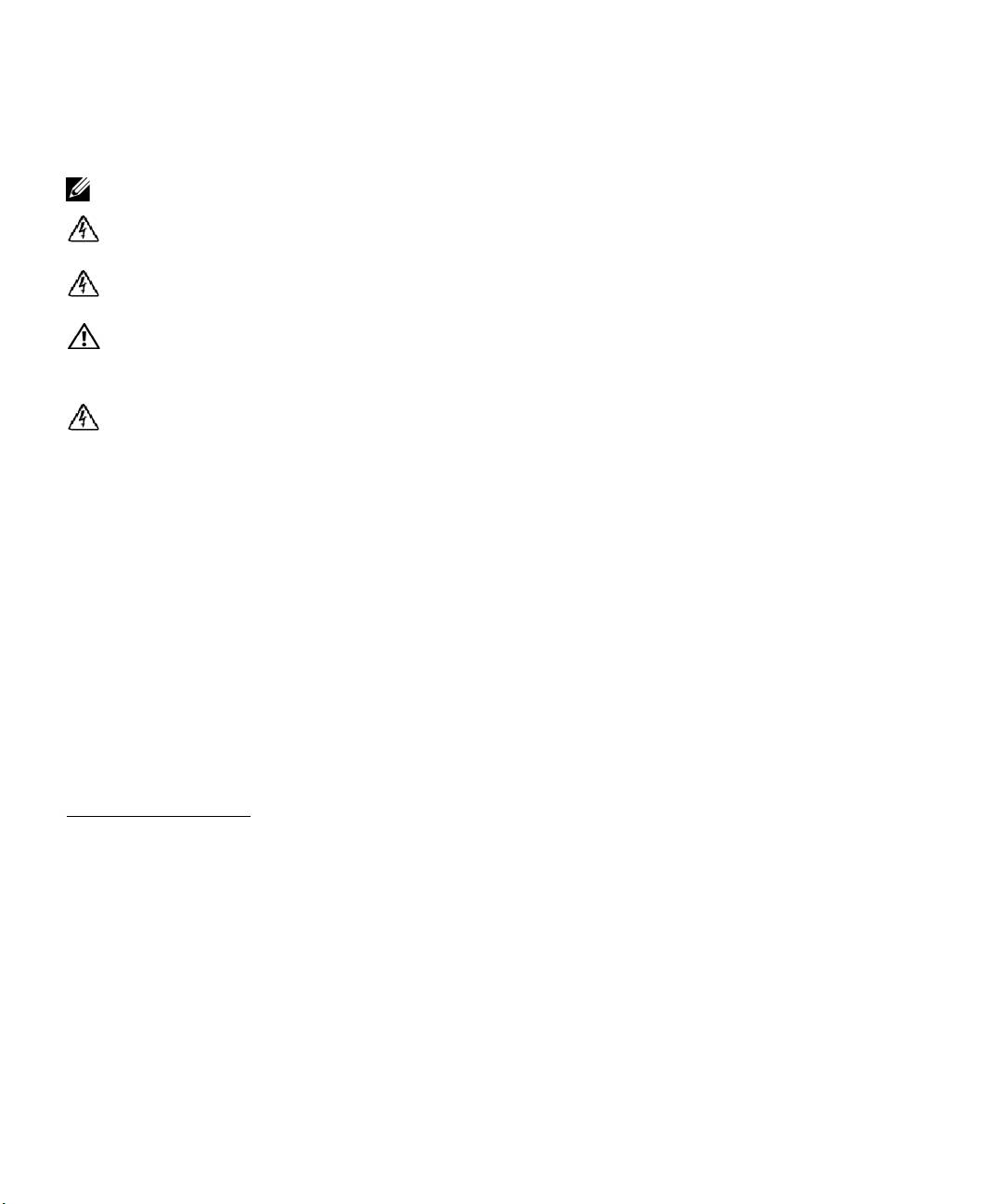
NOTE:
A NOTE indicates important information that helps you make better use of your software.
DANGER:
A DANGER indicates an imminently hazardous situation which, if not avoided, will result in death or
serious injury.
WARNING:
A WARNING indicates a potentially hazardous situation which, if not avoided, could result in death or
injury.
CAUTION:
A CAUTION indicates a potentially hazardous situation which, if not avoided, may result in minor or
moderate injury or in property damage incidents.
DANGER:
Observe the following instruction to help prevent an imminently hazardous situation which, if not
avoided, will result in death or serious injury:
S
The U PS contains LETHAL VOLTAGES. All repairs and service should be performed by
AUTHORIZED SERVICE PERSONNEL ONLY.ThereareNO USER SERVICEABLE PARTS
inside the UPS or EBM.
Information in this document is subject to change without notice.
E 2012 Dell Inc. All rights reserved.
Reproduction in any manner whatsoever without the written permission of Dell Inc. is strictly forbidden.
Trademarks used in this text: Dell and the DELL logo are trademarks of Dell Inc.; ENERGY STAR name is a registered trademark owned
by the U.S. Environmental Protection Agency.
Other trademarks and trade names may be used in this document to refer to either the entities claiming the marks and names or their
products. Dell Inc. disclaims any proprietary interest in trademarks and trade names other than its own.
December 2012
