
Dell Precision M70: About Your Computer
About Your Computer: Dell Precision M70
Table of contents
- Notes, Notices, and Cautions Abbreviations and Acronyms
- Contents
- Finding Information for Your Computer What Are You Looking For? Find It Here
- What Are You Looking For? Find It Here
- What Are You Looking For? Find It Here Setting Up Your Computer
- NOTE: Do not connect the computer to the docking device until the computer has been turned on and shut down at least once.
- About Your Computer
- Front View
- Left View Right View
- Back View
- Bottom View Using a Battery Battery Performance
- Checking the Battery Charge Dell QuickSet Battery Meter
- The following icons appear in the Battery Meter window: Microsoft Windows Power Meter Charge Gauge Health Gauge
- Low-Battery Warning Charging the Battery Removing a Battery
- Installing a Battery Storing a Battery Solving Problems Notebook System Software (NSS)
- Lockups and Software Problems The computer does not start up The computer stops responding A program stops responding A program crashes repeatedly
- A program is designed for an earlier Windows operating system A solid blue screen appears Other software problems
- Running the Dell Diagnostics When to Use the Dell Diagnostics Starting the Dell Diagnostics From Your Hard Drive
- Starting the Dell Diagnostics From the Optional Drivers and Utilities CD
- Dell Diagnostics Main Menu 1 Option Function 2 3 Tab Function
- 4 5
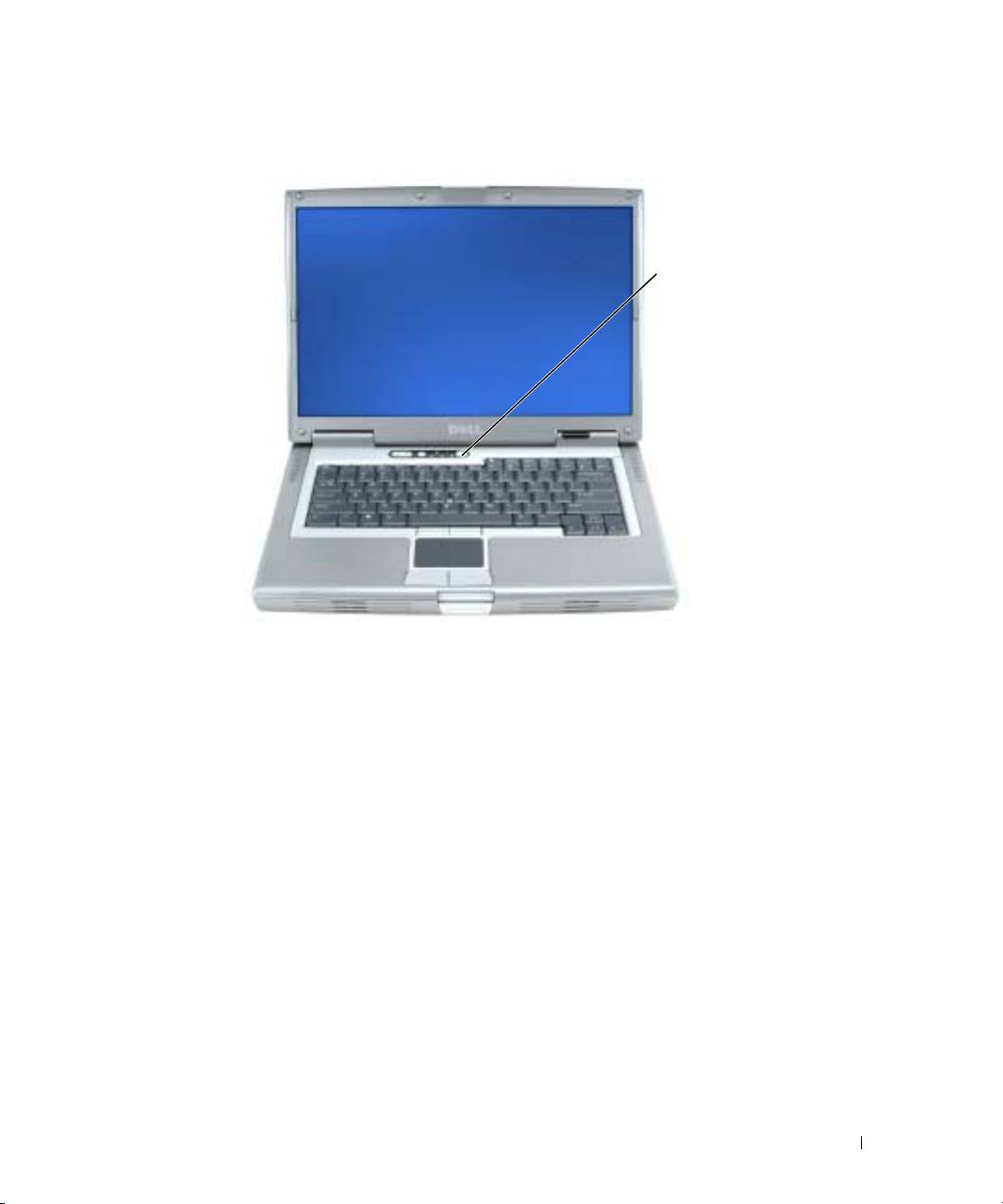
4
Open the computer display and press the power button to turn on the computer.
power button
About Your Computer
See your online
User’s Guide
for detailed information about your computer. Depending on your
operating system, double-click the
User’s Guide
icon on your desktop, or click the
Start
button,
click
Help and Support Center
, and then click
User and system guides
. The following items
address some of the more commonly asked questions about the computer.
•
Modem and network adapter:
The computer may include both a v.92 56K modem and a
10/100/1000 Ethernet LOM network adapter. For connector locations, see "Back View" on
page 12. For more information on ports and connectors, see "About Your Computer" in your
online
User’s Guide
.
•
Battery life and usage:
Various batteries are available for use with your computer. Using the
battery that comes standard with the computer, you can expect from 3 to 4 hours of operating
time from a single fully charged battery with average usage. Performing certain types of
operations, such as extended wireless operation, can significantly reduce battery life.
– For more information on battery performance, usage, and conserving power, see your
online
User’s Guide
.
– For information on an optional second battery, see your online
User’s Guide
.
Quick Reference Guide 9
