
Dell Precision 650 – page 3
Manual for Dell Precision 650
Table of contents
- Notes, Notices, and Cautions Abbreviations and Acronyms
- Contents
- Finding Information and Assistance What Are You Looking For? Find it Here
- What Are You Looking For? Find it Here
- What Are You Looking For? Find it Here
- What Are You Looking For? Find it Here
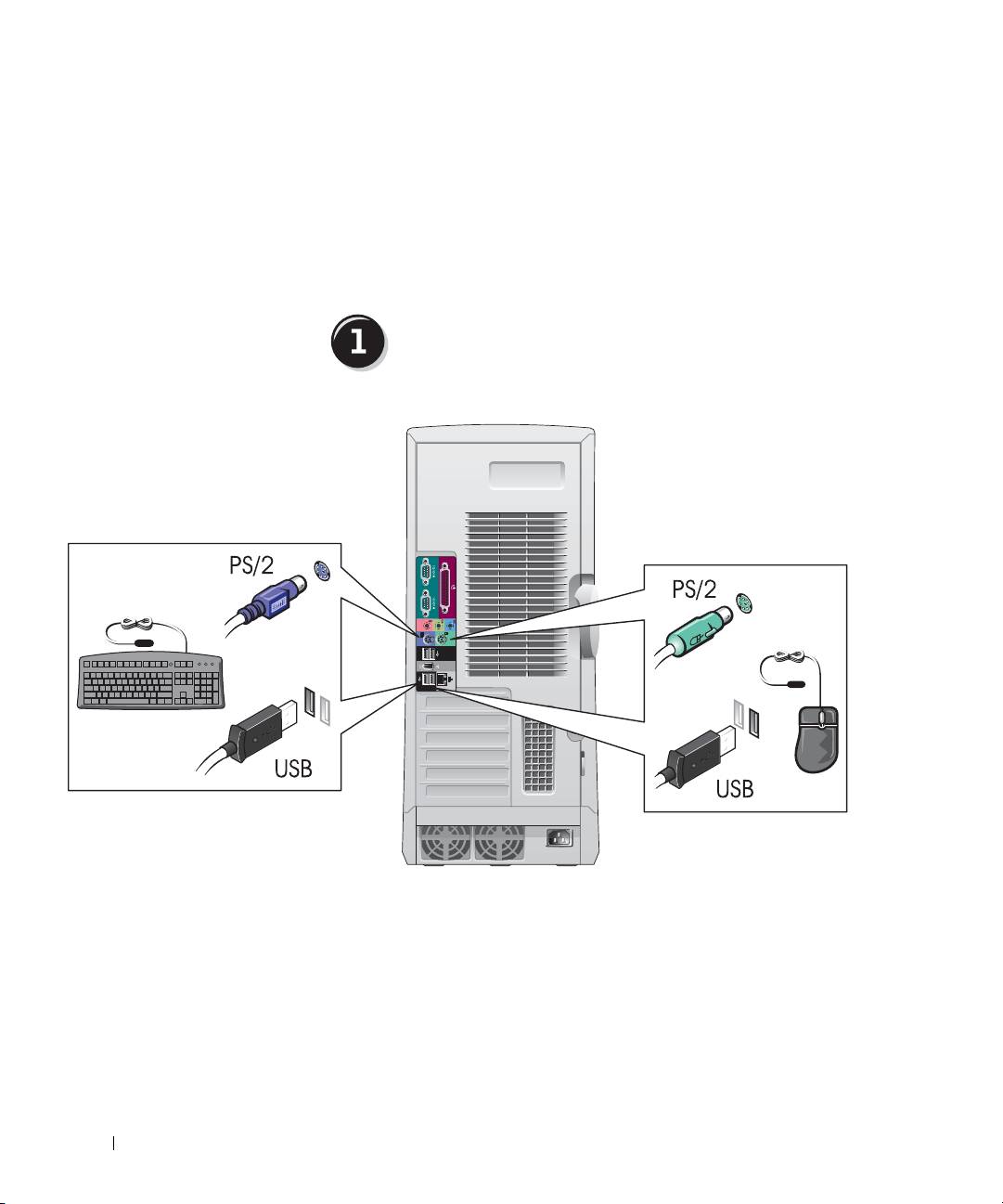
- Setting Up Your Dell Precision™ 650 Computer Connect the keyboard and the mouse
- Connect the modem or the network cable
- Connect the monitor
- For single- and dual-monitor capable cards with a single connector
- For dual-monitor capable cards with 1 DVI and 1 VGA connector For dual-monitor capable cards with 2 DVI connectors
- Connect the speakers
- Connect the power cables and turn on the computer and monitor
- Install additional software or devices
- To access the User’s Guide from your hard drive: To access the User’s Guide from the CD: To access your User’s Guide from the Dell Support Site:
- Setting Up Your Dell Precision 450 Computer Connect the keyboard and mouse
- Connect the modem or network cable
- Connect the monitor
- For single- and dual-monitor capable cards with a single connector
- For dual-monitor capable cards with 1 DVI and 1 VGA connector For dual-monitor capable cards with 2 DVI connectors
- Connect the speakers
- Connect the power cables and turn on the computer and monitor
- Install Additional Software or Devices
- To access the User’s Guide from your hard drive: To access the User’s Guide from the CD: To access your User’s Guide from the Dell Support Site: Caring for Your Computer
- Solving Problems Resolving Software and Hardware Incompatibilities Windows XP
- Windows 2000
- Using System Restore in Windows XP Creating a Restore Point Restoring the Computer to an Earlier Operating State
- Using Last Known Good Configuration Other Options to Help Resolve Additional Device or Software Conflicts When to Use the Dell Diagnostics
- Starting the Dell Diagnostics Starting the Dell Diagnostics From Your Hard Drive
- Starting the Dell Diagnostics From the Drivers and Utilities CD Dell Diagnostics Main Menu Option Function
- Tab Function
- System Lights Power Light Hard-Drive Cause Corrective Action Light
- Power Light Hard-Drive Cause Corrective Action Light Beep Codes Error Messages Diagnostic Lights
- Diagnostic Light Codes Before POST Light Pattern Problem Description Suggested Resolution
- Light Pattern Problem Description Suggested Resolution Diagnostic Light Codes During POST Light Pattern Problem Description Suggestion Resolution
- Light Pattern Problem Description Suggestion Resolution
- Light Pattern Problem Description Suggestion Resolution
- Light Pattern Problem Description Suggestion Resolution
- Light Pattern Problem Description Suggestion Resolution
- Frequently Asked Questions How Do I... Solution Where to Find Additional Information
- How Do I... Solution Where to Find Additional Information
- Opening the Computer Cover
- Dell Precision 650 Computer
- Inside the Dell Precision 650 Computer
- Dell Precision 450 Computer
- Inside the Dell Precision 450 Computer
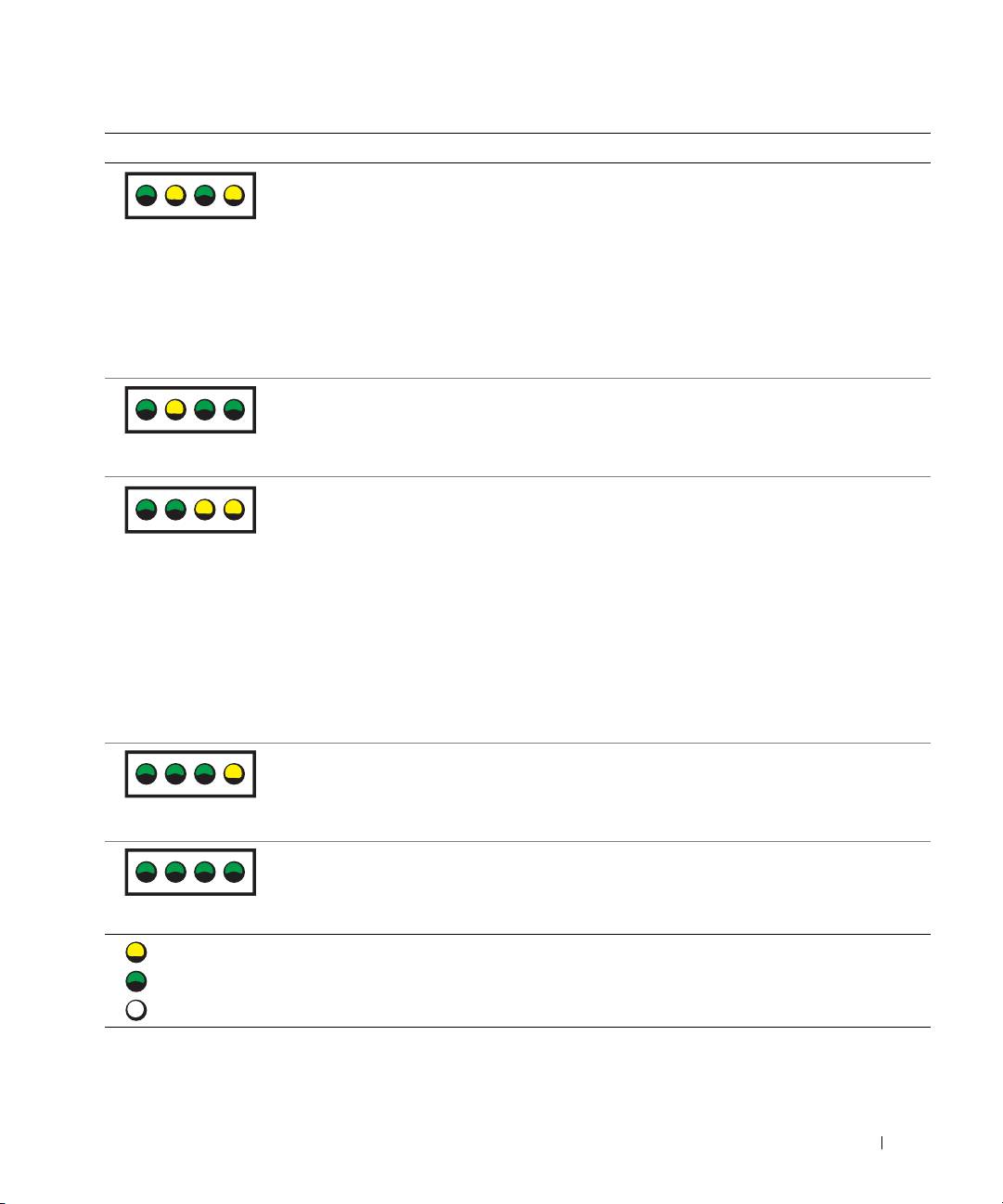
Light Pattern Problem Description Suggestion Resolution
Memory modules are
Ensure that there are no special memory
detected, but a memory
module/memory connector placement requirements
configuration or
(see "Memory" in your User’s Guide).
A B C D
compatibility error exists.
Verify that the memory modules that you are
installing are compatible with your computer (see
"Memory" in your User’s Guide).
Reinstall the memory modules and then restart the
computer.
If the problem persists, contact Dell.
A possible system board
Perform the procedure in "System Board Problem" and
resource and/or hardware
see "Resolving Software and Hardware
failure has occurred.
Incompatibilities" in your User’s Guide.
A B C D
If the problem persists, contact Dell.
A possible expansion card
1 Determine if a conflict exists by removing a card
failure has occurred.
(not the graphics card) and then restarting the
computer.
A B C D
2 If the problem persists, reinstall the card that you
removed, remove a different card, and then restart
the computer.
3 Repeat this process for each card. If the computer
starts normally, troubleshoot the last card removed
from the computer for resource conflicts (see
"Resolving Software and Hardware
Incompatibilities" in your User’s Guide).
4 If the problem persists, contact Dell.
Other failure has occurred. Ensure that the cables are properly connected from
the hard drive, CD drive, and DVD drive to the
system board.
A B C D
If the problem persists, contact Dell.
The computer is in a
None.
normal operating condition
after POST.
A B C D
= yellow
= green
= off
Setup and Quick Reference Guide 41

If a computer problem occurs that you are unable to resolve through the
steps in this section or the procedures in "Finding Solutions" in your User’s
Guide, complete the following steps before you contact Dell:
1 Write a detailed description of the error, beep code, or diagnostic light
problem.
2 Record your Express Service Code and Service Tag.
3 Contact Dell from the same location as your computer.
Frequently Asked Questions
www.dell.com | support.dell.com
How Do I... Solution Where to Find Additional
Information
Set up my computer to use two
If your computer has the required
To locate additional information
monitors?
graphics card to support dual-
about using dual monitors, see the
monitor setup, then look in your
graphics card documentation on
box for a Y-cable. The cable has a
the Drivers and Utilities CD.
single connector on one end (plug
this connector into the back panel)
and branches into two connectors
(plug these connectors in the
monitor cables). For the Dell
Precision 650 computer, see
"Connect the monitor" on page 11
and for the Dell Precision 450
computer, see "Connect the
monitor" on page 20.
Connect my monitor when the
If your graphics card has a DVI
Contact Dell Support for more
monitor cable connector doesn’t
connector but your monitor has a
information.
seem to fit the connector on the
VGA connector, then you need to
back of my computer?
use an adapter. An adapter should
be included in the box.
Connect my speakers? If you have a sound card installed,
See the documentation that came
connect the speakers to the
with your speakers for more
connectors on the card. For the
information.
Dell Precision 650 computer, see
"Connect the speakers" on page 14
and for the Dell Precision 450
computer, see "Connect the
speakers" on page 23.
42 Setup and Quick Reference Guide

How Do I... Solution Where to Find Additional
Information
Find the right connectors for my
Your Dell Precision 650 computer
See the front and back view
USB or IEEE 1394 devices?
has six USB connectors (two on
graphics of your computer in your
the front and four on the back). It
User’s Guide. For help with
also has two IEEE 1394 connectors
locating your User’s Guide, see
(one on the front and one on the
"Finding Information and
back). See "Setting Up Your Dell
Assistance" on page 5.
Precision™ 650 Computer" on
page 9.
Your Dell Precision 450 computer
has six USB connectors (two on
the front and four on the back).
See "Setting Up Your Dell
Precision 450 Computer" on
page 18.
Locate information about the
Yo u r User’s Guide has a
Go to the Dell Support website at
hardware and other technical
specifications table that provides
support.dell.com and use one of
specifications for my computer?
more detailed information about
the following support tools: read
your computer and the hardware.
white papers on the latest
To locate your User’s Guide, see
technology or communicate with
"Finding Information and
other Dell users at the Dell forum
Assistance" on page 5.
chat room.
Find documentation for my
The following documentation is
If you lose your documentation, it
computer?
available for your computer:
is available on the Dell Support
• User’s Guide
website at support.dell.com.
• Setup and Quick Reference
Guide
• System Information Guide
• System Information Label
• Service Manual
To locate these documents, see
"Finding Information and
Assistance" on page 5.
Setup and Quick Reference Guide 43

Opening the Computer Cover
. CAUTION: Before you begin any of the procedures in this
section, follow the safety instructions in the System Information
Guide.
1
Shut down the computer through the Start menu.
2 Ensure that your computer and attached devices are turned off. If your
computer and attached devices did not automatically turn off when
you shut down your computer, turn them off now.
NOTICE: To disconnect a network cable, first unplug the cable from your
computer and then unplug it from the network wall jack.
www.dell.com | support.dell.com
3
Disconnect any telephone or telecommunication lines from the
computer.
4 Disconnect your computer and all attached devices from electrical
outlets, and then press the power button to ground the system board.
5 If you have installed a padlock through the padlock ring on the back
panel, remove the padlock.
CAUTION: To guard against electrical shock, always unplug your
computer from the electrical outlet before opening the cover.
6
Lay the computer on its side as shown in the illustration.
NOTICE: Ensure that sufficient space exists to support the open cover—at
least 30 am (1 ft) of desktop space.
7
Open the computer cover:
a Slide the cover release latch toward the top of the computer.
b Raise the cover, and pivot it toward the front of the computer.
8 Ground yourself by touching an unpainted metal surface on the
computer, such as the metal at the back of computer, before touching
anything inside your computer.
While you work, periodically touch any unpainted metal surface on
the computer to dissipate any static electricity that could harm
internal components.
44 Setup and Quick Reference Guide
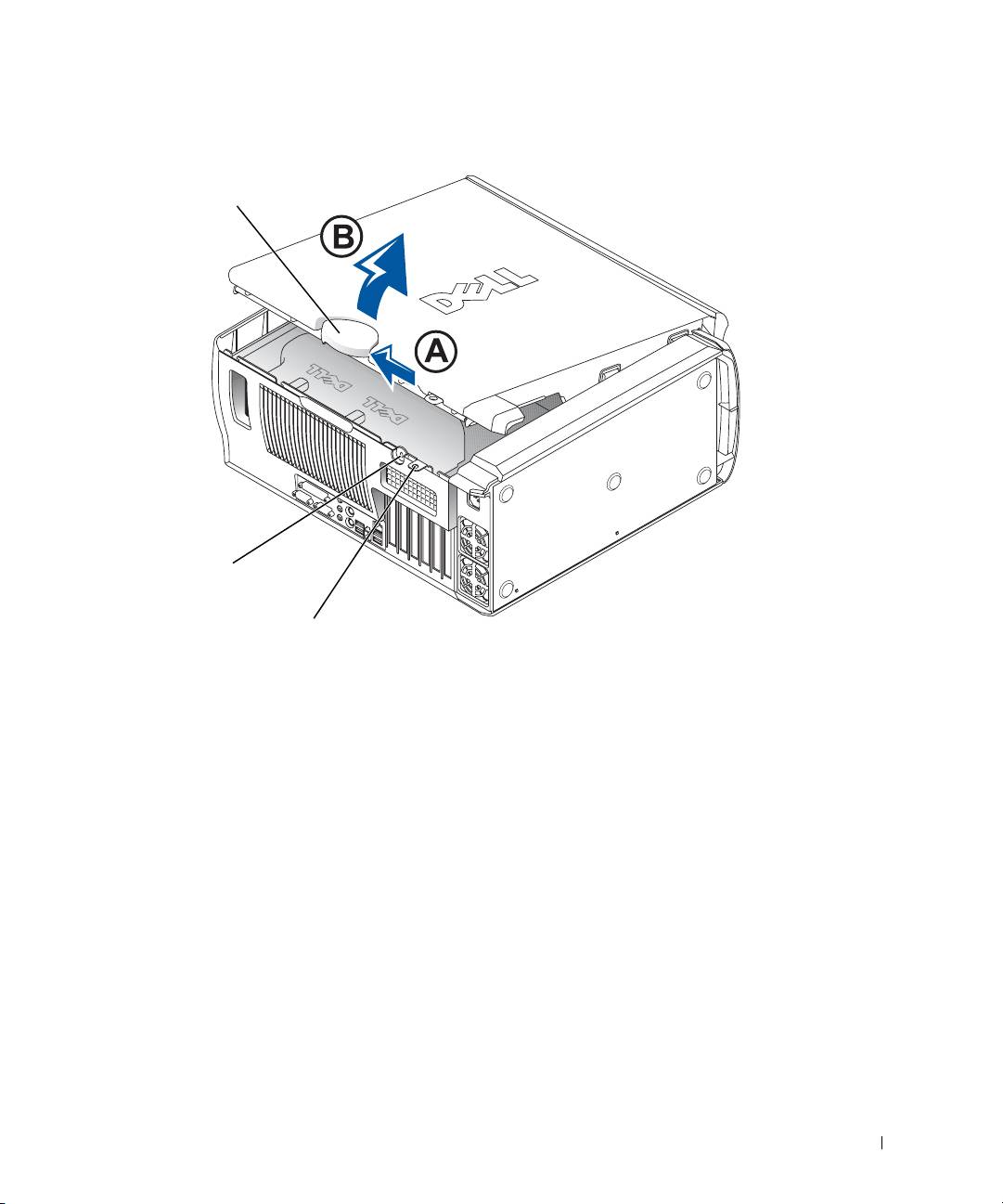
Dell Precision 650 Computer
cover release latch
security cable slot
padlock ring
Setup and Quick Reference Guide 45
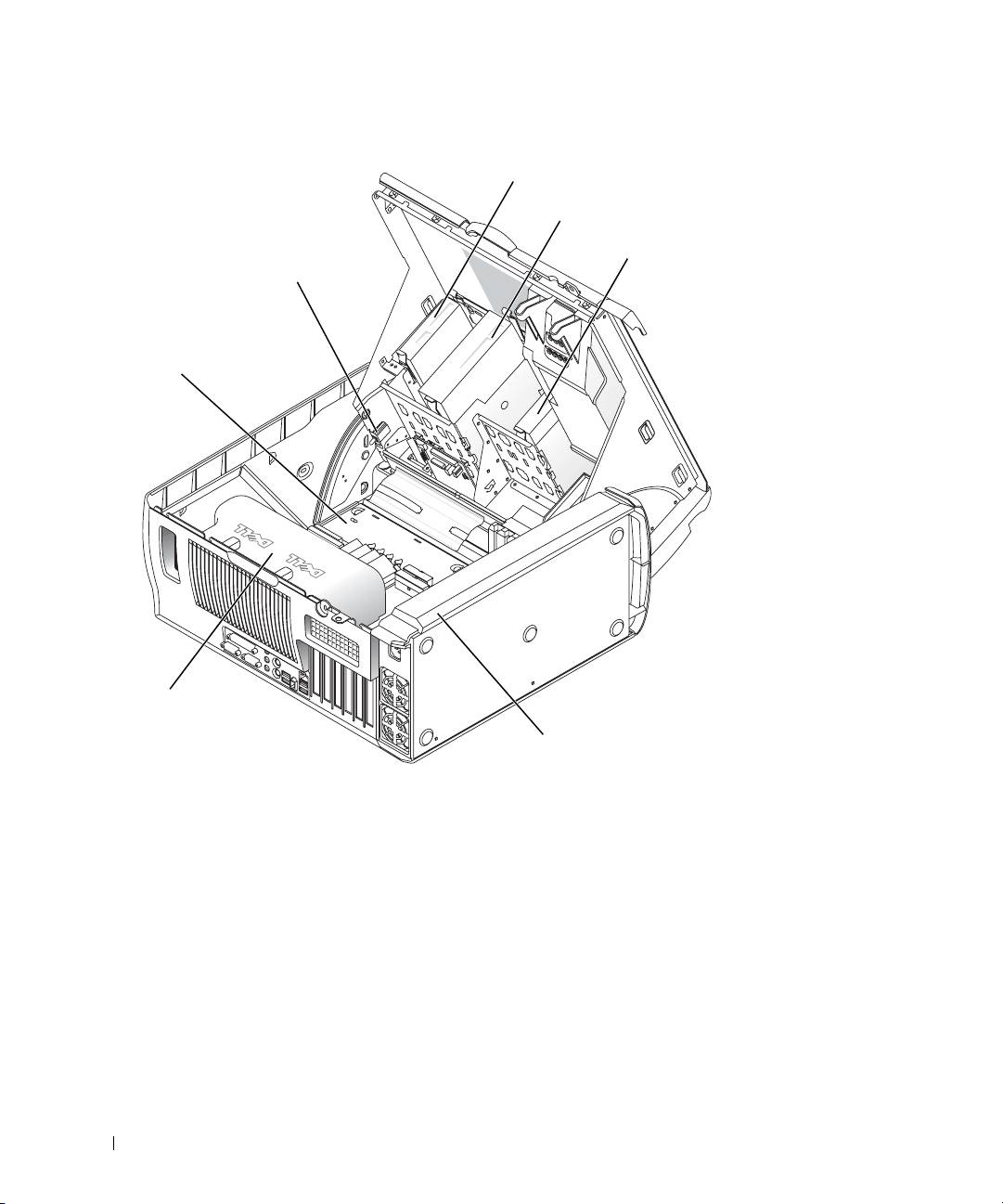
Inside the Dell Precision 650 Computer
floppy drive
CD/DVD drive
hard drive
chassis intrusion switch
system board
www.dell.com | support.dell.com
microprocessor
airflow shroud
power supply
46 Setup and Quick Reference Guide
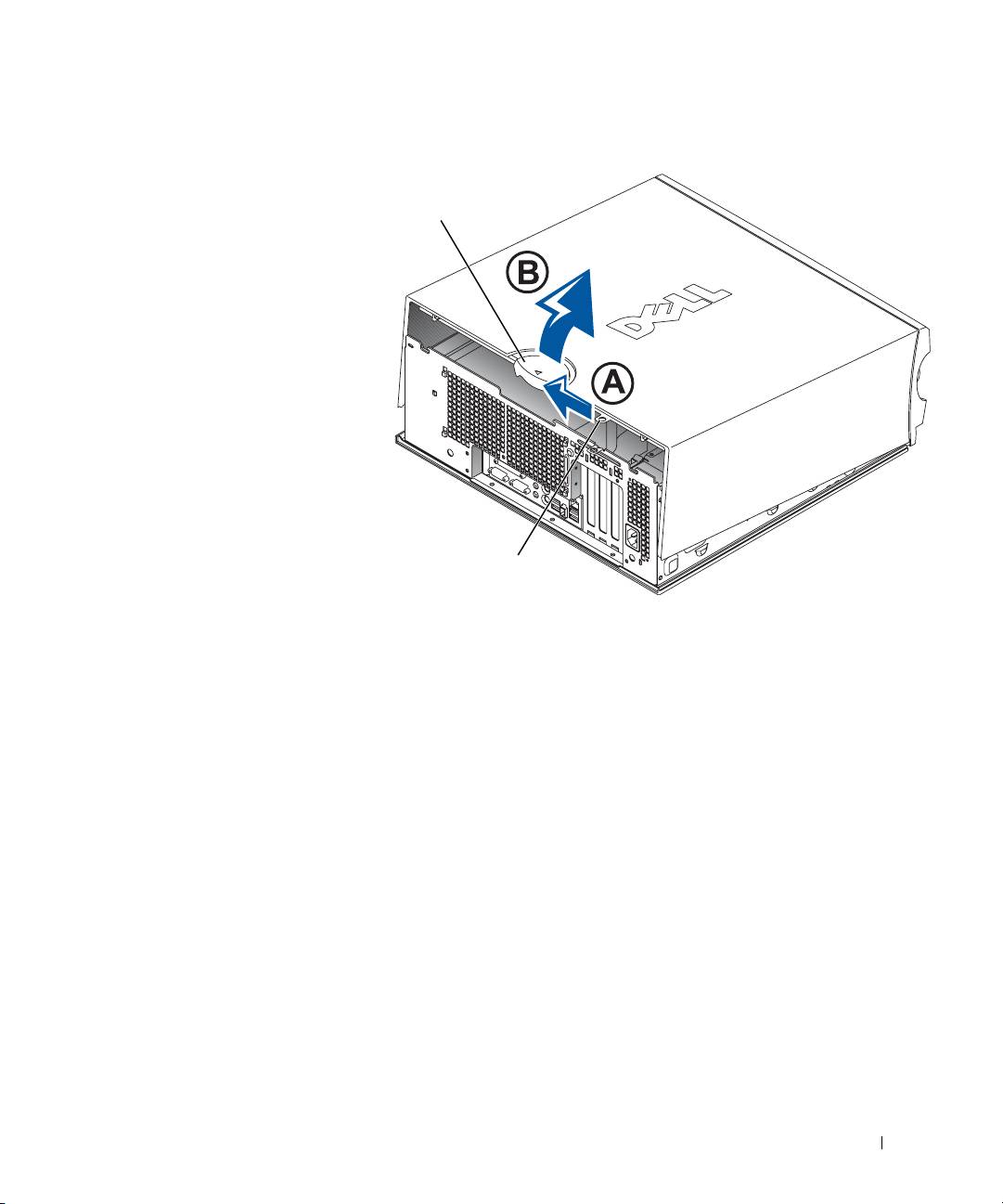
Dell Precision 450 Computer
cover release latch
padlock ring
Setup and Quick Reference Guide 47
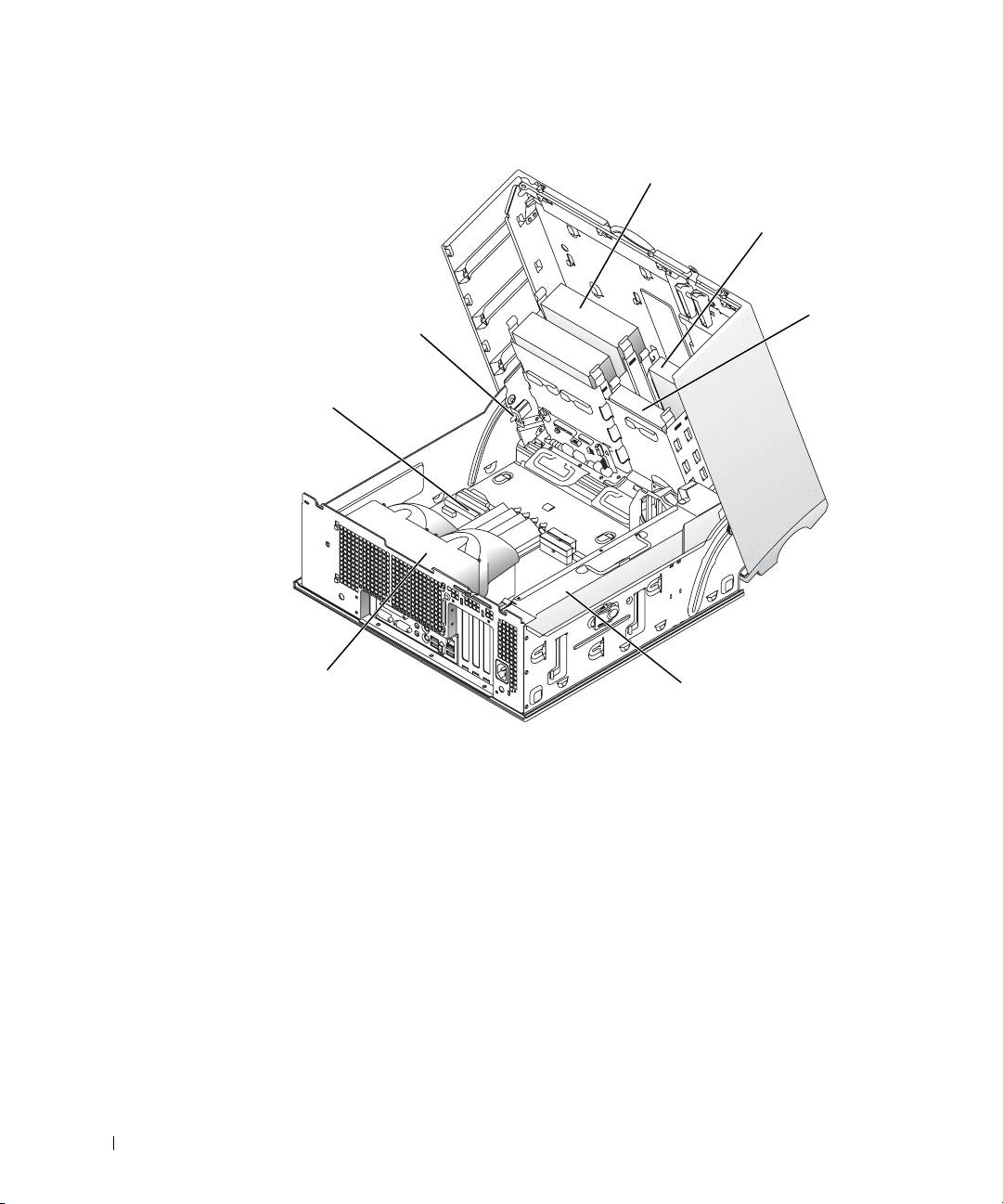
Inside the Dell Precision 450 Computer
CD/DVD drive
floppy drive
hard drive
chassis intrusion switch
www.dell.com | support.dell.com
system board
microprocessor
airflow shroud
power supply
48 Setup and Quick Reference Guide

Komputery Dell Precision™ Workstation 450 i 650
Informator o systemie
i konfiguracji
www.dell.com | support.euro.dell.com

Uwagi, przypomnienia i ostrzeżenia
UWAGA: UWAGA wskazuje wan informacj, pozwalajc lepiej
wykorzystać posiadany system komputerowy.
PRZYPOMNIENIE: Sekcja PRZYPOMNIENIE informuje o sytuacjach,
w których wystpuje ryzyko uszkodzenia sprztu lub utraty danych
i przedstawia sposoby uniknicia problemu.
OSTROŻNIE: Sekcja OSTROŻNIE informuje o sytuacjach,
w których występuje ryzyko uszkodzenia sprzętu,
uszkodzenia ciała lub śmierci.
Skróty i skrótowce
Pełn list skrótów i skrótowców mona znaleć w sekcji „Słowniczek”
w
Przewodniku uytkownika
.
____________________
Informacje zawarte w tym dokumencie mogą ulec zmianie bez uprzedzenia.
© 2002 Dell Computer Corporation. Wszelkie prawa zastrzeżone.
Powielanie w jakikolwiek sposób bez pisemnego zezwolenia od firmy Dell Computer Corporation
jest surowo zabronione.
Znaki towarowe użyte w tekście: Dell, logo DELL i Dell Precision są znakami towarowymi firmy
Dell Computer Corporation; Microsoft i Windows są zastrzeżonymi znakami towarowymi firmy
Microsoft Corporation.
Tekst może zawierać także inne znaki towarowe i nazwy towarowe, odnoszące się do podmiotów
posiadających prawa do tych znaków i nazw lub do ich produktów. Firma Dell Computer Corporation
nie rości sobie praw do jakichkolwiek znaków towarowych i nazw towarowych, których nie jest
prawnym właścicielem.
Grudzień 2002 N/K 7T144 Wersja A01

Spis treści
Wyszukiwanie informacji i uzyskiwanie pomocy . . . . . . . 53
Konfigurowanie komputera Dell Precision™ 650
. . . . . . 58
Podłcz klawiatur i mysz
. . . . . . . . . . . . . . . . . . 58
Podłcz modem lub kabel sieciowy
. . . . . . . . . . . . . . 59
Podłcz monitor
. . . . . . . . . . . . . . . . . . . . . . . 60
Podłcz głoniki
. . . . . . . . . . . . . . . . . . . . . . . 63
Podłcz kable zasilania i włcz komputer oraz monitor
. . . . 64
Zainstaluj dodatkowe oprogramowanie lub urzdzenia
. . . . 65
Konfigurowanie komputera Dell Precision 450
. . . . . . . 67
Podłcz klawiatur i mysz
. . . . . . . . . . . . . . . . . . 67
Podłcz modem lub kabel sieciowy
. . . . . . . . . . . . . . 68
Podłcz monitor
. . . . . . . . . . . . . . . . . . . . . . . 69
Podłcz głoniki
. . . . . . . . . . . . . . . . . . . . . . . 72
Podłcz kable zasilania i włcz komputer oraz monitor
. . . . 73
Zainstaluj dodatkowe oprogramowanie lub urzdzenia
. . . . 74
Obchodzenie się z komputerem
. . . . . . . . . . . . . . . 76
Rozwiązywanie problemów
. . . . . . . . . . . . . . . . . . 76
Rozwizywanie problemów dotyczcych niezgodnoci
oprogramowania i sprztu
. . . . . . . . . . . . . . . . . . 77
Korzystanie z funkcji System Restore (Przywracanie systemu)
w systemie Windows XP
. . . . . . . . . . . . . . . . . . . 79
Korzystanie z funkcji Last Known Good Configuration
(Ostatnia znana dobra konfiguracja)
. . . . . . . . . . . . . 80
Kiedy uywać programu Dell Diagnostics
. . . . . . . . . . . 81
Uruchamianie programu Dell Diagnostics
. . . . . . . . . . . 82
Lampki systemowe
. . . . . . . . . . . . . . . . . . . . . . 85
Spis treci 51

Kody dwikowe . . . . . . . . . . . . . . . . . . . . . . 86
Komunikaty o błdach
. . . . . . . . . . . . . . . . . . . . 87
Lampki diagnostyczne
. . . . . . . . . . . . . . . . . . . . 87
Często zadawane pytania
. . . . . . . . . . . . . . . . . . . 95
Otwieranie obudowy komputera
. . . . . . . . . . . . . . . 97
52 Spis treci
Wyszukiwanie informacji
i uzyskiwanie pomocy
Ponisza tabela przedstawia zasoby udostpniane przez firm Dell jako
narzdzia pomocy. Dodatkowe zasoby mog być dostarczone
zkomputerem uytkownika.
Szukane informacje Znajdziesz je tutaj
• Program diagnostyczny dla komputera
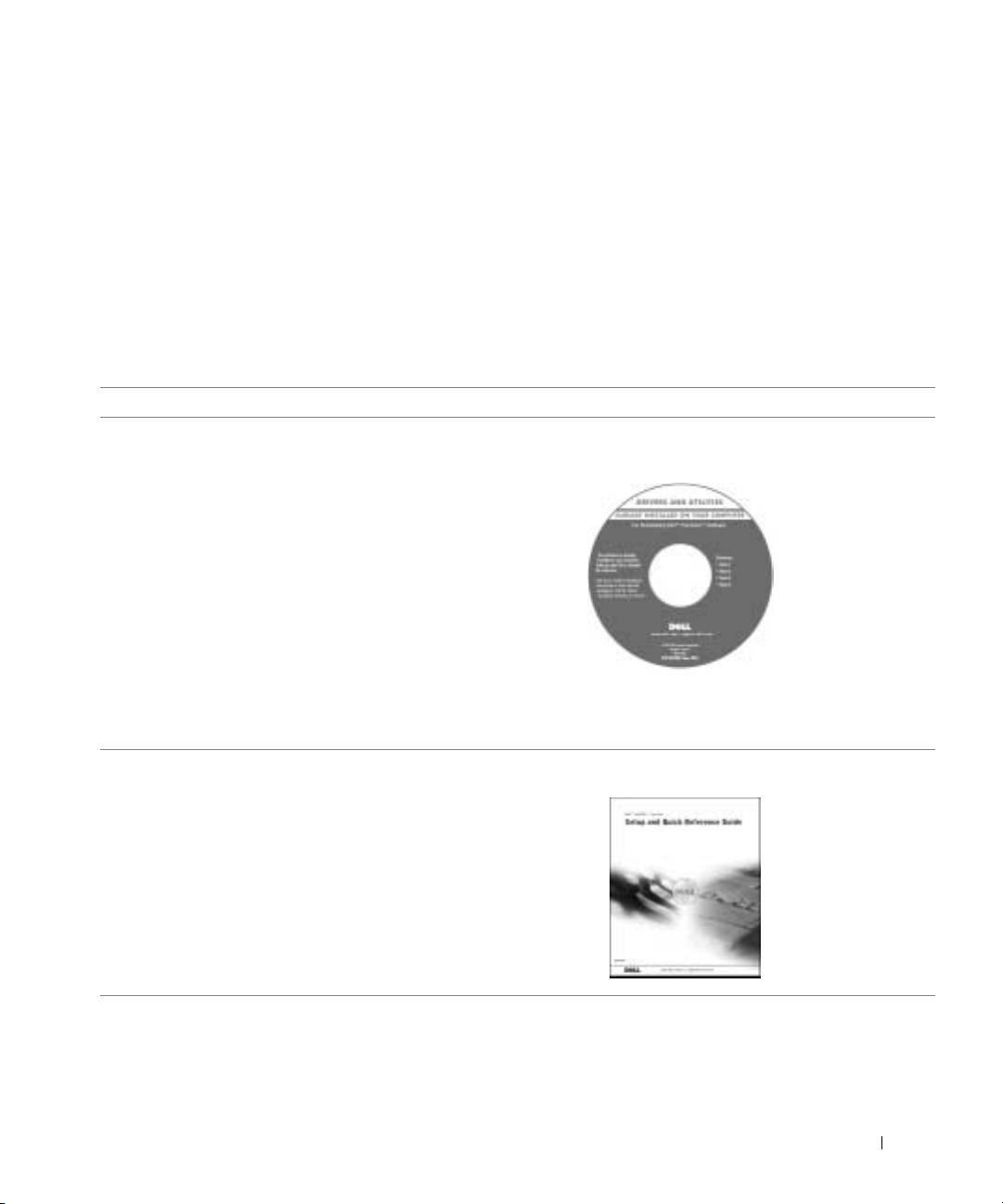
Dysk CD Drivers and Utilities (nazywany także
• Sterowniki dla komputera
dyskiem ResourceCD)
• Przewodnik uytkownika
• Dokumentacja urzdze
Tego dysku CD mona uyć w celu uzyskania dostpu do dokumentacji,
ponownego zainstalowania sterowników lub uruchomienia narzdzi
diagnostycznych.
•Jak skonfigurować komputer
Informator o systemie i konfiguracji
• Jak obchodzić si z komputerem
• Informacje dotyczce rozwizywania
problemów
• Jak otwierać pokryw komputera
• Jak szukać innej dokumentacji
Informator o systemie i konfiguracji 53
Szukane informacje Znajdziesz je tutaj
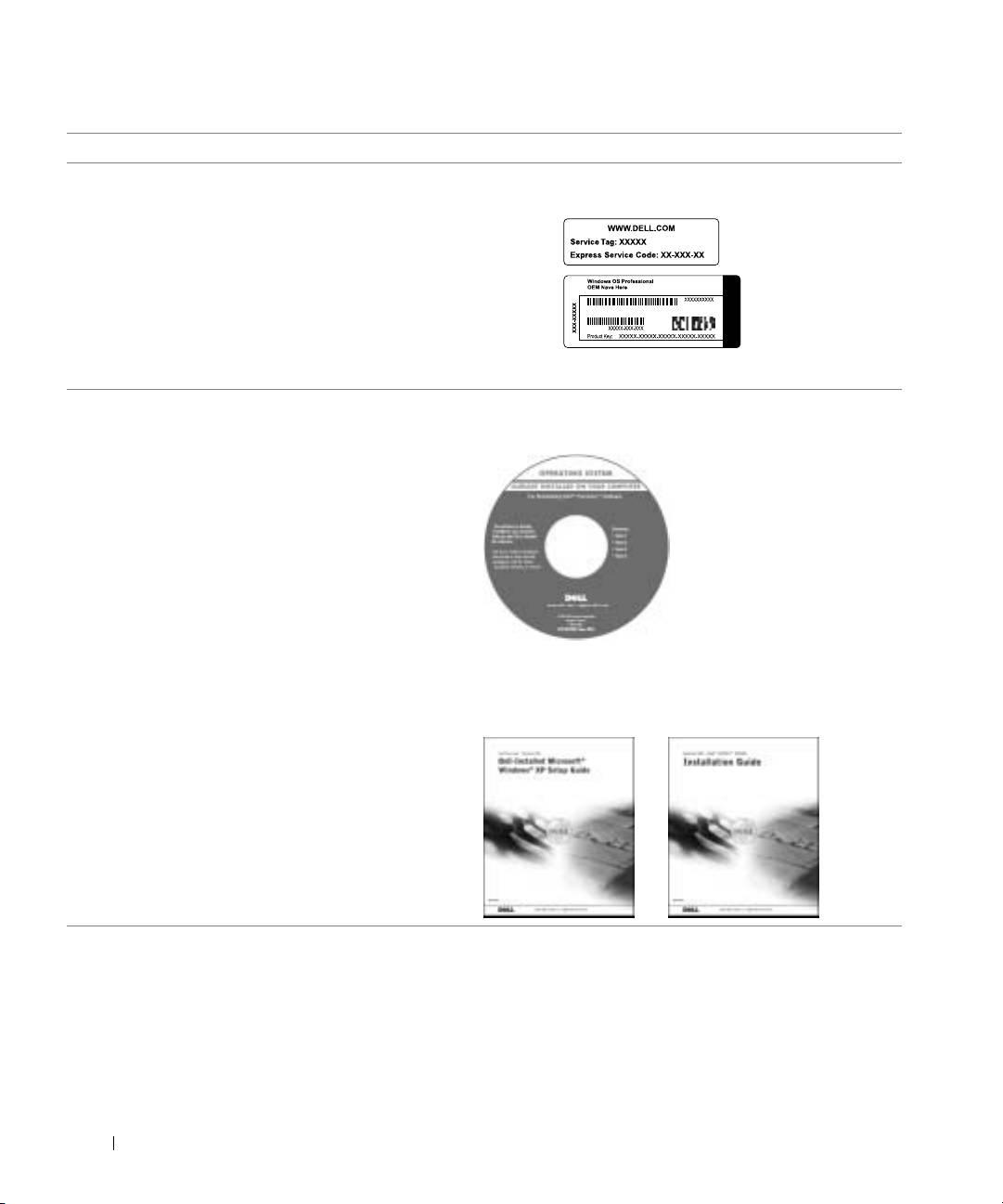
• Kod ekspresowej obsługi i znacznik usługi
Kod ekspresowej obsługi i klucz produktu
•Etykieta licencji systemu Microsoft
Windows
Etykiety znajduj si na komputerze.
• Jak ponownie zainstalować system
Dysk CD z systemem operacyjnym i przewodnik
operacyjny
instalacji
www.dell.com | support.euro.dell.com
Po dokonaniu ponownej instalacji systemu operacyjnego naley uyć
dysku CD
Drivers and Utilities
w celu ponownego zainstalowania
sterowników urzdze dostarczonych wraz z komputerem.
54 Informator o systemie i konfiguracji
Szukane informacje Znajdziesz je tutaj
• Jak wyjmować i wymieniać podzespoły
Ikona przewodnika użytkownika (Microsoft
• Parametry techniczne
Windows 2000)
• Jak konfigurować ustawienia systemowe
•Jak rozwizywać problemy
Kliknij dwukrotnie ikon User’s Guide (Przewodnik uytkownika)
na pulpicie.
Centrum pomocy i obsługi technicznej systemu
Windows XP
1 Kliknij przycisk Start i kliknij pozycj Help and Support (Pomoc
iobsługa techniczna).
2 Kliknij opcj User’s Guide (Przewodnik uytkownika).
• Lokalizacja złczy na płycie systemowej Etykieta z informacjami o systemie
lub
Etykieta jest umieszczona na wewntrznej stronie obudowy komputera.
Informator o systemie i konfiguracji 55
Szukane informacje Znajdziesz je tutaj
• Najnowsze sterowniki dla komputera
Witryna sieci Web pomocy technicznej firmy
• Odpowiedzi na pytania dotyczce obsługi
D el l – support.euro.dell.com
technicznej i pomocy
Witryna pomocy technicznej firmy Dell udostpnia kilka narzdzi online,
• Dyskusje online z innymi uytkownikami
takich jak:
i pomoc techniczna
• Knowledge Base – Baza wiedzy zawierajca wskazówki, porady
• Dokumentacja komputera zawierajca
ikursy online
Podrcznik serwisowy
• Customer Forum – Forum klientów umoliwiajce dyskusje online
z innymi klientami firmy Dell
• Upgrades – Informacje dotyczce uaktualnie podzespołów,
na przykład pamici, dysku twardego i systemu operacyjnego
• Customer Care – Obsługa klienta udostpniajca informacje
kontaktowe, o stanie zamówienia, gwarancyjne i dotyczce napraw
• Downloads – Pliki do pobrania zawierajce sterowniki, poprawki
www.dell.com | support.euro.dell.com
i uaktualnienia oprogramowania
• Reference – Materiały referencyjne zawierajce dokumentacj
komputera, dane techniczne produktu i informacje kontaktowe
• Status zlecenia serwisowego i historia
Witryna sieci Web Dell Premier Support –
pomocy technicznej
premiersupport.dell.com
• Główne zagadnienia techniczne dotyczce
Witryna sieci Web Dell Premier Support jest dostosowana dla klientów
komputera
korporacyjnych, rzdowych i edukacyjnych. Ta witryna moe nie być
•Czsto zadawane pytania
dostpna we wszystkich regionach.
• Pliki do pobrania
• Szczegóły konfiguracji komputera
• Umowa serwisowa dotyczca komputera
• Informacje dotyczce gwarancji Przewodnik – informacje o systemie
56 Informator o systemie i konfiguracji

Szukane informacje Znajdziesz je tutaj
•Jak korzystać z systemu Windows XP
Help and Support Center (Centrum pomocy
• Dokumentacja komputera i urzdze
i obsługi technicznej) systemu Windows XP
1 Kliknij przycisk Start i kliknij pozycj Help and Support (Pomoc
iobsługa techniczna).
2 Wpisz słowo lub fraz opisujce problem i kliknij ikon strzałki.
3 Kliknij temat opisujcy problem.
4 Postpuj zgodnie z instrukcjami wywietlanymi na ekranie.
UWAGA: Aby uzyskać pomoc w systemie Windows 2000 kliknij
przycisk Start i kliknij opcj Help (Pomoc).
Informator o systemie i konfiguracji 57
Konfigurowanie komputera Dell
Precision™ 650
Aby prawidłowo skonfigurować komputer, naley wykonać wszystkie
ponisze czynnoci.
Podłącz klawiaturę i mysz
www.dell.com | support.euro.dell.com
lub
lub
58 Informator o systemie i konfiguracji
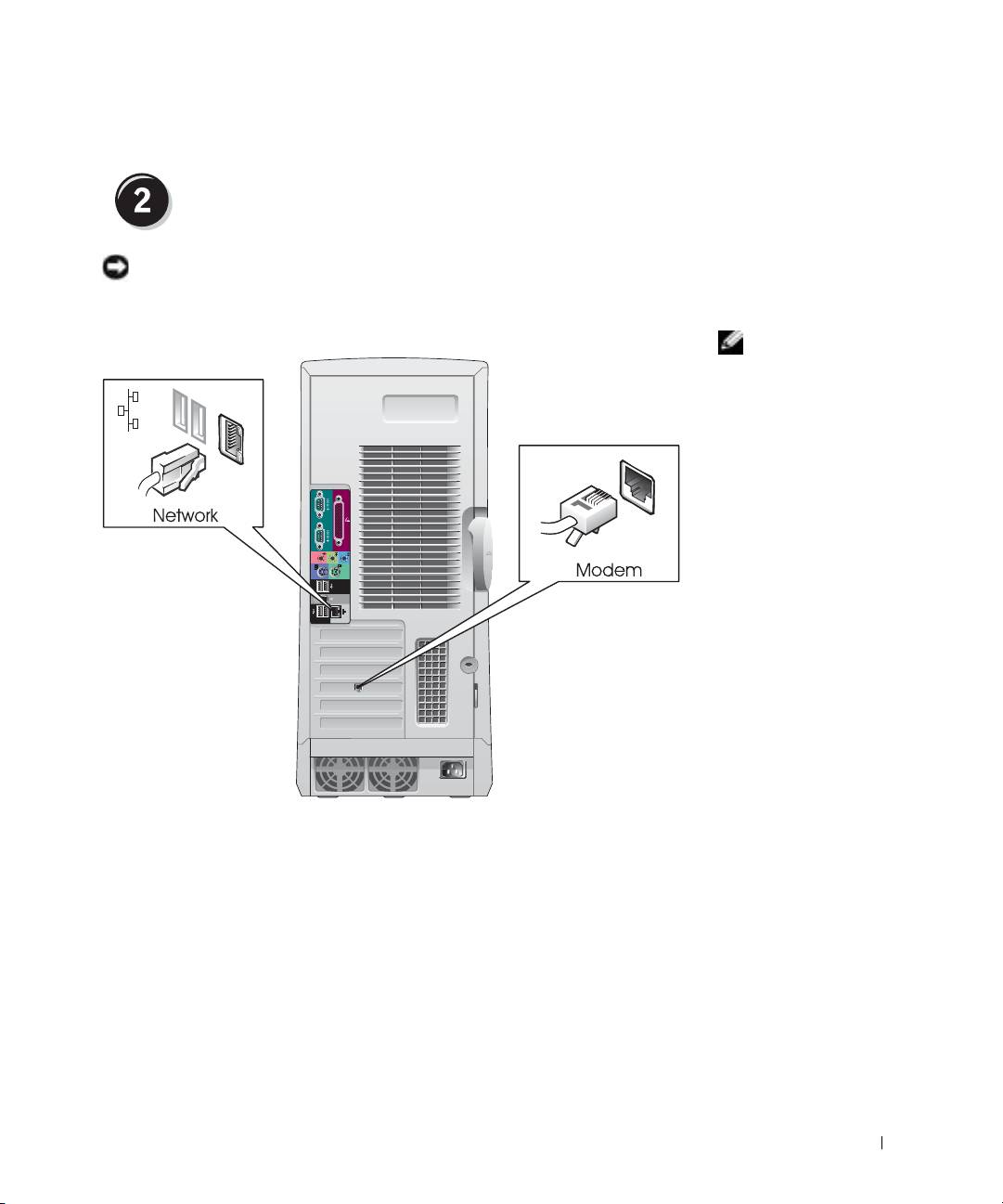
Podłącz modem lub kabel sieciowy
PRZYPOMNIENIE: Kabla modemu nie naley podłczać do karty
sieciowej. Napicie elektryczne linii telefonicznej moe uszkodzić kart
sieciow.
UWAGA: Jeli
wkomputerze znajduje
si zainstalowana karta
sieciowa, kabel sieciowy
naley podłczyć do
karty.
Informator o systemie i konfiguracji 59
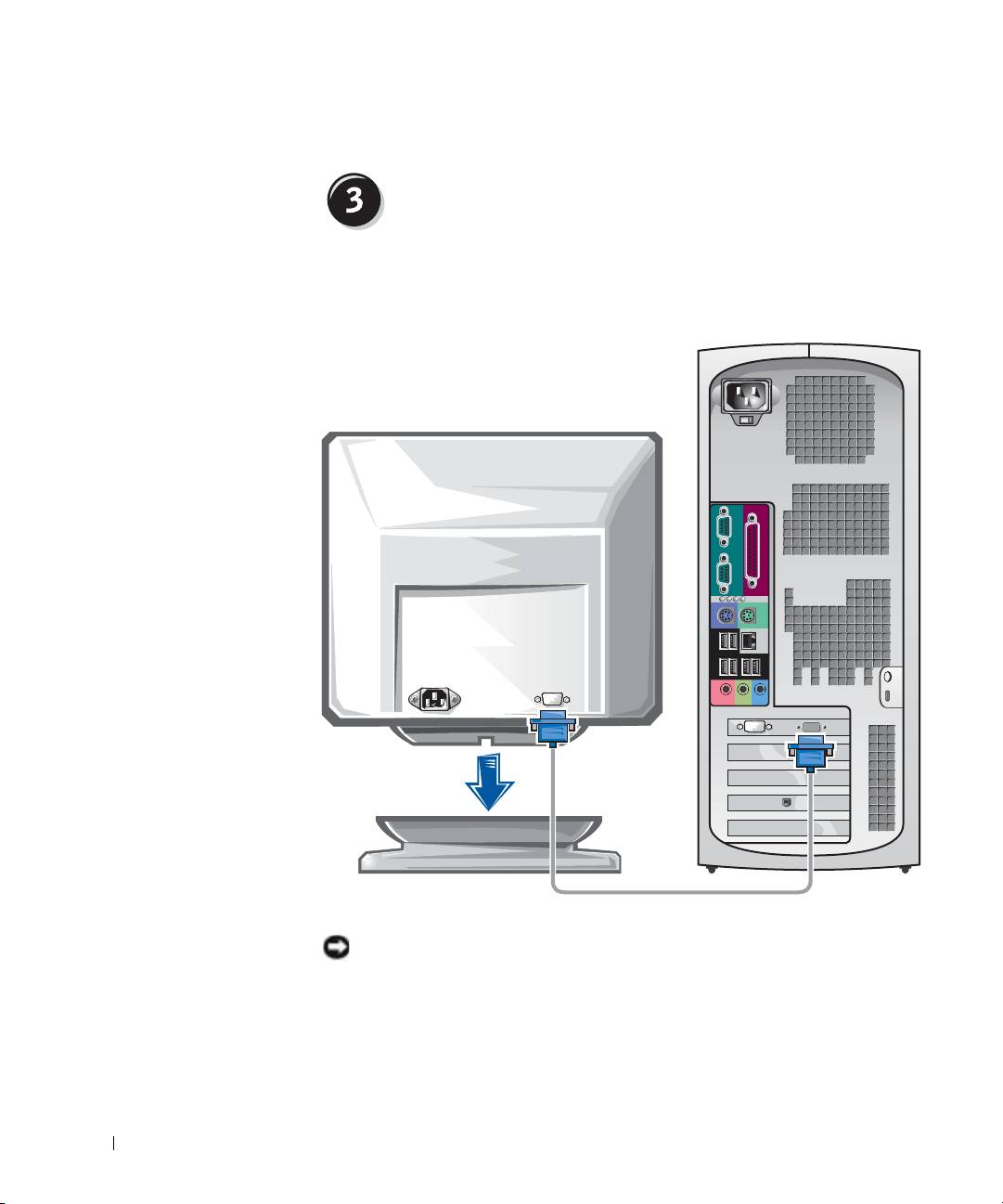
Podłącz monitor
W zalenoci od karty graficznej monitor mona podłczać na róne
sposoby.
www.dell.com | support.euro.dell.com
A B C D
PRZYPOMNIENIE: W przypadku tego komputera w celu podłczenia
monitora moe być wymagane uycie dostarczonej przejciówki lub kabla.
60 Informator o systemie i konfiguracji
