
Dell Precision 360: Monitor Connections For dual monitor capable cards with a single connector
Monitor Connections For dual monitor capable cards with a single connector: Dell Precision 360
Table of contents
- Notes, Notices, and Cautions Abbreviations and Acronyms
- Contents
- Finding Information for Your Computer What are you looking for? Find It Here
- What are you looking for? Find It Here
- What are you looking for? Find It Here
- Setting Up Your Computer
- 6 Verify that the voltage selection switch is set correctly for your location. Press the power buttons to turn on the computer and monitors.
- Mini-Tower Setup — Without Expansion Cards
- Mini-Tower Setup — With Expansion Card
- Desktop Setup — Without Expansion Cards
- Desktop Setup — With Expansion Cards
- Monitor Connections For dual monitor capable cards with a single connector
- For dual-monitor capable cards with 1 DVI and 1 VGA connector For dual-monitor capable cards with 2 DVI connectors
- Completed Setup
- Opening the Computer Cover
- While you work, periodically touch any unpainted metal surface on the computer to dissipate any static electricity that could harm internal components.
- Inside Your Computer Mini-Tower Computer
- Desktop Computer
- Solving Problems Resolving Software and Hardware Incompatibilities Microsoft Windows XP
- Windows 2000
- Using System Restore in Windows XP Creating a Restore Point Restoring the Computer to an Earlier Operating State
- Using the Last Known Good Configuration in Windows 2000 Other Options to Help Resolve Additional Device or Software Conflicts When to Use the Dell Diagnostics
- Starting the Dell Diagnostics Starting the Dell Diagnostics From Your Hard Drive Starting the Dell Diagnostics From the Drivers and Utilities CD
- Dell Diagnostics Main Menu Option Function
- Tab Function Beep Codes
- Error Messages System Lights Power Light Hard-Drive Problem Description Suggested Resolution Light
- Power Light Hard-Drive Problem Description Suggested Resolution Light
- Diagnostic Lights Light Pattern Problem Description Suggested Resolution
- Light Pattern Problem Description Suggested Resolution
- Light Pattern Problem Description Suggested Resolution
- Frequently Asked Questions How Do I... Solution Where to Find Additional Information
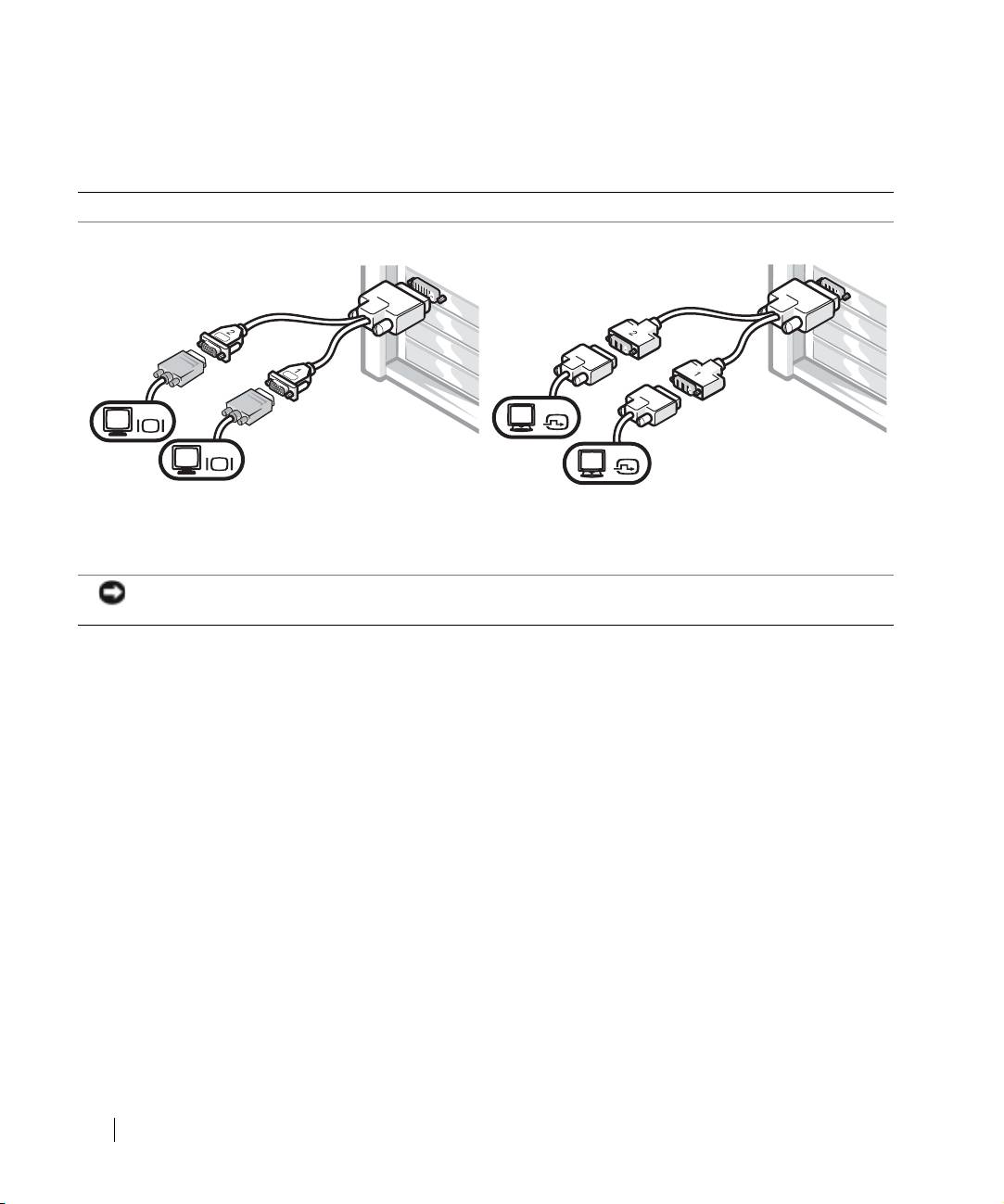
Monitor Connections
For dual monitor capable cards with a single connector
Dual VGA Y Cable Adapter
Dual DVI Y Cable Adapter
www.dell.com | support.dell.com
VGA
DVI
VGA
DVI
• This adapter cable can support one or two VGA
• This adapter cable can support one or two DVI
monitors. The cable is color coded: blue for the
monitors. The cable is color coded: blue for the
primary monitor and black for an optional secondary
primary monitor and black for an optional secondary
monitor.
monitor.
NOTICE: The Y Cable Adapter provided with your computer is unique to the graphics card in your computer.
Adapter cables from other graphics cards should not be used.
14 Setup and Quick Reference Guide
Top 10 manuals
100.00
NZXT HALE90 1000W99.99
Samsung SM-R38099.97
AEG BSB 18C99.97
Dell 2700W99.97
Smeg KSEC70X99.96
Beurer HDE 4099.96
Pyramida KH 50 v.299.96
MSI CSM-H81M-P3299.96
AEG HR 562799.95
Melissa 640-048