
Dell Precision 360: For dual-monitor capable cards with 1 DVI and 1 VGA connector For dual-monitor capable cards with 2 DVI connectors
For dual-monitor capable cards with 1 DVI and 1 VGA connector For dual-monitor capable cards with 2 DVI connectors: Dell Precision 360
Table of contents
- Notes, Notices, and Cautions Abbreviations and Acronyms
- Contents
- Finding Information for Your Computer What are you looking for? Find It Here
- What are you looking for? Find It Here
- What are you looking for? Find It Here
- Setting Up Your Computer
- 6 Verify that the voltage selection switch is set correctly for your location. Press the power buttons to turn on the computer and monitors.
- Mini-Tower Setup — Without Expansion Cards
- Mini-Tower Setup — With Expansion Card
- Desktop Setup — Without Expansion Cards
- Desktop Setup — With Expansion Cards
- Monitor Connections For dual monitor capable cards with a single connector
- For dual-monitor capable cards with 1 DVI and 1 VGA connector For dual-monitor capable cards with 2 DVI connectors
- Completed Setup
- Opening the Computer Cover
- While you work, periodically touch any unpainted metal surface on the computer to dissipate any static electricity that could harm internal components.
- Inside Your Computer Mini-Tower Computer
- Desktop Computer
- Solving Problems Resolving Software and Hardware Incompatibilities Microsoft Windows XP
- Windows 2000
- Using System Restore in Windows XP Creating a Restore Point Restoring the Computer to an Earlier Operating State
- Using the Last Known Good Configuration in Windows 2000 Other Options to Help Resolve Additional Device or Software Conflicts When to Use the Dell Diagnostics
- Starting the Dell Diagnostics Starting the Dell Diagnostics From Your Hard Drive Starting the Dell Diagnostics From the Drivers and Utilities CD
- Dell Diagnostics Main Menu Option Function
- Tab Function Beep Codes
- Error Messages System Lights Power Light Hard-Drive Problem Description Suggested Resolution Light
- Power Light Hard-Drive Problem Description Suggested Resolution Light
- Diagnostic Lights Light Pattern Problem Description Suggested Resolution
- Light Pattern Problem Description Suggested Resolution
- Light Pattern Problem Description Suggested Resolution
- Frequently Asked Questions How Do I... Solution Where to Find Additional Information
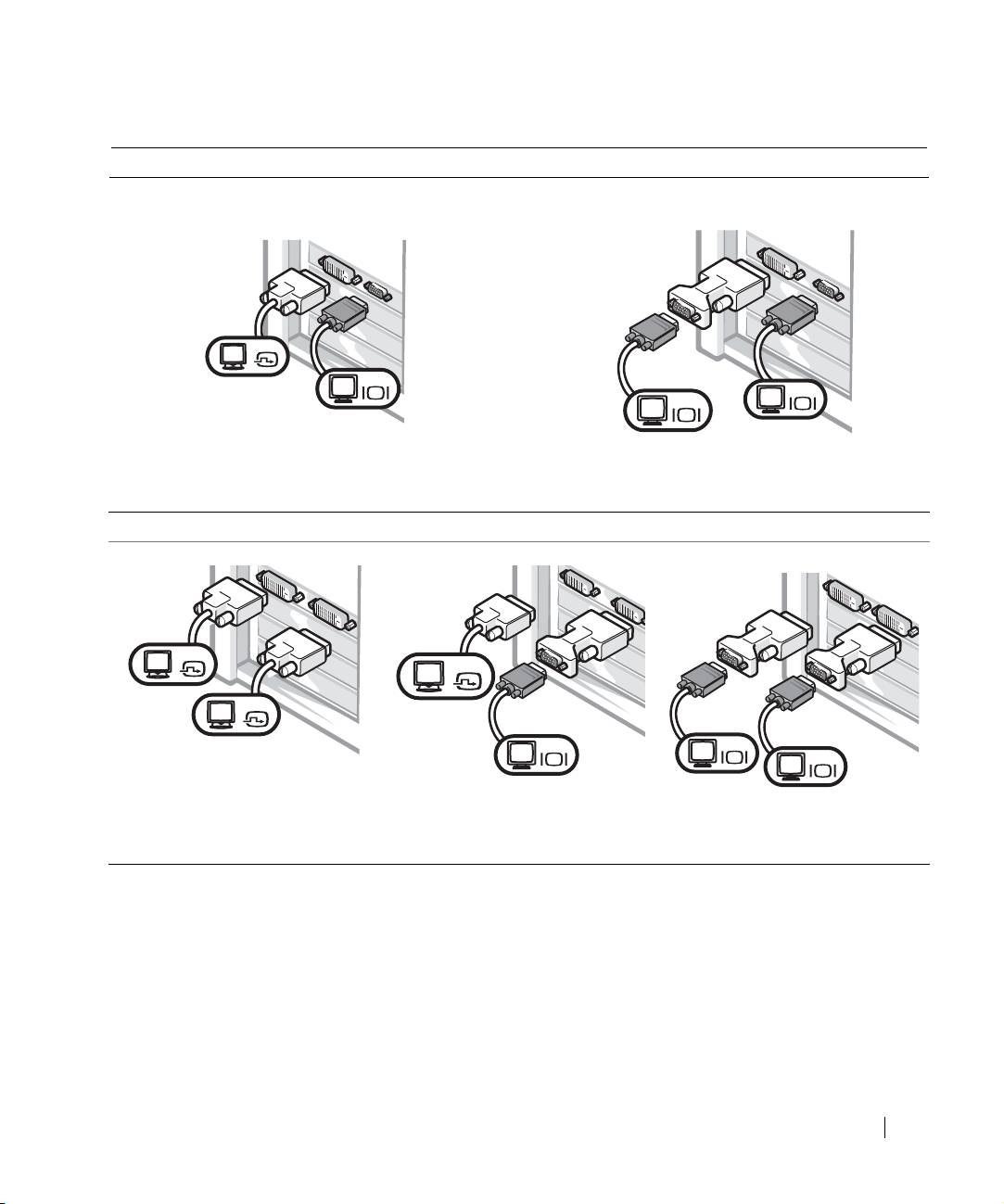
For dual-monitor capable cards with 1 DVI and 1 VGA connector
Single DVI/Single VGA
Dual VGA With VGA Adapter
DVI
VGA
VGA
VGA
• Use the appropriate connector when you connect
• Use the VGA adapter when you want to connect
to one or two monitors.
to two VGA monitors.
For dual-monitor capable cards with 2 DVI connectors
Dual DVI
Dual DVI With One VGA Adapter
Dual DVI With Two VGA Adapters
DVI
DVI
DVI
VGA
VGA
VGA
• Use the DVI connectors to
• Use the VGA adapter to connect
• Use two VGA adapters to
connect to one or two DVI
a VGA monitor to one DVI
connect two VGA monitors
monitors.
connector.
to the DVI connectors.
Setup and Quick Reference Guide 15
Top 10 manuals
100.00
NZXT HALE90 1000W99.99
Samsung SM-R38099.97
AEG BSB 18C99.97
Dell 2700W99.97
Smeg KSEC70X99.96
Beurer HDE 4099.96
Pyramida KH 50 v.299.96
MSI CSM-H81M-P3299.96
AEG HR 562799.95
Melissa 640-048