
Dell PowerEdge SC1435: Installing the System in a Rack Connecting the Keyboard, Mouse, and Monitor
Installing the System in a Rack Connecting the Keyboard, Mouse, and Monitor: Dell PowerEdge SC1435
Table of contents
- Notes, Notices, and Cautions
- System Features
- Supported Operating Systems Other Information You May Need Obtaining Technical Assistance
- Installation and Configuration Unpacking the System
- Installing the System in a Rack Connecting the Keyboard, Mouse, and Monitor
- Connecting the Power Routing the Power Cable through the Power Cable Retention Bracket
- Turning on the System Installing the Optional Bezel
- Complete the 0perating System Setup Technical Specifications Processor Expansion Bus Memory Drives
- Connectors Video Power Physical
- Environmental
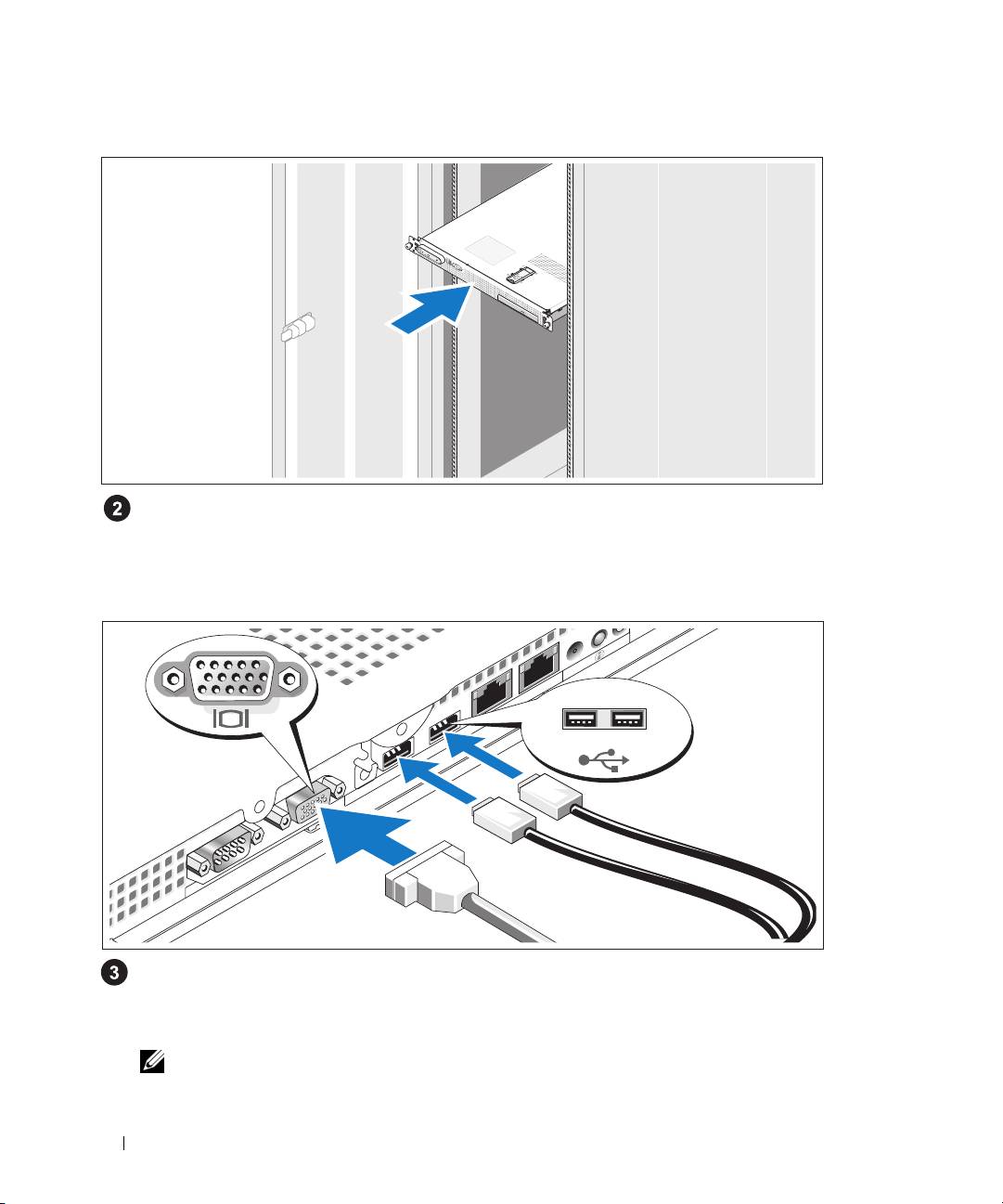
Installing the System in a Rack
Install the system in the rack once you have read the "Safety Instructions" located in the rack
installation documentation for your system.
See your rack installation documentation for instructions on installing your system in a rack.
Connecting the Keyboard, Mouse, and Monitor
Connect the keyboard, mouse, and monitor (optional).
The back of your system has icons indicating the USB and video connectors. Be sure to tighten
the screws (if any) on the monitor's cable connector.
NOTE: If you simultaneously connect two monitors to the system, using the front and rear video connections,
the video output will default to the front connector because only one display can operate at a time.
6 Getting Started With Your System
