
Dell POWEREDGE M1000E: 3. View Status LEDs Table 1-1. Port Status LED – Emulex Yellow LED Green LED State
3. View Status LEDs Table 1-1. Port Status LED – Emulex Yellow LED Green LED State: Dell POWEREDGE M1000E
Table of contents
- Notes, Cautions, and Warnings
- 1. Install the Pass-Through Module Figure 1-1. Removing the Pin Cover
- Figure 1-2. Installing the Pass-Through Module 2. Attach a Fiber Optic Cable (Optional)
- 3. View Status LEDs Table 1-1. Port Status LED – Emulex Yellow LED Green LED State
- Table 1-1. Port Status LED – Emulex (continued) Yellow LED Green LED State Table 1-2. Port Status LED – QLogic Yellow LED Green LED State Table 1-3. Pass-Through Module Status LEDs Green LED Yellow/Blue LED State
- 4. Install Drivers 5. Having Problems? 6. Laser Safety
Fiber Optic Cable Maximum Length Minimum
Connector
Length
50/125 μm (multimode) 500
300 meters at 2.125 Gb/s
.5 meters LC
MHz*km bandwidth cable
150 meters at 4.25 Gb/s
50 meters at 8.5 Gb/S
1
Connect the fiber optic cables to the LC connectors on the pass-through
module.
2
Connect the other end of the cable to the target Fibre Channel device.
3. View Status LEDs
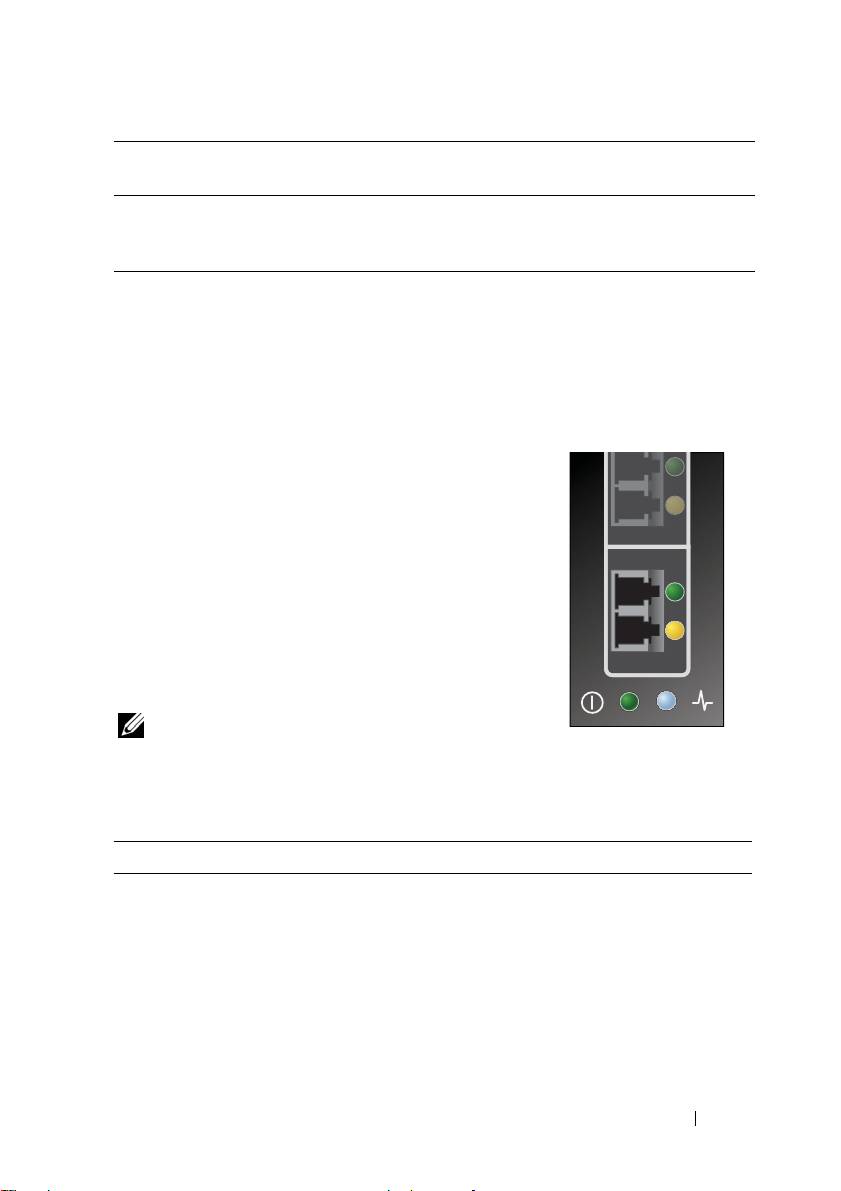
The pass-through module contains several light-
emitting diodes (LEDs). Each port includes a pair of
LEDs (one green and one yellow) that indicate the
status of the ports on the SFP. Power-on self test
(POST) conditions and results are summarized in
Tables 1-1 and 1-2. In addition, at the bottom of the
pass-through module faceplate is an additional pair
of LEDs (one blue and one green) that provide the
status of the pass-through module. Pass-through
module status LEDs are shown in Table 1-3, Pass-
Through Module Status LEDs.
NOTE: For the link rate conditions, there is a one
second pause when the LED is off between each
group of fast blinks (2, 3, or 4). You should observe the LED sequence for several
seconds to ensure that the pause is correctly identified.
Table 1-1. Port Status LED – Emulex
Yellow LED Green LED State
Off Off Wake-up failure (dead board)
On Off POST failure (dead board)
Slow blink Off Wake-up failure monitor
Fast blink Off POST failure
Flashing Off POST processing in progress
Off On Failure while functioning
FC8PT Pass-Through Module 7
