
Dell PowerEdge C6220 II: Connecting the Power Cable(s) Figure 6. Connecting the Power Cable
Connecting the Power Cable(s) Figure 6. Connecting the Power Cable: Dell PowerEdge C6220 II
Table of contents
- Notes, Cautions, and Warnings
- Installation and Configuration Installing the Tool-Less Rail Solution
- Figure 1. Pushing the Latch Release Buttons
- Figure 2. Releasing the Latch Release Buttons
- Figure 3. Installing the Chassis Stabilizer Shipping Brackets
- Figure 4. Installing the Chassis onto the Rack.
- Optional—Connecting the Keyboard, Mouse, and Monitor Figure 5. Optional—Connecting the Keyboard, Mouse and Monitor
- Connecting the Power Cable(s) Figure 6. Connecting the Power Cable
- Turning on the System Figure 7. Pressing the Power Button on the Front of the System Figure 8. Pressing the Power Button on the Back of the System
- Complete the Operating System Setup Other Information You May Need NOM Information (Mexico Only)
- Technical Specifications Power AC power supply (per power supply)
- Battery (per system board) Physical Environmental Relative humidity Maximum vibration
- Maximum shock Altitude Airborne Contaminant Level
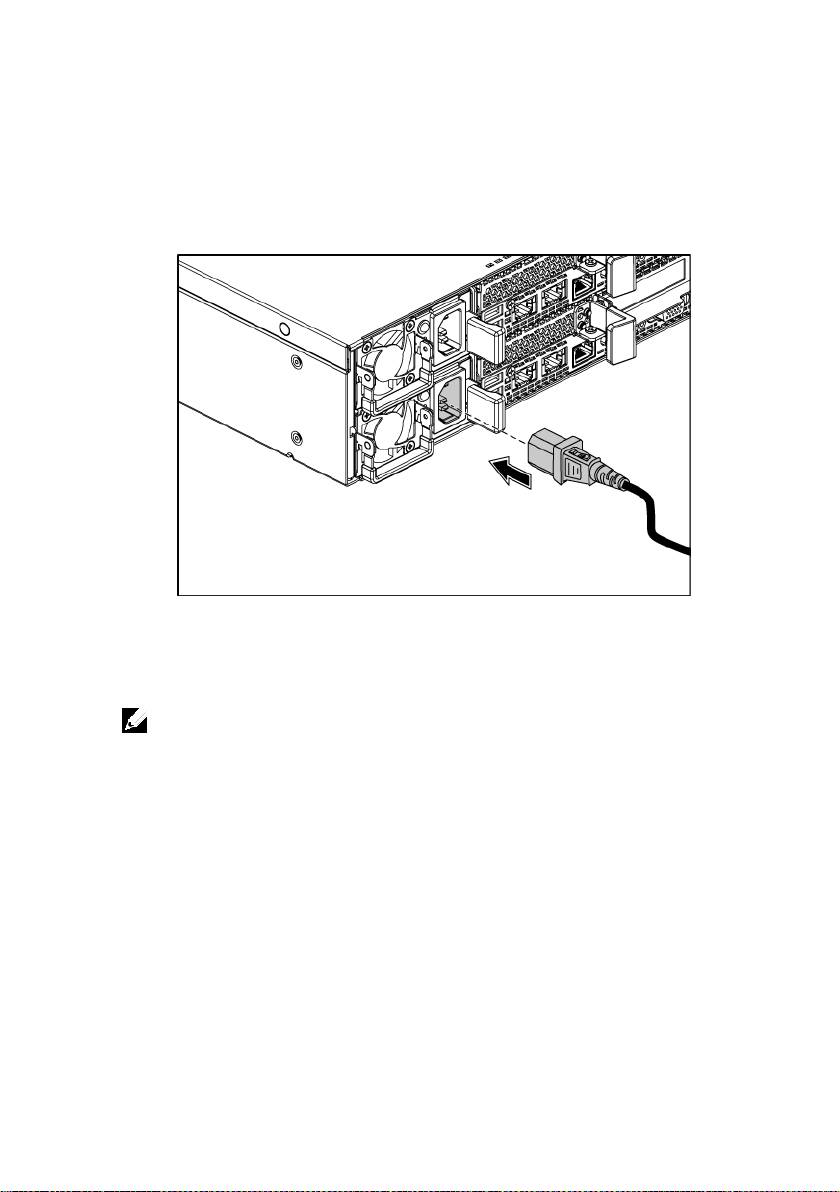
Connecting the Power Cable(s)
Figure 6. Connecting the Power Cable
Connect the system’s power cable(s) to the system and, if a monitor is used,
connect the monitor’s power cable to the monitor. Plug the other end of the
power cables into a grounded electrical outlet or a separate power source such as
an uninterrupted power supply or a power distribution unit.
Getting Started With Your System | 9
NOTE:
Your system can support up to two 1200 W power supply units (100-240 VAC
nominal input voltage) or up to two 1400 W power supply units (200-240 VAC nominal
input voltage).
Top 10 manuals
100.00
NZXT HALE90 1000W99.99
Samsung SM-R38099.97
AEG BSB 18C99.97
Dell 2700W99.97
Smeg KSEC70X99.96
Beurer HDE 4099.96
Pyramida KH 50 v.299.96
MSI CSM-H81M-P3299.96
AEG HR 562799.95
Melissa 640-048