
Beurer BM 85: 8. Transferring measurements Transfers using the USB interface
8. Transferring measurements Transfers using the USB interface: Beurer BM 85
Table of contents
- 1. Getting to know your instrument 2. Important notes Signs and symbols
- Notes on use
- Notes on batteries Instructions for repairs and disposal Instructions for storage and maintenance
- 3. Unit description
- Information on the display: USB interface System requirements for the Beurer “HealthManager” PC software.
- 4. Preparing for the measurement Press and hold the START/STOP button
- 5. Measuring blood pressure Attaching the cuff
- Performing the blood pressure measurement Adopting the correct posture
- 6. Evaluating results Cardiac arrhythmia: WHO classification:
- Resting indicator measurement (using HSD diagnostics) GREEN: haemodynamically stable RED: lack of haemodynamic stability
- 7. Displaying and deleting measurements
- Average values Individual measured values Deleting measured values
- 8. Transferring measurements Transfers using the USB interface
- 9. Cleaning and storing the unit 0. Error messages/trouble-shooting 11. Battery
- 12. Technical specifications
- Technical information is subject to change without notification 3. Mains part to allow for updates.
8. Transferring measurements
Step 1: BM 85
®
Transfers using the USB interface
activate Bluetooth
on your device (see section
4 “Preparing for the measurement, Blue-
Connect the blood pressure monitor to your PC using the USB
®
tooth
”).
cable.
No data transfer may be launched whilst performing a
measurement.
Step 2: Beurer “HealthManager” app
In the Beurer “HealthManager” app, add the
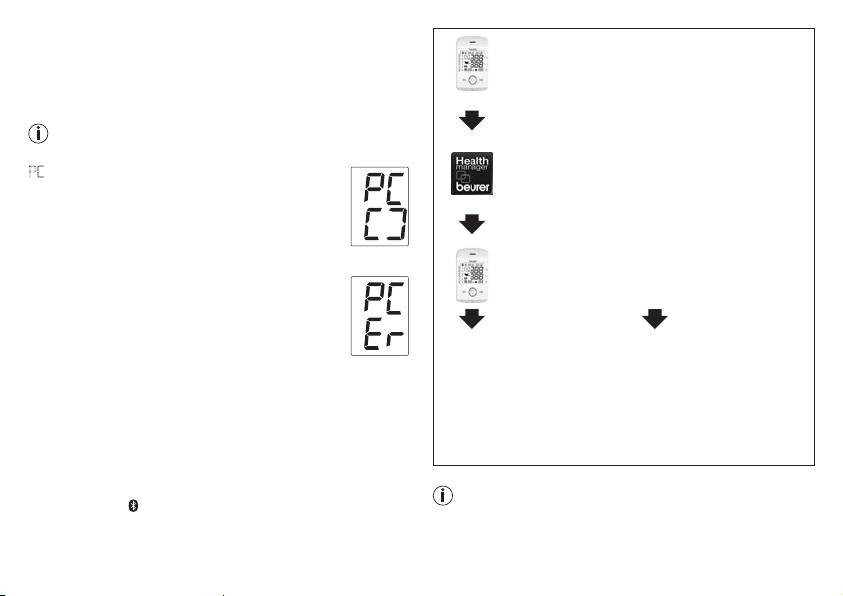
PC
is shown on the display.
BM 85 under “Settings/My devices”.
Begin the data transfer in the “HealthManager” PC
software. During the data transfer, an animation is
shown on the display. A successful data transfer is
displayed as in figure 1. If the data transfer is
f
ig. 1
Step 3: BM 85
unsuccessful, an error message appears as in
figure 2. In this case, interrupt the PC connection
take a measurement.
and start the data transfer again.
After 30 seconds of not being in use or if communi-
cation with the PC is interrupted, the blood pressu-
Step 4: BM 85
Step 4: BM 85
re monitor switches itself off automatically.
f
ig. 2
data transfer immediately
Data transfer at a later point:
®
Bluetooth
Smart transfers
following measurements.
•
go to memory mode
It is also possible to transfer the measured values saved on the
•
Select the desired user
(chapter 7). Select the
®
®
device to your smartphone using Bluetooth
Smart.
memory. Start Bluetooth
desired user memory.
®
You will need the Beurer „HealthManager“ app for this. The
data transfer (chapter 5)
Bluetooth
data transfer
app is available from the App Store.
starts automatically.
Proceed as follows to transfer values:
®
data is transferred if Bluetooth
has been activated in the set-
The Beurer “HealthManager” app must be active to allow
tings menu. The symbol appears in the top left of the display
data transfers.
(see section 4 “Preparing for the measurement”).
31
