
Dell Precision M65: Storing a Battery Troubleshooting Dell Technical Update Service Dell Diagnostics
Storing a Battery Troubleshooting Dell Technical Update Service Dell Diagnostics: Dell Precision M65
Table of contents
- Notes, Notices, and Cautions Abbreviations and Acronyms
- Contents
- Finding Information What Are You Looking For? Find It Here
- What Are You Looking For? Find It Here
- What Are You Looking For? Find It Here
- Setting Up Your Computer
- About Your Computer Front View
- Left Side View Right Side View
- Back View Bottom View
- Using a Battery Battery Performance
- Checking the Battery Charge Dell™ QuickSet Battery Meter Microsoft Windows Power Meter Charge Gauge Check the Battery Charge Check the Battery Health
- Low-Battery Warning Charging the Battery Replacing the Battery
- Storing a Battery Troubleshooting Dell Technical Update Service Dell Diagnostics
- When to Use the Dell Diagnostics Starting the Dell Diagnostics From Your Hard Drive
- Starting the Dell Diagnostics From the Drivers and Utilities CD Dell Diagnostics Main Menu Option Function
- Tab Function Lockups and Software Problems The computer does not start up The computer stops responding
- A program stops responding or crashes repeatedly A program is designed for an earlier Microsoft Windows operating system A solid blue screen appears Other software problems
3
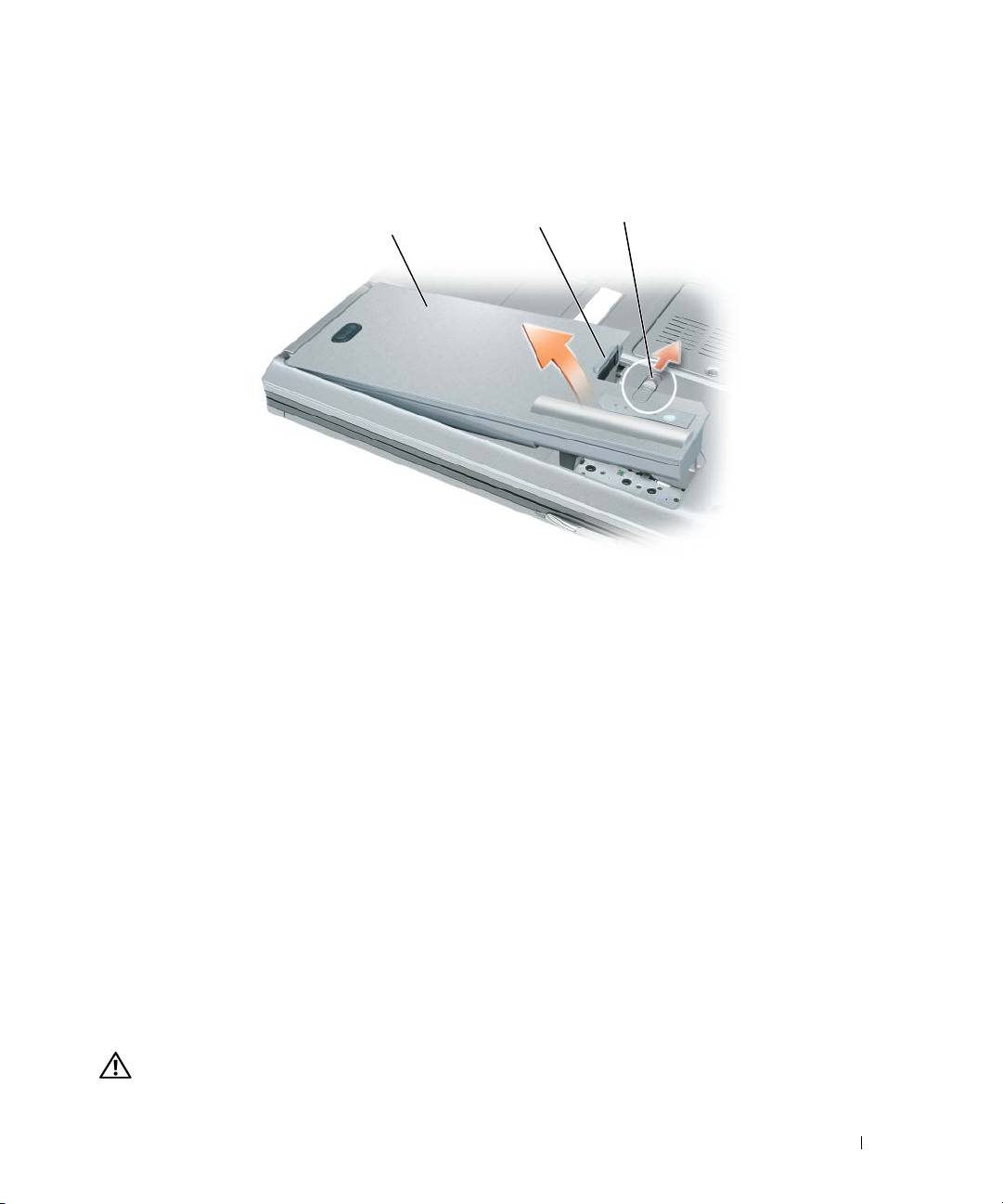
Slide the battery-bay latch release on the bottom of the computer until the release clicks.
4
Using the tab on the battery, lift the battery out of the computer.
3
2
1
1 battery 2 battery tab 3 battery-bay latch release
To replace the battery, place the battery in the bay and press down until the battery-bay latch release
clicks.
Storing a Battery
Remove the battery when you store your computer for an extended period of time. A battery discharges
during prolonged storage. After a long storage period, recharge the battery fully before you use it (see
"Charging the Battery" on page 14).
Troubleshooting
Dell Technical Update Service
The Dell Technical Update service provides proactive e-mail notification of software and hardware
updates for your computer. The service is free and can be customized for content, format, and how
frequently you receive notifications.
To enroll for the Dell Technical Update service, go to support.dell.com/technicalupdate.
Dell Diagnostics
CAUTION: Before you begin any of the procedures in this section, follow the safety instructions in the Product
Information Guide.
Quick Reference Guide 15
