
Dell Precision 470: Setting Up Your Dell Precision 470 Computer Connect the keyboard and the mouse. Connect the modem or the network cable.
Setting Up Your Dell Precision 470 Computer Connect the keyboard and the mouse. Connect the modem or the network cable.: Dell Precision 470
Table of contents
- Notes, Notices, and Cautions Abbreviations and Acronyms
- Contents
- Finding Information What Are You Looking For? Find It Here
- What Are You Looking For? Find It Here
- What Are You Looking For? Find It Here
- What Are You Looking For? Find It Here
- Setting Up Your Dell Precision 670 Computer Connect the keyboard and the mouse. Connect the modem or the network cable.
- Connect the monitor.
- For single- and dual-monitor capable cards with a single connector
- For dual-monitor capable cards with one DVI and one VGA connector For dual-monitor capable cards with two DVI connectors
- Connect the speakers. Connect the power cables and turn on the computer and monitor.
- Install additional software or devices. To access the User’s Guide from your hard drive: To access your User’s Guide from the Dell Support website:
- Setting Up Your Dell Precision 470 Computer Connect the keyboard and the mouse. Connect the modem or the network cable.
- Connect the monitor.
- Connect the speakers. Connect the power cables and turn on the computer and monitor.
- To access the User’s Guide from your hard drive: To access your User’s Guide from the Dell Support website: Opening the Computer Cover
- Dell Precision 670 Computer
- Inside the Dell Precision 670 Computer
- Dell Precision 470 Computer Inside the Dell Precision 470 Computer
- Caring for Your Computer Solving Problems Resolving Software and Hardware Incompatibilities Microsoft Windows
- Windows 2000 Using System Restore in Windows XP
- Creating a Restore Point Restoring the Computer to an Earlier Operating State Using Last Known Good Configuration
- Other Options to Help Resolve Additional Device or Software Conflicts When to Use the Dell Diagnostics Before You Start Testing
- Running the Dell Diagnostics
- System Lights Power Light Hard-Drive Light Cause Corrective Action
- Beep Codes Code Cause Code Cause
- Error Messages Diagnostic Lights
- Diagnostic Light Codes Before POST Light Pattern Problem Description Suggested Resolution
- Light Pattern Problem Description Suggested Resolution Diagnostic Light Codes During POST Light Pattern Problem Description Suggested Resolution
- Light Pattern Problem Description Suggested Resolution
- Light Pattern Problem Description Suggested Resolution
- Light Pattern Problem Description Suggested Resolution
- Light Pattern Problem Description Suggested Resolution
- Light Pattern Problem Description Suggested Resolution Memory Overview
- Frequently Asked Questions How Do I... Solution Where to Find Additional Information
- How Do I... Solution Where to Find Additional Information
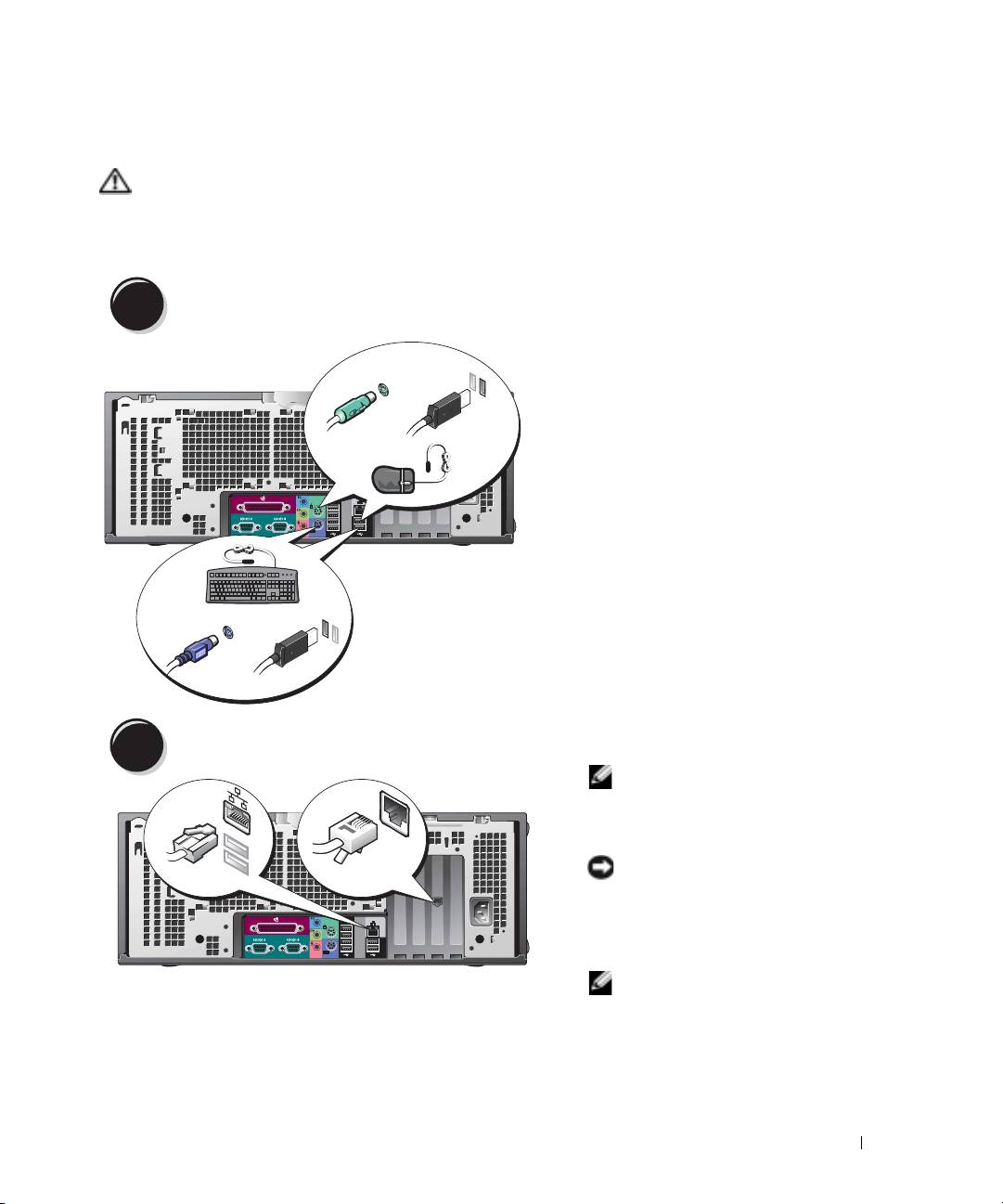
Setting Up Your Dell Precision 470 Computer
CAUTION: Before you begin any of the procedures in this section, follow the safety instructions
located in the Product Information Guide.
You must complete all steps to properly set up your computer.
Connect the keyboard and the mouse.
1
PS/2
or
USB
PS/2
USB
or
Connect the modem or the network cable.
2
NOTE: If your computer has a
network card installed,
connect the network cable to
the card.
NOTICE: Do not connect a
network
modem
modem cable to the network
adapter. Voltage from
telephone communications can
damage the network adapter.
NOTE: A modem is not
included as a standard feature
with Dell Precision
workstations, but you can
order a modem separately.
Quick Reference Guide 15
Top 10 manuals
100.00
NZXT HALE90 1000W99.99
Samsung SM-R38099.97
AEG BSB 18C99.97
Dell 2700W99.97
Smeg KSEC70X99.96
Beurer HDE 4099.96
Pyramida KH 50 v.299.96
MSI CSM-H81M-P3299.96
AEG HR 562799.95
Melissa 640-048