
Dell Precision 470: Light Pattern Problem Description Suggested Resolution
Light Pattern Problem Description Suggested Resolution: Dell Precision 470
Table of contents
- Notes, Notices, and Cautions Abbreviations and Acronyms
- Contents
- Finding Information What Are You Looking For? Find It Here
- What Are You Looking For? Find It Here
- What Are You Looking For? Find It Here
- What Are You Looking For? Find It Here
- Setting Up Your Dell Precision 670 Computer Connect the keyboard and the mouse. Connect the modem or the network cable.
- Connect the monitor.
- For single- and dual-monitor capable cards with a single connector
- For dual-monitor capable cards with one DVI and one VGA connector For dual-monitor capable cards with two DVI connectors
- Connect the speakers. Connect the power cables and turn on the computer and monitor.
- Install additional software or devices. To access the User’s Guide from your hard drive: To access your User’s Guide from the Dell Support website:
- Setting Up Your Dell Precision 470 Computer Connect the keyboard and the mouse. Connect the modem or the network cable.
- Connect the monitor.
- Connect the speakers. Connect the power cables and turn on the computer and monitor.
- To access the User’s Guide from your hard drive: To access your User’s Guide from the Dell Support website: Opening the Computer Cover
- Dell Precision 670 Computer
- Inside the Dell Precision 670 Computer
- Dell Precision 470 Computer Inside the Dell Precision 470 Computer
- Caring for Your Computer Solving Problems Resolving Software and Hardware Incompatibilities Microsoft Windows
- Windows 2000 Using System Restore in Windows XP
- Creating a Restore Point Restoring the Computer to an Earlier Operating State Using Last Known Good Configuration
- Other Options to Help Resolve Additional Device or Software Conflicts When to Use the Dell Diagnostics Before You Start Testing
- Running the Dell Diagnostics
- System Lights Power Light Hard-Drive Light Cause Corrective Action
- Beep Codes Code Cause Code Cause
- Error Messages Diagnostic Lights
- Diagnostic Light Codes Before POST Light Pattern Problem Description Suggested Resolution
- Light Pattern Problem Description Suggested Resolution Diagnostic Light Codes During POST Light Pattern Problem Description Suggested Resolution
- Light Pattern Problem Description Suggested Resolution
- Light Pattern Problem Description Suggested Resolution
- Light Pattern Problem Description Suggested Resolution
- Light Pattern Problem Description Suggested Resolution
- Light Pattern Problem Description Suggested Resolution Memory Overview
- Frequently Asked Questions How Do I... Solution Where to Find Additional Information
- How Do I... Solution Where to Find Additional Information
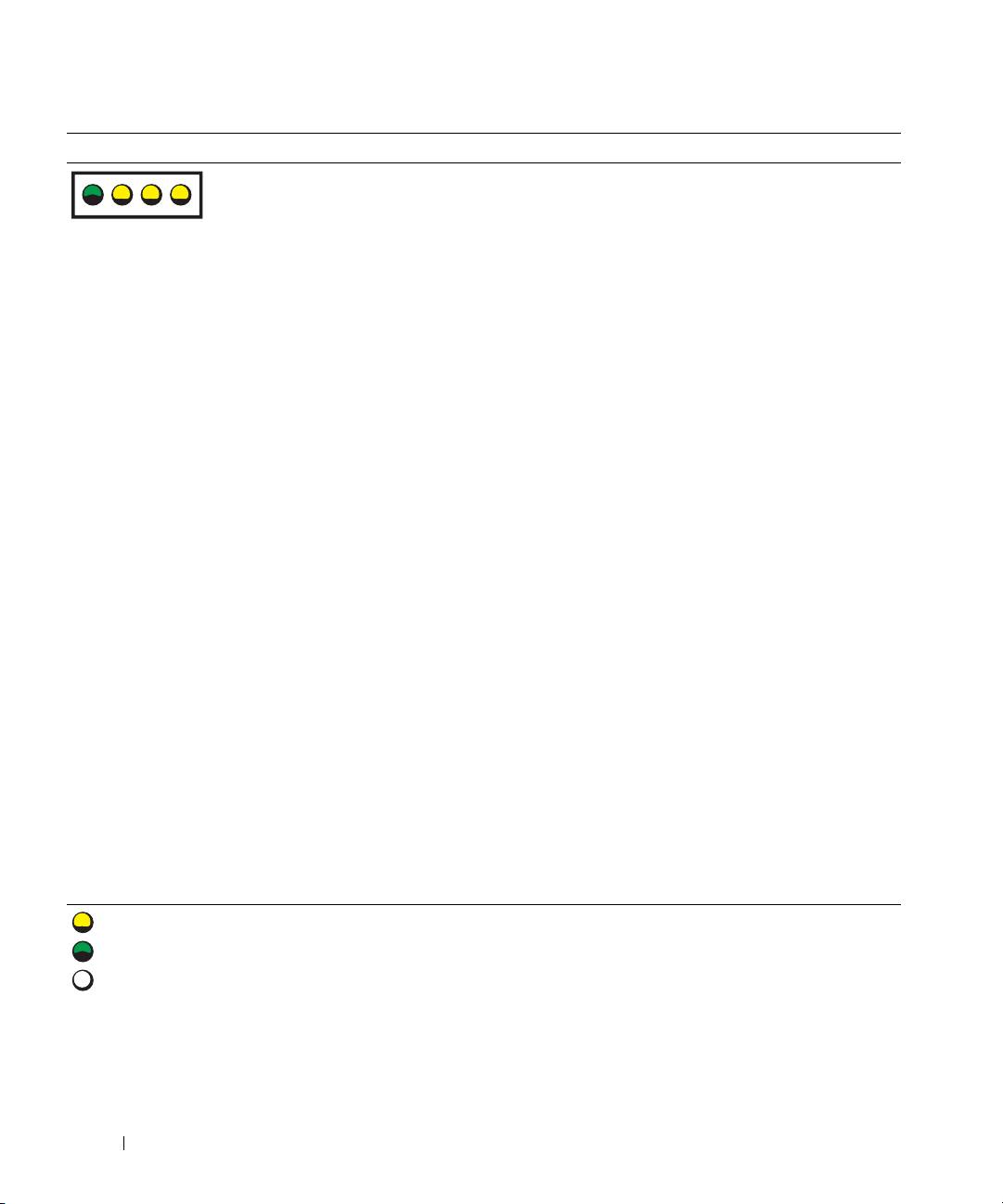
Light Pattern Problem Description Suggested Resolution
green
No memory modules are detected. 1 Reseat the memory modules
to
ensure that your computer is
yellow
successfully communicating with
ABCD
yellow
the memory.
yellow
2
Restart the computer.
3
If the problem still exists, remove
all the memory modules and
install one memory module in
connector DIMM_1.
4
Restart the computer.
The following message appears:
www.dell.com | support.dell.com
Alert! Operating in Debug
Mode. Please Populate
Memory in Pairs for
Normal Operation
.
5
Press <F1> to boot to the
operating system.
6
Run the Dell Diagnostics.
7
If the memory module passes, shut
down the computer, remove the
memory module, and then repeat the
process with the remaining memory
modules until a memory error occurs
during start-up or diagnostic testing.
If the first memory module tested is
defective, repeat the process with the
remaining modules to ensure that the
remaining modules are not defective.
8
When the defective memory module
is identified,
contact Dell
for
a replacement.
NOTE: If necessary, the computer can
operate in debug mode until new memory
modules are installed.
= yellow
= green
= off
34 Quick Reference Guide
