
Dell Latitude XT2 (Early 2009): Removing and Installing the Optical Drive From the Media Base
Removing and Installing the Optical Drive From the Media Base: Dell Latitude XT2 (Early 2009)
Table of contents
- Notes, Cautions, and Warnings
- Media Base Back and Left View Features
- Top and Right View Features Before Docking or Undocking Your Tablet-PC to the Media Base
- Before Docking Your Tablet-PC
- Before Undocking Your Tablet-PC Securing the Media Base
- 1 Tablet-PC 2 media base
- Undocking Your Tablet-PC From the Media Base
- Removing and Installing the Optical Drive From the Media Base
- Media Base Specifications Physical Storage Ports and Connectors
book.book Page 9 Tuesday, December 2, 2008 1:03 PM
Removing and Installing the Optical Drive From
the Media Base
1
Undock the media base (see "Undocking Your Tablet-PC From the Media
Base" on page 8).
2
Save and close any open files or programs, and turn off the Tablet-PC.
3
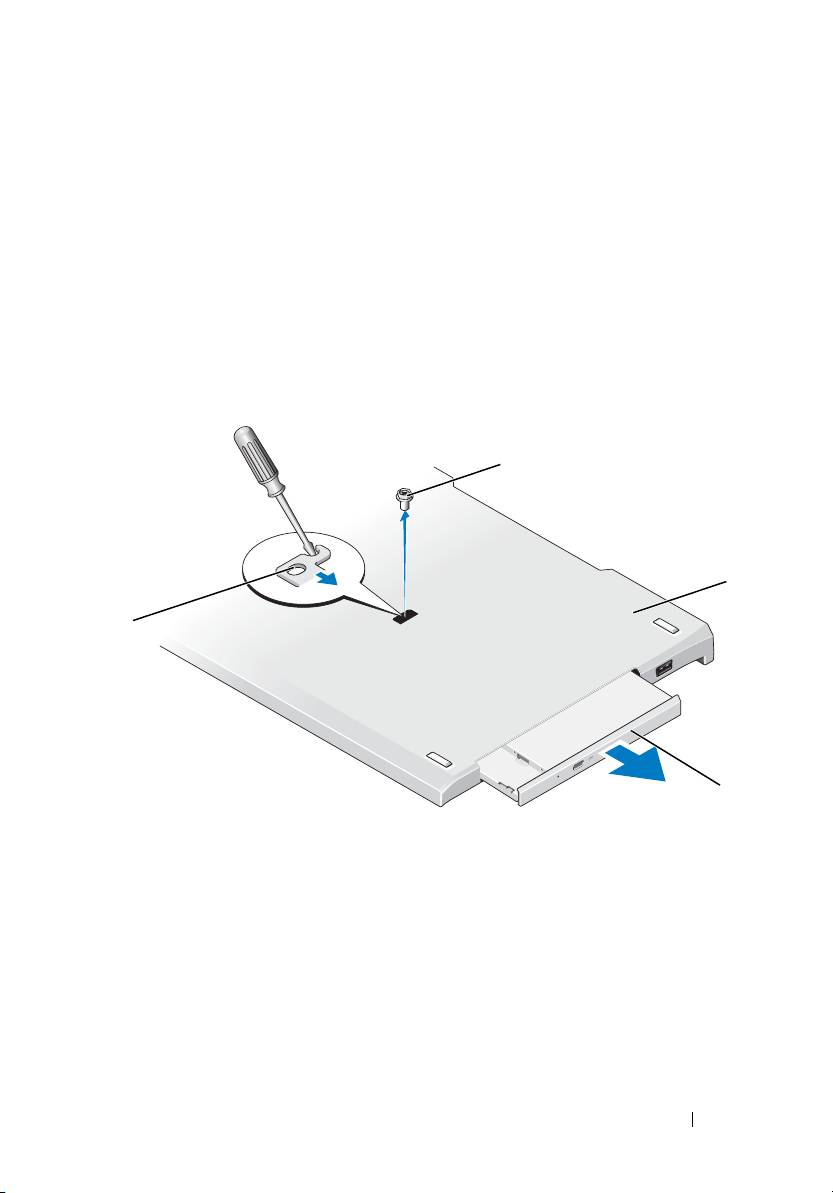
To remove the optical drive:
a
Remove the screw that secures the optical drive to the media base.
b
Use your screwdriver to slide the drive out of the media bay.
1
2
4
3
1 screw 2 media base
3 optical drive 4 screw hole
4
To install the optical drive:
a
Insert the optical drive into the media bay on the media base.
b
Insert the securing screw that holds the optical drive in place.
5
Turn on the Tablet-PC.
The operating system automatically recognizes the new drive.
Media Base 9
Top 10 manuals
100.00
NZXT HALE90 1000W99.99
Samsung SM-R38099.97
AEG BSB 18C99.97
Dell 2700W99.97
Smeg KSEC70X99.96
Beurer HDE 4099.96
Pyramida KH 50 v.299.96
MSI CSM-H81M-P3299.96
AEG HR 562799.95
Melissa 640-048