
Dell Latitude D630 ATG (Mid 2007): Storing a Battery Troubleshooting Lockups and Software Problems The computer does not start up The computer stops responding
Storing a Battery Troubleshooting Lockups and Software Problems The computer does not start up The computer stops responding: Dell Latitude D630 ATG (Mid 2007)
Table of contents
- Notes, Notices, and Cautions
- Contents
- Finding Information What Are You Looking For? Find It Here
- What Are You Looking For? Find It Here
- What Are You Looking For? Find It Here
- What Are You Looking For? Find It Here
- Setting Up Your Computer
- About Your Computer Front View
- Left Side View Right Side View
- Back View
- Bottom View Using a Battery Battery Performance
- Checking the Battery Charge Dell™ QuickSet Battery Meter
- Microsoft Windows Power Meter Charge Gauge Check the Battery Charge Check the Battery Health Low-Battery Warning
- Charging the Battery Removing the Battery
- Storing a Battery Troubleshooting Lockups and Software Problems The computer does not start up The computer stops responding
- A program stops responding or crashes repeatedly A program is designed for an earlier Microsoft Windows operating system A solid blue screen appears Other software problems BACK UP YOUR FILES IMMEDIATELY
- Dell Diagnostics When to Use the Dell Diagnostics Starting the Dell Diagnostics From Your Hard Drive
- Starting the Dell Diagnostics From the Drivers and Utilities Media Dell Diagnostics Main Menu
- Option Function Tab Function
- Tab Function
- Index
- 24 Index
1
2
3
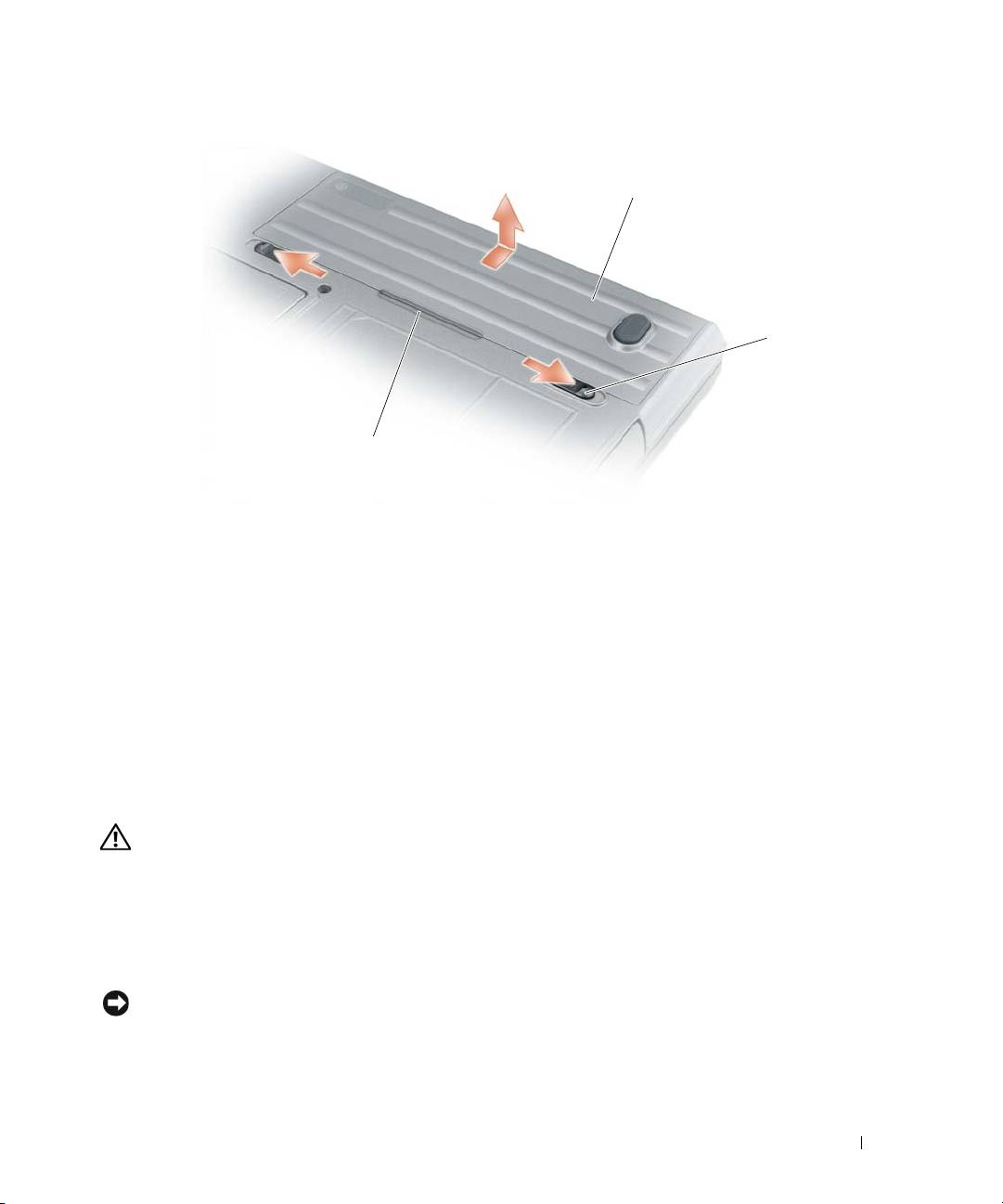
1 battery 2 battery-bay latch releases (2) 3 battery tab
To replace the battery, follow the removal procedure in reverse order.
Storing a Battery
Remove the battery when you store your computer for an extended period of time. A battery discharges
during prolonged storage. After a long storage period, recharge the battery fully (see "Charging the
Battery" on page 16) before you use it.
Troubleshooting
Lockups and Software Problems
CAUTION: Before you begin any of the procedures in this section, follow the safety instructions in the
Product
Information Guide
.
The computer does not start up
ENSURE THAT THE AC ADAPTER IS FIRMLY CONNECTED TO THE COMPUTER AND TO THE ELECTRICAL OUTLET.
The computer stops responding
NOTICE: You might lose data if you are unable to perform an operating system shutdown.
T
URN THE COMPUTER OFF — If you are unable to get a response by pressing a key on your keyboard or moving your
mouse, press and hold the power button for at least 8 to 10 seconds until the computer turns off. Then restart your
computer.
Quick Reference Guide 17
