
Beurer BY 99: Delete camera View camera Alternating camera image Energy-saving mode
Delete camera View camera Alternating camera image Energy-saving mode: Beurer BY 99
Table of contents
- Table of contents Included in delivery
- 1. Getting to know your device Functions of the device Using the app provides you with the following functions: System requirement (for using the app)
- 2. Signs and symbols 3. Intended use 4. Notes
- Note WARNING Safety notes on handling batteries
- 5. How the app works
- 6. Unit description 6.1 “Baby” HD camera 6.2 “Monitor” parent unit
- 6.3 Display description 7. Initial use of parent unit 7.1 Initial use of camera 7.2 Initial use of parent unit with battery
- 7.3 Initial use of parent unit with mains part plug 8. Operating the parent unit 8.1 Infrared night vision 8.2 Set the volume 8.3 Set the brightness 8.4 Intercom function 8.5 Settings menu
- Zoom function Lullabies Alarm Temperature unit Add camera
- Delete camera View camera Alternating camera image Energy-saving mode
- 9. Initial use via smartphone/tablet 9.1 Setting up the camera using an Android™ device 9.2 Setting up the camera on your iPhone 9.3 Camera settings 9.3.1 Allocating a camera name / menu image 9.3.2 Setting the notification sensitivity
- 9.4 General settings 10. Operating the camera via the app 10.1 Switching on the camera 10.2 Adding another camera 10.3 Removing a camera
- 10.4 Account settings / signing out 10.5 Infrared night vision function 10.6 Functions during live transmission in the app 10.6.1 Intercom function 10.6.2 Photo function / Video memory function
- 10.6.3 Lullabies 10.6.4 Temperature display 10.7 Using the camera for other end devices 10.8 Access to the user account via the web portal (PC) 11. Useful information about the baby monitor 12. Maintenance and cleaning
- 13. What if there are problems? Problem Solution
- Problem Solution
- 14. Disposal
•
Now hold down the PAIR button on the rear of the camera until an acoustic signal is heard
and the transmission image from the camera that has been added appears on the screen.
Note
•
Additional cameras are available in stores under item number 952.64.
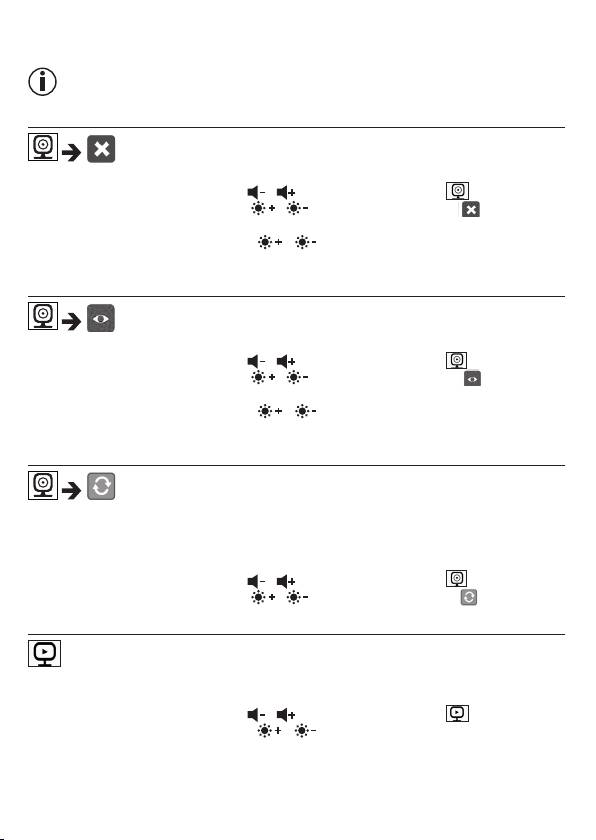
Delete camera
If you wish to delete the connection to a camera, proceed as follows:
•
Use the left/right direction arrows ( / ) to select the menu item .
•
Use the up/down direction arrows ( / ) to select the menu item .
•
Confirm using the (
OK
) button. 1,2,3,4 appears on the screen.
•
Use the up/down direction arrows ( / ) to select the number of the camera that
you wish to delete.
•
Confirm using the (
OK
) button.
View camera
If you wish to select the transmission image from a camera, proceed as follows:
•
Use the left/right direction arrows ( / ) to select the menu item .
•
Use the up/down direction arrows ( / ) to select the menu item .
•
Confirm using the (
OK
) button. 1,2,3,4 appears on the screen.
•
Use the up/down direction arrows ( / ) to select the number of the camera that
you wish to view.
•
Confirm using the (
OK
) button.
Alternating camera image
If you have multiple cameras registered, the “Alternating camera image” function is available.
When this function is activated, the transmission images from the registered cameras appear
on the screen in the form of a loop that changes every 12 seconds. To activate this function,
proceed as follows:
•
Use the left/right direction arrows ( / ) to select the menu item .
•
Use the up/down direction arrows ( / ) to select the menu item .
•
Confirm using the (
OK
) button.
Energy-saving mode
The parent unit has an energy-saving mode. When you activate the energy-saving mode, the
screen switches o automatically after 5, 15 or 60 minutes, as you choose.
•
Use the left/right direction arrows ( / ) to select the menu item .
•
Use the up/down direction arrows ( / ) to select the time period after which the
screen should switch o automatically (5 mins, 15 mins or 60 mins).
•
Confirm using the (
OK
) button.
29
