
Dell Precision 380: Finding Information What Are You Looking For? Find It Here
Finding Information What Are You Looking For? Find It Here: Dell Precision 380
Table of contents
- Notes, Notices, and Cautions Abbreviations and Acronyms
- Contents
- Finding Information What Are You Looking For? Find It Here
- What Are You Looking For? Find It Here
- What Are You Looking For? Find It Here
- What Are You Looking For? Find It Here
- Setting Up Your Computer (Tower Orientation) Connect the keyboard and the mouse. Connect the modem or the network cable.
- Connect the monitor.
- For single- and dual-monitor capable cards with a single connector
- For dual-monitor capable cards with one DVI connector and one VGA connector For dual-monitor capable cards with two DVI connectors
- Connect the speakers. Connect the power cables and turn on the computer and monitor.
- Install additional software or devices. Setting Up Your Computer (Desktop Orientation) Connect the keyboard and the mouse.
- Connect the modem or the network cable. Connect the monitor.
- For single- and dual-monitor capable cards with a single connector
- For dual-monitor capable cards with one DVI connector and one VGA connector For dual-monitor capable cards with two DVI connectors
- Connect the speakers. Connect the power cables and turn on the computer and monitor. Install additional software or devices.
- About Your Computer Front View (Tower Orientation) 5 hard-drive activity light The hard drive light is on when the computer reads data from or
- 14 network link light The network link light is on when a good connection exists between a 10-Mbps,
- Back View (Tower Orientation)
- Front View (Desktop Orientation) 1 upper 5.25-inch drive bay
- 12 network link light The network link light is on when a good connection exists between a 10-Mbps,
- Back View (Desktop Orientation) Back-Panel Connectors
- 1 mouse connector Plug a standard mouse into the green mouse connector. Turn off the computer
- 12 keyboard connector If you have a standard keyboard, plug it into the purple keyboard connector. If you
- Inside View
- Cable Colors System Board Components
- 12 password jumper (PASS) Locating Your User’s Guide
- To access the User’s Guide from your hard drive: To access your User’s Guide from the Dell Support website: Removing the Computer Cover
- Caring for Your Computer
- Solving Problems Troubleshooting Tips Resolving Software and Hardware Incompatibilities Using Microsoft Windows XP System Restore
- Restoring the Computer to an Earlier Operating State Undoing the Last System Restore Enabling System Restore
- Using the Last Known Good Configuration Other Options to Help Resolve Additional Device or Software Conflicts Dell Diagnostics When to Use the Dell Diagnostics
- Starting the Dell Diagnostics From Your Hard Drive Starting the Dell Diagnostics From the Drivers and Utilities CD
- Before You Start Testing Beep Codes Code Cause
- Code Cause Error Messages Diagnostic Lights Light Pattern Problem Description Suggested Resolution
- Light Pattern Problem Description Suggested Resolution
- Light Pattern Problem Description Suggested Resolution
- Light Pattern Problem Description Suggested Resolution
- Light Pattern Problem Description Suggested Resolution
- Light Pattern Problem Description Suggested Resolution Frequently Asked Questions How Do I... Solution Where to Find Additional Information
- How Do I... Solution Where to Find Additional Information
Finding Information
NOTE: Some features may not be available for your computer or in certain countries.
NOTE: Additional information may ship with your computer.
What Are You Looking For? Find It Here
• A diagnostic program for my computer
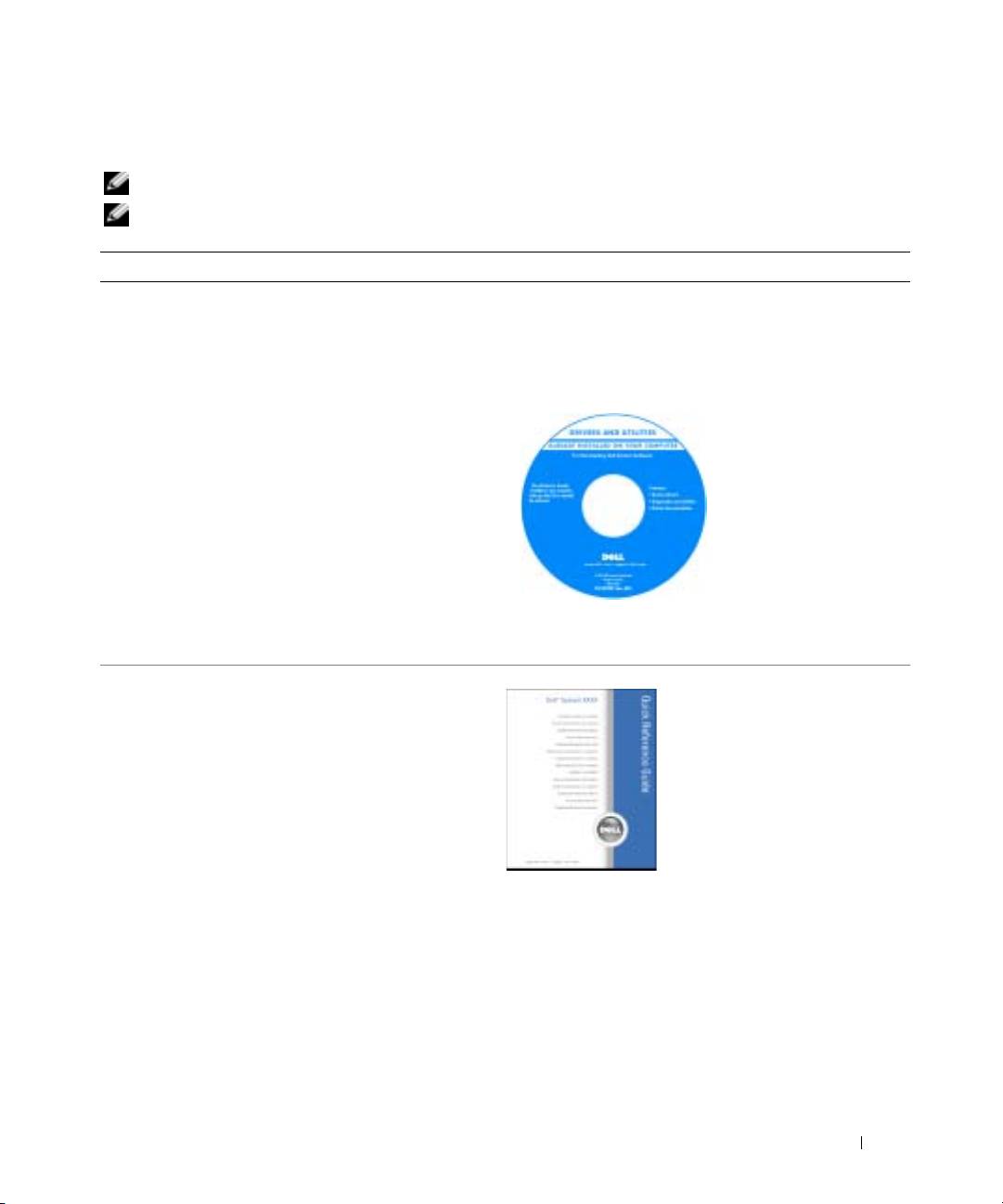
Drivers and Utilities CD (also known as ResourceCD)
• Drivers for my computer
Documentation and drivers are already installed on your
• My computer documentation
computer. You can use the CD to reinstall drivers, run the
• My device documentation
"Dell Diagnostics" on page 34, or access your
documentation.
• Desktop System Software (DSS)
Readme files may be
included on your CD to
provide last-minute
updates about technical
changes to your
computer or advanced
technical-reference
material for technicians
or experienced users.
NOTE: Drivers and documentation updates can be found at
support.dell.com.
• How to set up my computer
Quick Reference Guide
• How to care for my computer
• Basic troubleshooting information
• How to run the Dell Diagnostics
• Error codes and diagnostic lights
• How to remove and install parts
• How to open my computer cover
NOTE: This document is available as a PDF at
support.dell.com.
Quick Reference Guide 5
