
Dell Latitude D830 (Early 2007): Setting Up Your Computer
Setting Up Your Computer: Dell Latitude D830 (Early 2007)
Table of contents
- Notes, Notices, and Cautions Abbreviations and Acronyms
- Contents
- Finding Information What Are You Looking For? Find It Here
- What Are You Looking For? Find It Here
- What Are You Looking For? Find It Here
- What Are You Looking For? Find It Here
- Setting Up Your Computer
- About Your Computer Front View
- Left View Right View
- Back View Bottom View
- Using a Battery Battery Performance
- Checking the Battery Charge Check the Battery Charge
- Check the Battery Health Conserving Battery Power Power Management Modes Standby Mode
- Hibernate Mode
- Configuring Power Management Settings Charging the Battery Replacing the Battery
- Storing a Battery
- Troubleshooting
- Dell Diagnostics
- Starting the Dell Diagnostics From Your Hard Drive
- Dell Diagnostics Main Menu Option Function Option Function
- Tab Function
- Index
- 26 Index
Setting Up Your Computer
CAUTION: Before you begin any of the procedures in this section, follow the safety instructions in the
Product Information Guide.
1
Unpack the accessories box.
2
Set aside the contents of the accessories box, which you will need to complete the setup of your computer.
The accessories box also contains user documentation and any software or additional hardware
(such as PC Cards, drives, or batteries) that you have ordered.
3
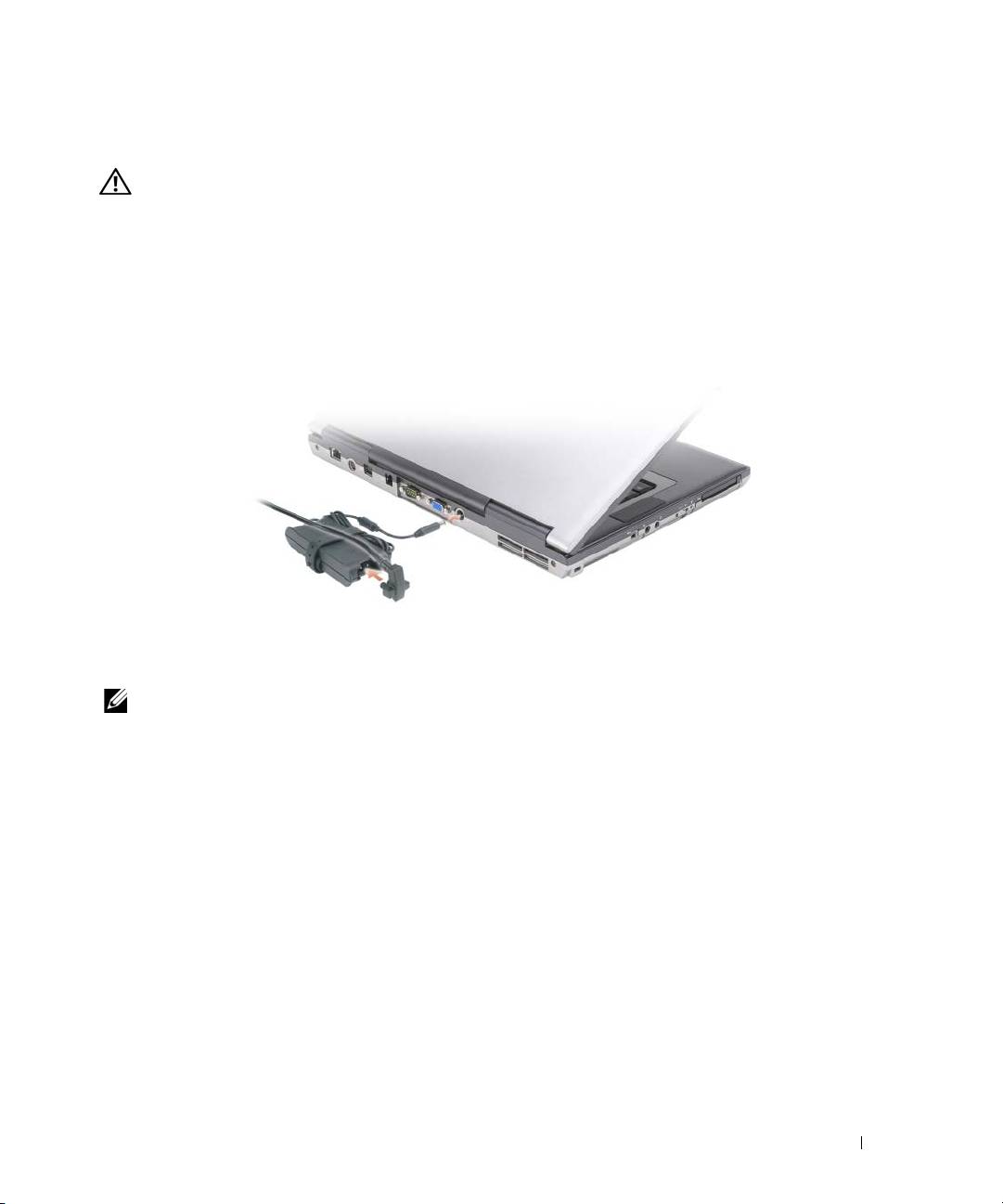
Connect the AC adapter to the AC adapter connector on the computer and to the electrical outlet.
4
Open the computer display and press the power button to turn on the computer (see "Front View" on
page 10).
NOTE: It is recommended that you turn on and shut down your computer at least once before you install any cards
or connect the computer to a docking device or other external device, such as a printer.
Quick Reference Guide 9
