
Dell H928N: Identifying the UPS Figure 1. The Dell Line-Interactive Rack UPS Front Panel Figure 2. UPS Rear Panel (1920W/120V, 1500W/120V Shown) Setting Up the UPS
Identifying the UPS Figure 1. The Dell Line-Interactive Rack UPS Front Panel Figure 2. UPS Rear Panel (1920W/120V, 1500W/120V Shown) Setting Up the UPS: Dell H928N
Table of contents
- Notes and Warnings
- System Features
- Finding Information
- Installation and Startup Unpacking the System
- Lifting the Cabinet
- Identifying the UPS Figure 1. The Dell Line-Interactive Rack UPS Front Panel Figure 2. UPS Rear Panel (1920W/120V, 1500W/120V Shown) Setting Up the UPS
- Rackmount Setup Opening the Battery Cover
- Removing the Battery Tray
- Installing the Rails
- Installing the Cabinet
- Securing the Cabinet Installing the Battery Tray
- Installing the UPS Front Cover
- Tower Setup (2700W UPS models only) Removing the Mounting Brackets and Rear Hold-Down Brackets Connecting the Internal Battery Connector
- Rotating the UPS Control Panel Orientation
- Installing the UPS Front Cover Installing the Pedestals
- Connecting the Equipment
- Connecting the Power Cord
- Starting the UPS Completing the Startup
Identifying the UPS
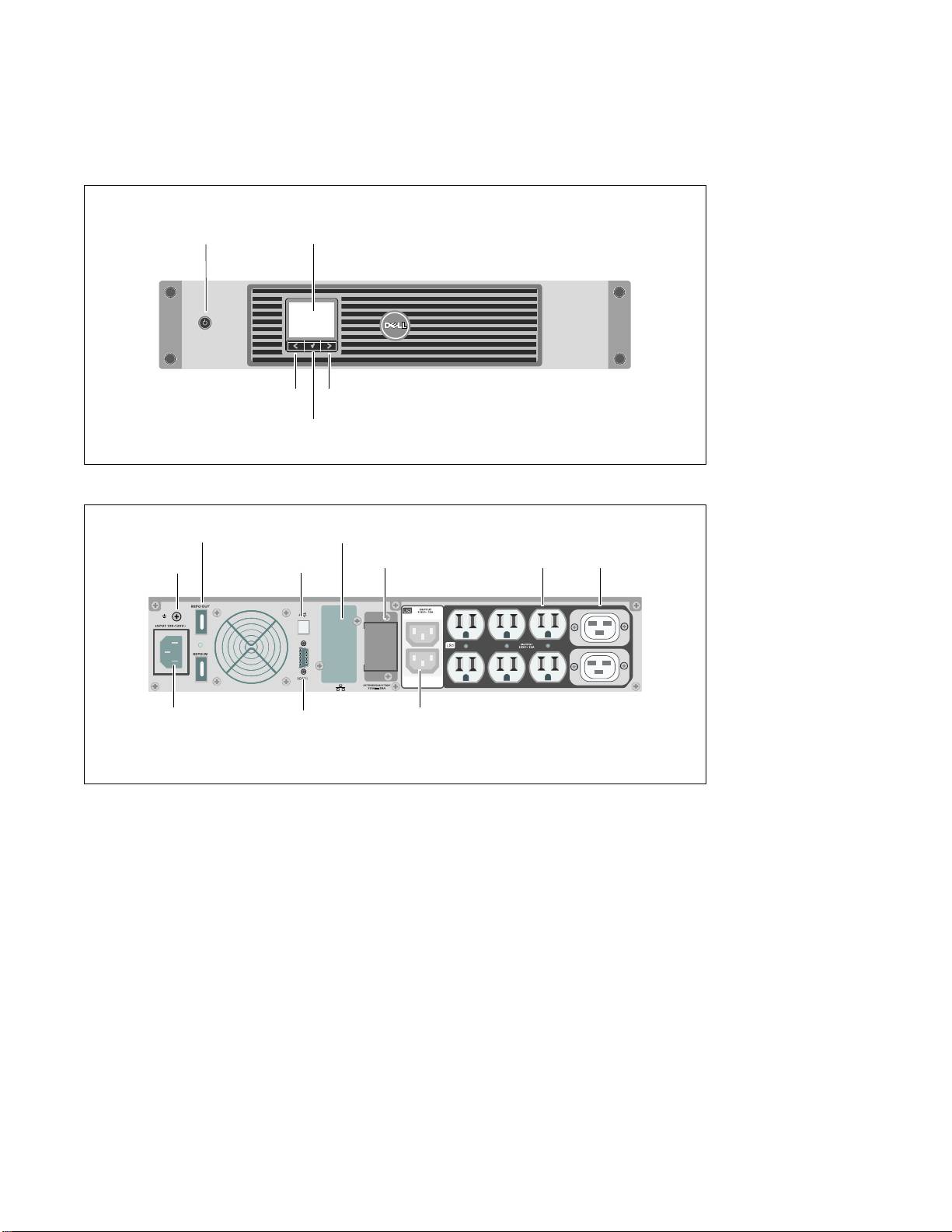
This section shows a front and rear panel of the Dell Line-Interactive Rack UPS. Refer to the Dell
Line-Interactive Rack UPS 1000W, 1920/1500W, and 2700/2300W User's Guide for all rear panel details.
On/Off Button
LCD Panel
Scroll Button (Up or Back)
Scroll Button (Down or Forward)
Select Button
Figure 1. The Dell Line-Interactive Rack UPS Front Panel
Six 5-20 and Two IEC 320-C19
REPO Ports
UPS Communication Bay
EBM Connector Cover/Strain
Receptacles
Relief Bracket
(Load Segment 1)
Ground Screw
USB Port
IEC-C14 Input
RS-232 Port
Two IEC 320-C13 Receptacles
Connector
(Load Segment 2)
Figure 2. UPS Rear Panel (1920W/120V, 1500W/120V Shown)
Setting Up the UPS
If you are installing the UPS in a rack, continue to the following section, “Rackmount Setup.”
To install the 2700W UPS as a standalone cabinet, continue to “Tower Setup” on page 12.
Getting Started With Your System
|
5
