
Dell PowerEdge M600: Step 3. Install the HBA Driver Step 4. Install the SANsurfer Pro Management Application
Step 3. Install the HBA Driver Step 4. Install the SANsurfer Pro Management Application: Dell PowerEdge M600
Table of contents
- Installation Instructions Step 1. Verify the Package Contents
- Step 2. Install the HBA Hardware
- Step 3. Install the HBA Driver Step 4. Install the SANsurfer Pro Management Application
- HBA LEDs (Excludes the QME2462 HBA) Troubleshooting and Technical Support Warranty
- Agency Certification QLogic SANblade HBAs
- Product Safety Compliance
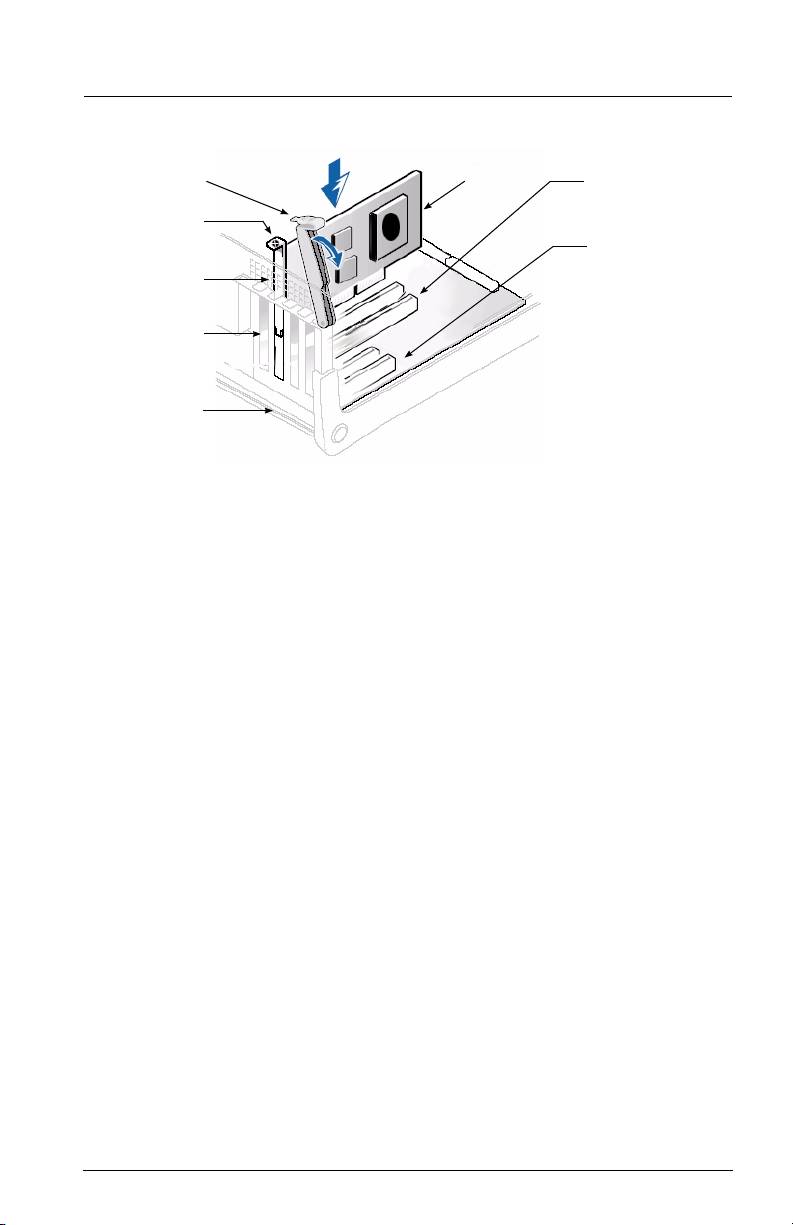
HBA
64-BIT PCI-X SLOT
LEVER
SCREW
OR
x4 PCI EXPRESS
HBA
SLOT
RETAINING
BRACKET
SLOT COVERS
SYSTEM
CHASSIS
Sample motherboard and slots
Step 3. Install the HBA Driver
To retrieve and install the latest HBA driver, access the QLogic support page at:
http://support.qlogic.com/support/newoem_product_list_emc.asp?oemid=65&CATID=58604&type=Dell
Step 4. Install the SANsurfer Pro Management Application
To retrieve and install the latest SANsurfer FC HBA Manager utility, access the QLogic support
page at:
http://support.qlogic.com/support/newoem_product_list_emc.asp?oemid=65&CATID=58604&type=Dell
Congratulations! You have successfully installed your QLogic HBA and
management application!
The following section contains additional information about the SANblade QLogic HBA, including
the LED scheme, troubleshooting, warranty, technical support, and certification information.
3
