
Dell Latitude X1: Charge Gauge
Charge Gauge: Dell Latitude X1
Table of contents
- Quick Reference Guide
- Notes, Notices, and Cautions Abbreviations and Acronyms
- Contents
- Finding Information What Are You Looking For? Find It Here
- What Are You Looking For? Find It Here
- What Are You Looking For? Find It Here
- What Are You Looking For? Find It Here Setting Up Your Computer
- 4 Open the computer display and press the power button to turn on the computer.
- About Your Computer Front View
- Left View Right View Back View
- Bottom View Using a Battery Battery Performance
- Checking the Battery Charge
- Charge Gauge
- Health Gauge Low-Battery Warning Charging the Battery
- Removing a Battery Installing a Battery
- Storing a Battery Solving Problems Notebook System Software (NSS) Lockups and Software Problems
- A program stops responding A program crashes repeatedly A program is designed for an earlier Microsoft Windows operating system A solid blue screen appears
- Other software problems Using the Dell Diagnostics When to Use the Dell Diagnostics
- Starting the Dell Diagnostics From Your Hard Drive Starting the Dell Diagnostics From the Optional Drivers and Utilities CD
- Dell Diagnostics Main Menu Option Function Tab Function
- Tab Function
The following icons appear in the
Battery Meter
window:
The computer or docking device is running on battery power.
The computer is connected to AC power and the battery is charging.
The computer is connected to AC power and the battery is fully charged.
For more information about QuickSet, right-click the icon in the taskbar, and click
Help
.
www.dell.com | support.dell.com
®
®
Microsoft
Windows
Power Meter
The Windows Power Meter indicates the remaining battery charge. To check the Power Meter,
double-click the icon on the taskbar. For more information about the
Power Meter
tab, see
"Power Management" in your
User’s Guide
.
If the computer is connected to an electrical outlet, a icon appears.
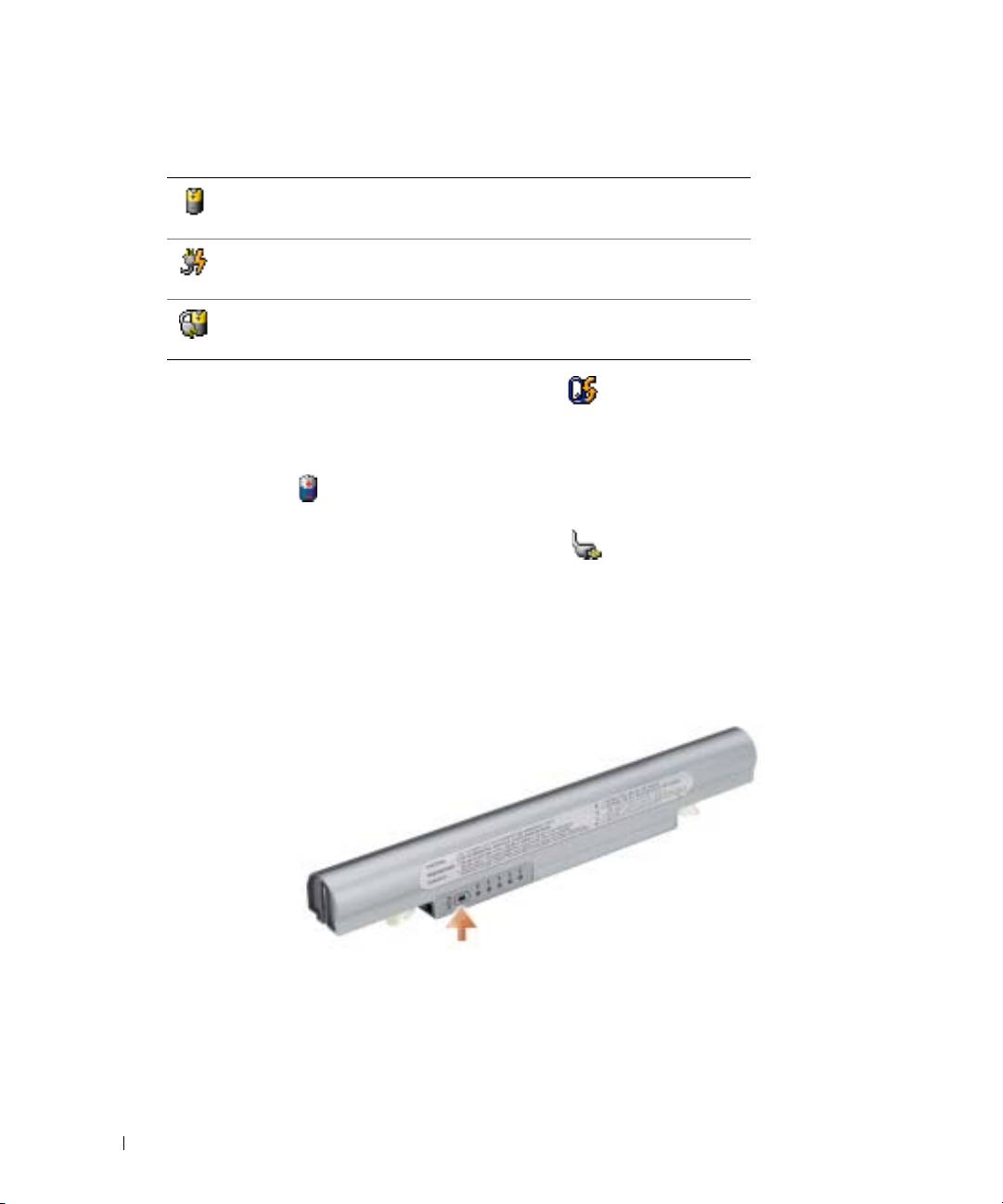
Charge Gauge
Before you insert a battery, press the status button on the battery charge gauge to illuminate the
charge-level lights. Each light represents approximately 20 percent of the total battery charge. For
example, if the battery has 80 percent of its charge remaining, four of the lights are on. If no lights
appear, the battery has no charge.
14 Quick Reference Guide
