
Beurer BM 90: Information on the display 5. Preparing the measurement
Information on the display 5. Preparing the measurement: Beurer BM 90
Table of contents
- 1. Getting to know your instrument 2. Included in delivery
- 3. Important notes Signs and symbols Instructions for application
- Instructions for storage and maintenance Notes on batteries Instructions for repairs and disposal
- 4. Unit description
- Information on the display 5. Preparing the measurement
- Replacing the batteries Setting the date and time
- Operating the blood pressure monitor with a mains part 6. Measuring blood pressure Attach the cuff Adopt the correct posture
- Performing the blood pressure measurement 7. Evaluating results Cardiac arrhythmia:
- Table for the classification of blood pressure values (measurement unit, mmHg) for adults: 8. Saving, displaying and deleting measurements on the device Saving measurements Displaying measurements Deleting measured values from the device 9. Error message/troubleshooting
- 10. Cleaning and storing the unit 11. Technical specifications
- Mains part for wireless box Mains part for blood pressure monitor
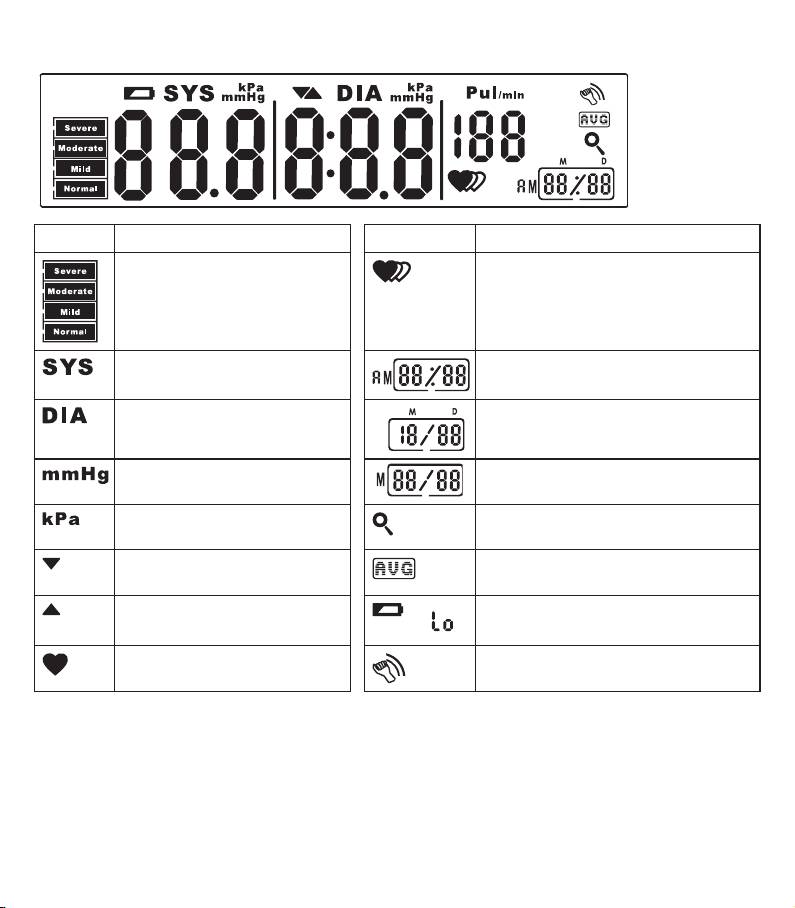
Information on the display
18
LCD display signal
Display Meaning Display Meaning
Classification of blood pressure
Cardiac arrhythmia symbol
measurements
Systolic pressure Hour format (24h/12h)
Diastolic pressure
Date (month/day)
Measurement unit Memory display: memory space number/
total memory spaces occupied
Measurement unit (1kPa = 7.5
Memory display mode
mmHg
Release air Memory display: average value of all
memory spaces
Inflating Low battery indicator
Pulse symbol Movement sensor: warning of restless
behaviour during measurement
5. Preparing the measurement
To use your new Beurer BM90 Internet blood pressure monitor, you require a broadband router with an LAN con-
nection. To start-up the device, please carry out the following steps in the sequence shown:
•
Visit our website: www.beurer-connect.com
•
Register
•
Enter the wireless box activation code. You will find this on the underside of the wireless box.
•
Using the LAN cable connect the wireless box to your router.
