
Dell Precision T3400: • Leave 10.2 cm (4 in) minimum clearance on all vented sides of the computer to permit the airflow required for proper ventilation.
• Leave 10.2 cm (4 in) minimum clearance on all vented sides of the computer to permit the airflow required for proper ventilation.: Dell Precision T3400
Table of contents
- Notes, Notices, and Cautions
- Contents
- Finding Information What Are You Looking For? Find It Here
- What Are You Looking For? Find It Here
- What Are You Looking For? Find It Here
- What Are You Looking For? Find It Here
- What Are You Looking For? Find It Here
- What Are You Looking For? Find It Here
- About Your Computer Front View (Tower Orientation) 4 lower 3.5-inch drive bay
- 9 power button Press to turn on the computer.
- 14 network link light The network link light is on when a good connection
- Back View (Tower Orientation)
- 4 card slots Access connectors for any installed PCI or PCI Express Front View (Desktop Orientation) 4 hard drive activity light
- 7 power button Press to turn on the computer.
- 12 network link light The network link light is on when a good connection
- Back View (Desktop Orientation)
- Back Panel Connectors
- 8 Rear Dual USB 2.0 connectors (2)
- 11 keyboard connector Setting Up Your Computer Changing Between Tower and Desktop Orientations
- Switching From Tower to Desktop Orientation Switching From Desktop to Tower Orientation Installing Your Computer in an Enclosure
- • Leave 10.2 cm (4 in) minimum clearance on all vented sides of the computer to permit the airflow required for proper ventilation.
- • Do not install your computer in an enclosure that does not allow airflow.
- Transferring Information to a New Computer Microsoft Windows XP
- Files and Settings Transfer Wizard (With the Operating System Media) PREPARE THE DESTINATION COMPUTER FOR THE FILE TRANSFER: COPY DATA FROM THE SOURCE COMPUTER: TRANSFER DATA TO THE DESTINATION COMPUTER:
- Files and Settings Transfer Wizard (Without the Operating System Media) CREATE A WIZARD DISK: COPY DATA FROM THE SOURCE COMPUTER:
- TRANSFER DATA TO THE DESTINATION COMPUTER: Microsoft Windows Vista Power Protection Devices
- Surge Protectors Line Conditioners Uninterruptible Power Supplies (UPS)
- Cleaning Your Computer Computer, Keyboard, and Monitor Mouse (Non-Optical)
- Floppy Drive CDs and DVDs Troubleshooting Tools Power Lights
- • Eliminate interference. Some possible causes of interference are:
- Diagnostic Lights Diagnostic Light Codes During POST Light Pattern Problem Description Suggested Resolution
- Light Pattern Problem Description Suggested Resolution
- Light Pattern Problem Description Suggested Resolution
- Light Pattern Problem Description Suggested Resolution
- Light Pattern Problem Description Suggested Resolution
- Code Description Suggested Remedy
- Code Description Suggested Remedy System Messages
- 40 Quick Reference Guide
- Hardware Troubleshooter Windows XP: Windows Vista: Dell Diagnostics When to Use the Dell Diagnostics
- Starting the Dell Diagnostics From Your Hard Drive
- Starting the Dell Diagnostics From the Drivers and Utilities Disc
- Dell Diagnostics Main Menu Option Function
- Tab Function Troubleshooting
- Battery Problems Drive Problems
- Optical drive problems Problems writing to an optical drive Hard drive problems
- E-Mail, Modem, and Internet Problems USE A DIFFERENT TELEPHONE LINE — RUN THE MODEM DIAGNOSTIC TOOL — VERIFY THAT THE MODEM IS COMMUNICATING WITH WINDOWS —
- ENSURE THAT YOU ARE CONNECTED TO THE INTERNET — Ensure that you have Error Messages
- IEEE 1394 Device Problems
- Keyboard Problems Lockups and Software Problems The computer does not start up The computer stops responding
- A program stops responding A program crashes repeatedly A program is designed for an earlier Windows operating system A solid blue screen appears
- Other software problems BACK UP YOUR FILES IMMEDIATELY Memory Problems F YOU RECEIVE AN INSUFFICIENT MEMORY MESSAGE — IF YOU EXPERIENCE OTHER MEMORY PROBLEMS —
- Mouse Problems C HECK THE MOUSE CABLE — RESTART THE COMPUTER — C HECK THE MOUSE SETTINGS —
- Network Problems Power Problems
- Printer Problems
- Scanner Problems
- Sound and Speaker Problems
- Video and Monitor Problems The screen is blank
- The screen is difficult to read 3D image quality is poor Only part of the screen is readable
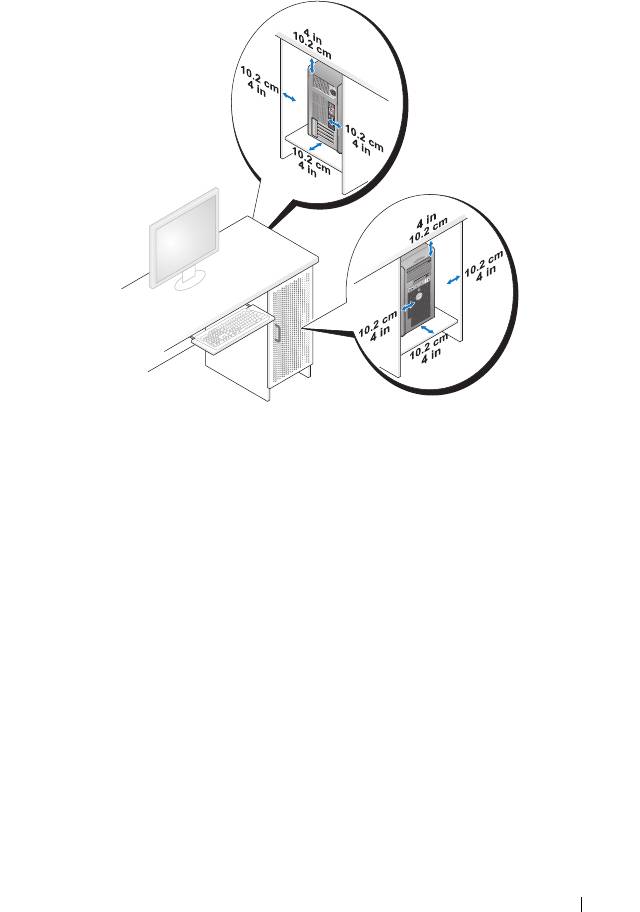
• Leave 10.2 cm (4 in) minimum clearance on all vented sides of the
computer to permit the airflow required for proper ventilation.
• If your computer is installed in a corner on or under a desk, leave 5.1 cm
(2 in) minimum clearance from the back of the computer to the wall to
permit the airflow required for proper ventilation.
• If your enclosure has doors, ensure that they allow at least thirty percent
airflow through the enclosure (front and back).
Quick Reference Guide 23
Top 10 manuals
100.00
NZXT HALE90 1000W99.99
Samsung SM-R38099.97
AEG BSB 18C99.97
Dell 2700W99.97
Smeg KSEC70X99.96
Beurer HDE 4099.96
Pyramida KH 50 v.299.96
MSI CSM-H81M-P3299.96
AEG HR 562799.95
Melissa 640-048