
Dell J730N: Installing the Input and Ground Wires
Installing the Input and Ground Wires: Dell J730N
Table of contents
- Getting Started With Your System
- Notes and Warnings
- System Features
- Finding Information
- Installation and Startup Unpacking the System
- Lifting the Cabinet
- Identifying the UPS Figure 1. The Dell Online Rack UPS Front Panel Figure 2. 3750W, 208V Rear Panel
- Figure 3. 3750W, 230V Rear Panel Figure 4. 4200W, 208V Rear Panel
- Figure 5. 4200W, 230V Rear Panel
- Rackmount Setup Removing the Battery Retaining Bracket
- Removing the Battery Trays
- Installing the Rails
- Installing the Cabinet
- Securing the Cabinet Installing the Battery Tray
- Replacing the Battery Retaining Bracket and Connecting the Internal Battery Connectors
- Installing the UPS Front Cover Connecting the Equipment
- Connecting the Power Cord (3750W/208V Models Only)
- Hardwiring the UPS Input Figure 6. Circuit Breaker Diagram
- Removing the Terminal Block Cover
- Installing the Input and Ground Wires
- Starting the UPS
- Completing the Startup
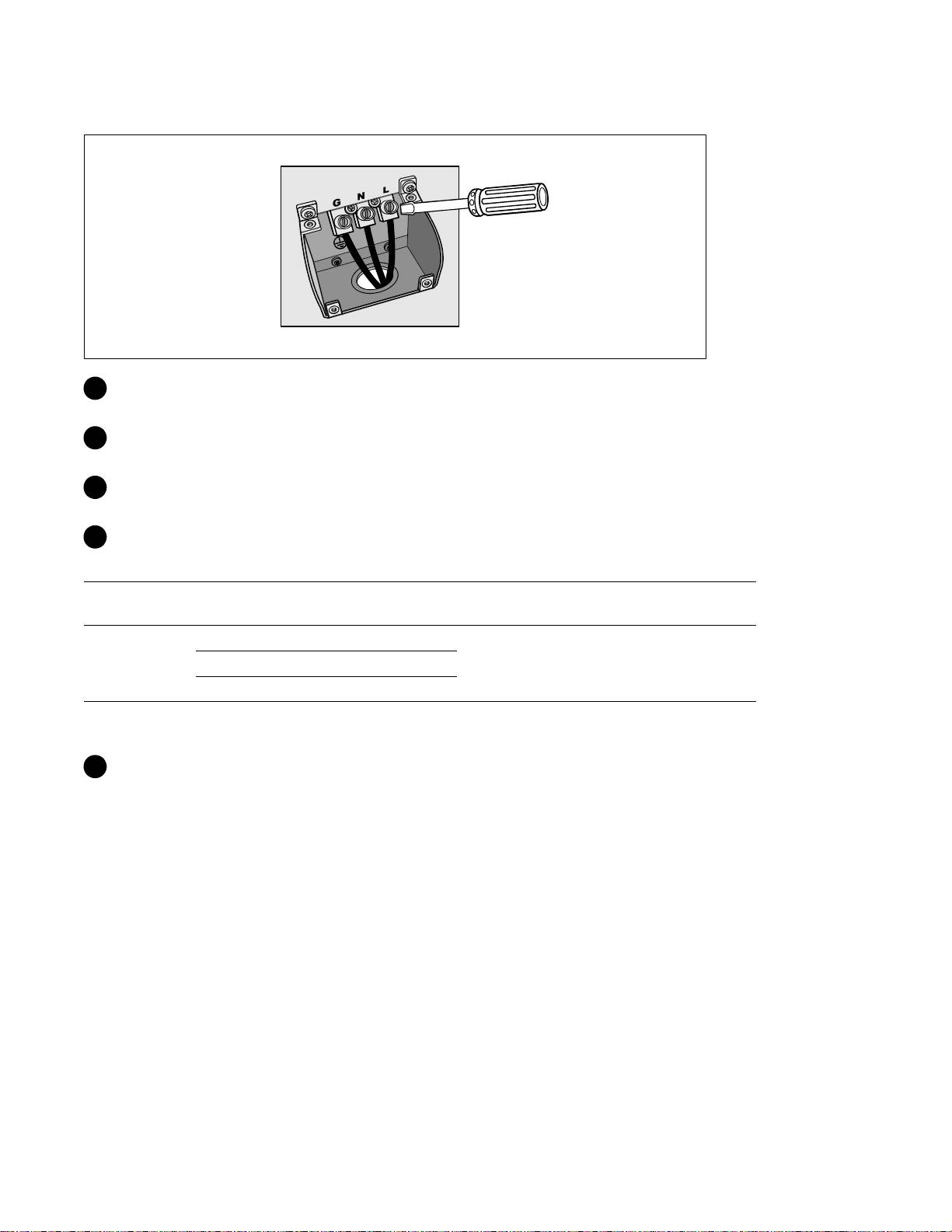
Installing the Input and Ground Wires
®
3 Punch a hole in the terminal block cover for the input conduit using a Greenlee
punch or similar
device. The hole accommodates 3 /4” or 1” IMC conduit.
4 Pull the input wire through the conduit, leaving approximately 2 ft (0.5m) of exposed wire. Attach
a flexible metal fitting to the end of the conduit.
5 Insert the conduit through the wiring access entry and attach the conduit fitting to the panel.
Strip 0.5” (1 .5 cm) of insulation from the end of each incoming wire.
6 Connect the input and ground wires to the terminal block according to Table 1.
Table 1. UPS Wiring Specifications
Wire
Terminal
Terminal Wire
Tightening
UPS Wire Function
Function
Position
Size Rating*
Torque
Input
1 Input Ground
2
5.26–16 mm
2 L2/Neutral In
2.26 Nm (20 lb in)
(10–6 AWG)
3 L1 In
2
* Use 5.26 mm
(10 AWG) 75_C copper wire minimum.
7 Replace the terminal block cover.
20
|
Installation and Startup
