
Dell Latitude C640: Finding Information and Assistance Resource Contents Using the Resource
Finding Information and Assistance Resource Contents Using the Resource: Dell Latitude C640
Table of contents
- Notes, Notices, and Cautions Abbreviations and Acronyms
- Contents
- CAUTION: Safety Instructions General
- CAUTION: Safety Instructions (continued) Power
- CAUTION: Safety Instructions (continued) Battery
- CAUTION: Safety Instructions (continued) Air Travel EMC Instructions California Residents
- When Using Your Computer
- When Using Your Computer (continued) Ergonomic Computing Habits When Working Inside Your Computer
- When Using Your Computer (continued) Protecting Against Electrostatic Discharge
- Finding Information and Assistance Resource Contents Using the Resource
- Resource Contents Using the Resource
- Setting Up Your Computer
- 4 Open the computer display and press the power button to turn on the computer.
- About Your Computer
- Front View
- Left Side View
- Right Side View
- Back View
- Bottom View
- Removing a Battery Installing a Battery
- Running the Dell Diagnostics
- Regulatory Notices
Finding Information and Assistance
The following table lists the resources that Dell provides as support tools. Additional
resources may be shipped with your computer.
Resource Contents Using the Resource
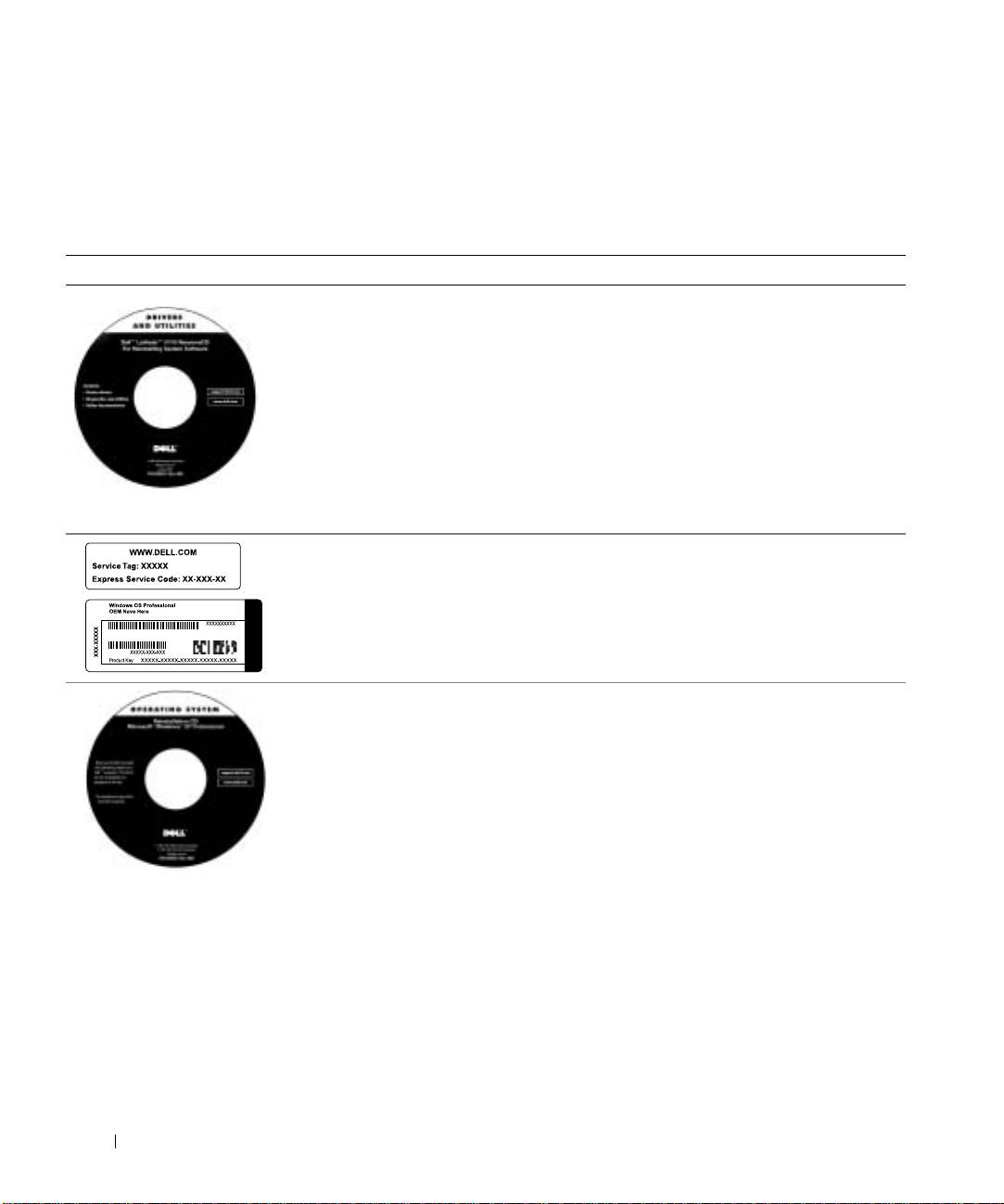
Drivers and Utilities CD
See the main menu on the Drivers and Utilities CD
• Dell Diagnostics
that came with your computer. Use the pull-down
menu to make selections appropriate for your
• Drivers
computer.
• Utilities
Documentation and drivers are already installed on
• Computer and device
your computer when shipped from Dell. You can use
documentation
this CD to access documentation or reinstall drivers.
You can also use the CD to run diagnostic tools if
www.dell.com | support.euro.dell.com
you are unable to run the diagnostics located on
your hard drive.
For more information, see your online User’s Guide.
Service and Registration Labels
The Express Service Code and Service Tag are
• Express Service Code and
unique identifiers for your Dell™ computer.
Service Tag Sequence
You will need the Product Key (or Product ID)
• Product Key (also called the
number to complete the operating system setup.
Product ID or Certificate of
Authenticity [COA])
Operating System CD To reinstall your operating system, use the Operating
System CD that came with your computer.
NOTE: The Operating System CD may not include
all the latest drivers for your computer. If you
reinstall your operating system, use the Drivers and
Utilities CD to reinstall drivers for the devices
shipped with your computer. Alternatively, you can
go to support.dell.com to obtain the latest drivers.
12 System Information Guide
