
Beurer BY 88 Smart: 6. Unit description HD camera (720p for a high resolution image quality) 7. First steps 7.1 Setting up the camera using an Android™ device
6. Unit description HD camera (720p for a high resolution image quality) 7. First steps 7.1 Setting up the camera using an Android™ device: Beurer BY 88 Smart
Table of contents
- Table of contents
- 1. Getting to know your device
- 2. Signs and symbols 3. Intended use 4. Notes
- 5. How it works / useful information Local
- 6. Unit description HD camera (720p for a high resolution image quality) 7. First steps 7.1 Setting up the camera using an Android™ device
- 7.2 Setting up the camera on your iPhone 7.3 Camera settings 7.4 General settings
- 8. Camera operation 8.1 Switching on the camera 8.2 Adding another camera 8.3 Removing a camera 8.4 Account settings / signing out
- 8.5 Infrared night vision function 8.6 Functions during live transmission in the app
- 8.7 Using the camera for other end devices 8.8 Access to the user account via the web portal (PC) 9. Maintenance and cleaning 10. What if there are problems? Problem Solution
- Problem Solution 11. Disposal 12. Technical data
•
The following other factors can interfere with the baby monitor's transmission or shorten
its range: furniture, walls, houses, trees, environmental factors (such as fog, rain).
Note
On the Hubble homepage (http://beurer.hubbleconnected.com), you can activate the re-
cording function at an additional charge. When the recording function is activated, events
triggered by movements are automatically recorded and saved onto the Hubble server so
that they can be viewed later.
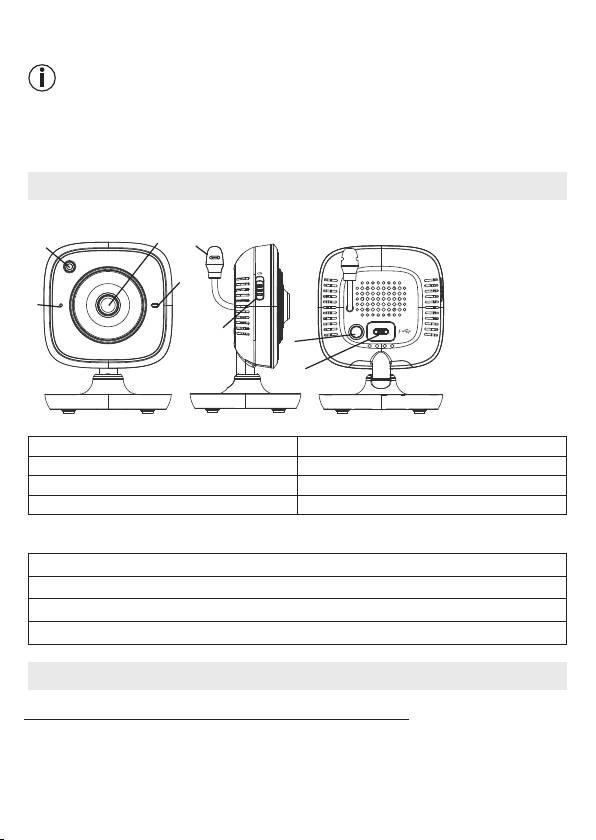
6. Unit description
HD camera (720p for a high resolution image quality)
3
5
2
4
1
PAIR
6
7
8
1 Microphone 5 Temperature sensor
2 Brightness sensor (night vision function) 6 ON/OFF switch
3 Camera lens 7 Pair button
4 Function light* 8 Connection for USB mains part plug
*Function light status
Function light lights up blue = Camera warm-up phase ~ 1 minute
Function light flashes red = Camera is not connected
Function light flashes red and blue = Camera is ready to connect
Function light flashes blue = Camera is connected
7. First steps
7.1 Setting up the camera using an Android™ device
1. Open the Google Play Store on your Android™ device.
2. Search for the “Beurer CareCam” app and download it.
3. Start the app and create a user account.
17
