
Nikon PD-10: инструкция
Раздел: Бытовая, кухонная техника, электроника и оборудование
Тип: Принтер
Инструкция к Принтеру Nikon PD-10
Оглавление
- Меры предосторожности ПРЕДУПРЕЖДЕНИЯ
- Предупреждения Уход за адаптером
- Содержание
- Введение
- Перед началом работы
- Компоненты адаптера
- Вставка батарей
- Подключение адаптера PD-10 к принтеру
- Настройка параметров профиля в фотокамере
- Примечание
- Беспроводная печать
- Индикаторы
- Поиск и устранение неисправностей
- Технические характеристики
En
PD-10
De
No reproduction in any form of this manual, in whole or in part (except
Wireless Printer Adapter
(En, De, Fr, Es, Se, Ru, Nl, It)
Fr
for brief quotation in critical articles or reviews), may be made without
written authorization from NIKON CORPORATION.
Es
PD-10
Se
Ru
Instruction Manual
Nl
Printed in Japan
Fuji Bldg., 2-3 Marunouchi 3-chome, TR5I00350101(82)
It
Chiyoda-ku, Tokyo 100-8331, Japan 6MAK3882--
For Your Safety
En
To prevent damage to your Nikon product or injury to yourself or to others, read the following safety precautions in their entirety
before using this equipment. Keep these safety instructions where all those who use the product will read them.
The consequences that could result from failure to observe the precautions listed in this section are indicated by the following symbol:
This icon marks warnings, information that should be read before using this product to prevent possible injury.
WARNINGS
Turn off immediately in the event of malfunction
Keep dry
Should you notice smoke or an unusual smell coming from the
Do not immerse in or expose to water. Continuing to use the prod-
PD-10, unplug the USB connector from printer and remove the
uct under such circumstances may cause fire or an electric shock.
battery immediately, taking care to avoid burns. Then take the
Keep out of reach of children
equipment to a Nikon-authorized service representative for in-
Failure to observe this precaution could result in injury.
spection. Continued operation could result in injury.
Remove the batteries if the product will not be used for
Do not disassemble
long periods
Touching the internal parts of the product could result in injury.
Failure to observe this precaution could result in leakage, which
Repairs should be performed only by qualified technicians.
may cause fire, injury, or contamination of surroundings.
Should the product break open as the result of a fall or other ac-
cident, take the product to a Nikon-authorized service represen-
Follow the instructions of hospital and airline personnel
tative for inspection after unplugging the product and/or
This device emits radio frequency radiation that could interfere
removing the batteries.
with medical or navigational equipment. Do not use this device
in a hospital or on board an airplane without first obtaining the
Do not use in the presence of flammable gas
permission of hospital or airline staff.
Do not use electronic equipment in the presence of flammable
gas, as this could result in explosion or fire.
Follow the warnings on the batteries
Failure to observe this precaution could result in leakage, rupture,
or fire.
Notices
• No part of the manuals included with this product may be reproduced,
• Nikon will not be held liable for any damages resulting from the use of
En
transmitted, transcribed, stored in a retrieval system, or translated into
this product.
any language in any form, by any means, without Nikon’s prior written
• While every effort has been made to ensure that the information in
permission.
these manuals is accurate and complete, we would appreciate it were
• Nikon reserves the right to change the specifications of the hardware
you to bring any errors or omissions to the attention of the Nikon rep-
and software described in these manuals at any time and without prior
resentative in your area (address provided separately).
notice.
Notice for customers in the U.S.A.
Federal Communications Commission (FCC)
Declaration of Conformity
This device complies with Part 15 of the FCC rules. Operation of the de-
vice is subject to the following two conditions: (1) this device may not
cause harmful interference, and (2) this device must accept any interfer-
ence received, including interference that may cause undesired operation.
Products that contain a radio transmitter are labeled with FCC ID and may
also carry the FCC logo.
Federal Communication Commission Interference Statement
This equipment has been tested and found to comply with the limits for
turning the equipment off and on, the user is encouraged to try to correct
a Class B digital device, pursuant to Part 15 of the FCC Rules. These limits
the interference by one of the following measures:
are designed to provide reasonable protection against harmful interfer-
• Reorient or relocate the receiving antenna.
ence in a residential installation. This equipment generates, uses and can
• Increase the separation between the equipment and receiver.
radiate radio frequency energy and, if not installed and used in accor-
• Connect the equipment into an outlet on a circuit different from that to
dance with the instructions, may cause harmful interference to radio com-
which the receiver is connected.
munications. However, there is no guarantee that interference will not
• Consult the dealer or an experienced radio/TV technician for help.
occur in a particular installation. If this equipment does cause harmful in-
terference to radio or television reception, which can be determined by
i

This device complies with Part 15 of the FCC Rules. Operation is subject
Notice for customers in Canada
to the following two conditions: (1) This device may not cause harmful in-
En
terference, and (2) this device must accept any interference received, in-
CAUTION
cluding interference that may cause undesired operation.
This class B digital apparatus meets all requirements of the Canadian In-
terference Causing Equipment Regulations.
FCC Caution: Any changes or modifications not expressly approved by the
RSS-210 14. Exposure of Humans to RF Fields
party responsible for compliance could void the user's authority to oper-
The installer of this radio equipment must ensure that the antenna is lo-
ate this equipment.
cated or pointed such that it does not emit RF field in excess of Health
IMPORTANT NOTE:
Canada limits for the general population; consult Safety Code 6, obtain-
able from Health Canada’s website:
FCC Radiation Exposure Statement:
www.hc-sc.gc.ca/rpb
This equipment complies with FCC radiation exposure limits set forth for
an uncontrolled environment. This equipment should be installed and op-
ATTENTION
erated with minimum distance 20cm between the radiator & your body.
Cet appareil numéique de la classe B respecte toutes les exigences du Rè-
glement sur le matériel brouilleur du Canada.
This transmitter must not be co-located or operating in conjunction with
IC statement
any other antenna or transmitter.
Operation is subject to the following two conditions:
1) This device may not cause interference and
Nikon Corporation declares that the Wireless Printer Adapter
2) This device must accept any interference, including interference that
PD-10 ( FCC ID: MXF-U940829G) is limited in CH1~CH11 for 2.4 GHz
may cause undesired operation of the device.
by specified firmware controlled in U.S.A.
Notice for customers in the State of California
WARNING: Handling the cord on this product will expose you to lead, a
chemical known to the State of California to cause birth defects or other
reproductive harm. Wash hands after handling.
Nikon Inc.,
1300 Walt Whitman Road, Melville, New York
11747-3064, U.S.A.
Tel.: 631-547-4200
ii

Notice for customers in Europe
Caring for the Adapter
Hereby, Nikon Corporation, declares that this wireless printer adapter is
in compliance with the essential requirements and other relevant provi-
Keep dry
En
sions of Directive 1999/5/EC.
The device will be damaged if immersed in water or subjected to
high levels of moisture.
Symbol for separate collection applicable
Do not drop
in European countries
The product may malfunction if subjected to strong shocks or vibration.
This symbol indicates that this product is to be collected
Keep away from strong magnetic fields
separately.
Do not use or store this device in the vicinity of equipment that gen-
The following apply only to users in European countries.
erates strong electromagnetic radiation or magnetic fields. Strong
• This product is designated for separate collection at an ap-
static charges or the magnetic fields produced by equipment such as
propriate collection point. Do not dispose of as household
radio transmitters could affect the product’s internal circuitry.
waste.
• For more information, contact the retailer or the local au-
Avoid sudden changes in temperature
thorities in charge of waste management.
Sudden changes in temperature, such as occur when entering or
leaving a heated building on a cold day, can cause condensation in-
side the device. To prevent condensation, place the device in a car-
rying case or a plastic bag before exposing it to sudden changes in
temperature.
iii

Table of Contents
En
For Your Safety
Notices ...............................................................................................................................................................i
Caring for the Adapter ..................................................................................................................................... iii
Introduction ..................................................................................................................................................... 1
Before You Begin ............................................................................................................................................. 2
Parts of the Adapter ......................................................................................................................................... 3
Inserting the Batteries ....................................................................................................................................... 4
Connecting the PD-10 to a Printer .................................................................................................................... 5
Setting Profile Information on the Camera ........................................................................................................ 6
Wireless Printing............................................................................................................................................... 8
LED Lamp Display ............................................................................................................................................. 9
Troubleshooting ............................................................................................................................................. 10
Specifications ................................................................................................................................................. 11
©2005 FotoNation
iv
Introduction
Thank you for purchasing the Nikon PD-10 wireless printer adapter.
En
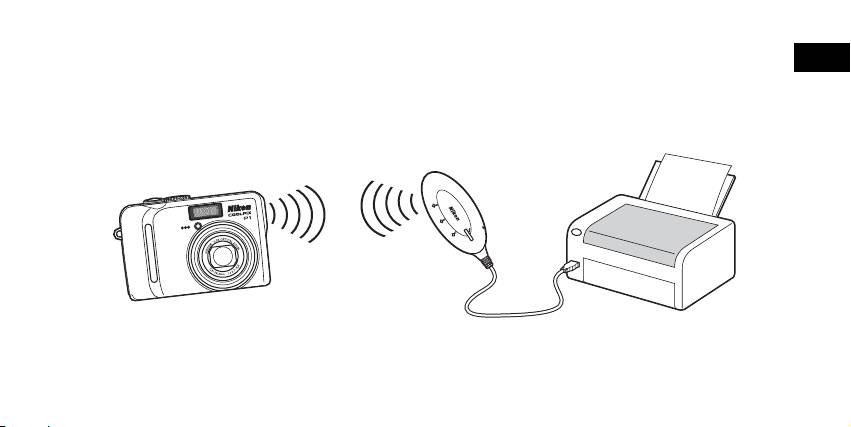
The PD-10 is an accessory for use with Nikon COOLPIX digital cameras* equipped with Wireless transfer mode.
By connecting the PD-10 to a PictBridge-compatible printer, you can wirelessly print camera images without a computer.
Read this manual and the camera manual thoroughly before use, and keep them handy when using these products.
* Check the camera manual to make sure that the camera is compatible with the PD-10.
P
O
W
E
R
LINK
S
T
A
B
R
U
T
S
Y
Note
• Connect the PD-10 directly to a printer. Do not connect to a USB hub.
• The PD-10 must be connected to a printer that provides a 5 V, 100 mA power supply through the PictBridge interface (USB connector).
1

Before You Begin
En
Package
PD-10 wireless printer adapter
Contents
Instruction Manual (this manual)
Declaration of Conformity (Europe only)
Two LR6 (AA) Alkaline batteries (for testing)
Warranty
Life-Long Learning
As part of Nikon’s “Life-Long Learning” commitment to ongoing
product support and education, continually-updated information is
available on-line at the following sites:
• For users in the U.S.A.:
http://www.nikonusa.com/
• For users in Europe and Africa:
http://www.europe-nikon.com/support/
• For users in Asia, Oceania and the Middle East:
http://www.nikon-asia.com/
Visit these sites to keep up-to-date with the latest product informa-
tion, tips, answers to frequently-asked questions (FAQs), and gen-
eral advice on digital imaging and photography. Additional
information may be available from the Nikon representative in your
area. See the URL below for contact information:
http://nikonimaging.com/
2
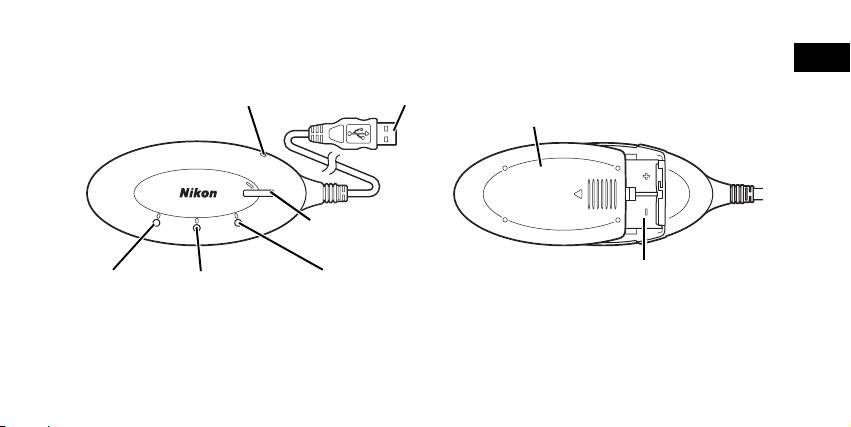
Parts of the Adapter
En
Reset button (c10)
USB connector (c5)
Battery-chamber cover (c4)
S
T
A
R
T
P
O
W
E
R
LINK
BUSY
START button (c5)
Battery chamber (c4)
POWER lamp
LINK lamp
BUSY lamp
(c5, 9)
(yellow green/orange)
(yellow green/orange)
(c9)
(c7, 9)
3
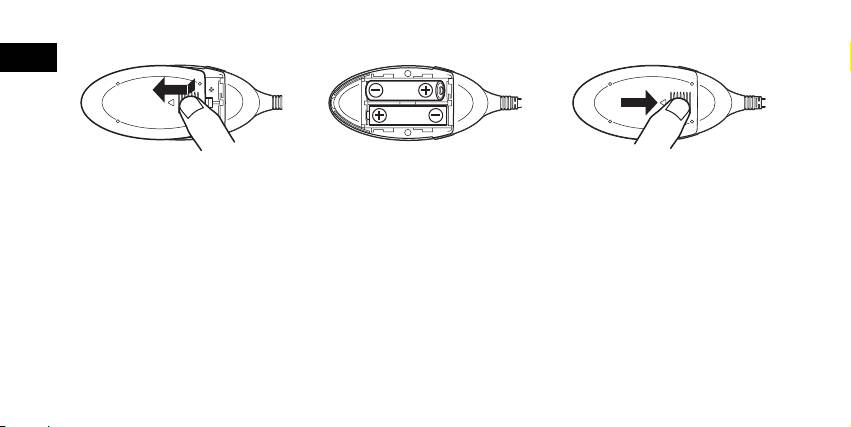
Inserting the Batteries
En
1
Press down and slide the battery-
2
Insert two AA batteries into the
3
Close the battery-chamber cover
chamber cover in the direction of
battery chamber matching the (+)
and slide it until it latches.
the arrow and open the cover.
and (–) polarities as shown in the
diagram.
4
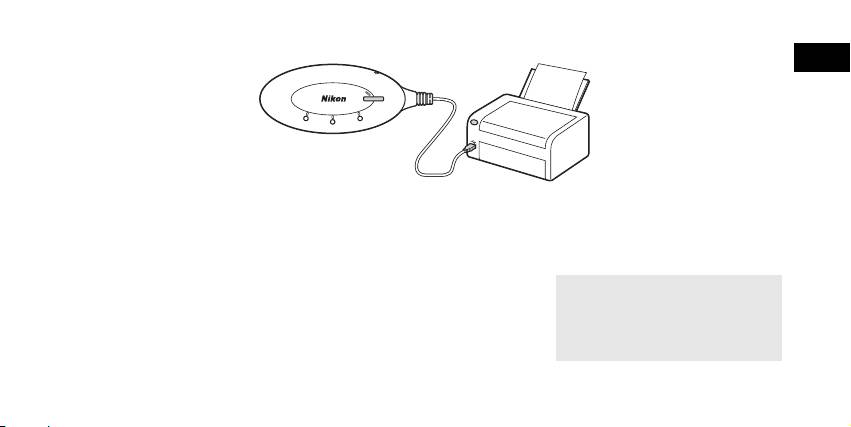
Connecting the PD-10 to a Printer
En
S
T
A
R
T
3
P
O
W
E
R
B
U
S
Y
LINK
22
P
O
W
E
R
1
1
Connect the USB cable of the
2
Turn the printer on and check that
3
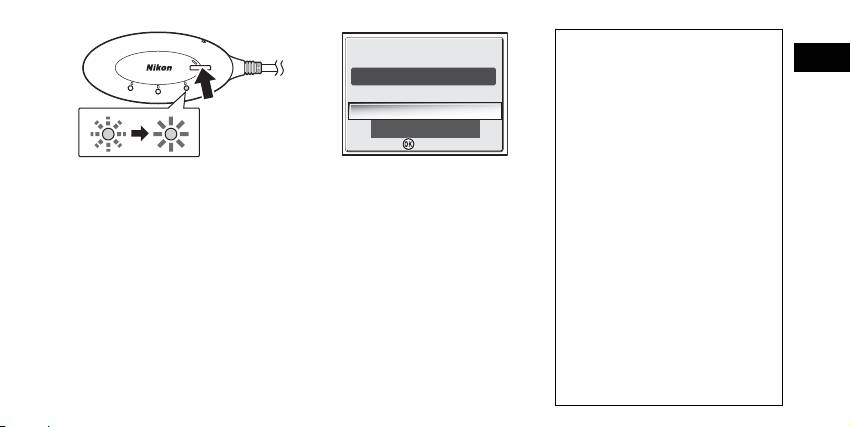
Press the START button on the
PD-10 to the PictBridge connector
it is ready to print.
PD-10 to turn it on.
on the printer.
• Do not perform any operations with the
• The POWER lamp on the PD-10 lights,
PD-10 until the printer is ready to print.
and the LINK lamp changes from orange
to yellow green. The PD-10 is ready for
wireless connection.
Once a connection is established:
• If this is the first time the PD-10 is used
with the camera:
Proceed to p.6.
• To perform wireless printing:
Proceed to p.8.
5
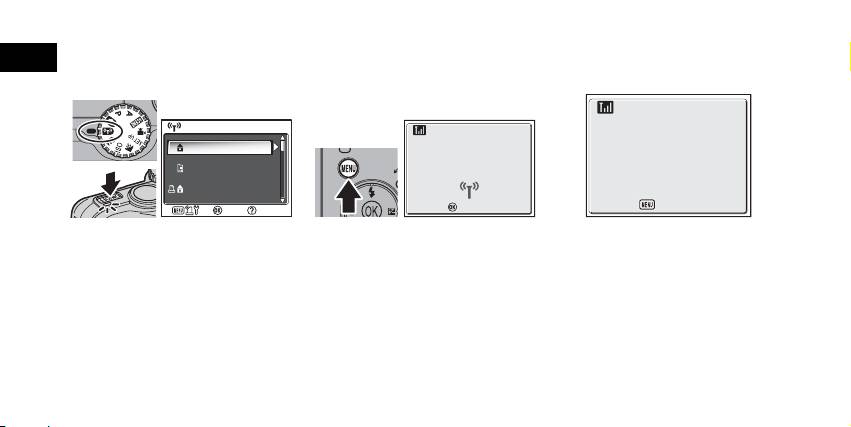
Setting Profile Information on the Camera
En
If this is the first time the PD-10 is being used with a particular camera, follow the steps below to set up Profile Information on the
camera and PD-10.
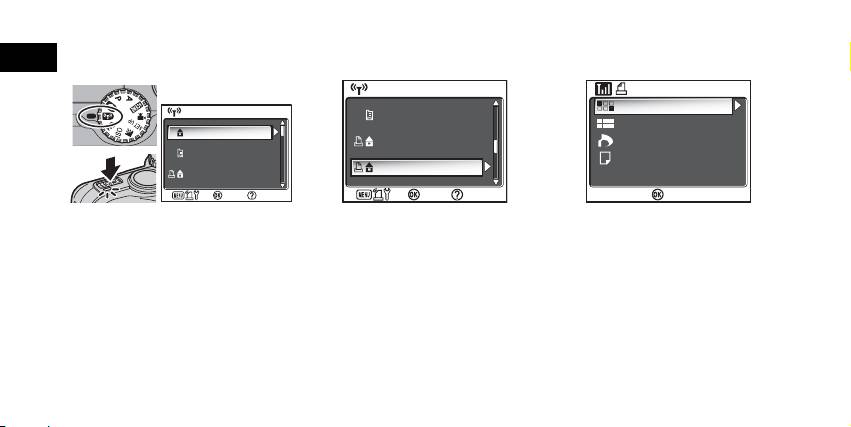
1
Rotate the mode dial on the cam-
2
Press the m button on the cam-
3
The message “Press the button on
era to Y (Wireless transfer
era.
Wireless Printer Adapter” will be
mode), and turn the camera on.
• The message “Connecting to wireless
displayed on the camera monitor.
• The CHOOSE PROFILE screen is displayed
printer adapter” will be displayed on the
on the camera monitor.
camera monitor.
• If no Profile Information is currently set, a
message is displayed prompting you to
add Profile Information.
6
CHOOSE PROFILE 1/3
CHOOSE PROFILE 1/3
Confirm
Confirm
Info
Profile-A
Connecting to
Profile-B
wireless printer adapter
Profile-C
Info
Cancel
Press the button on
Wireless Printer Adapter
Cancel
Cancel
Cancel
Number of Devices That Can Be Set
S
T
A
R
T
•
The PD-10 can store the Profile Information
Ready to connect toReady to connect to
En
of up to 50 cameras. If 50 profiles have al-
P
O
W
E
R
B
U
S
Y
LINK
Printer1
ready been created, the oldest profile will
Do you want to connect now?
Do you want to connect now?
be deleted when storing a new profile.
•
The camera can store the Profile Informa-
No
12
tion of up to 9 devices, such as the PD-10,
Yes
computers, and printers connected to com-
puters. If 9 profiles have already been cre-
ated and the Profile Information of the
4
As soon as the message is dis-
5
After setup is complete, the mes-
PD-10 is stored, delete an unneeded profile
first using the Wireless Camera Setup Utili-
played, press the START button on
sage “Ready to connect to
ty provided with the camera. If an unneed-
the PD-10 for two seconds.
Printer1 Do you want to connect
ed profile is not deleted, the oldest profile
• Press the START button while the mes-
now?” will be displayed on the
will be overwritten. See the camera manual
sage is displayed.
camera monitor.
for more information on deleting profiles.
• The BUSY lamp on the PD-10 will blink
•
Select
No
to return to the CHOOSE PRO-
Profile names
slowly in orange 1. After a while, the
FILE screen (
c
6). Select
Yes
to continue
• When the Profile Information of the
BUSY lamp will light in orange for about
operations and print (step 3 on
c
8).
PD-10 is stored in the camera, the pro-
three seconds when setup is complete
•
After Profile Information is set up, the
file name is automatically set to “Printer
2.
camera and PD-10 can be connected any
x” (where x is a digit from 1 to 9).
number of times by choosing the Profile In-
•
The profile name “Printer
x
” can be
formation from the camera CHOOSE PRO-
changed later using the Wireless Camera
FILE screen. Profile Information must be set
Setup Utility provided with the camera. See
up again when Reset (
c
10) is performed.
the camera manual for more information.
Note
Turning the PD-10 Off
If setup fails, the BUSY lamp on the PD-10 will blink rapidly in orange, and a message will be dis-
• The PD-10 will turn off when discon-
played on the camera monitor. If this occurs, press the d button on the camera, and perform set-
nected from the printer.
tings again.
7
Confirm
Confirm
Wireless Printing
En
Use the PD-10 and a camera with PD-10 Profile Information to wirelessly print camera images.
1
Rotate the mode dial on the cam-
2
Select the profile name of the
3
The WIRELESS PRINTING screen is
era to Y (Wireless transfer
PD-10 using the multi selector on
displayed on the camera monitor.
mode), and turn the camera on.
the camera and press d button.
• Print using the same procedure as “Direct
• The CHOOSE PROFILE screen is displayed
• Screens showing the connection status of
Print” in the camera manual to directly
on the camera monitor.
the PD-10 are displayed on the camera
print from the camera to a PictBridge-
monitor.
compatible printer.
• After printing is complete, the camera
monitor returns to the CHOOSE PROFILE
screen.
Note
• Use fully-powered batteries when performing wireless printing.
• See the camera manual for direct printing operations.
• If printing is canceled before completing, printing stops and the camera monitor returns to the CHOOSE PROFILE screen.
8
CHOOSE PROFILE 1/3
CHOOSE PROFILE 1/3
Confirm
Confirm
Info
Profile-A
Profile-B
Profile-C
Info
CHOOSE PROFILE 2/3
CHOOSE PROFILE 2/3
Confirm
Confirm
Info
Profile-D
Profile-E
Printer1
Info
WIRELESS PRINTING
WIRELESS PRINTING
Confirm
Confirm
Info
Print selection
Print all images
DPOF printing
Paper size
LED Lamp Display
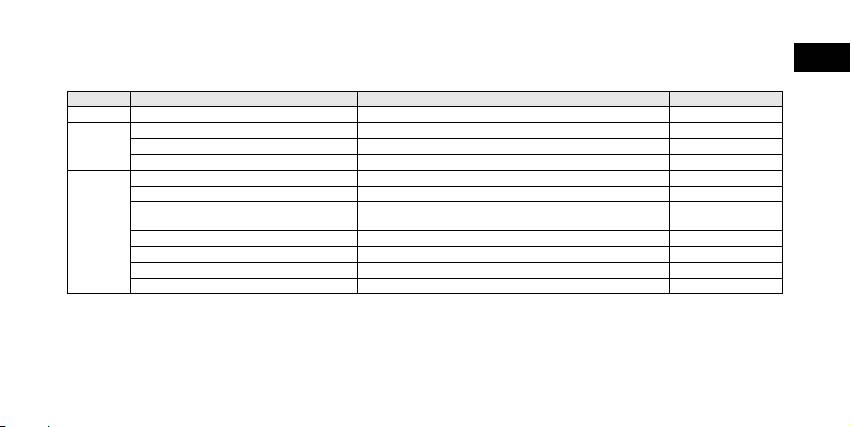
The POWER, LINK and BUSY lamps (c3) indicate the following after the printer and camera are set up.
En
During printing standby, each lamp displays the color corresponding to the check mark (9).
Lamp Display Status Printing standby
POWER Lights Power is on 9
LINK Lights in yellow green Ready for wireless connection 9
Lights in orange Not ready for wireless connection
Blinks rapidly in orange for about 3 seconds There is a problem with the wireless connection.
BUSY Lights in yellow green Printing standby 9
Blinks in yellow green Transferring data for printing
Blinks rapidly in yellow green for about 3 sec-
There is a problem transferring data for printing.
onds
Blinks in orange Setting Profile Information on the camera
Lights in orange for about 3 seconds Profile Information setup on the camera complete
Blinks rapidly in orange for about 3 seconds There is a problem setting Profile Information on the camera.
Blinks alternately in orange and yellow green Resetting (c10)
Note
• If the connection with the camera is not established (when the BUSY lamp is not lit) and no operations are performed for about three minutes,
the PD-10 automatically turns off in order to reduce power consumption.
• If in printing standby (indicated by the check marks in the chart above) for 10 minutes, the PD-10 automatically turns off.
9
Troubleshooting
En
If the camera cannot establish a strong connection to the PD-10 or if printing suddenly stops, check the following items.
Problem Possible cause/Solution
The POWER lamp on the PD-10 does not light. • Use fully-powered batteries.
• Check that the PD-10 is connected to the printer.
Unable to successfully set up the Profile Information on the
• Check that the printer is on and ready to print.
camera and PD-10./The camera cannot establish a strong
connection to the PD-10 (overall).
The camera cannot establish a strong connection to the
The wireless signal may be affected by something nearby. Move the camera and print-
PD-10./The connection is interrupted.
er closer together.
There is a problem with the wireless connection./The con-
The wireless signal may be affected by something nearby. Move the camera and print-
nection is interrupted.
er closer together. Perform a Reset, and then set up the Profile Information on the
camera again (c6).
Unable to successfully set up the Profile Information on the
Perform Steps 3 and 4 in “Setting Profile Information on the Camera” (c6 - 7) in rap-
camera and PD-10. (BUSY lamp blinks rapidly in orange.)
id succession. In Step 4, the START button must be pressed for two seconds.
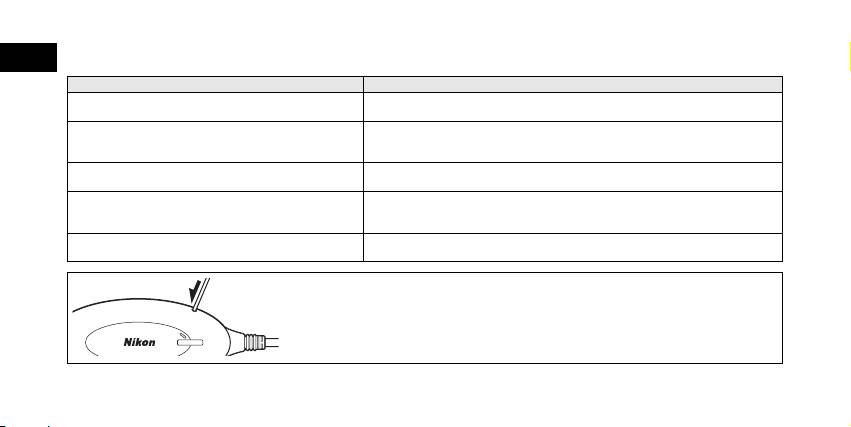
Resetting
• If the Reset button is pressed for about one second while the PD-10 is on and connect-
ed to the printer, all of the Profile Information set in the PD-10 will be deleted.
• Press the Reset button with a small, thin object.
10
BUSY
S
T
A
R
T
P
O
W
E
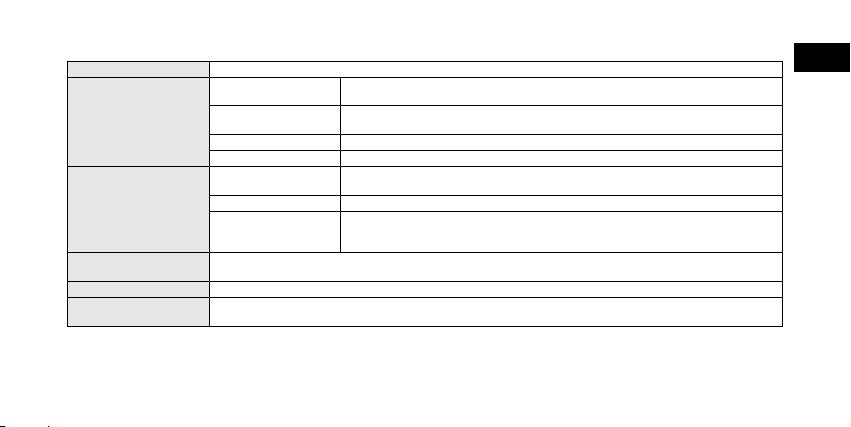
Specifications
En
Interface USB
IEEE 802.11g Wireless LAN (OFDM, 54 Mbps in 2.4 GHz band)
The distance to communicate: 0 - 25 m Condition of the distance: Line of sight
IEEE 802.11b Wireless LAN (DSSS, 11 Mbps in 2.4 GHz band)
Wireless LAN interface
The distance to communicate: 0 - 40 m Condition of the distance: Line of sight
Wireless mode Ad-hoc mode
Security WEP 128 bit
Batteries Two LR6 (AA) Alkaline batteries (two rechargeable Nikon EN-MH1 batteries, two ZR6 (AA)
nickel manganese batteries and two FR6/L91 (AA) lithium batteries also can be used)
USB connector on printer 5 V, 100 mA
Power sources
Battery life Approximately 120 minutes (when using LR6 (AA) Alkaline batteries; this may differ de-
pending on the type of printer, file size of pictures to be printed, and wireless connection
conditions)
Body: Approximately 117 × 45.5 × 29.5 mm/4.6 in. × 1.8 in. × 1.2 in. including cable boot (not including cable)
Dimensions (W × H × D)
USB cable: Approximately 500 mm/19.7 in.
Approximate weight 73 g without batteries
Temperature: 0 to 40°C
Operation Environment
Humidity: 10 to 90 %
11
Sicherheitshinweise
Bitte lesen Sie diese Sicherheitshinweise aufmerksam durch, bevor Sie Ihr Nikon-Produkt in Betrieb nehmen, um Schäden am Produkt zu vermeiden
und möglichen Verletzungen vorzubeugen. Halten Sie diese Sicherheitshinweise für alle Personen griffbereit, die dieses Produkt benutzen werden.
Die in diesem Abschnitt beschriebenen Warnhinweise und Vorsichtsmaßnahmen sind durch das folgende Symbol gekennzeichnet:
De
Dieses Symbol kennzeichnet wichtige Warnhinweise, die Sie unbedingt vor Gebrauch dieses Produkts lesen sollten, um möglichen
Verletzungen vorzubeugen.
WARNHINWEISE
Schalten Sie das Gerät bei einer Fehlfunktion sofort aus
Achten Sie darauf, dass das Gerät und dessen Zubehör
Bei Rauch- oder ungewöhnlicher Geruchsentwicklung, für die der PD-10 die
nicht in die Hände von Kindern gelangen.
Ursache ist, sollten Sie das USB-Kabel vom Drucker trennen und die Batterien
Eine Nichtbeachtung dieser Vorsichtsmaßnahme kann zu Verlet-
entnehmen, um einem möglichen Brand vorzubeugen. Lassen Sie danach
zungen führen.
das Gerät von Ihrem Fachhändler oder vom Nikon-Kundendienst überprüfen.
Wenn Sie das Gerät über einen längeren Zeitraum nicht
Der fortgesetzte Betrieb kann zu ernsthaften Verletzungen führen.
verwenden, nehmen Sie die Batterien heraus.
Nehmen Sie das Gerät nicht auseinander
Andernfalls können die Batterien auslaufen, was Brände, Verlet-
Das Berühren des Innenlebens des Geräts kann zu Verletzungen
zungen oder die Verschmutzung der Umgebung zur Folge haben
führen. Reparaturarbeiten sollten ausschließlich durch den Fach-
kann.
händler oder den Nikon-Kundendienst vorgenommen werden. Falls
Folgen Sie den Anweisungen des Krankenhaus- oder Flug-
das Gerät einmal durch einen Sturz oder eine andere äußere Einwir-
zeugpersonals
kung beschädigt werden sollten, entfernen Sie die Batterien und/
Dieses Gerät gibt Funkfrequenzstrahlungen ab, die sich störend
oder trennen Sie die Stromversorgung, und lassen Sie das Gerät von
auf medizinische oder Navigationsgeräte auswirken können. Ver-
Ihrem Fachhändler oder vom Nikon-Kundendienst überprüfen.
wenden Sie dieses Gerät in Krankenhäusern oder Flugzeugen
Benutzen Sie das Gerät nicht in der Nähe von brennbarem Gas
nicht, bevor Sie eine Erlaubnis durch das Krankenhaus- oder Flug-
In der Nähe von brennbarem Gas sollten Sie niemals elektronische
zeugpersonal erhalten haben.
Geräte in Betrieb nehmen. Es besteht Explosions- und Brandgefahr.
Folgen Sie den Sicherheitshinweisen auf den Batterien
Setzen Sie das Gerät keiner Feuchtigkeit aus
Eine Nichtbeachtung dieser Vorsichtsmaßnahme kann zu Auslau-
Tauchen Sie Akkus/Batterien nicht in Wasser und schützen Sie sie vor
fen, strukturellen Schäden oder Bränden führen.
Nässe. Wenn das Gerät für längere Zeit unter Einfluss von Feuchtigkeit
verwendet wird, besteht das Risiko eines Brandes oder Stromschlags.

Hinweise
Hinweise zur Verwendung des
•
Die Reproduktion der Dokumentationen, auch das auszugsweise Vervielfäl-
Adapters
tigen, bedarf der ausdrücklichen Genehmigung durch Nikon. Dies gilt auch
für die elektronische Erfassung und die Übersetzung in eine andere Sprache.
Setzen Sie das Gerät keiner Feuchtigkeit aus
• Änderungen jeglicher Art ohne Vorankündigung vorbehalten.
Dieses Gerät ist nicht wasserdicht und kann beschädigt werden,
• Nikon übernimmt keine Haftung für Schäden, die durch unsachgemä-
De
wenn es Nässe ausgesetzt wird.
ßen Gebrauch des Produkts entstehen.
• Die Dokumentationen zu diesem Nikon-Produkt wurden mit größter
Setzen Sie das Gerät keinen Erschütterungen aus
Sorgfalt erstellt. Sollten Sie jedoch Fehler in den Dokumentationen ent-
Wenn das Gerät Schlägen oder starken Vibrationen ausgesetzt
decken oder Verbesserungsvorschläge machen können, wäre Nikon für
wird, kann es zu Fehlfunktionen kommen.
einen entsprechenden Hinweis sehr dankbar. (Die Adresse der Nikon-
Halten Sie das Gerät von starken Magnetfeldern fern
Vertretung in Ihrer Nähe ist separat aufgeführt.)
Verwenden und lagern Sie das Gerät nicht in der unmittelbaren
Nähe von Geräten, die starke elektromagnetische Strahlung oder
Hinweis für Kunden in Europa
magnetische Felder erzeugen. Magnetische Felder, die beispielswei-
Hiermit erklärt Nikon, dass sich dieses Produkt in Übereinstimmung mit
se von Radios oder Fernsehern erzeugt werden, können die Elektro-
den grundlegenden Anforderungen und den anderen relevanten Vor-
nik stören.
schriften der Richtlinie 1999/5/EG befindet. (BMWi)
Setzen Sie das Gerät keinen starken Temperaturschwan-
Symbol für getrennte Wertstoff-/Schad-
kungen aus
Durch plötzliche Temperaturänderungen (beispielsweise beim Ver-
stoffsammlung in europäischen Ländern
lassen eines gut beheizten Gebäudes an einem kalten Wintertag)
Dieses Symbol zeigt an, dass dieses Produkt separat ent-
kann Feuchtigkeit im Inneren des Gehäuses kondensieren. Um eine
sorgt werden muss.
Kondenswasserbildung zu vermeiden, sollten Sie das Gerät in einer
Folgendes gilt für Verbraucher in europäischen Ländern:
Tasche oder Plastiktüte aufbewahren, wenn Sie einen Ort mit deut-
•
Dieses Produkt darf nur separat an einer geeigneten Sammelstel-
lich höherer oder niedrigerer Temperatur aufsuchen.
le entsorgt werden. Eine Entsorgung im Hausmüll ist unzulässig.
•
Wenden Sie sich für nähere Informationen bitte an Ihren Händ-
ler oder die örtlich für Abfallentsorgung zuständigen Behörden.
i

Inhalt
Sicherheitshinweise
Hinweise ............................................................................................................................................................i
De
Hinweise zur Verwendung des Adapters.............................................................................................................i
Einführung ....................................................................................................................................................... 1
Bevor Sie beginnen........................................................................................................................................... 2
Der Adapter in der Übersicht ............................................................................................................................ 3
Einsetzen der Batterien ..................................................................................................................................... 4
Anschließen des PD-10 an einen Drucker.......................................................................................................... 5
Einrichten von Profilinformationen in der Kamera ............................................................................................. 6
Drahtloses Drucken .......................................................................................................................................... 8
LED-Anzeigen................................................................................................................................................... 9
Lösungen für Probleme................................................................................................................................... 10
Technische Daten ........................................................................................................................................... 11
©2005 FotoNation
ii
