
Vitek VT-4060 SR: PREV/NEXT playback MENU: MENU/PBC FUNCTIONS LOCATING A TITLE
PREV/NEXT playback MENU: MENU/PBC FUNCTIONS LOCATING A TITLE: Vitek VT-4060 SR
Table of contents
- DVD 5.1 HOME THEATRE SYSTEM IMPORTANT NOTICES:
- ABOUT YOUR DVD PLAYER BEST LOCATION TO OBTAIN A CLEAR PICTURE PLAYABLE DISCS DIGITAL AUDIO OUTPUT ANALOG AUDIO OUTPUT LASERHEAD OVERCURRENT PROTECTION SYSTEM DISCS USE OF DISC Handling Cleaning
- Storing Handing and Caring for Discs Step: FRONT PANEL REAR PANEL Remote control OPERATING THE REMOTE CONTROL Battery installation: Using the Remote Control
- BATTERIES Connection Stereo Audio Coaxial Digital Audio Speaker Output
- SPEAKERS Composite Video SVideo ARRANGEMENT OF SPEAKERS Component Video (YUV) VGA SCART CONNECTING SPEAKERS
- ANGLE MARK: OSD LANG: CLOSED CAPTIONS: SCREEN SAVER: LAST MEMORY: CONNECTING ANTENNA AUDIO SETUP PAGE ANALOG AUDIO SETUP: DOWNMIX: LT/RT: MENU OPERATION: STEREO: 3D SURROUND: OFF: GENERAL SETUP PAGE FRONT, CENTER, REAR and SUBWOOFER SPEAKER: (No this DIALOG:
- DIGITAL AUDIO SETUP PAGE 3D PROCESSING: DIGITAL OUTPUT: SPDIF OFF: HDCD SETUP: ALL: KARAOKE PCM ONLY: LPCM OUT: DOLBY DIGITAL SETUP VIDEO SETUP PAGE DUAL MONO: DYNAMIC: COMPONENT V IDEO: CHANNEL DELAY PAGE: EQUALIZER: COLOR SETTING SETUP:
- PREFERENCES PLAYING THE RADIO AUDIO, SUBTITLE and DISC MENU LANGUAGE PAGE: PARENTAL: BASIC DVD OPERATION PASSWORD PAGE:
- PREV/NEXT playback MENU: MENU/PBC FUNCTIONS LOCATING A TITLE
- JPEG FILES
- Troubleshooting Symptom Cause Solution Specification DVD receiver
ENGLISH
2. Never move the DVD player during playback, as this may cause
2. Press the appropriate scroll key to select the desired title. A title may
damage to the disc as well as the player. To open and close the
also be located by pressing its assigned number with the number
disc tray, only use the OPEN/CLOSE key found on both the remote
buttons.
control and on the unit front panel.
3. Press the ENTER key. This will start playback from chapter 1 of the
selected title.
Note: Some discs do not respond to this function. If different instructions
PREV/NEXT playback
appear on the TV screen, follow those instructions. The instructions
Press
or key to play previous or next track when playing. To
given here describe the basic procedure. Procedures may vary
resume normal playback by pressing PLAY key.
depending on the content of the DVD disc. When playing a VCD2.0 disc,
TITLE key can be used to return to menu.
Fast Forward/Reverse Playback
The unit features both fast forward and fast reverse playback. Either
MENU: MENU/PBC
mode will speed up: 2X,4X,8X,16X and 32x.
With the PBC function on, choosing a song on a CD can only be done
when at the main menu. With the PBC function off, song selections can
To activate either function, simply press the key or key on the
be made by entering the relevant number keys. The menu content of the
remote control. The speed changes each time the key is pressed. To
disc will appear when the MENU button is pressed while a DVD disc is
resume normal playback by pressing the PLAY key.
playing.
Memory Playback
Repeat Play
This unit allows the viewer to stop playback, then later continue playback
This DVD receiver allows repeated playback of specific titles, chapters/
from that exact disc location. Press the STOP key to halt playback. The
tracks, or segment.
unit then will memorize the location where playback was stopped. To
1. Select the item to repeat.
resume watching, press the PLAY key and the unit will resume playback
2. Press the REPEAT key.
from the exact location where playback was stopped. (Exclude Mp3
The repeat mode changes each time the REPEAT key is pressed (i.e.
DISC) When you play DVD discs, press MENU or TITLE key return to root
from title repeat to chapter repeat, all repeat, to repeat off.)
menu and title menu, the unit then will memorize the location, To resume
Zoom
watching press the PLAY key and the unit will resume playback from the
A picture may be enlarged up to four times during either playback
exact location.
or slow motion through the unit zoom function. Press the ZOOM key
once and it enlarges the image 2x, press a second time and the image
FUNCTIONS
enlarges 3x. A third press enlarges the image 4x. A forth press the image
Screen display
1/2x, a fifth press the image 1/3x, a sixth press the image 1/4x .
While a disc is playing, the status of various functions may be checked,
In the zoom in mode, you can press the direction key to move the
such as the tile, track number, and several time categories.
picture.
1. Press the OSD key once and the title/chapter appears along with the
To return to normalsize playback, press the ZOOM key a seventh time.
chapter and how much time has played.
Enlargement takes place in the center of the picture.
2. Press the OSD key again and the remaining time for that particular
title/chapter appears.
Volume and mute
3. Press the OSD key again and the display turns off.
The volume on this DVD receiver is easily controlled with the remote
control by pressing either the VOL+key to raise the volume or the VOL
N/P
key to lower it. By pressing the MUTE key, no audio will be heard. To rein
state the audio, press the MUTE key again.
This DVD receiver supports video output of various systems, including
auto, NTSC, and PAL. The picture will blink and become colorless
Program
when the wrong system is selected. (NTSC for North America, PAL for
Allows you to program specific tracks in a desired order of play. Press
Europe). For more information on output format, refer to the TV se t
PROG key program menu well appear on the screen, setup the program
instruction.
play in number key. The scroll to the START, press ENTER key to program
play. To exit the Programmed play mode, press the PROG button again.
Subtitles
The unit has the capability to display subtitles in any of 32 different
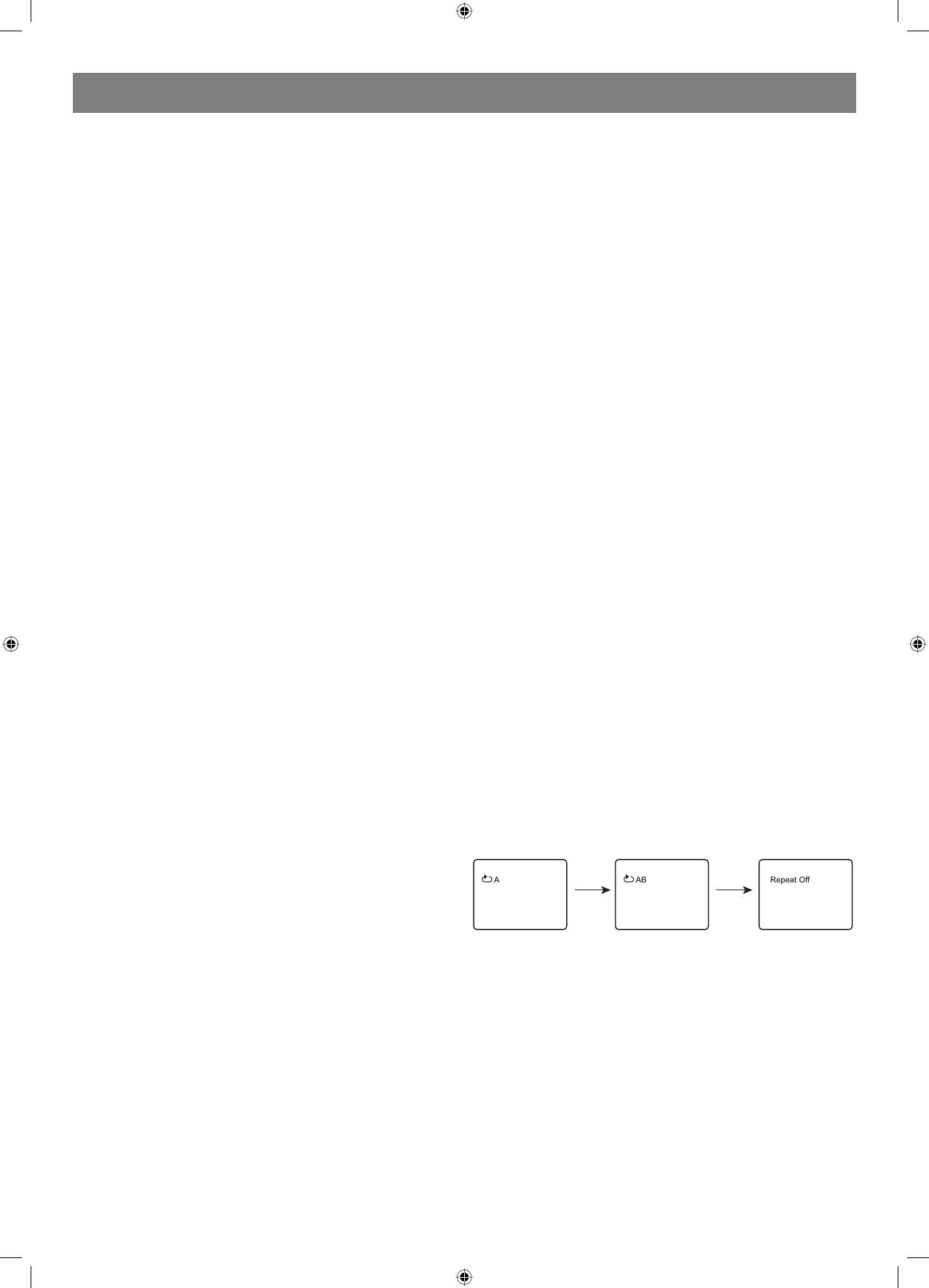
AB Repeat
languages.
When playing DVD, VCD or CD disc, press [AB] button to repeat a
1. Press the SUBTITLE key. The subtitle menu will appear. Select the
certain contents.
desired language by pressing the SUBTITLE key.
Press [AB] key on the start point (A) and the ending point (B) to select
2. To remove the subtitles from view, press the SUBTITLE key until they
the repeat part.
disappear.
Press [AB] the third time, cancel AB repeat and return to normal play.
Note: The disc being played must be subtitle encoded.
Camera Angle
The ability to change the camera angle allows viewer to watch a movie
from different perspectives.
1. Press the ANGLE key on the remote control. With each press, the
camera angle changes.
2. The key may be pressed only when the flashing angle icon appears
Standby
in the unit display panel.
When playing, press [STANDBY] button, the machine will be poweroff
Note: Camera angle may be changed only in discs with multiangle
and go to standby state; press [STANDBY] again, the machine will be
capability encoded into them.
poweron and start to play.
Warning:
Language
The power is not fully cut off at standby state. If the machine will not be
The unit has the capability to show movies in one of eight languages.
used for a long time, turn off the power by pressing the [POWER] button
1. Press the AUDIO key. The language menu will appear. Select the
in the rear panel.
desired language by pressing the AUDIO key.
Note: The disc being played must be multilanguage encoded.
CHlevel
Press this key to select a channel then press VOLUME+/ to adjust its
LOCATING A TITLE
level.
DVD discs are normally divided into titles, which are then subdivided
into chapters. A specific title can be easily found with this unit. Specific
titles can be found using either the title menu function, if the DVD disc
Vmode Switch
contains a title menu, or through its unique title number.
Video output mode switch (if losing pictures or picture is abnormal, keep
switching until you reach a clear picture.)
Title Menu Function
1. Press the TITLE key. The title menu will appear on the TV screen.
10
4060.indd 104060.indd 10 23.10.2006 9:25:1323.10.2006 9:25:13


