
Vitek VT-4060 SR: PREFERENCES PLAYING THE RADIO AUDIO, SUBTITLE and DISC MENU LANGUAGE PAGE: PARENTAL: BASIC DVD OPERATION PASSWORD PAGE:
PREFERENCES PLAYING THE RADIO AUDIO, SUBTITLE and DISC MENU LANGUAGE PAGE: PARENTAL: BASIC DVD OPERATION PASSWORD PAGE:: Vitek VT-4060 SR
Table of contents
- DVD 5.1 HOME THEATRE SYSTEM IMPORTANT NOTICES:
- ABOUT YOUR DVD PLAYER BEST LOCATION TO OBTAIN A CLEAR PICTURE PLAYABLE DISCS DIGITAL AUDIO OUTPUT ANALOG AUDIO OUTPUT LASERHEAD OVERCURRENT PROTECTION SYSTEM DISCS USE OF DISC Handling Cleaning
- Storing Handing and Caring for Discs Step: FRONT PANEL REAR PANEL Remote control OPERATING THE REMOTE CONTROL Battery installation: Using the Remote Control
- BATTERIES Connection Stereo Audio Coaxial Digital Audio Speaker Output
- SPEAKERS Composite Video SVideo ARRANGEMENT OF SPEAKERS Component Video (YUV) VGA SCART CONNECTING SPEAKERS
- ANGLE MARK: OSD LANG: CLOSED CAPTIONS: SCREEN SAVER: LAST MEMORY: CONNECTING ANTENNA AUDIO SETUP PAGE ANALOG AUDIO SETUP: DOWNMIX: LT/RT: MENU OPERATION: STEREO: 3D SURROUND: OFF: GENERAL SETUP PAGE FRONT, CENTER, REAR and SUBWOOFER SPEAKER: (No this DIALOG:
- DIGITAL AUDIO SETUP PAGE 3D PROCESSING: DIGITAL OUTPUT: SPDIF OFF: HDCD SETUP: ALL: KARAOKE PCM ONLY: LPCM OUT: DOLBY DIGITAL SETUP VIDEO SETUP PAGE DUAL MONO: DYNAMIC: COMPONENT V IDEO: CHANNEL DELAY PAGE: EQUALIZER: COLOR SETTING SETUP:
- PREFERENCES PLAYING THE RADIO AUDIO, SUBTITLE and DISC MENU LANGUAGE PAGE: PARENTAL: BASIC DVD OPERATION PASSWORD PAGE:
- PREV/NEXT playback MENU: MENU/PBC FUNCTIONS LOCATING A TITLE
- JPEG FILES
- Troubleshooting Symptom Cause Solution Specification DVD receiver
ENGLISH
the contrast. Set the left/right direction key to move the scroll and adjust
Note: The desired program source will not play unless it and the selected
the contrast.
signal button coincide with the active program source signal input.
GAMMA: There are four optional output modes: HIGH\MEDIUM\LOW\
NONE.
Volume Control
HUE: Use the left/right direction key to move the scroll and adjust the
The volume may be adjusted by either turning the large volume knob on
hue.
the front panel or using the appropriate volume button on the remote
SATURATION: Use the left/right direction key to move the scroll and
control.
adjust the saturation.
LUMA DELAY: In this item you can choose 0T or 1T.
Mute
Pressing the MUTE button temporarily mutes every speaker. To resume
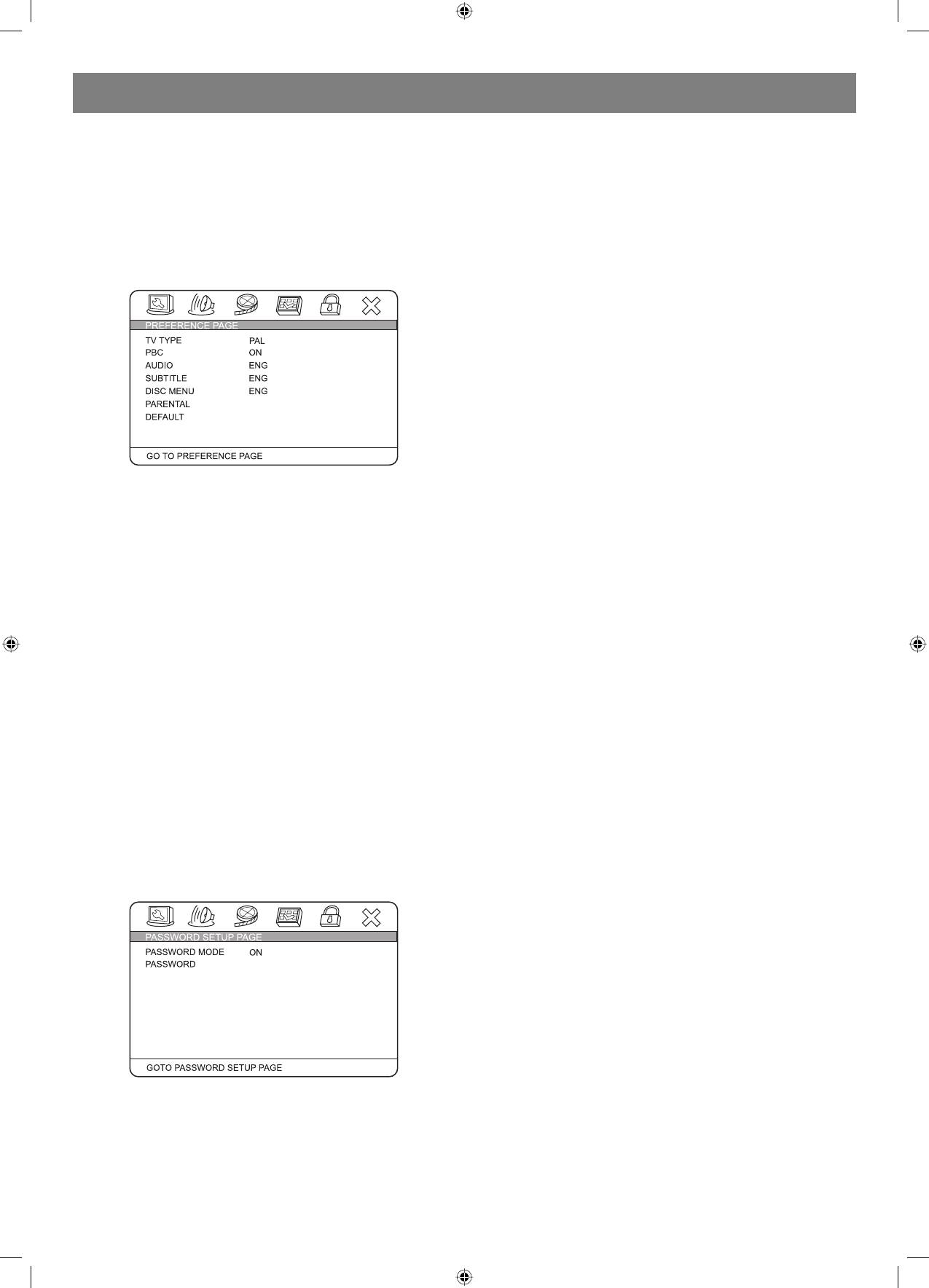
PREFERENCES
audio, press MUTE button again.
PLAYING THE RADIO
1. Press SOURCE button to enter tuner mode, press TITLE/AM/FM
button to select the desired wave band (AM or FM).
2. Press SEARCH+/ button to find a station. The frequency will change
with each press. When a station signal is received, it will appear in
the display.
3. To lock onto a station quickly, hold the SUBTITLE/AUTO button, the
unit will start automatic tuning. When a station is found, automatic
tuning stops.
4. To add a station to memory, press the MEMORY button. The memory
storage number will blink for four seconds in the display. Press
MEMORY button again to store the station.
5. To reduce noise when an FMstereo program has been received,
press the MONO button. The word STEREO will disappear from the
TV system:
display. The program is now heard in monographic form, reducing
This unit is suitable for all kinds of TV systems. You can select one of the
the noise. To resume stereo play, press the MONO button again.
PAL, MULTI or NTSC.
PAL:
Automatic tuning
Set the output at PAL system.
This unit will store up to 40 individual AM or 40 individual FM radio
MULTI:
stations in its memory.
The TV system is auto switched according to the disc system.
1. Press the AUTO button. the automatic tuning mode is activated.
NTSC:
2. Stations will be stored in ascending order until 50 stations of that
Set the output at NTSC system.
particular wave band have been saved. When a station is stored the
memory storage number, as well as the station frequency, will flash
PBC:
for four seconds in the display.
There are 2 optional output modes: ON/OFF. If the PBC is set on, when
3. When the total number of stations reaches 40, in a particular wave
playing VCD, return to the main menu. If the PBC is set off, when playing
(AM or FM) memory, no further station in that wave band will be
VCD, return to the main sequence.
saved.
AUDIO, SUBTITLE and DISC MENU LANGUAGE PAGE:
To play preset stations
These are the initial settings by your preference. If a setting is supported
1. Press the SOURCE button to enter tuner mode, press TITLE/AM/FM
by disc content, it will work. Otherwise the disc default value works.
button to select the desired wave band.
These settings can be changed respectively by pressing key [AUDIO]
2. Press any of the numbered buttons to select the desired station
and [SUBTITLE] when playing.
Memory number. For example, to play the station at memory #5,
simply press the 0 and 5 buttons; for memory #17, press the 1
PARENTAL:
button followed by the 7 button.
The control level is for parents to control the content and protect children
3. Stations in the memory function may also be accessed by pressing
from violence and erotic. The disc, its level is higher than the setting level
the UP or DOWN button.
can not be played.
DEFAULT:
BASIC DVD OPERATION
Reset to the initial factory setups.
Once the unit is connected to a television set and any other accessory
equipment, you are ready to enjoy the excitement of DVD videos or your
PASSWORD PAGE:
favorite CDs and MP3 files.
To play a DVD videodisc:
Turn on the TV and select the A/V mode. If the set features a SCART
connection, be sure the SCART mode is selected from the TV menu.
Turn on amplifier, if connected. Select AC3 or DVD mode.
To play an audio disc:
Turn on the audio system and choose the input source that is connected
to the DVD player. Set the SPDIF output to SPDIF OFF from the SETUP
menu display if you do not have the proper equipment for Dolby Digital
surround sound.
1. Press the POWER key on front panel. DISC LOADING appears on
screen. If there is no disc, NO DISC shown on screen.
2. Press the OPEN/CLOSE key. The disc tray will open.
3. Place the disc on the disc tray. Be sure play side is face down on the
tray.
Change the password. The initial factory password is 136900. You can
4. Press OPEN/CLOSE key to close tray. The disc tray will close. The
disc type will appear in the upperlefthand corner of the screen.
set your own password. If you forget your own password, you can use
Once it has read the disc, the unit automatically will begin playback.
136900 as general password to decode.
When playing a DVD, the DVD title or menu will appear. CD tracks are
played in sequence.
Basic operation
Note:
Selecting sound source
1. It is possible to damage a disc, if it is not placed correctly on
1. Press any function button (DVD, TUNER and LINE) to select the
the guides the disc tray. This may also cause the DVD player to
desired sound source. The appropriate symbol will appear in the
malfunction. Do not force or place anything other than a 5 DVD or
display screen.
CD onto the disc tray.
9
4060.indd 94060.indd 9 23.10.2006 9:25:1323.10.2006 9:25:13


