
Philips LX3900SA: DVD Setup Menu Options
DVD Setup Menu Options: Philips LX3900SA
DVD Setup Menu Options
This DVD system setup is carried out via
Dimming system’s display panel
the TV, enabling you to customise the
You can select different levels of
DVD system to suit your particular
brightness for the display screen.
requirements.
English
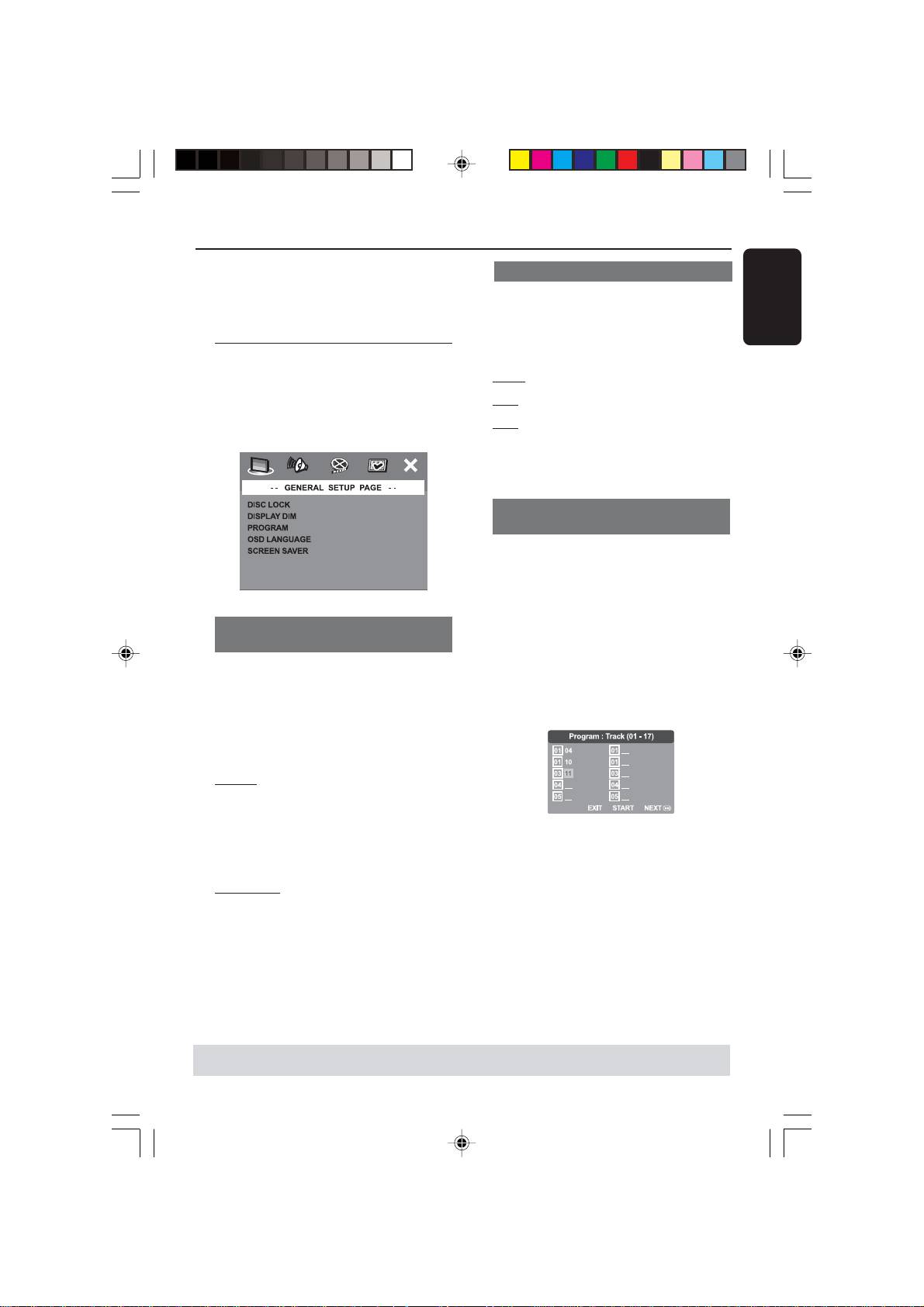
1 In ‘GENERAL SETUP PAGE’, press 34 to
General Setup menu
highlight {DISPLAY DIM}, then press 2.
100% – Select this for full brightness.
1
In disc mode, press SETUP.
70% – Select this for medium brightness.
2 Press 1 2 to select ‘General Setup’ icon.
40% – Select this for dimming the display.
3 Press OK to confirm.
2 Press 34 to select a setting and press
OK to confirm.
Programming disc tracks (not for
Picture CD/MP3)
You can play the contents of the disc in
the order you want by programming the
tracks to be played. Up to 20 tracks can
be stored.
Locking/Unlocking the disc for
1 Press PROG on the remote.
viewing
OR
In ‘GENERAL SETUP PAGE’, press 34 to
Not all discs are rated or coded by the
highlight {PROGRAM}, then press 2 to
disc maker. You can prevent a specific
select {INPUT MENU}.
disc from playing by locking the disc. Up
to 40 discs can be locked.
2 Press OK to confirm.
1 In ‘GENERAL SETUP PAGE’, press 34 to
highlight {DISC LOCK}, then press 2.
LOCK
Select this to block the playback of the
current disc. Subsequent access to a
locked disc requires six-digit password.
To input your favourite tracks/chapter
The default password is ‘136900’ (see
3 Use the numeric keypad (0-9) to enter
page 33 “Changing the password”).
a valid track/chapter number.
UNLOCK
4 Use 1 2 3 4 keys to move the cursor to
Select this to unlock the disc and allow
the next position.
future playback.
➜If the track number is more than ten,
press T to open the next page and
2 Press 34 to select a setting and press
proceed with programming or,
OK to confirm.
➜Use 1 2 3 4 keys to highlight {NEXT}
on the programme menu, then press OK.
5 Repeat steps 3~4 to input another
track/chapter number.
TIPS:
To return to the previous menu, press 1.
To remove the menu, press SETUP.
27
001-041-LX39-22-Eng1 12/12/2003, 10:20 AM27
3139 115 22871
DVD Setup Menu Options
English
If you want to remove a track
Audio Setup Menu
6 Use 1 2 3 4 keys to move the cursor to
the track you want to remove.
1
In disc mode, press SETUP.
7 Press OK to remove this track from the
2 Press 1 2 to select ‘Audio Setup’ icon.
programme menu.
3 Press OK to confirm.
To start programme playback
8 Use 1 2 3 4 keys to highlight {START}
on the programme menu, then press OK.
➜Playback will start with the selected
tracks under the programmed sequence.
To exit programme playback
9 Use 1 2 3 4 keys to highlight {EXIT} on
the programme menu, then press OK.
OSD Language
Setting the analogue output
This menu contains various language
Set Analogue Output to match your DVD
options for display language on the
home cinema system’s playback capability.
screen. For details, see page 18.
This function can also be accessed via the
SURR. button on the remote.
Screen Saver - turning on/off
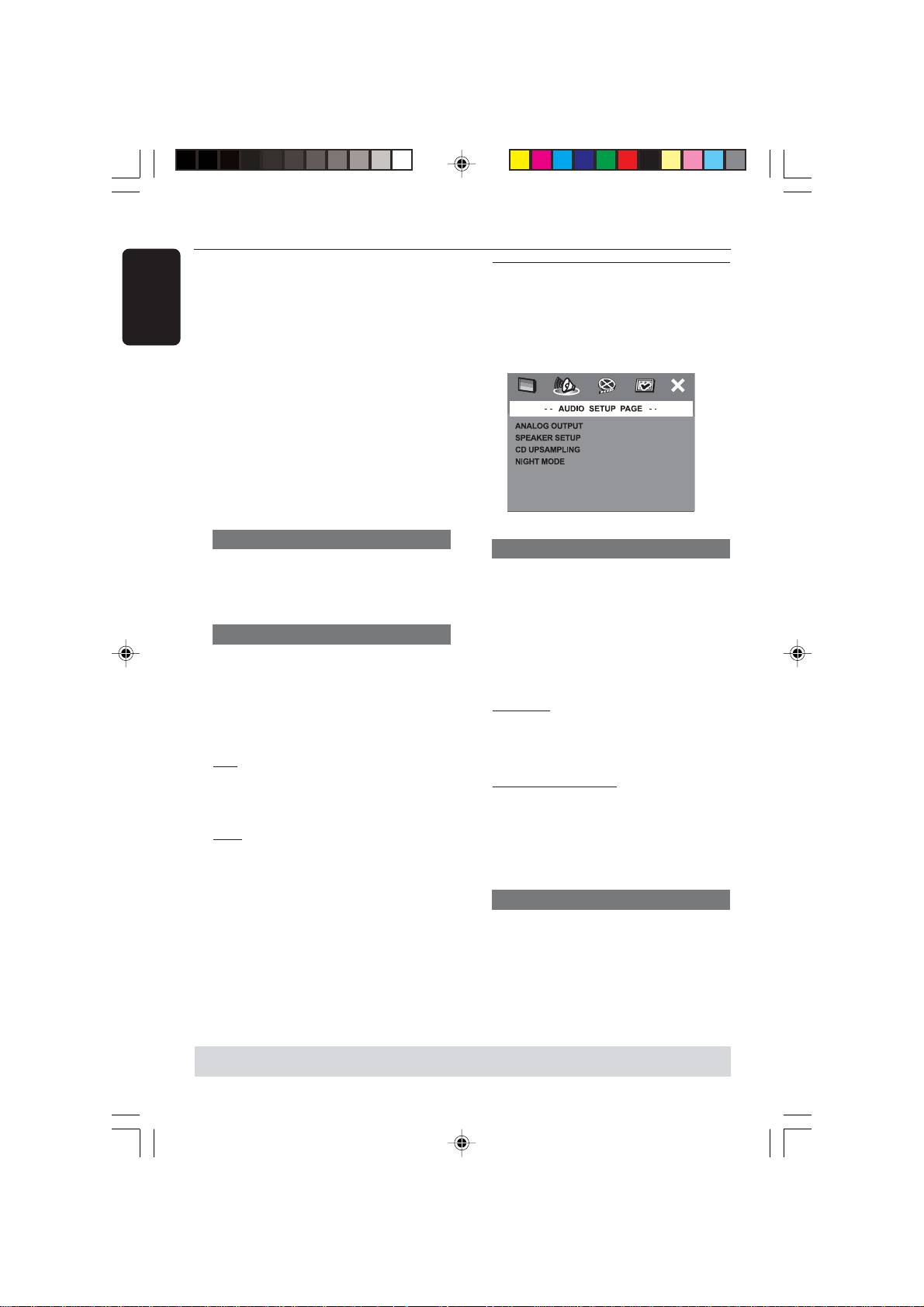
1 In ‘AUDIO SETUP PAGE’, press 34 to
The screen saver will help to prevent
highlight {ANALOG OUTPUT}, then
your TV display device from becoming
press 2.
damaged.
STEREO
1 In ‘GENERAL SETUP PAGE’, press 34 to
Select this to change channel output to
highlight {SCREEN SAVER}, then press 2.
stereo which delivers sound from only
the two front speakers and subwoofer.
ON
Select this if you wish to turn off the TV
MULTI-CHANNEL
screen when play is stopped or paused
Select this to enable Multi-channel
for more than 15 minutes.
output.
OFF
2 Press 34 to select a setting and press
Select this to disable the screen saver
OK to confirm.
function.
2 Press 34 to select a setting and press
Speaker Setup
OK to confirm.
This menu contains setup options for
your audio output which makes the
speaker setup system reproduce high
quality surround sound. For details, see
page 19.
TIPS:
To return to the previous menu, press 1.
To remove the menu, press SETUP.
28
3139 115 22871
001-041-LX39-22-Eng1 12/12/2003, 10:20 AM28
DVD Setup Menu Options
CD Upsampling
Video Setup Menu
This feature allows you to convert your
1
In disc mode, press SETUP.
music CD to a higher sampling rate using
English
sophisticated digital signal processing for
2 Press 1 2 to select ‘Video Setup’ icon.
better sound quality.
3 Press OK to confirm.
1 In ‘AUDIO SETUP PAGE’, press 34 to
highlight {CD UPSAMPLING}, then press
2.
OFF
Select this to disable CD-upsampling.
88.2 kHz (X2)
Select this to convert the sampling rate of
the CDs twice higher than the original.
176.4 kHz (X4)
Select this to convert the sampling rate of
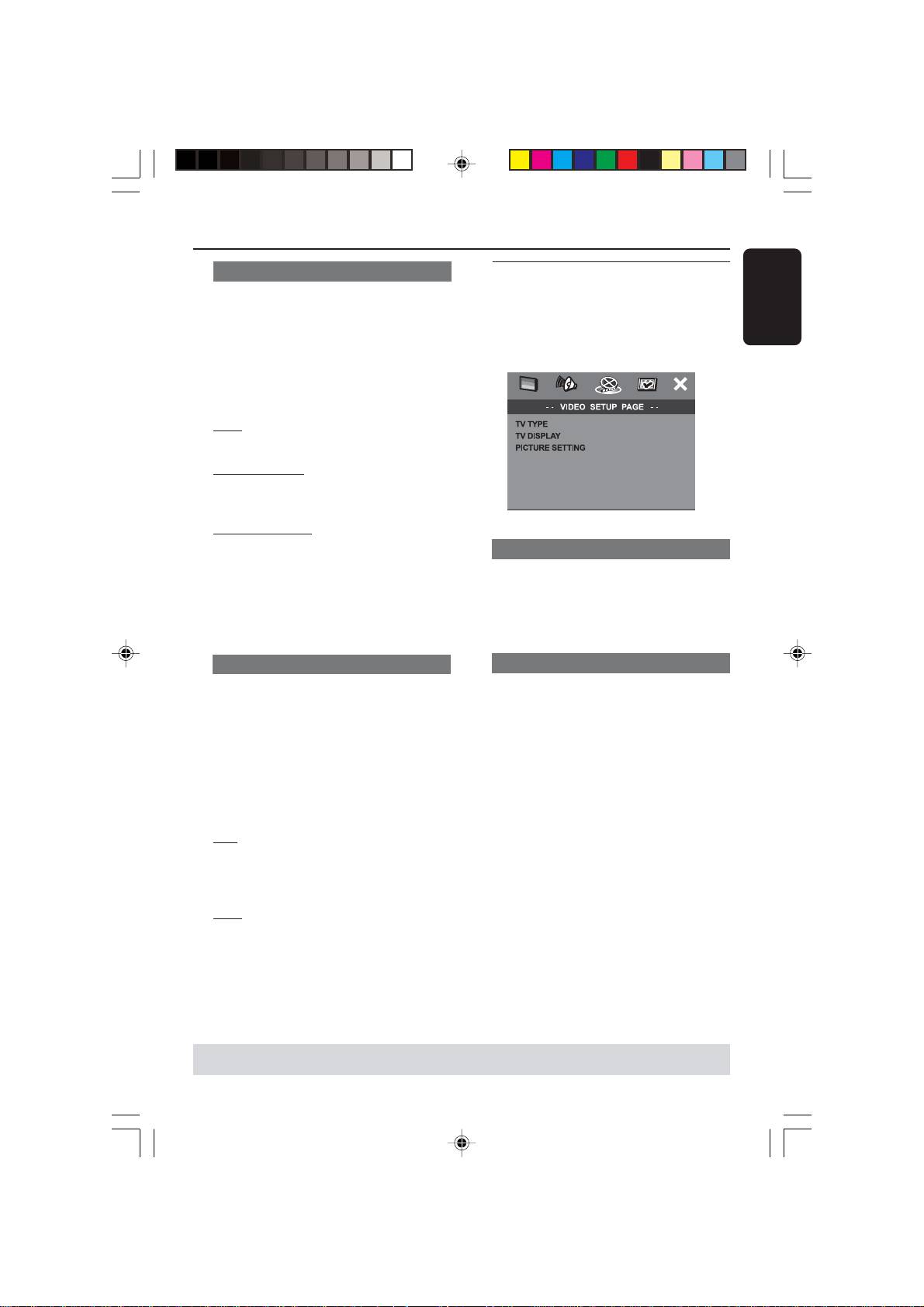
TV Type
the CDs four times higher than the
This menu contains the options for
original.
selecting the colour system that matches
2 Press 34 to select a setting and press
the connected TV. For details, see page
OK to confirm.
17.
Night Mode - turning on/off
TV Display
When activated the night mode, the high
This menu contains the options for
volume outputs are softened and low
setting the aspect ratio of the DVD
volume outputs are brought upward to
system according to the connected TV.
an audible level. It is useful for watching
For details, see page 17.
your favourite action movie without
disturbing others at night.
1 In ‘AUDIO SETUP PAGE’, press 34 to
highlight {NIGHT MODE}, then press 2.
ON
Select this to level out the volume. This
feature is only available for movies with
Dolby Digital mode.
OFF
Select this when you want to enjoy the
surround sound with its full dynamic
range.
2 Press 34 to select a setting and press
OK to confirm.
TIPS: To return to the previous menu, press 1.
To remove the menu, press SETUP.
29
001-041-LX39-22-Eng1 12/12/2003, 10:20 AM29
3139 115 22871

DVD Setup Menu Options
English
Picture Setting
4 Press 34 to highlight one of the
following options.
This DVD system provides three
predefined sets of picture colour settings
BRIGHTNESS
and one personal setting which you can
Increase the value will brighten the
define yourself.
picture or vice versa. Choose zero (0) for
average setting.
1 In ‘VIDEO SETUP PAGE’, press 34 to
highlight {PICTURE SETTING}, then press
CONTRAST
2.
Increase the value will sharpen the
picture or vice versa. Choose zero (0) to
STANDARD
balance the contrast.
Select this for standard picture setting.
TINT
BRIGHT
Increase the value will darken the picture
Select this will make the TV picture
or vice versa. Choose zero (0) for
brighter.
average setting.
SOFT
COLOUR
Select this will make the TV picture
Increase the value will enhance the
softer.
colour in your picture or vice versa.
PERSONAL
Choose zero (0) to balance the colour.
Select this to personalise your picture
5 Press 1 2 to adjust the setting that best
colour by adjusting the brightness,
suit your personal preference.
contrast, tint and colour (saturation).
6 Repeat steps 4~5 for adjusting other
2 Press 34 to select a setting and press
colour features.
OK to confirm.
7 Press OK to confirm.
3 If you select {PERSONAL}, then proceed
to steps 4~7.
➜The ‘PERSONAL PICTURE SETUP’
menu appears.
TIPS:
To return to the previous menu, press 1.
To remove the menu, press SETUP.
30
3139 115 22871
001-041-LX39-22-Eng1 12/12/2003, 10:20 AM30
DVD Setup Menu Options
Preference Setup Menu
Restricting playback by Parental
Control
1
Press Ç twice to stop playback (if any),
Some DVDs may have a parental level
then press SETUP.
English
assigned to the complete disc or to
2 Press 1 2 to select the ‘Preference Setup’
certain scenes on the disc. This feature
icon.
lets you set a playback limitation level.
The rating levels are from 1 to 8 and are
3 Press OK to confirm.
country dependent. You can prohibit the
playing of certain discs that are not
suitable for your children, or have certain
discs played with alternative scenes.
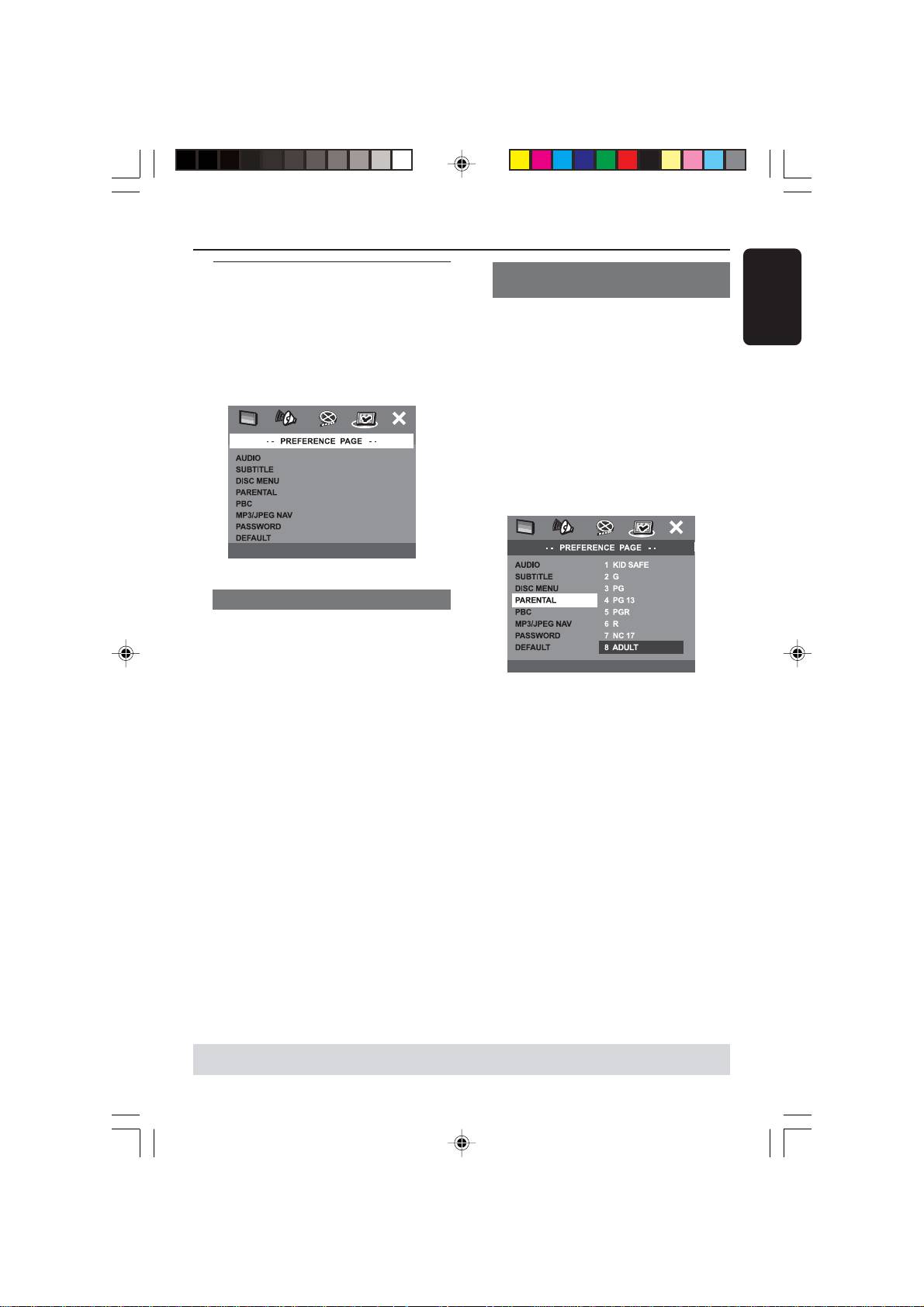
1 In ‘PREFERENCE PAGE’, press 34 to
highlight {PARENTAL}, then press 2.
Audio, Subtitle, Disc Menu
These menus contain various language
options for audio, subtitle and disc menu
which may be recorded on the DVD. For
details, see page 18.
2 Press 34 to highlight a rating level for
the disc inserted and press OK.
➜To disable Parental controls and have
all Discs play, select {1 KID SAF}.
3 Use the numeric keypad (0-9) to enter
the six-digit password (see page 33
“Changing the password”).
➜DVDs that are rated above the level
you selected will not play unless you
enter your six-digit password.
TIPS: To return to the previous menu, press 1.
To remove the menu, press SETUP.
31
001-041-LX39-22-Eng1 12/12/2003, 10:20 AM31
3139 115 22871

DVD Setup Menu Options
English
Rating explanations
PBC
1KID SAFE – 2 G
You can set the PBC to ON or OFF. This
– General Audience; recommended as
feature is available only on Video CD 2.0
acceptable for viewers of all ages.
with playback control (PBC) feature. For
3 PG
details, see page 24.
– Parental Guidance suggested.
4 PG13
MP3/JPEG Menu - turning on/off
– Material is unsuitable for children under
MP3/JPEG Navigator can be set only if the
age 13.
disc is recorded with menu. It allows you
5 PGR – 6 R
to select different display menus for easy
– Parental Guidance - Restricted;
navigation.
recommended that parents restrict
1 In ‘PREFERENCE PAGE’, press 34 to
children under 17 from viewing or allow
highlight {MP3/JPEG NAV}, then press 2.
to view only when supervised by a parent
or adult guardian.
WITHOUT MENU
7 NC-17
Select this to display all the files contained
– No children under age 17; not
in the MP3/Picture CD.
recommended viewing for children under
WITH MENU
age 17.
Select this to display only the folder menu
8 ADULT
of the MP3/Picture CD.
– Mature material; should be viewed only
by adults due to graphic sexual material,
2 Press 34 to select a setting and press
violence or language.
OK to confirm.
Helpful Hints:
– VCD, SVCD, CD have no level indication, so
parental control has no effect on these type
of discs. This also applies to most illegal
DVDs.
– Some DVDs are not encoded with a rating
though the movie rating may be printed on
the Disc cover. The rating level feature does
not prohibit play of such Discs.
TIPS: To return to the previous menu, press 1.
To remove the menu, press SETUP.
32
3139 115 22871
001-041-LX39-22-Eng1 12/12/2003, 10:20 AM32
DVD Setup Menu Options
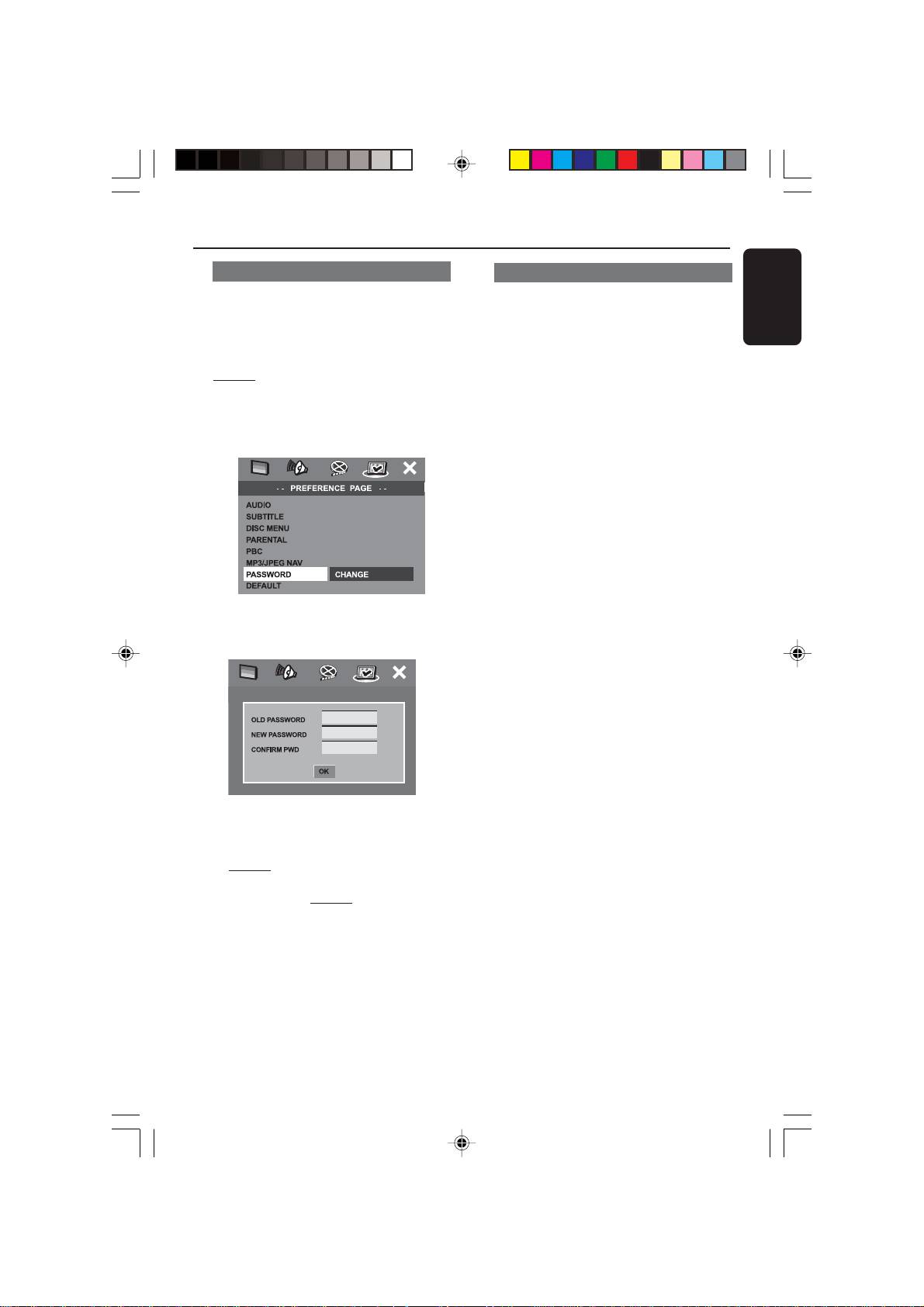
Changing the Password
Restoring to original settings
The same password is used for both
Setting the DEFAULT function will reset
Parental Control and Disc Lock. Enter
all options and your personal settings to
English
your six-digit password to play a
the factory defaults, except your
prohibited disc or if prompted for a
password for Parental Control and Disc
password. The default password is
Lock.
136900.
1 In ‘PREFERENCE PAGE’, press 34 to
1 In ‘PREFERENCE PAGE’, press 34 to
highlight {DEFAULT}, then press 2 to
highlight {PASSWORD}, then press 2 to
select {RESET}.
select {CHANGE}.
2 Press OK to confirm.
➜All settings will now reset to factory
defaults.
2 Press OK to enter the ‘Password Change
Page’.
3 Use the numeric keypad (0-9) to enter
your old six-digit password.
➜When doing this for the first time, key
in ‘
136900’.
➜If you forget your old six-digit
password, key in ‘
136900’.
4 Enter the new six-digit password.
5 Enter the new six-digit password a
second time to confirm.
➜The new six-digit password will now
take effect.
6 Press OK to confirm.
33
001-041-LX39-22-Eng1 12/12/2003, 10:20 AM33
3139 115 22871
