
Vitek VT-4097 SR: If you want to record a TV program select TV mode. Select a station you want to record by pressing Channel- or Channel +. OTR (One touch Timer Recording) Timer Recording Recording from a DV (Digital Video) camcorder
If you want to record a TV program select TV mode. Select a station you want to record by pressing Channel- or Channel +. OTR (One touch Timer Recording) Timer Recording Recording from a DV (Digital Video) camcorder: Vitek VT-4097 SR
Table of contents
- DVD and HDD recorder Model VT-4097 Before You Start Accessories Putting the batteries in the remote control Using the remote control Important Safety Instructions Compatible Discs DVD Video compatibility Audio CD compatibility
- DVD-R/RW compatibility DVD+R/RW compatibility MPEG-4 compatibility JPEG CD compatibility DVD Video regions Controls and Display Front panel
- Display Rear panel Remote control 5. Audio
- 6. AVIN
- Y/Pb/Pr, Y/Cb/Cr and may be green, blue, red. The component video Audio Input Set “Video Output” to “YCrCb On” from VIDEO SETUP menu. DVD-Recorder video input DVInput USB Input Connection forAudio Output Terminals Connection for HDMI Output Turning on and off Audio Output Digital Audio Output Selecting the HDD or DVD for playbackand recording Connection forA/V Input Terminals Displaying the disc information on screen (OSD)
- Playing a DVD disc Playing MPEG-4 Movie CD Piaying a DVD+RW or DVD+R disc Playing an Audio CD Playing a program of HDD Playing a JPEG in HDD Playing aJPEG CD
- Program Playback (Audio CD only) Playing MPEG-4 Movie in HDD Advanced Playback Selecting Subtitles (DVD only) Skip Forward/Backward (DVD/Audio CD only) Slow Forward Use thistunction to playthe DISC or HDD contents in slowtorward.
- Switching the Camera Angle (DVD only) Repeating a Title, Chapter (DVD/Audio CD only) It is possible to repeat the chapter/title tor DVD or track/disc tor Audio CD. Title Search A-B Repeat (DVD/Audio CD only) Chapter Search Recording ZOOM screen (DVD/HDD only)
- If you want to record a TV program select TV mode. Select a station you want to record by pressing Channel- or Channel +. OTR (One touch Timer Recording) Timer Recording Recording from a DV (Digital Video) camcorder
- Copyright Time Shifted Recording Copying the DVD titles from Disc to HDD Copying the titles from HDD to Disc Simultaneous recording and playback Copying the files from disc to HDD (from HDD to Disc) Use the copying features of this recorder to:
- Pressthe FILE button. The directory & file list will be displayed I the TV screen. 2. PresstheEDITbutton. Press ADD/CL button after selecting the file to copy by using
- Rename disc (DVD+RW/DVD+R) Finalize disc (DVD+R only) Lock disc (DVD+RW only) Erase optical disc (DVD+RW only) Overwrite disc (DVD+RW only) CopyAII (DVD+RW/DVD+R) Editing a title of DVD+RW or DVD+R
- Erase title (DVD+RW only) Playtitle (DVD+RW/DVD+R) Edit title (DVD+RW/DVD+R) Overwrite title (DVD+RW only) Append title (DVD+RW/DVD+R) Rename title (DVD+RW/DVD+R)
- Copy title (DVD+RW/DVD+R) Rename Editing the title of HDD Lock Unlock Play Delete Protect Split Unprotect Basic Operations Segment Using the Setup Menu Combine Change Index Picture 1. AUTCCHAPTERMARKER
- 2. RECORD QUALITY 5. CHANNEL SWAPPING 3. ANALQGCHANNELSCAN 4. MQDIFYCHANNEL Editing the channel name Video TV Standard Search Type Fine Tuning Decoder
- Audio (This menu is not available when a disc is in the recorder.) 1. Automatic clock setting ANALOG OUTPUT General Language 1. Parental Control OSD LANGUAGE 2. CHANGE PASSWORD
- 3. FACTORY RESET 4. EUROAVOUTPUT 5. DECODER 6. PREVIEWTYPE 7. HDDto Disc Copy Option HDD
- Additional Information Specifications
- Troubleshooting
- Recycling
ENGLISH
6. Select“Mode”bypressing T,pressENTERbuttontobringupthe
list. Select how often you want to make the recording, for example,
TV
once, daily orweekly by pressing▲ or ▼, press the ENTER button to
confirm.
7. Select “Date” by pressing ▼, press ENTER button. Enterthe date
Front AV
by using 0to9 buttons, and press ENTER button to confirm. Ifyou
selected “Weekly” in step 6, press the ENTER button after selecting
a day of week by using ▲ or ▼.
Rear AV
8. Select “Start” by pressing ▼, press ENTER button. Enter the Start
time by using 0to9 buttons, and press ENTER button to confirm.
9. Select “End” by pressing ▼, press ENTER button. Enterthe End time
Rear SV
by using 0to9 buttons, and press ENTER button to confirm.
10. Select “Title” by pressing ▼, press ENTER button. Enterthe title
name by using ◄►▲▼, and press ENTER button to confirm.
DV
11. Switch VPS/PDC “ON” or “OFF” by using , and ENTER button.
(If “Source” is not set to TV channel, this function is not available.)
The VPS/PDC system automatically adjusts the recording time
Scart AV
so that even if a program is not running to schedule you won’t
miss it. ForVPS/PDCtowork properly, you must inputthe correct
If you want to record a TV program select TV mode. Select a station you
announced time and date of the program you want to record. Note
want to record by pressing Channel- or Channel +.
that VPS/PDC may not work with every station.
4. PressRECbuttontostartyourrecording. PressPAUSEbuttonifyou
12. Press ENTER button after selecting “OK” by using ▼, if all the
want to stop the recording for a short while. Press REC button to
settings are correct.
continue recording.
13. Switch your DVD Recorder off by pressing STANDBY/ON button.
5. Press STOP button to stop your recording.
Note:
Note:
• You can switch your DVD Recorder on again if you want to set the
• A DVD±R/DVD±RWcan record for upto6 hours, up to 49 titles.
timer to record another program. Remember to switch the DVD
• Ifyour source is copy-protected, you will not be able to record it.
Recorder off when you have finished.
• To stop a timer recording which has already started, press
OTR (One touch Timer Recording)
STANDBY/ON or STOP button.
1.
During basic recording, press REC button. Everytimeyou press REC
• You can pre-program the schedule to record up to 8 programs.
button, the recording timewill increase by30 minutes. It is possible
• We recommend you set up the recording time over 5 minutes.
to record for up to 3 hours if there is enough room on the disc (or
HDD) and the record quality is SEP. (orthe length of time shift buffer
Timer review - changing and erasing record settings
is set to 360 minutes.)The DVD recorder will stop automatically after
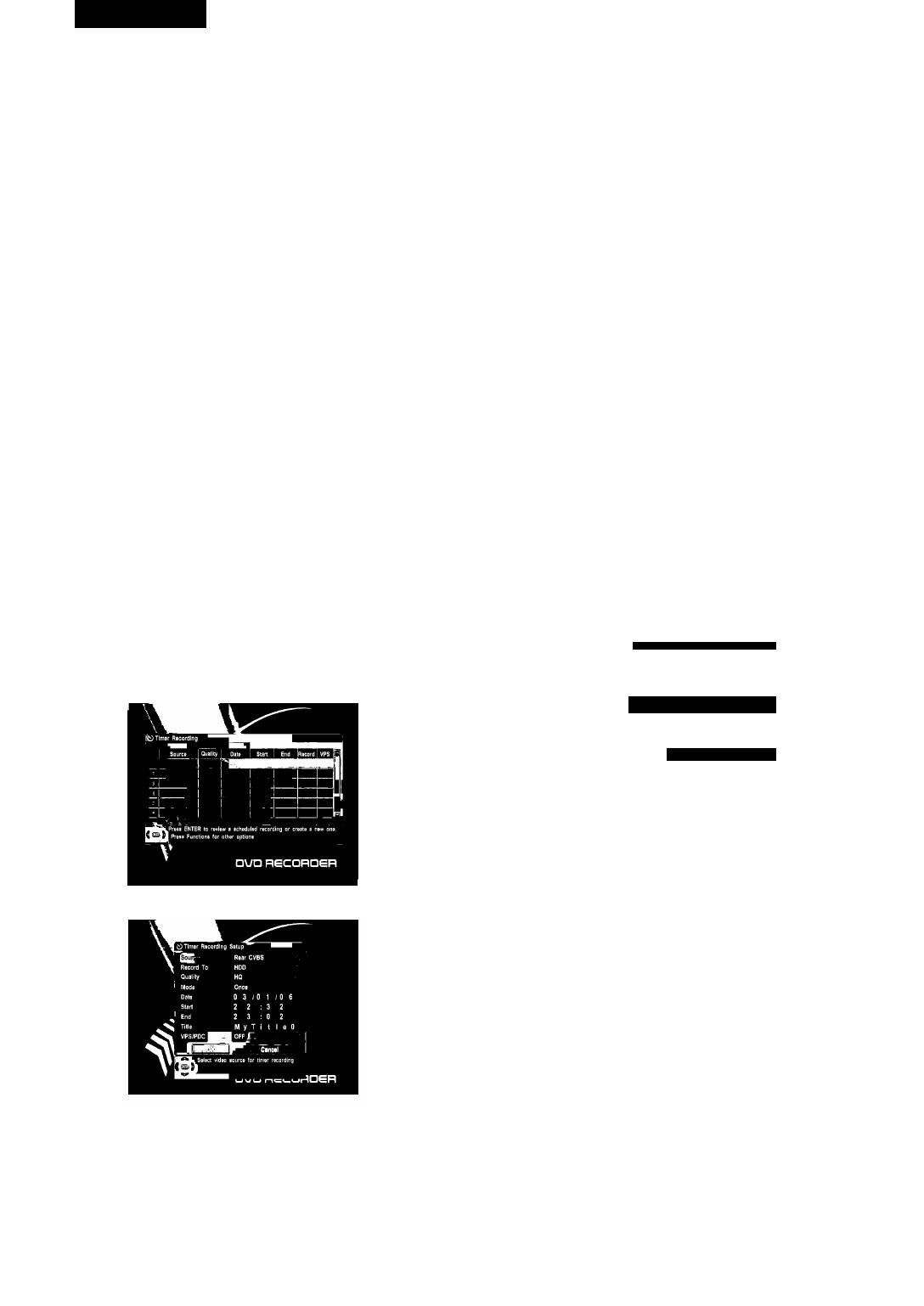
1. Press TIMER RFC button.You can see all the timer programs
recording for a specific time.
currently set.
2.
If you want to cancel OTR, press STOP button.
Timer Recording
I Quality I Dato ' Start I End iRECord I VPS
Fortimer recording, the clock, date, and stations must be set correctly.
If you want to record on DVD, load a DVD±RW or DVD±R disc with
enough free space forthe recording.
1. Press TIMER REC.
,1 I I ^^ 1 ^
□UD RECORüeR
Select the program you want to change or erase by pressing .
Erasing a setting
3. PressADD/CLbuttontoerase.
Changing a setting
Press ENTER button. Select the details you want to change by
pressing and pressthe ENTER button.
Change the settings by using or 0-9.
2. Select an unused program by pressing A or T, then press ENTER.
When you have made all the changes, press ENTER button.
4.
Press ENTER button after selecting “OK” using ▼ button if all the
settings are correct.
5.
Press TIMER RFC button to exit.
Recording from a DV (Digital Video) camcorder
Youcan record the contents of DV tape from a DV camcorder viaDVIN.
Make sure your digital camcorder is connected to DV INjack on the front
panel.
Also turn on your DV camcorder and set it to PLAY (or VCR) mode.
1. Press HDD/DUB or DVD button to select the HDD (Hard Disk Drive)
or a recordable DVD (DVD±R/DVD±RW) on which you want to
record.
If you want to record on DVD, load a DVD±RW or DVD±R disc with
3.
Press ENTER button. The sub-menu appears. Select the signal
enough free space forthe recording.
sources by using ▲ or ▼, and press the ENTER button to confirm.
Press DV/USB button.
4.
Select “Record To” by pressing ▼, press ENTER button to bring up
Find the place on the camcorder tape that you want to start
the list. Select HDD for hard disc recording or DVD for DVD recording
recording from.
by using▲ or ▼, pressthe ENTER button to confirm.
You can use the remote controller for this recorder to control the
Select “Quality” by pressing ▼, and press ENTER button to bring up
camcorder using
the list. Select the Record Quality by using ▲ or ▼, press the ENTER
PLAYj STOP, PAUSE ◄◄, ►►. For best results, press PAUSE button
button to confirm.
10
4097IMnew.indd 10 27.02.2007 13:34:57


