
Vitek VT-4097 SR: 3. FACTORY RESET 4. EUROAVOUTPUT 5. DECODER 6. PREVIEWTYPE 7. HDDto Disc Copy Option HDD
3. FACTORY RESET 4. EUROAVOUTPUT 5. DECODER 6. PREVIEWTYPE 7. HDDto Disc Copy Option HDD: Vitek VT-4097 SR
Table of contents
- DVD and HDD recorder Model VT-4097 Before You Start Accessories Putting the batteries in the remote control Using the remote control Important Safety Instructions Compatible Discs DVD Video compatibility Audio CD compatibility
- DVD-R/RW compatibility DVD+R/RW compatibility MPEG-4 compatibility JPEG CD compatibility DVD Video regions Controls and Display Front panel
- Display Rear panel Remote control 5. Audio
- 6. AVIN
- Y/Pb/Pr, Y/Cb/Cr and may be green, blue, red. The component video Audio Input Set “Video Output” to “YCrCb On” from VIDEO SETUP menu. DVD-Recorder video input DVInput USB Input Connection forAudio Output Terminals Connection for HDMI Output Turning on and off Audio Output Digital Audio Output Selecting the HDD or DVD for playbackand recording Connection forA/V Input Terminals Displaying the disc information on screen (OSD)
- Playing a DVD disc Playing MPEG-4 Movie CD Piaying a DVD+RW or DVD+R disc Playing an Audio CD Playing a program of HDD Playing a JPEG in HDD Playing aJPEG CD
- Program Playback (Audio CD only) Playing MPEG-4 Movie in HDD Advanced Playback Selecting Subtitles (DVD only) Skip Forward/Backward (DVD/Audio CD only) Slow Forward Use thistunction to playthe DISC or HDD contents in slowtorward.
- Switching the Camera Angle (DVD only) Repeating a Title, Chapter (DVD/Audio CD only) It is possible to repeat the chapter/title tor DVD or track/disc tor Audio CD. Title Search A-B Repeat (DVD/Audio CD only) Chapter Search Recording ZOOM screen (DVD/HDD only)
- If you want to record a TV program select TV mode. Select a station you want to record by pressing Channel- or Channel +. OTR (One touch Timer Recording) Timer Recording Recording from a DV (Digital Video) camcorder
- Copyright Time Shifted Recording Copying the DVD titles from Disc to HDD Copying the titles from HDD to Disc Simultaneous recording and playback Copying the files from disc to HDD (from HDD to Disc) Use the copying features of this recorder to:
- Pressthe FILE button. The directory & file list will be displayed I the TV screen. 2. PresstheEDITbutton. Press ADD/CL button after selecting the file to copy by using
- Rename disc (DVD+RW/DVD+R) Finalize disc (DVD+R only) Lock disc (DVD+RW only) Erase optical disc (DVD+RW only) Overwrite disc (DVD+RW only) CopyAII (DVD+RW/DVD+R) Editing a title of DVD+RW or DVD+R
- Erase title (DVD+RW only) Playtitle (DVD+RW/DVD+R) Edit title (DVD+RW/DVD+R) Overwrite title (DVD+RW only) Append title (DVD+RW/DVD+R) Rename title (DVD+RW/DVD+R)
- Copy title (DVD+RW/DVD+R) Rename Editing the title of HDD Lock Unlock Play Delete Protect Split Unprotect Basic Operations Segment Using the Setup Menu Combine Change Index Picture 1. AUTCCHAPTERMARKER
- 2. RECORD QUALITY 5. CHANNEL SWAPPING 3. ANALQGCHANNELSCAN 4. MQDIFYCHANNEL Editing the channel name Video TV Standard Search Type Fine Tuning Decoder
- Audio (This menu is not available when a disc is in the recorder.) 1. Automatic clock setting ANALOG OUTPUT General Language 1. Parental Control OSD LANGUAGE 2. CHANGE PASSWORD
- 3. FACTORY RESET 4. EUROAVOUTPUT 5. DECODER 6. PREVIEWTYPE 7. HDDto Disc Copy Option HDD
- Additional Information Specifications
- Troubleshooting
- Recycling
ENGLISH
2) Enter the current password in 4 digits by using 0to9 button, and
press ▼.
3) Enterthe new password in 4 digits by using 0to9 button, and press
▼ .
4) Re-enter the new password for verify, and press ▼.
5) Press ENTER button after seiecting “OK”. The password wiii be
changed.
3. FACTORY RESET
Returnsthe DVD Recorder backto factory defauit settings.
1. Press ENTER button after seiecting “Factory Reset” by pressing ▼. A
pop-upwindowappears on TV screen.
2. Press ENTER button after seiecting “OK”.
4. EUROAVOUTPUT
Set to “YCbCr” to view in component video viaY/Cb/Cr connector. When
using AV Euro connector RGB signai, set to “RGB”
5. DECODER
if you want to watch the scrambied channeis, requiring a Canai+ decod
er connected to the EURO AV iN connector, set this to “ON”.
6. PREVIEWTYPE
You can seiect the preview type of the titie on the HDD titie iist.
Static: it showsthe previewwith a stiii picture.
Dynamic: it shows the preview with moving pictures.
7. HDDto Disc Copy Option
When copying from HDD to DVD, you can seiectthe copying mode.
Fit to Disc: The recording quaiity is automaticaiiy adjusted so that the
seiected tities fit on to the space avaiiabie on the disc.
High Speed: The seiected tities are copied atthe same recording quaiity
asthe originai.
Highest Speed: The seiected tities are copied at the specified recording
quaiity in reai-time. (Note that aithough you copy at a higher quaiity set
ting than the originai, the copy wiii not be better quaiity than the originai.)
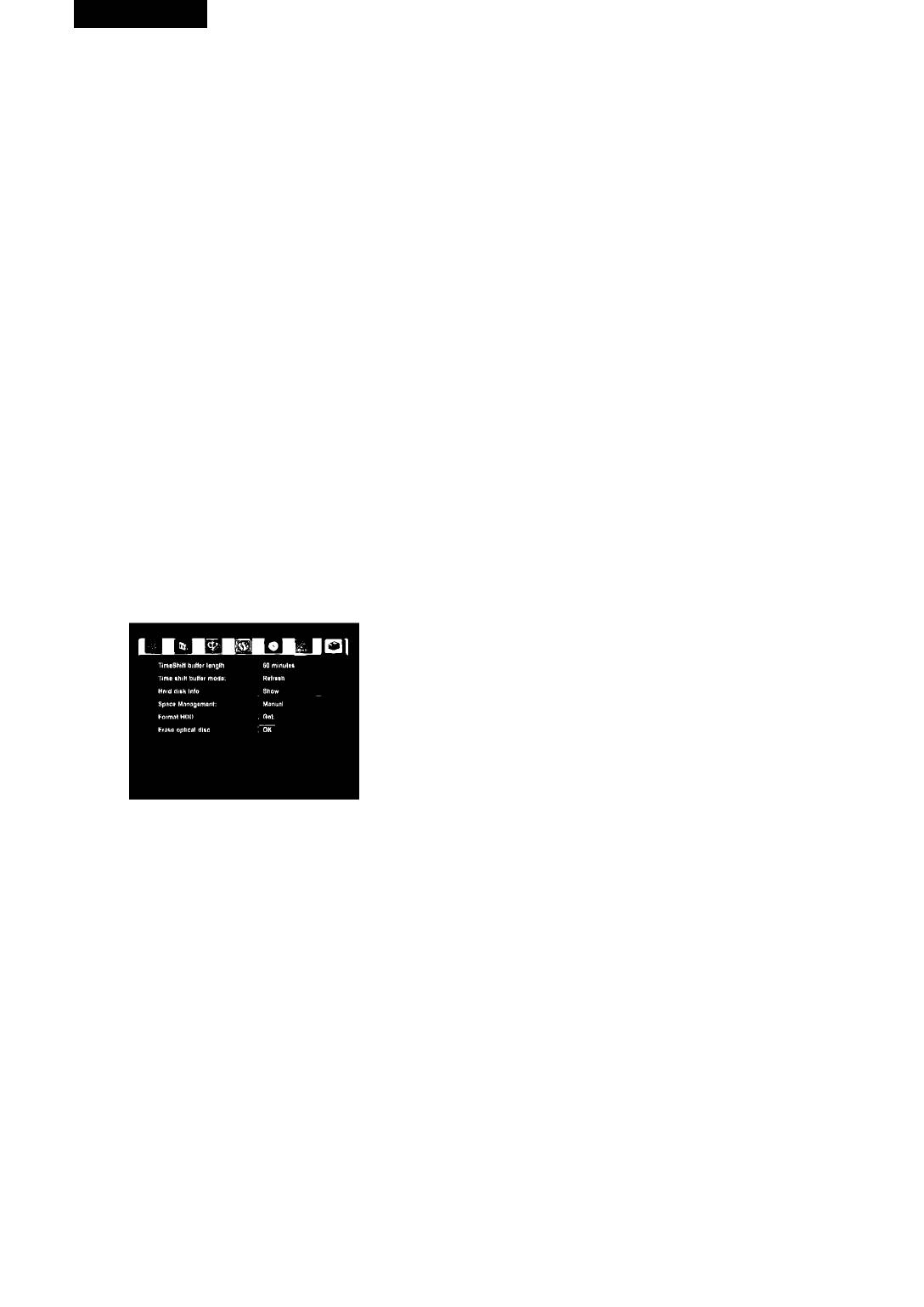
HDD
1. Time shift buffer length
When doing the time shift recording, you can seiect the capacity of
HDD buffer in which a TV program is stored temporariiy.
2. Timeshiftbuffermode
Refresh: The content of the buffer is erased upon changing the TV
channei.
Preserve: The content of the buffer is maintained though the TV
channei is changed.
3. Harddiscinfo
it shows the information on HDD.
4. Space Management
Automatic: when the HDD is fuii, the recorderwiii overwrite un
protected tities.
Manuai: when the HDD isfuii, the recorder does not overwrite and it
asks for erasing sometitiesto aiiowfurther recording.
5. Format HDD
You can erase aii programs on HDD.
6. Erase optical disc
You can erase aii programs on disc. (This function is avaiiabie oniy
when the recorder is setto the externai AV mode orthe TV mode.)
18
4097IMnew.indd 18
27.02.2007 13:35:07


