
Vitek VT-4073 SR: 1.4.6. DEFAULT SETTINGS 1.5. PASSWORD SETUP 1.5.1. PASSWORD SETUP. 1.5.. PASSWORD 6. OPERATING THE МР3 FUNCTION 7. JPEG SETTINGS 8. TROUBLESHOOTING GUIDE 9. DISC PROTECTION
1.4.6. DEFAULT SETTINGS 1.5. PASSWORD SETUP 1.5.1. PASSWORD SETUP. 1.5.. PASSWORD 6. OPERATING THE МР3 FUNCTION 7. JPEG SETTINGS 8. TROUBLESHOOTING GUIDE 9. DISC PROTECTION: Vitek VT-4073 SR
Table of contents
- Operating manual MAINTENANCE RULES IMPORTANT SAFETY NOTICES USAGE NOTICES ON THE DVD PLAYER USAGE NOTICES ON POWER SUPPLY MAIN FEATURES OF THE DEVICE
- 24bit/96Khz Digital/Analog (D/A) converter. Component video output. Laser head overcurrent protecting system 1. Brief instruction of controls Front panel function: Back panel function:
- Remote control 2. PREPARATIONS 2.1 PACKAGE SET 1. DVD player 2.2 Battery installation into the remote control 2.3 SYSTEM CONNECTION
- Channal amplifier Digital audio amplifier 2.4. PLAY MODE SETTING 3. BASIC OPERATION
- 3.1. Disc playing 4. FUNCTIONALITY DESCRIPTION
- 4.2 N/P function 4.3 Subtitles 4.4 OPEN/ 4.5 PBC (PLAYBACK) 4.6 MIC ON/OFF 4.7 ANGLE 4.8 LANGUAGE» 4.9 TITLE 4.10 MENU 4.11. DIRECTION KEYS 4.12 3D FUNCTION 4.13 NUMBER KEYS 4.14 TIME 4.15 REPEAT FROM A TO B
- 4.16 REPEAT FUNCTION 4.17. ZOOM 4.18. PROGRAM 4.19. R/L FUNCTION (SOUND BALANCING) 4.20 VOLUME AND MUTE 4.21. THE “SLOW“ FUNCTION 4.22 VIDEO FUNCTION 5. SETTING UP THE SYSTEM
- 1.1. ANGLE MARK 1.1.3 SCREEN LANGUAGE 1.1.4 HIDE SUBTITLES 1.1.5 SCREEN PROTECTION 1.1.7 MEMORY PLAY SETTINGS
- 1. AUDIO SETUP 1..1 SPEAKER SETUP 1..1.1. DOWNMI� MODE When the center, rear and the subwoofer speaker are in the “Off” 1..1.3 CENTRAL SPEAKER
- 1..1.4 REAR SPEAKER 1..1.5 WOOFER SPEAKER 1.. DIGITAL AUTO SETUP 1...1 DIGITAL AUDIO OUTPUT 1... LPCM OUTPUT
- 1..3. DOLBYDIGITALSETUP 1..3.1 L+R SETUP 1..3. DYNAMIC RANGE COMPRESSION 1..4 EQUALIZER SETUP 1..4.1 EQUALIZER MODE 1..4. BASS ENHANCING 1..4.3 SUB WOOFER
- 1..4.4. TREBLE BOOST 1..5 3D PROCESSING SETUP 1..5.1 PRO LOGIC II SETUP 1..5.1.1 PRO LOGIC II SETUP 1..5.1.. PRO LOGIC II SETUP
- 1..5.1.3. PRO LOGIC II SETUP 1..5.1.4 PRO LOGIC II SETUP 1..5.1.5 PRO LOGIC II SETUP 1..5.1.5. MI�TURE MODE 1..6 MICROPHONE SETUP 1..6.1 MICROPHONE SETUP
- 1..6.1.1 MICROPHONE SETUP 1.3 VIDEO SETUP 1.3.1 COMPONENT 1.3. TV MODE 1.3.3 QUALITY 1.3.3.1 SHARPNESS 1.3.3. BRIGHTNESS 1.3.3.3 CONTRAST 1.4. PREFERENCE SETUP
- 1.4.1 TV TYPE SETUP AUDIO SETUP SUBTITLE SETUP DISC MENU LANGUAGE SETUP PARENTAL CONTROL
- 1.4.6. DEFAULT SETTINGS 1.5. PASSWORD SETUP 1.5.1. PASSWORD SETUP. 1.5.. PASSWORD 6. OPERATING THE МР3 FUNCTION 7. JPEG SETTINGS 8. TROUBLESHOOTING GUIDE 9. DISC PROTECTION
- 10. MPEG 4 OPERATION 11.Technical Specifications
ENGLISH
17
To prevent children watching restricted films the film class may be set
according to the label mark on the disc.
This function won’t work if the “Password Setup“ mode is on.
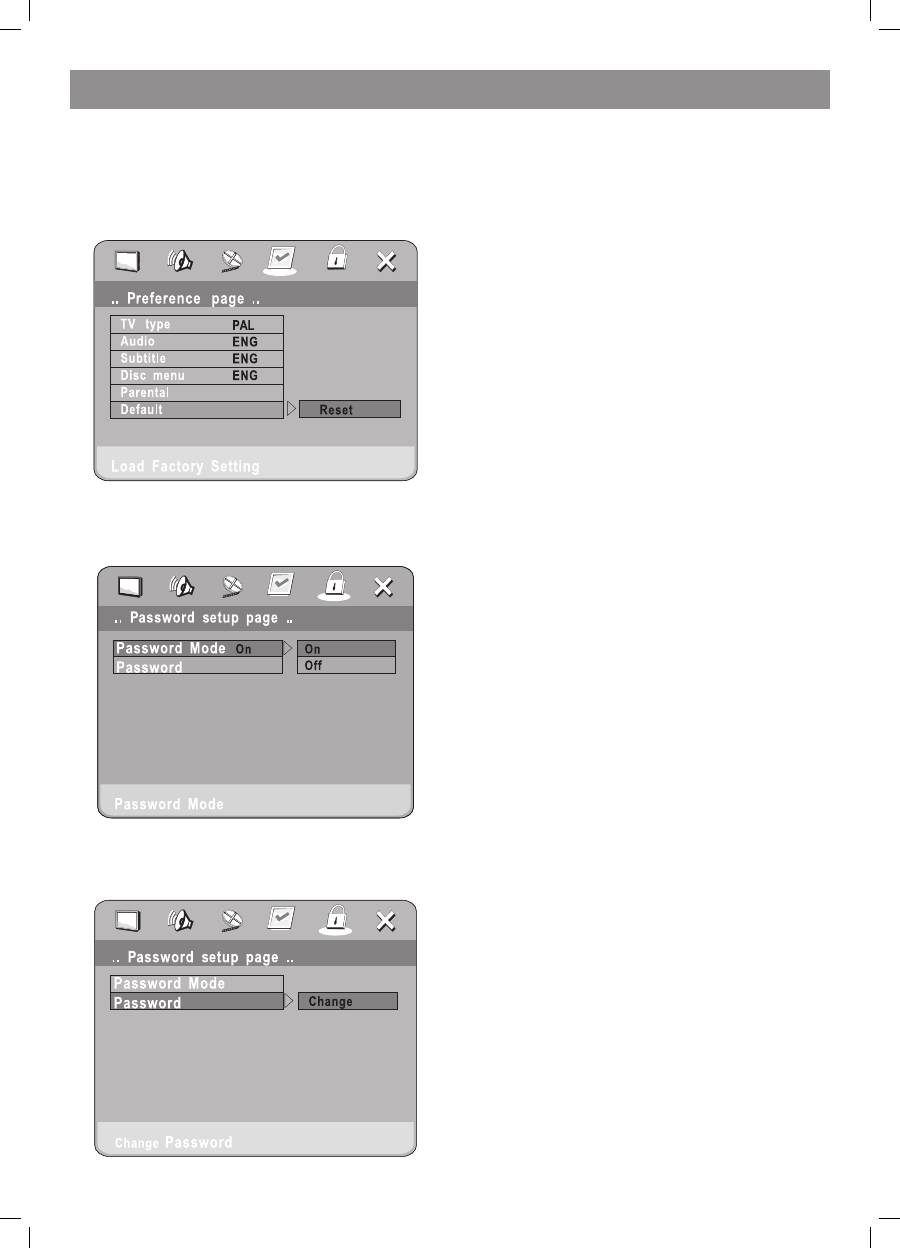
1.4.6. DEFAULT SETTINGS
This function allows using the original settings of the device.
Follow the operating instructions stated in “DVD MENU SETUP” in
combination with the desired option as shown in the following figure.
1.5. PASSWORD SETUP
Follow the operating instructions stated in “DVD MENU SETUP” in
combination with the desired option as shown in the following figure.
1.5.1. PASSWORD SETUP.
1.5.. PASSWORD
The default password is “8888“. The user may change it using this
option.
Follow the operating instructions stated in “DVD MENU SETUP” in
combination with the desired option as shown in the following figure.
6. OPERATING THE МР3 FUNCTION
MP3 is an audio compression mode using Level 3 of the international
MPEG standard. Under this standard the sound is compressed in the
proportion of 1:1. An MP3 disc may contain music enough for playing
longer than 600 minutes or record more than 170 songs providing the
same sound quality as the CD format.
To play an MP3 disc
Files menu of MP3 play
When playing an MP3 disc file menus can be selected by pressing on
the PROG key: File list and Folder.
1. FILE LIST
This function allows selecting the files to be played by pressing
the UP DOWN arrow keys in combination with the ENTER key, or
using the number keys together with the ENTER key for direct
selection. Should the input number be out of the music numbers, the
“CURRENT TRACK NUMBER” schould display in the screen.
. FOLDER.
Entert he screen menu first, after that press the UP DOWN or LEFT
RIGHT arrow keys and then the ENTER key to select the subdirectory
and music.
7. JPEG SETTINGS
JPEG format is the most efficient compression format that is widely used
as picture storage type flattened and stored format.
Even if pictures are compressed 150 types they still have good
performance. Supported by most picture processing software types and
fit for picture storage it requires small disc space and is easy for use. The
device can play picture CD discs in JPEG format.
Press relevant number keys to select picture display.
1. Put the disc on the disc tray correctly; the machine begins searching
the disc information.
. Press number keys to select the picture.
3. The present picture will be shown only after pressing the number
key.
Select playing by choosing the relevant menu item.
1. Put in the disc$ machine will start searching for the disc information
and the main menu will display on the screen. Press number keys
starting from 1 to select pictures, then press the play key to play.
. Press dirction keys to select pictures, then press the play key.
3. In the position of stop press direction keys to select other pictures.
4. In the stop position select the first line item on the right, then press
the play key to return to the upper menu.
8. TROUBLESHOOTING GUIDE
For your convenience we have enlisted some points to help solving
problems you might encounter while using the DVD player.
No sound
• Ensure firm connection between the player and other appliances,
such as power amplifier or TV set.
• Ensure correct operation of the TV and the power amplifier.
No picture
• Ensure firm connection between the player and other appliances,
such as power amplifier or TV set.
• Reassure that the disc is clear.
Remote controller doesn’t work
• Reassure there are no obstacles between the player and the remote
controller.
• Point with the remote controller at the remote control sensor.
• Check the battery
Picture dividing
• Make sure the disc is clean and unscratched.
• As the player is controlled with microcomputer, when encountering a
problem switch off the power first and then switch it on again in a few
seconds. By then, if no mistake icon is shown, the player shall work
well.
9. DISC PROTECTION
Protection
a. When loading or removing the disc, always hold it for the cental hole
and the edge.
b. Don’t stick or write anything on the surface. Protect discs from any
fingerprints.
4073IM.indd 17
09.10.2007 12:28:41
