
Brother PocketJet3Plus w BT (PJ-563): Chapter 3 - Tips on Using Paper
Chapter 3 - Tips on Using Paper: Brother PocketJet3Plus w BT (PJ-563)
Chapter 3 - Tips on Using Paper
Inserting Paper
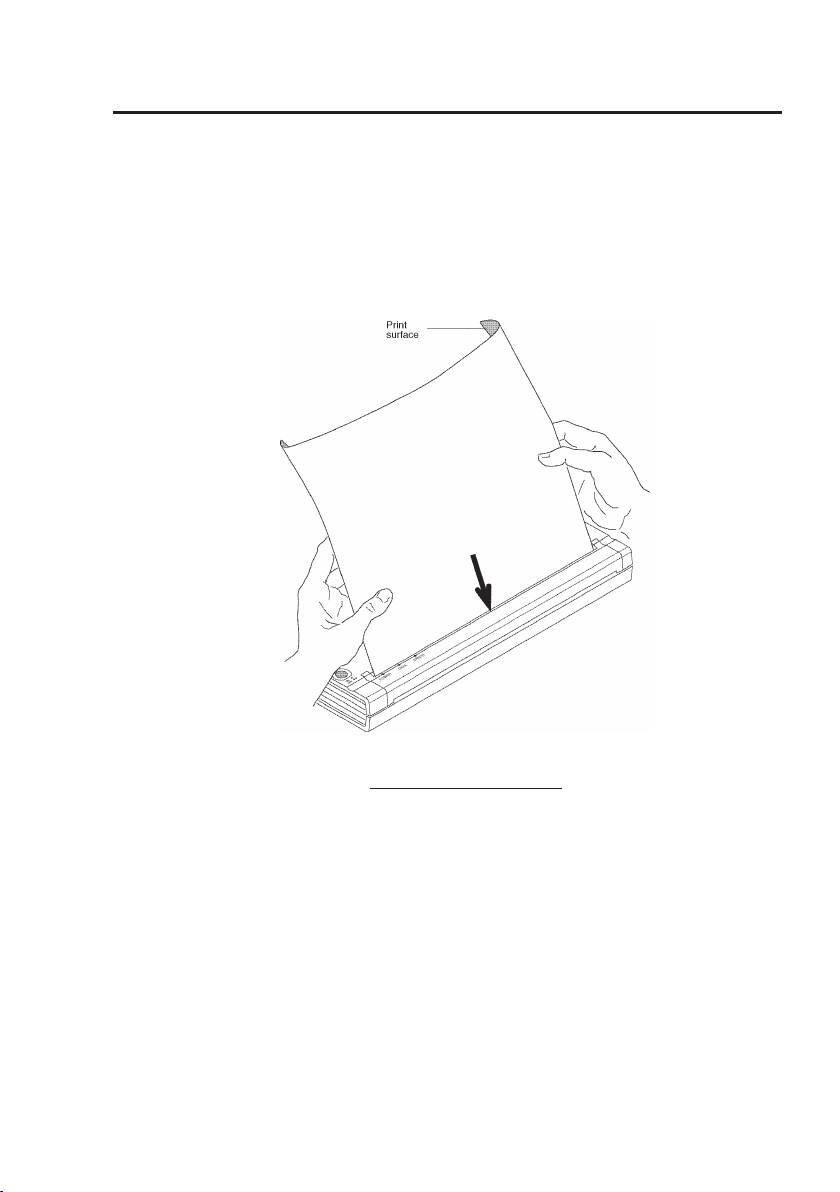
1. Use both hands to hold the paper straight while you insert it into the printer’s paper
input slot. Make sure the bottom edge of the paper is parallel to the feed roller.
2. Press the paper gently into the printer’s input slot until the roller pulls it into the
starting position, then let go. See Figure 14.
Figure 14. Inserting paper
If the paper is skewed after the printer pulls it into the starting position, you can correct
the situation as follows:
• If the printer does not start to print immediately, open the release cover as far back
as it will go. See Figures 15 and 16, pages 43 and 44. Pull the paper out, close the
cover, and reinsert paper.
• If the printer does start to print, wait for the page to be printed and then reprint that
page if necessary.
NOTE: If you insert paper into the printer before you start the print job, you will
have time to adjust the paper if it is skewed after the printer pulls it into the
starting position.
Page 41

See “Form Feed Modes”, page 9 and “Non-Perforated Roll Paper”, page 10 and
“Perforated Roll Paper”, page 11.
Use Brother Genuine Thermal paper
Brother Genuine Thermal Paper has been designed and tested for optimal print quality,
maximal reliability, and long printer life.
Usage and Handling Instructions
• When loading paper, make sure the smooth, coated side faces the back of the printer.
• To avoid wrinkling and tearing, keep paper in its box or bag until ready to use.
• Do not fold, crease, or wrinkle paper prior to loading it into the printer.
• When storing paper, avoid high temperatures and humidity.
• Avoid prolonged exposure to intense ultraviolet light.
• Avoid contact with Diazo (blueprint), carbonless, or castcoated papers.
• Avoid contact with vinyl or acetate materials, such as many notebook or report covers.
• Avoid contact with organic solvents, oils, and ammonia.
• When using a colored marker, be sure to use one with a water-based ink. If you use a
solvent-based marker, it may darken the paper.
Page 42
Clearing a Paper Jam
Method 1
Press and hold the green Main Power switch. The drive motor will start and move
slowly for a few seconds, then move faster as long as you hold the switch down. This
can be repeated as many times as necessary. If this does not move the jammed paper
out of the printer, use Method 2 below.
Note: This method can also be used to nely position a sheet of paper for printing, for
instance on a pre-printed form.
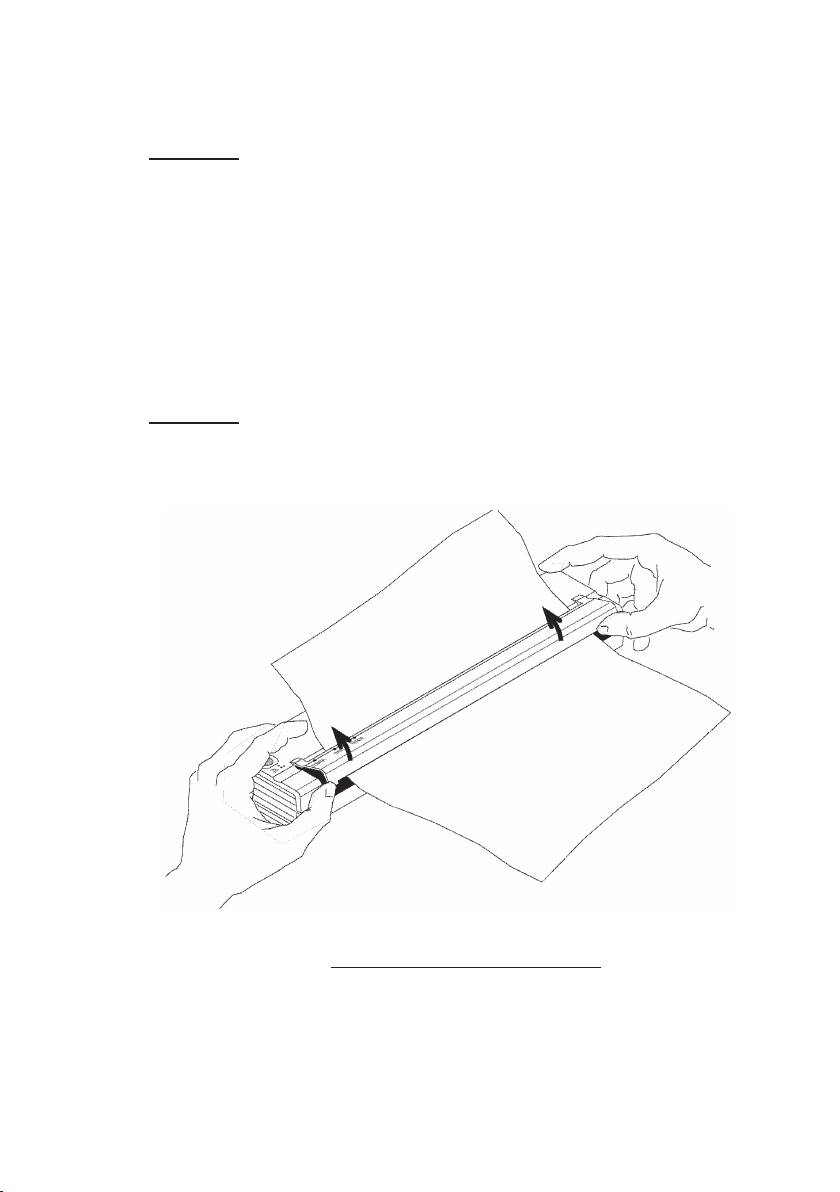
Method 2
1. Gently open the release cover as far back as it will go.
See Figure 15.
Figure 15. Opening the release cover
Page 43
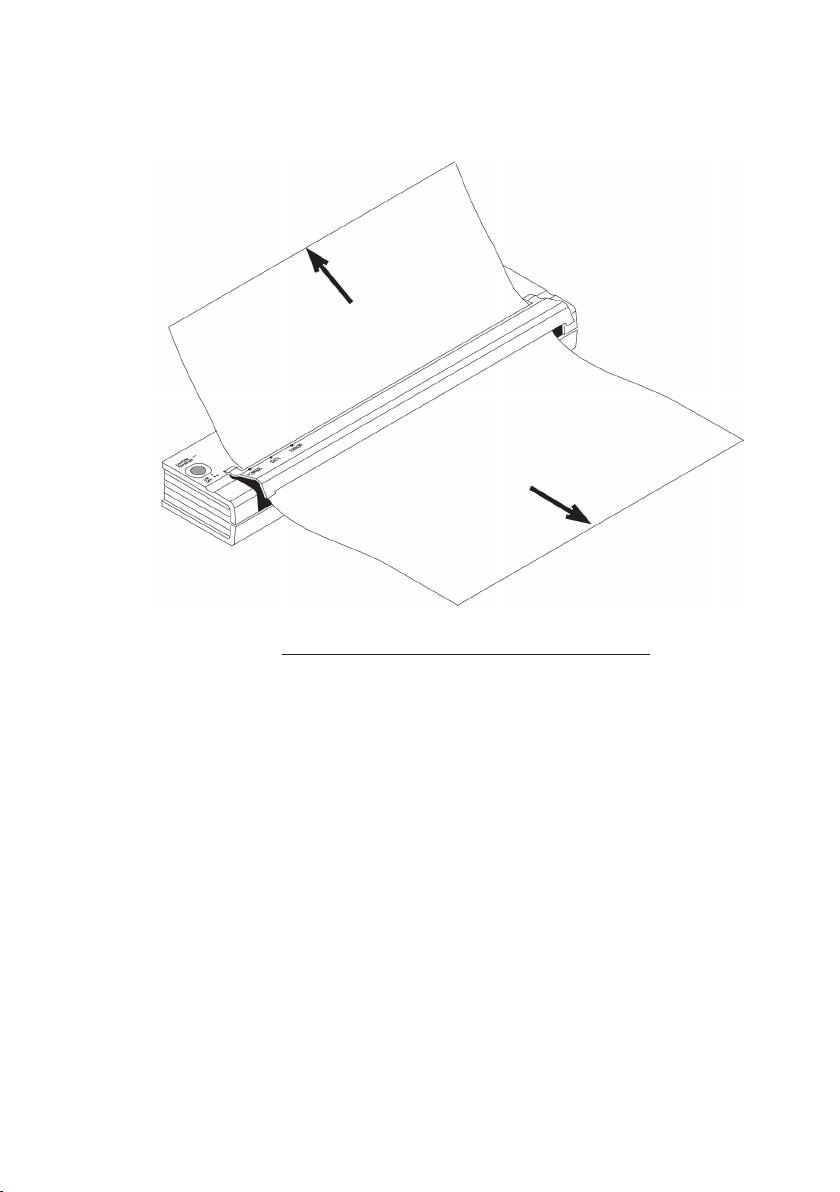
2. Gently pull the paper out of the printer. Pulling in either direction is acceptable.
See Figure 16.
Figure 16. Pulling jammed paper out of the printer
3. Close the release cover.
4. Reinsert a new sheet of paper in the printer and restart the job.
Page 44
