
Vitek VT-4086 SR: Preparation before using Remote control Progressive Scan
Preparation before using Remote control Progressive Scan: Vitek VT-4086 SR
Table of contents
- DVD PLAYER ACCESSORIES
- Rear panel/Front panel/Display information Rearpanel Front panel Display information
- Preparation before using Remote control Progressive Scan
- Connections 5.1CH output terminal connect to Active subwoofer
- Operating instructions for functions Direct select by numeric button: Audio VCD/CD disc track selection USB READER FUNCTION TV System Setting When playing DVD other discs, press the^^ button to enter fast forward Video Output Mode Selection Volume Control Slow Motion Play/Pause Menu play for DVD discs Frame by Frame play Track or Chapter Skip Repeat
- Repeat appointed part Picture Zoom Memory Play Search play For DVD discs: Multi angle DVD play MP3 Playback Audio Channel Selection Play mode SelectSubtitle Language SINGLE REPEATONE
- REPEAT FOLDER FOLDER General Setup Page Other Functions Playing Picture CD or JPEG files Operations: Picture selection and Preview: TV Display Rotate Picture: Previous and Next selection: Zoom in and Zoom out: Angle Slide show OSD Lang (On screen display language) Captions Stop Playing Karaoke Singing Screen saver MPEG-4, DIVXdiscpIayback Last Memory
- Audio Setup Page Dialog SPDIFOutput Speaker setup page SPDIF output PCM Channel Downmlx LPCM out Dolby Digital Setup Front Speaker Central speaker Rearspeaker Dual Mono Subwoofer Dynamic Test Tone
- Equalizer Setup 3 D processing The setup structure is as below:
- RESOLUTION TV Mode Preference page Video Quality Setup TV System AUDIO/SUBTITLE/DISC MENU Sharpness Gamma Luma-delay PARENTAL CONTROL Brightness Contrast Hue Saturation CHANGETHERATING HDMI Default Password Setup Page PASSWORD MODE PASSWORDCHANGE
- How to handle, protect and clear discs DVD player Copyright
- Maintenance and Troubleshooting
ENGLISH
38. USB/CARD
Preparation before using
Remote control
0- 0-5m
■ SO"
23
0-/m
24
Remark: The remote control must point at the remote sensor in order
for the DVD player to function.
1. The distance may vary according to the brightness of ambient light.
2. Do not leave the remote in an extremely hot or humid place.
3. Ifthe remote unit is not used for an extended period, pleases remove
25
the batteries to avoid any possible damage from battery leakage and
26
corrosion.
4. The batteries normally last for about a year, depending on how often
27
the remote unit is used. Ifthe remote control does not work even if it
28
is operated near the DVD player. Please replace both batteries with
29
the new non rechargeable AAA Alkaline batteries.
30
Progressive Scan
The DVD player is built-in with high performance Progressive Scan video
31
output.You can switch the video output to progressive scan or interlace
32
scan via the system setup.You can operate as follows:
33
1. Press SETUP key on the remote control the system setup menu will
34
be showed on the TV screen.
35
2. Usethe RIGHT arrowkeyto selectVIDEO SETUP PAGE, Press
36
ENTER key into the video setup options.
37
3. Movethe cursorto COMPONENT option and press ENTER keyenter
38
into itto selectYUV option and confirm.
4. Use arrow keys to select TV MODE and press ENTER into it to select
TV mode (Progressive or interlace).
Remarks: Make sure your TV set supports progressive scan and con
nected correctly before you switch to progressive scan video output.
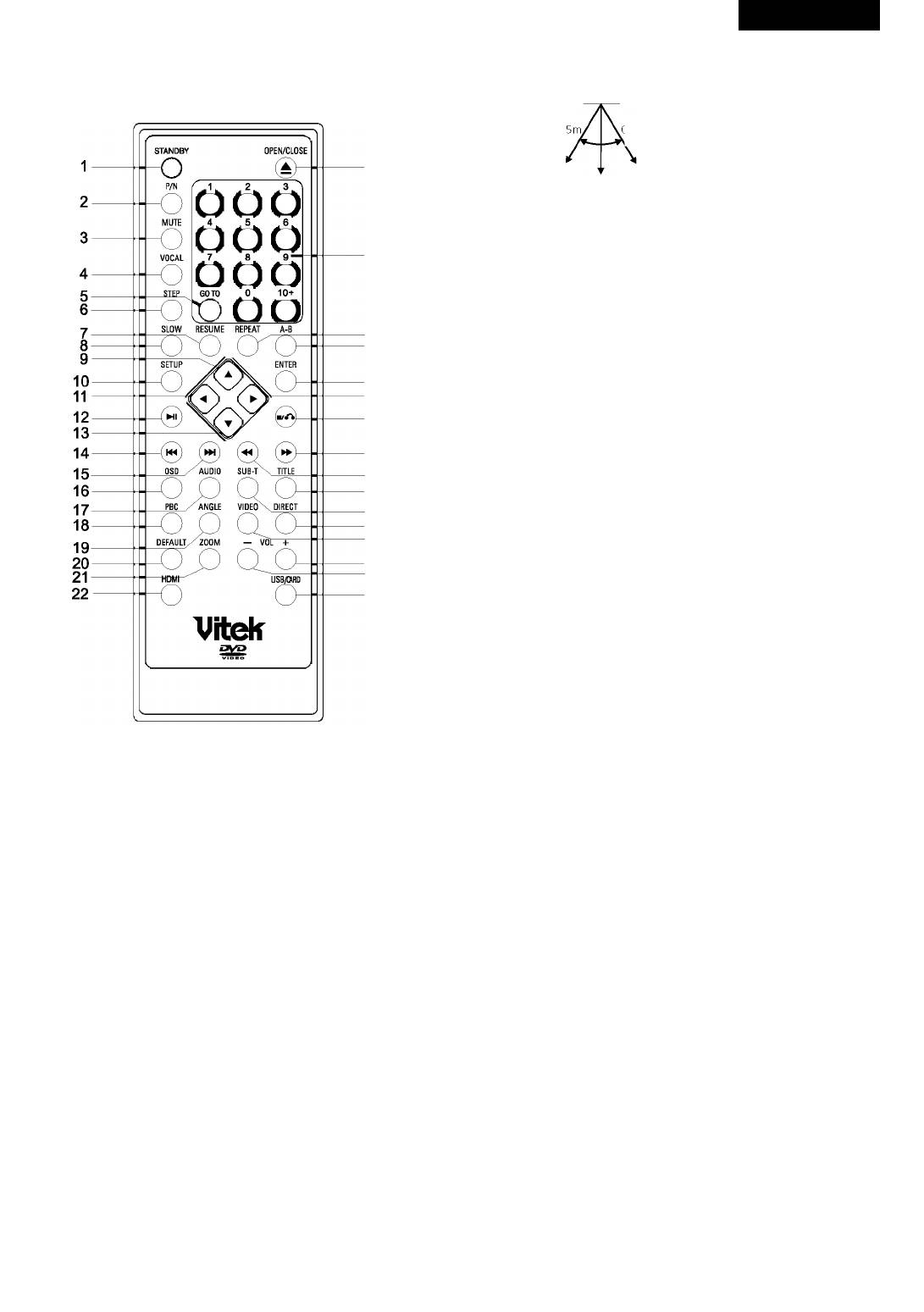
1. STANDBY
2. TV setstyleconversion
3. Mute
4. Accompanying Sound Play
5. Search Play
6. Frame by frame play
7. Memorized play
8. Slow Play
9. Direction Up
10. Setup
11. DirectionLeft
12. Play/Pause
13. Direction Down
14.
Previous
15.
Next
16. On Screen Display
17. Audio Channel Selection
18.
Menu play
19.
Multi-Angle Play
20. Reset Default
21. Picture Zoom
22
HD modeswitch
23
Tray Open/Close
24. Number Keys
25. Repeat
26
A-B Repeat
27
Enter
28. Direction Right
29. Stop/Return
30
Fast Forward
31
Fast Backward
32. Title
33. Subtitle
34
Program play
35
Video
36. Volume+
37. VolumeO-


