
Vitek VT-4086 SR: Operating instructions for functions Direct select by numeric button: Audio VCD/CD disc track selection USB READER FUNCTION TV System Setting When playing DVD other discs, press the^^ button to enter fast forward Video Output Mode Selection Volume Control Slow Motion Play/Pause Menu play for DVD discs Frame by Frame play Track or Chapter Skip Repeat
Operating instructions for functions Direct select by numeric button: Audio VCD/CD disc track selection USB READER FUNCTION TV System Setting When playing DVD other discs, press the^^ button to enter fast forward Video Output Mode Selection Volume Control Slow Motion Play/Pause Menu play for DVD discs Frame by Frame play Track or Chapter Skip Repeat: Vitek VT-4086 SR
Table of contents
- DVD PLAYER ACCESSORIES
- Rear panel/Front panel/Display information Rearpanel Front panel Display information
- Preparation before using Remote control Progressive Scan
- Connections 5.1CH output terminal connect to Active subwoofer
- Operating instructions for functions Direct select by numeric button: Audio VCD/CD disc track selection USB READER FUNCTION TV System Setting When playing DVD other discs, press the^^ button to enter fast forward Video Output Mode Selection Volume Control Slow Motion Play/Pause Menu play for DVD discs Frame by Frame play Track or Chapter Skip Repeat
- Repeat appointed part Picture Zoom Memory Play Search play For DVD discs: Multi angle DVD play MP3 Playback Audio Channel Selection Play mode SelectSubtitle Language SINGLE REPEATONE
- REPEAT FOLDER FOLDER General Setup Page Other Functions Playing Picture CD or JPEG files Operations: Picture selection and Preview: TV Display Rotate Picture: Previous and Next selection: Zoom in and Zoom out: Angle Slide show OSD Lang (On screen display language) Captions Stop Playing Karaoke Singing Screen saver MPEG-4, DIVXdiscpIayback Last Memory
- Audio Setup Page Dialog SPDIFOutput Speaker setup page SPDIF output PCM Channel Downmlx LPCM out Dolby Digital Setup Front Speaker Central speaker Rearspeaker Dual Mono Subwoofer Dynamic Test Tone
- Equalizer Setup 3 D processing The setup structure is as below:
- RESOLUTION TV Mode Preference page Video Quality Setup TV System AUDIO/SUBTITLE/DISC MENU Sharpness Gamma Luma-delay PARENTAL CONTROL Brightness Contrast Hue Saturation CHANGETHERATING HDMI Default Password Setup Page PASSWORD MODE PASSWORDCHANGE
- How to handle, protect and clear discs DVD player Copyright
- Maintenance and Troubleshooting
ENGLISH
Operating instructions for functions
Direct select by numeric button:
Turn the unit on
10+
1. Before starting the unit, make sure the connection among the unit
OMD
and other acoustics is correct and reiiabie. After confirmation,
connectthe power piug ofthis unit into AC 110~240V, 50~60Hz
• Press the^AT buttons, to enter the desired page.
suppiy socket.
• Press the m button to select and start the playing.
2. Pressthe “POWER” keyon panei toturn the unit on, when theTV
• Pressthe TITLEbuttontoreturntotheTitlemenujifthereisaTitle
screen dispiay the defauit interface.
menu).
3. Press Open/Ciose button on the remote controi or panei to eject the
• Press the PBC button to return to the root menu.
disc tray. Piace a disc onto it. Note: the iettered side upward.) Press
the key again cióse disc tray.
Audio VCD/CD disc track selection
4. Do not push the disc tray when ciosing it. Aiways use the OPEN/
Load an audio VCD, upon reading the disc; you can select/playsongs
CLOSE button to cióse the disc tray.
with numeric button. Ifthetrack number is lessthan 10, press numeric
button 1-9toselect.
USB READER FUNCTION
For example: To select the 8th song press number button 8. The TV
When open the card reader door, you can insert the USB. Then press
screen will show:
DVD/USB key on the remote controi to switch to DVD reading mode. The
Select Track: 08
TVscreenwiii be showed: “Read USBXXX%”, afterawhiie, the content
bO
of USB wiii be show on the screen.
Note:
To selectsong number beyond 10, press 10+ button, followed bythe
1. Aiiof the content that the piayer are compatibie, the card reader can
number 0~9.
distinguish and piaying.
2. The piaying interface and operation methods are aiike MP3, MP4,
For example: To selectthe 12th song press 10+ and then press button 2.
DiVX, and JPEG etc. fiies. The piaying interface is according to the
The TV screen will show:
content ofyour saving.
10+ 2 ^____________________________^
Select track : 12
0-0
TV System Setting
Adjust the DVD piayer output such that it matches the supported TV sys
Fast Forward and Fast Backward
tem on your TV. For exampie, if your TV uses PAL, you have to program
When playing DVD other discs, press the^^ button to enter fast forward
your DVD receiver to piay in PAL mode; otherwise you wiii not be abie to
mode. There are 5 different speeds available and depends on how many
view on your TV screen when piaying TV programs or movie discs. Press
time ofthe button pressed.
the P/N button continuousiyto seiectAUTO, NTSC or PAL.
® I
Video Output Mode Selection
i Pla^
According to your need, press the Video key continuousiy to seiect the
video output mode:
Pressing« will enter fast rewind mode. Select fast rewind speed by
MIX VIDE^ -»YUVOnterlace^YUViP-Scan) -,
using the« button.
c:
RG^ —►VG.
1"
Volume Control
Press the VOL+ or VOL- button continuously to decrease or increase the
To resume to normal play mode press thewi button.
master volume ofthe system. All ofthe 6 channels volume will be ad
justed at the same time.
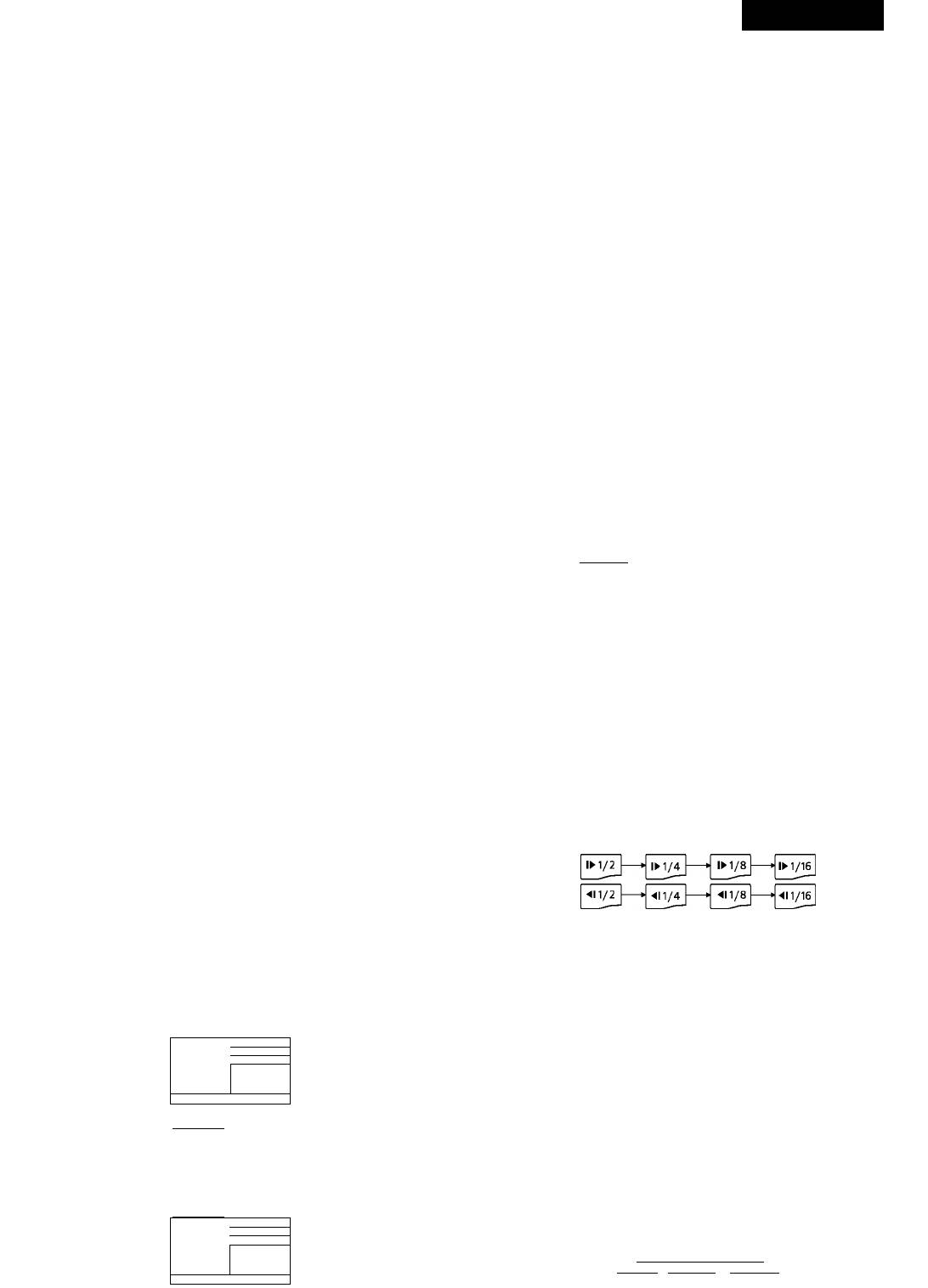
Slow Motion
When playing DVD discs, press SLOW button to playvideo in slow mo
Press the MUTE button to mute the audio output.
tion. This feature is available in both DVD discs forward and backward.
The screen will show: MUTE OFF.
By pressing the SLOW button 1-4 times, video is played in slow motion
forward in different speed.
Play/Pause
SLOW
When playing DVD and CD discs.
Whenwi button is pressed forthe first time, playwill be stoppedtempo-
rary.
Presswi button to release pause state and resume playing.
PressM button to resume normal play at any speed.
Menu play for DVD discs
When playing DVD discs, some discs contain title menus or chapter
Frame by Frame play
menus, press PBC button to access this feature.
Press STEP key on remote control to create a still image, press it again to
TheTVscreenwillshowmenupictureandusethe buttonsto
create the next still image. Presswi button to resume normal play.
scroll. To confirm the selection, presswior ENTER button. Alternatively,
use the Numeric button to select.
Track or Chapter Skip
Menu
WhenplayingaDVDdisc,pressthe « buttontoskiptothepervi-
ous chapter. When other types of disc played, press this button to skip to
previous track.
II.
Note: This function works depends on the disc type in used.
For example: To select the 13 song.
Repeat
Menu
When playing DVD and other discs, the player can play a specified title,
chapter, track or other content repeatedly or repeat the whole disc or
repeat play from pointAtopointB.
Alternatively, you can also select directly by using the numeric buttons.
For DVD discs, when the REPEAT button is pressed continuously, the
For example: To select the 13 song.
screen will be showed:
Repeat the
Menu
(Rspsat) current Repeat the Repeat the
chapter current title whole disc
T T T To cancel
|Chapter|—H Title]—*\ AH|—► repeat


