
Rothenberger ROWELD ROFUSE Print Plus V2.0 – страница 2
Инструкция к Rothenberger ROWELD ROFUSE Print Plus V2.0
6.5 Entering Weather Conditions 26
6.6 Entering Data on the Jointed Components 26
6.7 Recording the Geo-data of the Planned Joint 26
7 Entering Welding Parameters Manually 27
7.1 Manually Entering Welding Voltage and Time 27
7.2 Entering the String of Numbers 27
8 Downloading the Reports 27
8.1 Selecting the File Format 27
8.2 Downloading All Reports 28
8.3 Downloading by Commission Number, Date or Report Range 28
8.4 Understanding the Report Download Process 28
8.5 Deleting Data from Memory 28
8.6 Keeping Data in Memory 28
9 Dedicated Welding Unit Information 28
9.1 Displaying Characteristics of the Welding Unit 28
9.2 Measuring Resistance 28
9.3 Overheating Switch 29
9.4 Indication of Power Supply Failure at the Last Welding 29
10 Configuring the Welding Unit 29
10.1 Understanding the “Settings” Sub-menu 29
10.1.1 Selecting the Display Language 30
10.1.2 Setting the Clock 30
10.1.3 Setting the Buzzer Volume 30
10.2 Understanding the “Recording” Sub-menu 30
11 Self-Monitoring Functions Overview 31
11.1 Errors During Data Input 31
11.2 Errors During Welding 32
12 Technical Data 33
13 Disposal 33
Markings in this document:
Danger!
This sign warns against the danger of personal injuries.
Caution!
This sign warns against the danger of property damage and damage to the
environment.
Call for action
ENGLISH 19
1 Introduction
Dear Customer,
The ROWELD ROFUSE Print+ V2 Welding Unit is designed exclusively for welding plastic pipe
fittings according to the electrofusion process. It represents the next generation of the tried and
tested ROWELD ROFUSE series, featuring a broader range of functions. It is available with our
without a GPS module for automatic recording of the geo-data of every joint.
The product was manufactured and checked according to state-of-the-art technology and widely
recognized safety regulations and is equipped with the appropriate safety features. Before
shipment, it was checked for operation reliability and safety.
In the event of errors of handling or misuse, however, the following may be exposed to hazards
• the operator’s health,
• tthe product and other hardware of the operator,
• the efficient work of the product.
All persons involved in the installation, operation, maintenance, and service of the product have
to
• be properly qualified,
• operate the product only when observed
• read carefully and conform to the User’s Manual before working with the welding unit.
Thank you.
2 Safety Instructions
2.1 Using the Correct Connection Terminal
Use the appropriate connection terminal that is compatible with the fitting type used. Be sure the
contact is firmly established and do not use connection terminals or terminal adapters that are
burnt or not designed for the intended use.
2.2 Improper Use of the Welding and Power Supply Cables
Do not carry the product by its cables and do not pull the power cord to unplug the unit from the
socket. Protect the cables against heat, oil, and cutting edges.
2.3 Securing the Fitting and the Joint
Use positioner clamps or a vice to secure the fitting and the joint to be made before welding. The
tting manufacturer’s installation instructions, local and national regulations have to be respected
in all cases.
A welding process must never be repeated with the same fitting, since this may cause parts under
power to be accessible to the touch.
2.4 Cleaning the Product
The product must not be sprayed with or immersed in water.
2.5 Opening the Unit
The cover of the product may be removed only by specialized staff of the
manufacturer or of a service shop properly trained and approved by it!
2.6 Extension Cables on the Worksite
To extend power cord length, use exclusively properly approved extension cables that are labeled
as such and have the following conductor sections.
up to 20 m: 1,5 mm² (2,5 mm² recommended); Typ H07RN-F
over 20 m: 2,5 mm² (4,0 mm² recommended); Typ H07RN-F
When using the extension cable, it has always to be rolled off completely and lie
fully extended!
ENGLISH20
2.7 Checking the Product for Damage
Before every use of the product, check safety features and possibly existing parts with minor
damage for proper function. Make sure that the push-on connection terminals work properly,
that contact is fully established, and that the contact surfaces are clean. All parts have to be
installed correctly and properly conform to all conditions in order for the product to function as
intended. Damaged safety features or functional parts should be properly repaired or replaced by
an approved service shop.
2.8 Data Interface Cover Cap
The dust cap for the interface has to cover the port during operation, in order to keep humidity
and contaminations away.
2.9 Power Supply Specifications
2.9.1 Mains Power Supply
Utility suppliers’ wiring requirements, occupational safety rules, applicable standards, and national
codes have to be respected.
When using power distributions on the worksite, rules for the installation of
earth-leakage circuit breakers (RCD) have to be respected, and operation requires
an installed breaker.
Generator or mains power fuse protection should be 16 A (slow blow). The product has to be
protected against rain and humidity.
2.9.2 Generator Power Supply
The required nominal generator capacity as determined by the power supply requirement of
the largest fitting to be welded depends on the power supply specifications, the environment
conditions, and the generator type itself including its control/regulation characteristics.
Nominal output power for a generator 1 phase, 220 - 240 V, 50/60 Hz:
d 20 .............d 160 3,2 kW
d 160 ............d 450 4 kW mechanically regulated
5 kW electronically regulated
Start the generator first, then connect the welding unit. The idle voltage should be set to approx.
240 volts. When turning the generator off, disconnect the welding unit first.
The working output power of the generator decreases by about 10% per 1,000 m of
altitude. During the welding process no other device connected to the same
generator should be operated.
3 Service and Repair
3.1 General
As the product is used in applications that are sensitive to safety considerations, it may be
serviced and repaired only by the manufacturer or its duly authorized and trained partners. Thus,
constantly high standards of operation quality and safety are maintained.
Failure to comply with this provision will dispense the manufacturer from any
warranty and liability claims for the product, including any consequential damage.
When serviced, the unit is upgraded automatically to the technical specifications of the product at
the moment it is serviced, and we grant a three-month functional warranty on the serviced unit.
We recommend having the product serviced at least every twelve months.
In Germany,we recommend using ROTHENBERGER-Service.
3.2 Transport, Storage, Shipment
The product ships in a transport box. The product should be stored in this box, protects the
product from humidity and environmental agents.
When sending the product, it should be placed into the transport box at all times.
ENGLISH 21
4 Principles of Operation
The ROWELD ROFUSE Print+ V2 allows welding electrofusion fittings that feature a bar code.
Every fitting is provided with a tag with one or two bar codes on it. The structure of this code is
internationally standardized. The first code, encoding the data on proper welding, complies with
ISO 13950, the second code, if present, encoding the component traceability data, complies
with ISO 12176-4. The model version with GPS module can additionally be used to record the
geographic coordinates of the place where the welding operation is performed, which will then
be added to the relevant welding report.
The welding parameters can also be entered manually. The microprocessor-controlled ROWELD
ROFUSE Print+ V2 Welding Unit
• controls and monitors the welding process in a fully automated fashion,
• determines welding duration depending on ambient temperature,
• shows all information on the display in plain text.
All data that are relevant for the weld or for traceability are saved to the internal memory and can
be sent to a USB stick.
Welding data transfer is enabled through an interface of the USB A type, which is compatible
with a USB stick.
Further Optional Accessories:
• PC software for downloading and archiving data on PC (for all common Windows operating
systems)
• Label tag printer for printing an identifier label for the new joint right after the welding
operation
• USB stick for data transfer from the welding unit on the worksite to the printer or PC in your
office (see details at the end of this booklet)
5 Check-out and Operation
To operate the welding unit, be sure that it is set on a proper, level surface.
Be sure that power supply/generator protection is 16 A (slow blow).
Plug the power supply cord into the mains power supply or the generator.
Read and comply with the User’s Manual of the generator, if applicable.
5.1 Turning the Welding Unit On
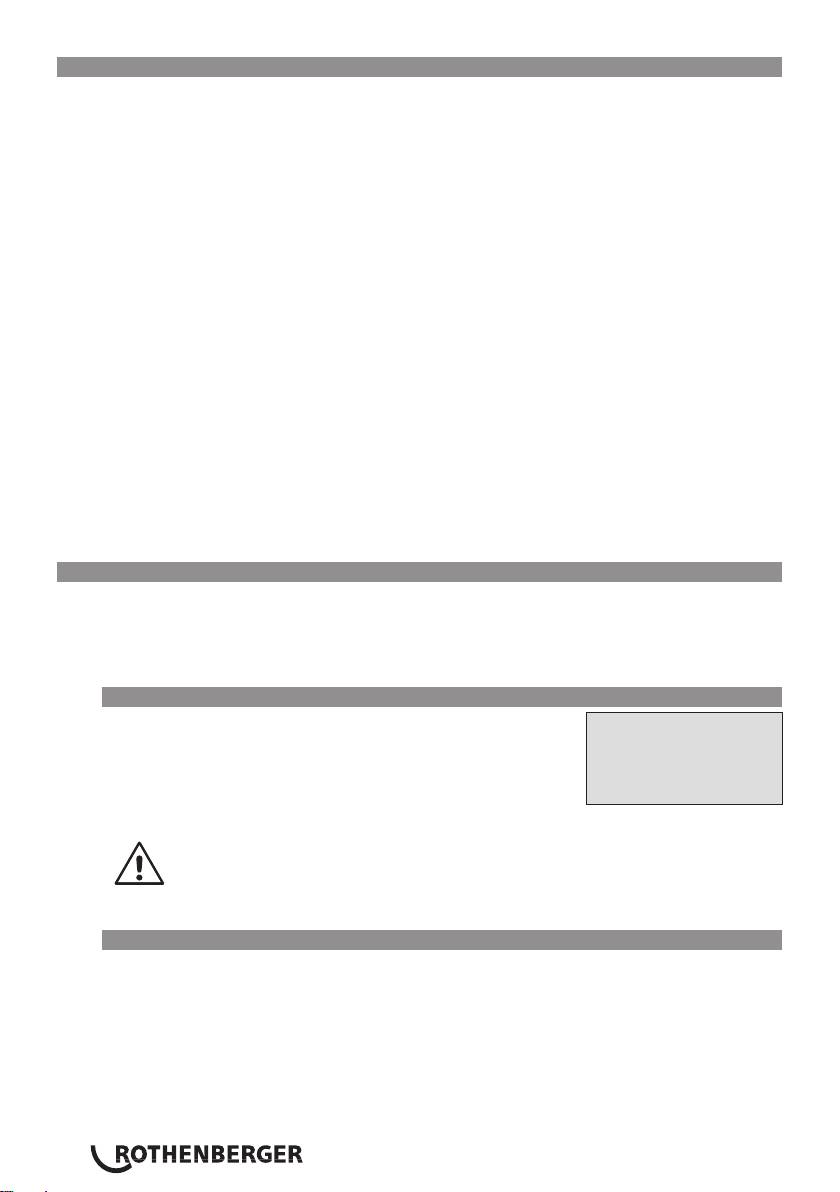
After connecting the power supply cable to mains power or a
Roweld
generator, turn the welding unit on using the On/Off switch. This
Welder
causes Display 1 to show
.
ROFUSE Print +
Version 2.0
Then the screen changes to Display 2.
Display 1
CAUTION in case of System Errors! If during the auto-test that the unit performs
at start-up, an error is detected, a “System Error” message shows on the display.
When this happens, the welding unit has to be disconnected immediately from
the power suppy and the fitting, and it has to be shipped to the manufacturer
for repair.
5.2 Entering the Welder ID Code
The alphanumeric keypad is designed and works like the keypad of a common mobile phone
without touch screen display. All characters found on a key can be “browsed” by pressing that
key repeatedly at short intervals. As soon as “browsing” generates the desired character on the
screen, wait a little longer until you press the next key to use the displayed character. The first
character always is the number on the respective key, then the letters or marks in the order on the
key, i. e., for instance, with the key “2 | a | b | c” the 1st keypress brings up “2,” the 2nd “a,” the
3rd “b,” and the 4th brings up “c.” By default, lower-case letters appear on the screen. To enter
upper-case letters, hold down the ñ key while selecting the appropriate letter by one or several
keypresses.
ENGLISH22
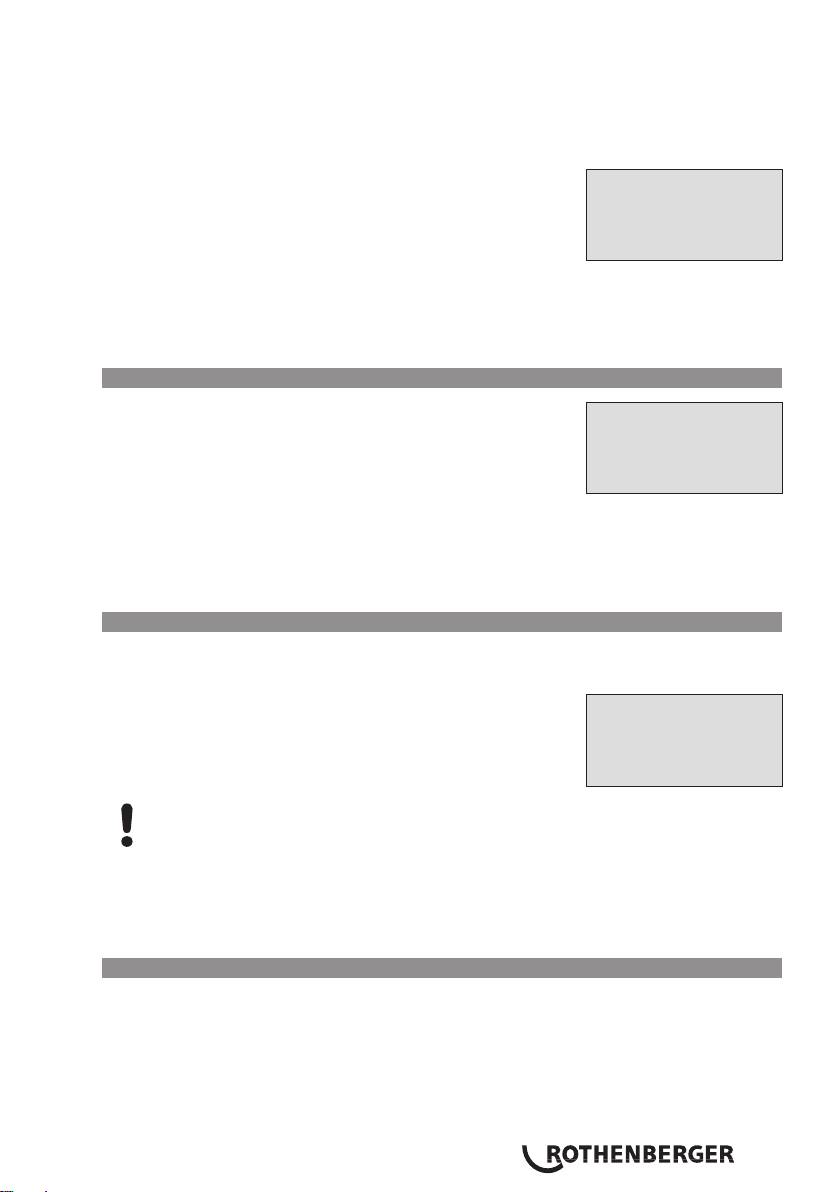
The welding unit can be configured to ask for the welder identification code before the fitting
code is entered. The display screen then shows the message “Enter Welder Code.” (Later this
screen can be accessed by a quick access routine; see Sect. 6.1.) The numeric code can be entered
either by reading it from a tag with the scanner or by using the ï, ð, ñ, ò keys. Whether the
welder identification code has to be entered and if so, when or how often, is determined in the
“Settings” sub-menu of the configuration menu (see Sect. 10.1).
When the welder code is read from a bar code using the scanner, an
Enter Fitting Code
audible signal confirms this and the screen shows the read code and
14:32:11 21.10.12
switches to the next input display. When the code is entered
Inp.Volt. 230V 50Hz
manually, it is saved by pressing the START/SET key. If the code
No Contact
entered is not correct, a “Code Error” message appears; check the
sequence of numbers and correct as needed. If the code entered is
Display 2
correct, it is saved to system memory and inserted into the welding
reports to be printed.
Only an ISO standard-compliant welder identification code is accepted by the unit. If the welder
code feature is disabled, the input screen for the welder code will not show.
5.3 Connecting the Fitting
Connect the connection terminals to the fitting and check for proper
** Welder Code **
contact. Use terminal adapters if needed. The contact surfaces of the
cable connection terminals or adapters and the fitting have to be
********************
clean. Dirty terminals may lead to improper welding and also to
**********
overheated and fused connection terminals. Protect the cable
connectors against getting dirty at all times. Terminals and push-on
Display 3
adapters should be considered consumables and, therefore, have to
be checked before every welding operation and replaced if damaged
or dirty.
When the fitting is connected, instead of the “No Contact” message (see Display 2) the number
of the next welding report appears, e.g., “Prot. No.: 0015.”.
5.4 Reading the Fitting Code with a Handheld Scanner
Only the bar code on the tag sticking on the fitting to be welded may be used. It is not acceptable
to read the fitting code tag of a fitting of a different kind if the intended one is damaged or
unreadable.
Read the fitting code by holding the scanner in front of the bar code
Start ?
at a distance of 5 to 10 cm (2 to 4 inches), where the red line
Temp.: 20°C
indicates the reading area. Then push the reading button. If the data
HST 315mm 58s
are correctly read, the welding unit confirms this by an audible signal
SAT 40.00V 0.80Ω
and displays the decoded data on the screen (see Display 4).
Display 4
The displayed values are the nominal welding parameters
contained in the fitting bar code. They are displayed before the actual resistance of
the electrofusion fitting is measured. This means that even when the showing ohm
value is o.k., a resistance error may still be detected (see Sect. 9.2). Only when the
welding process starts, the display shows the actual, measured welding parameters.
The “Start ?” message means that the unit is ready to start the welding process. Check the read
data and if you see that they are erroneous, delete them by pressing the STOP/RESET key. The
read data are also deleted if the welding unit is disconnected from the fitting.
5.5 Direct Welding with the AutoWeld Feature
If two welding operations with electrofusion fittings with the exact same welding parameters
succeed each other, it is not necessary to read a fitting bar code or enter welding parameters
manually. To start a welding operation that is fully identical to the preceding one, it is sufficient to
use the AutoWeld feature, provided it was enabled in the configuration menu (see Sect. 10.1). It
is accessible from thre quick selection screen opened from the “Enter Fitting Code” screen with
the ï arrow key (see Sect. 6.1). In this screen, the selection cursor can be moved using the ñ and
ò; the selection is made with the START/SET key.
ENGLISH 23

It is under the user’s responsibility to rely on the AutoWeld feature only when the preceding
and the planned welding operation and electrofusion fitting are really fully identical to each
other. An erroneous or negligent use of the feature will result in a poor, unstable joint.
5.6 Starting the Welding Process
After the fitting bar code was read, the input of all traceability data that were
enabled in the configuration menu (see Sect. 10.2), is requested by the system.
After reading or entering the fitting code, the welding process can be started using the START/SET
key, when the “Start ?” message is displayed and there is no indication of a problem.
Pressing the START/SET key will trigger a confirmation message “Pipe treated?,” which in turn
requires a confirmation with the START/SET key to start the welding proper.
5.7 Welding Process
The welding process is monitored for its entire duration applying the welding parameters
contained in the fitting code. The welding voltage, the resistance, and the welding current are
displayed in the lower line of the screen.
5.8 End of Welding
The welding process ends successfully if the actual welding time corresponds to the nominal
welding time and the buzzer can be heard twice.
5.9 Aborted Welding Process
The welding process has failed if a plain-text error is displayed on the screen and the audible
signal buzzes continuously. An error has to be acknowledged by pressing the STOP/RESET key.
5.10 Cooling Time
The cooling time as given in the tting manufacturer’s instructions
Act. Time: 56sec
has to
be respected. If the bar code provided by the fitting
Nom. Time: 90sec
manufacturer contains cooling time data, it will be displayed at
the end of the welding process and will be counted down to zero.
35.00V 1.57Ω 22.29A
This countdown can be acknowledged and canceled at any time
by the STOP/RESET key. However, note that for that time the pipe
Display 5
fitting joint which is still warm must not be subjected to an
external force. No cooling time is displayed if the fitting code does
not contain any such information.
5.11 Returning to the Start of Parameter Input
After welding is finished, disconnecting the welded fitting from the unit or pressing the STOP/
RESET key will reset the unit back to the start of entering the welding parameters.
5.12 Using ViewWeld to Manage Logged Welding Reports, Print Tags,
and Assign Geo-data
The ViewWeld feature offers viewing
an abstracted version of the
0015 24.02.13 09:33
welding reports recorded during the welding processes and printing
M/B MON HST 315
it as a label tag to be affixed to the joint on the optionally available
0058s 025.0V 1.57Ω
tag printer. The ViewWeld abstract shows the report number, the
No Error
date and time of the welding and the welding parameters along
with an evaluation of the quality of the joint/welding operation (see
Display 6
Display 6) where the first displayed abstract is that of the last
performed welding operation.
To call the ViewWeld abstract of a welding report, press the ñ key in the bar code input screen
(see Display 2). Browsing through the saved welding reports is then possible by pressing the ï or
ð cursor keys. To print a tag of the welding operation of which the abstract is currently displayed,
the label tag printer has to be connected to the welder. Then press the START/SET key in the
ViewWeld screen.
ViewWeld also enables assigning the geo-data of a joint after it was made, in case they were not
recorded with enabled geo-data logging at the welding operation (see Sect. 6.7). To do this, call
ENGLISH24
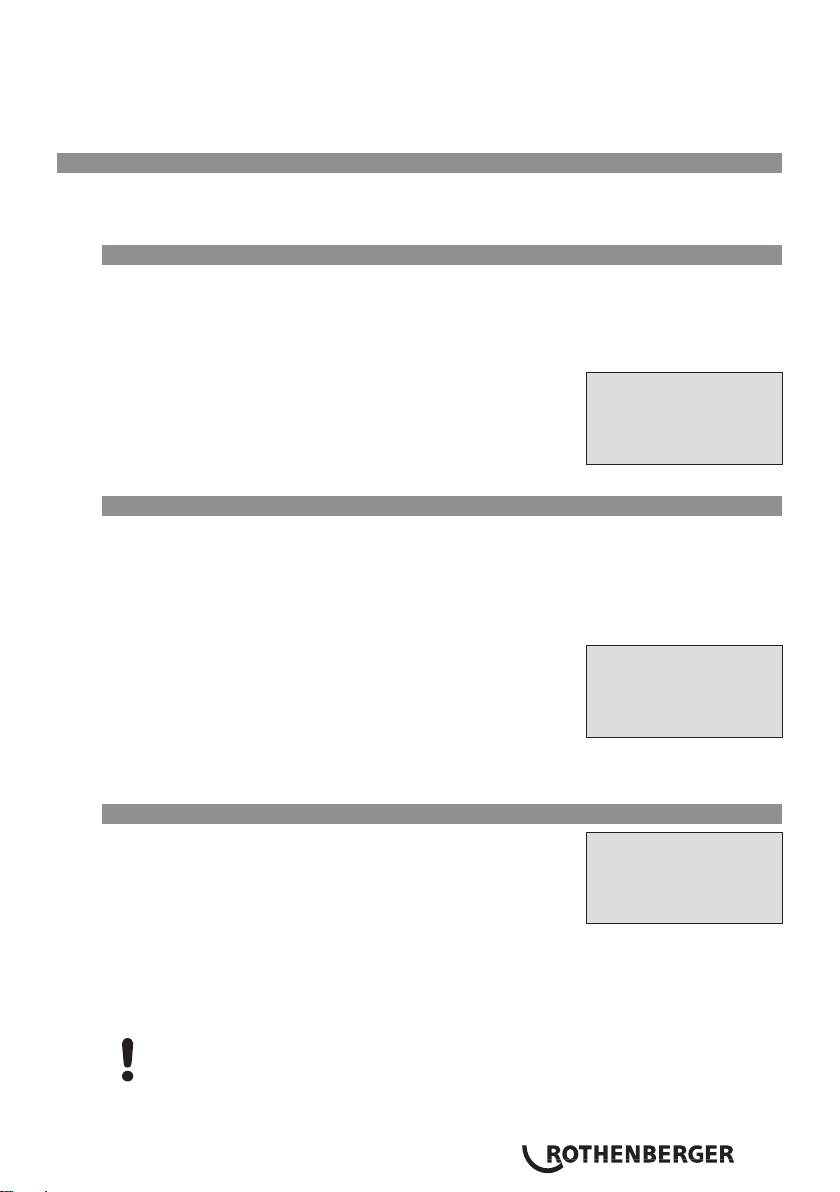
the ViewWeld screen and, if needed, browse to the welding abstract of the joint that needs to
have its geo-data assigned. Then press the ñ cursor key in the ViewWeld screen displaying the
desired welding operation. This causes a screen asking you if you want to record geo-data to
appear (see Display 12). Confirm by pressing the START/SET key and log the geo-data according
to the procedure described in Sect. 6.7.
6 Additional Information in the Welding Report
Every welding report saved to system memory, which can be downloaded as a PDF report file or in
the DataWork format, contains a number of welding and traceability data that the operator can
decide to enter or not to enter in the set-up menu.
6.1 Entering Preformatted and User-defined Traceability Data
All traceability data enabled in the configuration menu at “Data Recording” (see Sect. 10) have to
be entered before the welding process. The welding unit prompts the user to enter them either
before or after entering the fitting bar code (see Display 2). Depending on what data is entered,
either its repeated input is mandatory (e. g., the welder ID code; see Sect. 5.2) or previously
entered data can be changed and confirmed or confirmed without changes (e. g. the commission
number; see Sect. 6.2).
*** Recording ****
Certain traceability data can also be accessed quickly,
via a selection
AutoWeld
screen, by pressing the ï cursor key (see Display 7), either for
>Welder ID Code
viewing or for entering or changing/confirming them. (for the
Enter Job No.
AutoWeld feature mentioned along with them on this screen, see
Sect. 5.5)
Display 7
6.2 Entering or Changing the Job Number and Joint Number
The commission number input screen is shown by the unit before welding or accessed by the
user in the quick access screen (Display 7). It can be entered using the alphanumeric keypad (see
Info in Sect. 5.2) or by reading it from a bar code using the scanner. The maximum length is 32
characters. Confirm your input by pressing the START/SET key. The job number will be saved to
memory and will appear in the printed welding report.
Provided is was enabled in the configuration menu (see Sect. 10.2),
a commission number-related joint number is also recorded and
* Enter Job No*
shown along with the report number (see Sect. 5.3). To say that the
joint number is related to the job, or commission, number means
********************
that the system checks, when a commission number was entered,
************
whether it exists already in the internal memory. If so, it takes the
highest existing joint number for that commission, increments it by
Display 8
1, and applies this new joint number to the next welding operation
in that commission.
6.3 Entering or Changing Additional Data
The additional data input screen is shown by the unit before
** Addit'l Data 1 **
welding
, first the screen that allows entering the first additional
data, then the one for the second additional data. This input can be
********************
entered either using the alphanumeric keypad (see Info in Sect. 5.2)
or by reading from a bar code using the scanner.
Display 9
For the first additional data input, the maximum length is 20 characters. For the second data
input, the maximum length is 15 characters. Confirm your input by pressing START/SET. The
additional data will be saved to memory and appear in the welding report. By pressing STOP/
RESET, you skip this screen without any input.
You are free to define any additional data you see fit. For instance, you can put into these
fields information on pipe length, ditch depth, or comments that help with welded joint
traceability.
ENGLISH 25
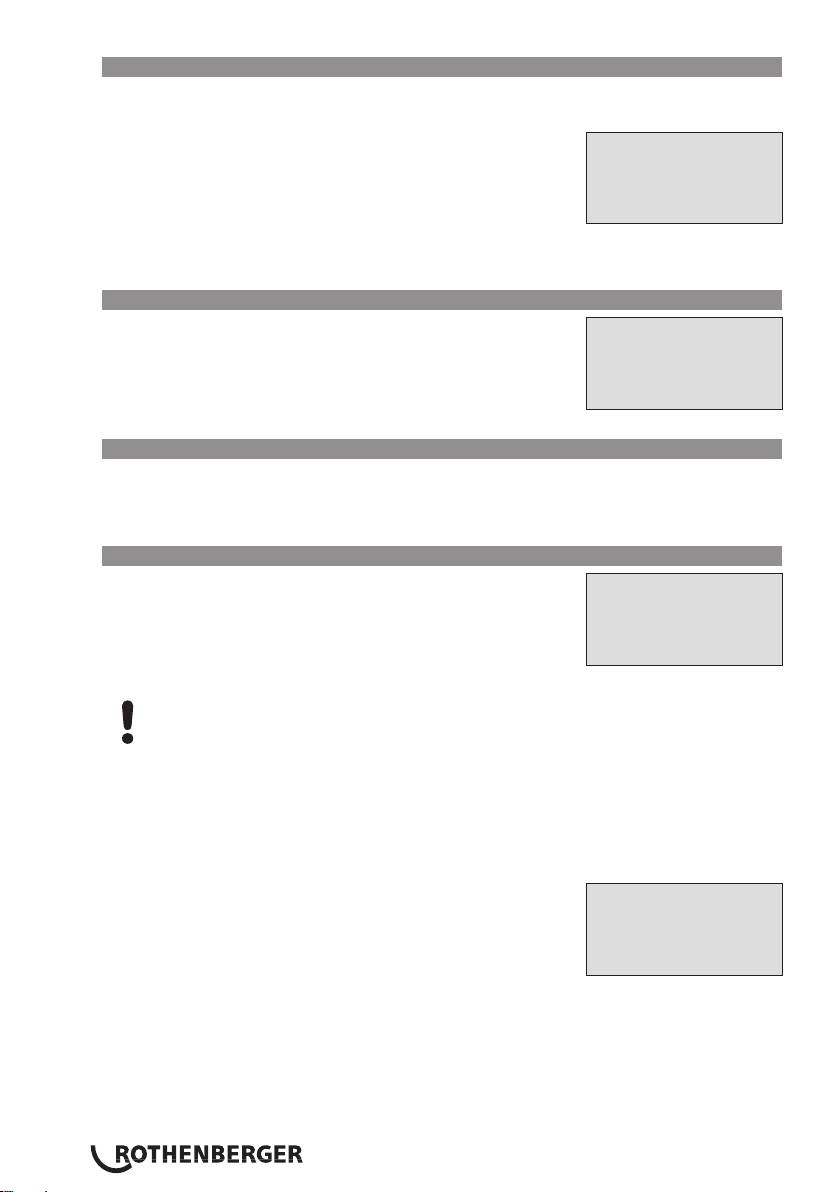
6.4 Entering the Fitting Traceability Code
If this feature is enabled in the configuration menu, after the fitting code was entered, another
input “Fitting Code” is required. This is the so-called “traceability code” or “second fitting code”
of the fitting.
*** Fitting Code ***
This input is entered either from a bar code using the scanner
or
manually using the alphanumeric keypad (see Info in Sect. 5.2). Press
********************
the START/SET key to confirm your input. If the code entered is not
******
correct, a “Code Error” message appears; check the string of
numbers and correct as needed. If the code entered is correct, it is
Display 10
saved to system memory and inserted into the welding reports to be
printed. By pressing the STOP/RESET key, you skip this input.
6.5 Entering Weather Conditions
If the weather conditions feature is enabled in the system
set-up,
**** WEATHER ****
this input is required before the fitting code can be entered.
>sunny
Use the arrow keys ñ, ò to select from “sunny,” “dry,” “rain,”
dry
“wind,” “tent,” and “heating.” Press the START/SET key to confirm
rain
your selection. The selection is saved to memory and will appear in
the printed welding report.
Display 11
6.6 Entering Data on the Jointed Components
According to the same procedure as used for entering the fitting traceability code (see Sect. 6.4),
prior to the welding proper the ISO-compliant codes of the pipes to be welded, their length as
well as the installing company can be entered for inclusion in the welding reports. For this to be
possible, they have to have been enabled in the configuration menu.
6.7 Recording the Geo-data of the Planned Joint
This section applies only to the product
version with GPS
Record Geo-Data
module.
>Yes
Provided that geo-data recording is enabled in the configuration
No
menu (see Sect. 10.2), the geographic coordinates can be
recorded, if the GPS module is on, as soon as Display 12 shows on
Display 12
the screen.
Wait at least 1 minute from switching the GPS module on to the actual recording of
the geo-data, or the GPS module will throw a not-ready error.
During the first minute after switching the GPS module on the following messages may appear
on the screen: “No signal,” “GPS module failed,” “GPS Error, Restarting,” and “GPS Module not
Ready.” These are no errors during the starting minute of initialization right after switching on.
If they appear after this time, they have to be considered actual error messages. In this case, the
restart after a GPS (signal processing) error will be performed by the module itself, without any
user action. The Not Ready message disappears automatically, too, as soon as the module is ready
for recording.
The geo-data are recorded after you selected “Yes” in Display
12
Current Position
using the ñ and ò arrow keys and confirmed this selection by
050·38,4873'N
pressing the START/SET key. A message confirms that the data have
008·59,4141'E
been recorded. The recorded data then show on the screen (see
Sat:7
Display 13). A second screen is used to display additional
information on the precision at the time of recording. To switch
Display 13
back and forth between both geo-data screens, press the ð key.
If it is likely that no satisfactorily precise position will be recorded because of relatively poor
signal strength, a warning message tells you, after you pressed the START/SET key in Display 12,
“Poor GPS signal; record data?”. When this message is showing, you can still start recording the
position by pressing the START/SET key or go on without recording by pressing the STOP/RESET
key.
ENGLISH26
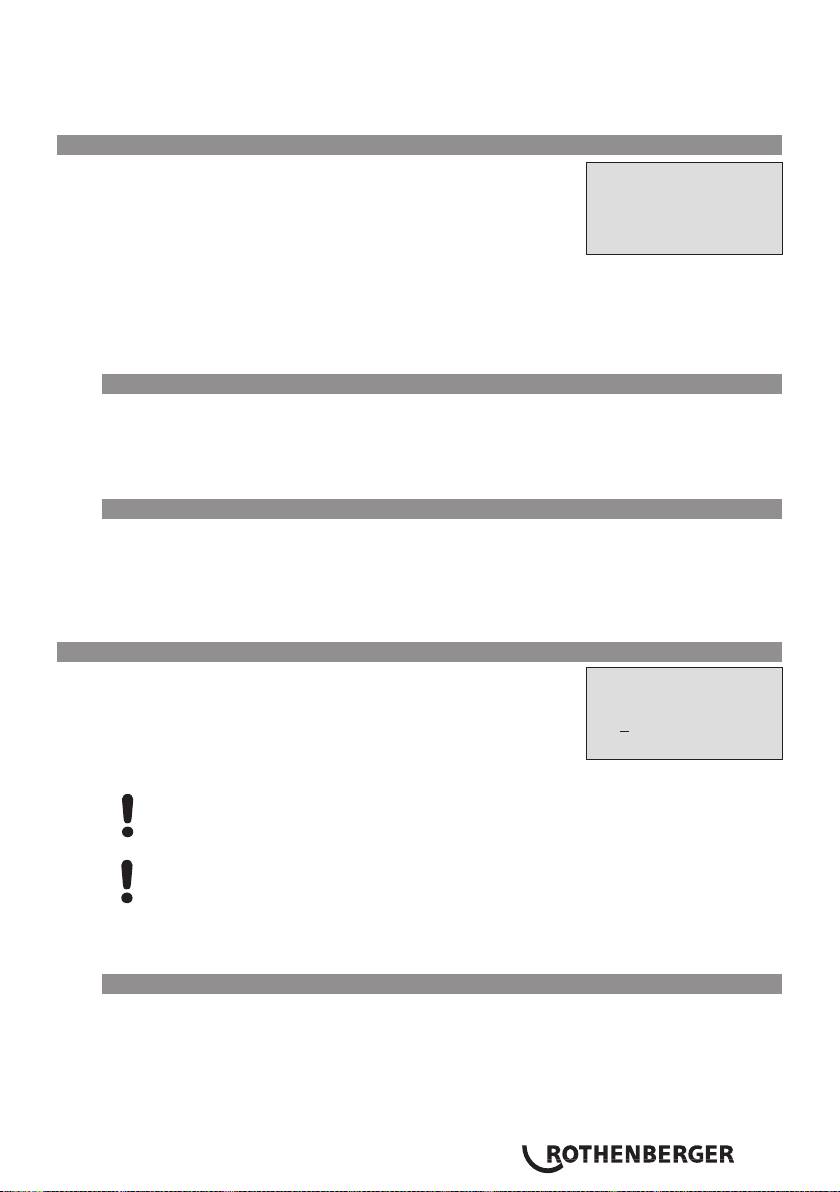
The recorded position is the one the GPS module is at at the moment of recording. This means
that in situations where the welding unit cannot be set next to the joint that is being welded, it is
possible to start by placing the welder/the GPS module next to the future joint, then to record the
geo-data, and finally to move the welder to the place where it will be during the welding process.
7 Entering Welding Parameters Manually
To be able to enter the welding parameters manually, you have
first
** MANUAL INPUT **
to connect the fitting to the welding unit with the welding cable.
The manual input of the parameters can then be accessed by
>Enter Voltage/Time
pressing the ò arrow key. The screen will show a menu as
Enter Fitting Code
reproduced in Display 14, provided manual input is enabled in the
configuration menu (see Sect. 10.1). In other words, the manual
Display 14
parameter input replaces reading the bar code of the fitting with a
scanner.
Using the arrow keys ñ and ò you can select “Enter Voltage/Time” or “Enter Fitting Code”
(i.e., the numbers that represents the code of the fitting to be used). Confirm your selection by
pressing the START/SET key.
7.1 Manually Entering Welding Voltage and Time
If this option was chosen in the manual parameter input menu, a display like the one to the right
appears on the screen. Use the alphanumeric keypad (see Info in Sect. 5.2) to set the welding
voltage and the welding time, according to the tting manufacturer’s instructions, then press the
START/SET key to confirm your input. The “Start ?” message displayed after the confirmation by
START/SET indicates that the unit is ready for welding.
7.2 Entering the String of Numbers
If this option was chosen in the manual parameter input menu, the “Enter Fitting Code” display
shows. The 24 characters of the fitting code to be entered display as asterisks ( * ). Use the
alphanumeric keypad (see Info in Sect. 5.2) to enter the code and press START/SET to confirm
your input and have it decoded. If the code entered is not correct, a “Code Error” message
appears; check the string of numbers and correct as needed. If the code is correct, the decoded
data is displayed, and the “Start ?” message indicates that the unit is ready to start welding.
8 Downloading the Reports
Interface
Voltage/Time
USB A-Interface Port
for connecting USB mass storage media (such as a memory stick)
U= 40 V t= 1000 s
The interface port complies with the USB version 2.0 specification
(i.e., maximum data rate of 480 megabits per second)
.
Display 15
Before transferring data, it is highly recommended to switch the welding unit off
and on again. If this fails to happens, there is a risk of data transfer failure, or
reports in the welding unit may be corrupted.
When transferring welding reports to a USB stick, always be sure to wait until the
display shows the “Download finished” message before you disconnect the USB stick
from the product. If you disconnect it too early, the unit may ask you whether you
want to delete the reports in memory, although they were not properly transferred.
In this case, if you delete the contents of the report memory, the welding reports
would be irrevocably lost and would not be available elsewhere either.
8.1 Selecting the File Format
Connecting the storage media causes the the screen to appear in which the format of the output
file with the welding reports can be selected: a PDF file with an abstracted or extended version
of the report or the format of the welding data management application DataWork. Using the ñ
and ò arrow keys, select the file type you need and confirm your selection by pressing the START/
SET key.
The Service Report option is not important for normal operation. In the scope of computer-
assisted unit service, this report lists the events related to the maintenance of the welding unit.
ENGLISH 27

8.2 Downloading All Reports
After the file type was selected, the next screen offers a “Print All Reports” option. Selecting
it will download all welding reports currently in system memory in the previously selected file
format.
8.3 Downloading by Commission Number, Date or Report Range
After the file type was selected, the next screen offers a “By
* Select File Type *
Commission
Number,” a “By Date Range,” and a “By Report
DataWork File
Range” options. Depending on the selection, the ñ and ò arrow
>PDF Abstract
keys can be used to select from the commissions currently in system
memory the desired one, of which the reports should be
PDF Ext'd Report
downloaded, or the alphanumeric keypad can be used (see Info in
Display 16
Sect. 5.2) to enter a start date and an end date, or the first and the
last report, that define a range of dates or a range of reports of
which the reports should be downloaded. When you press the
START/SET key, you cause the selected reports to be transferred to
the storage media.
8.4 Understanding the Report Download Process
The download starts automatically after a selection was made among the options. Wait for all the
selected reports to transfer and the “Download completed” message to appear on the screen.
If a problem occurs while the download is in progress, a “Not ready” message shows. After the
problem condition is cleared, the download resumes automatically.
If the welding unit recognizes a problem that cannot be cleared while the data
transfer is in progress, it does not resume the process and displays a “Download
cancelled” error message. To acknowledge this error, press the START/SET key.
8.5 Deleting Data from Memory
The report data in memory can be deleted only after all welding reports were transferred, which
is indicated by the “Download completed” message. When the storage media is unplugged,
a “Delete Memory” message appears. If the START/SET key is pressed at this point, a further
confirmation message “Delete Memory, sure?” is shown, which has to be confirmed by pressing
the START/SET key once again. Then, the report data in memory are deleted.
8.6 Keeping Data in Memory
When the cable or storage media is unplugged, a “Delete Memory” message is displayed. Press
the STOP/RESET key to keep the current report data in memory. They can then be printed off once
again.
Make a habit of handling the internal storage as described at the beginning of
Sect. 8, to maintain data integrity and avoid any inadvertent deletion of the reports
in memory.
9 Dedicated Welding Unit Information
9.1 Displaying Characteristics of the Welding Unit
The key technical information on the welding unit itself is displayed by pressing the ð key at the
“Enter Fitting Code” screen. They are the software version, the serial number of the unit, the date
of the next scheduled maintenance, and the number of currently available, unused reports. To
quit this screen, press the STOP/RESET key.
If the scheduled service is overdue, a service due message appears on the screen as soon as the
unit is plugged into the mains or generator power supply. This message has to be acknowledged
by pressing START/SET.
9.2 Measuring Resistance
When the START/SET key was pressed to initiate a welding process, the resistance value of the
fitting is measured and compared to the value entered as part of the read fitting code. If the gap
between the two values is smaller than the acceptable tolerance given in the code, the welding
process starts. If the gap is greater than the preset tolerance, the welding unit aborts welding
and displays a “Resistance Error” message. Furthermore, it displays the actual resistance value
measured for the connected fitting.
ENGLISH28
The reason for a resistance error may be poorly contacting and/or worn connection terminals.
Therefore, if this error occurs, check them for proper fit and, if worn, replace them with new
ones.
9.3 Overheating Switch
The welding process aborts if the temperature of the transformer in the welding unit is too high.
The overheating circuit breaker for the transformer stops the welding if the temperature reading
is too high and the remaining welding time is longer than 800 seconds. The display and the
welding report will show an “Overheated” message.
9.4 Indication of Power Supply Failure at the Last Welding
The message “Power Supply Failure Last Welding” indicates that the previous welding aborted
because of a power supply failure. The reason may be too weak a generator or too long or too
thin an extension cable, or a tripped cut-out in the mounting box. The next welding operation is
still possible after acknowledging the message by pressing the STOP/RESET key.
10 Configuring the Welding Unit
With the operator identity card, the welding unit can be
>Settings -M-
reconfigured
. When the MENU key is pressed, the “Enter Menu
Recording -M-
Code” message appears on the screen. After the code was read
from the operator card, the selection menu in Display 17 shows.
At “Settings,” the parameters related to the welding unit itself and
its operation can be set. At “Recording,” the traceability data that
Display 17
have to or need not be recorded and written into the reports can
be enabled or disabled. The desired sub-menu is selected using the ñ and òarrow keys. Then to
access that sub-menu, press the MENU key.
In both parts of the configuration menu, use the ñ , ò arrow keys to select the desired set-up
option. Use the ð arrow key to toggle between “on” and “off” for that set-up option.
If a “M” is shown next to a set-up option, this indicates that a sub-menu is accessible here by
pressing the MENU key.
Press the START/SET key to confirm the set-up and save it to memory.
10.1 Understanding the “Settings” Sub-menu
“AutoWeld on” means that the AutoWeld feature for the easy
definition of
welding parameters (see Sect. 5.5) can be used,
*** SET-UP MENU ***
“off,” that the feature is not available.
>AutoWeld on
“Check Code Expiry on” means that the welder identification code
Check Cd Expiry off
has to be current and not expired (default period of validity
Memory Control on
2 years from code issuance), or the welding operation cannot be
started, “off,” that the validity of the code is not checked at all.
Display 18
“Memory Control on” means that when the system memory is full
of reports,
the unit will be blocked until the reports are printed
*** SET-UP MENU ***
or downloaded, “off,” that it works but that the oldest report
Manual Input -M-
will be overwritten.
Wldr Code Option-M-
“Manual Input on” means that the manual input of welding
parameters (see Sect. 7) is possible, “off,” that the manual input
>Language -M-
is not allowed.
Display 19
“Welder Code Options – M – ” means that by pressing the MENU
key, the user can access a sub-menu that allows determining
when the welder code, if it is enabled at “Recording,” has to be
entered:always, i. e. before evey single welding operation, only
before the first welding operation after switching the unit on or
only after the first welding operation of a new day/date.
“Language – M – ” means that by pressing the MENU key, the
user
*** SET-UP MENU ***
can access a sub-menu for selecting the display and report
Date/Time -M-
language (see Sect. 10.1.1).
Buzzer Volume -M-
“Date/Time – M – ” means that by pressing the MENU key, the user
>Temp. Unit -M-
can access a sub-menu for setting the clock (see Sect. 10.1.2).
Display 20
ENGLISH 29

“Buzzer Volume – M – ” means that by pressing the MENU key, the
user can access a sub-menu for setting the volume of the status
buzzer (see Sect. 10.1.3).
*** SET-UP MENU ***
„“Temperature Unit – M – ” means that by pressing the MENU
>Temp. Unit -M-
key, the user can access a sub-menu for selecting centigrade or
Inventory No. -M-
Fahrenheit as the unit for the temperature.
Number of Tags -M-
“Inventory Number – M – ” means that by pressing the MENU key,
the user can access a sub-menu for entering the number under
Display 21
which the unit is inventorized with the operating company.
“Number of Tags – M – ” means that by pressing the MENU key,
the user can access a sub-menu for entering the number of tags
that are printed automatically after welding with the optional
label tag printer if such a printer is connected.
10.1.1 Selecting the Display Language
When the “Select Language” sub-menu was selected, the screen
***** LANGUAGE *****
changes and the display reproduced in Display 22 appears
.
>Deutsch
Use the arrow keys ñ and ò to select one of the options,
English
“Deutsch,” “English,” and “Français” and confirmby pressing the
Francais
START/SET key.
Display 22
10.1.2 Setting the Clock
When the “Set Clock” sub-menu was selected, the screen changes
Date/Time
and the display reproduced in Display 23 appears.
The time of day and the date can be set using the keypad. The
21.06.13 14:28
portions “Hour,” “Minute,” “Day,” “Month,” and “Year” are set
separately. Press the START/SET key to confirm your settings.
Display 23
10.1.3 Setting the Buzzer Volume
When the “Set Volume” sub-menu was selected, the screen
Buzzer Volume
changes
and the display reproduced in Display 24 appears. The
< ------20-------- >
buzzer can also be heard. Turn the buzzer volume up or down to
the desired value using the ï, ð arrow keys (from 0 to 100) and
confirm your setting by pressing the START/SET key.
Display 24
10.2 Understanding the “Recording” Sub-menu
“Welder Code on” means that the welder identification code has to
be entered as set with “Welder Code Options,” “off,” that this
is impossible.
“Commission Number on” means that the commission number (job
number)
will have to be entered or confirmed before every new
Data Recording
welding, “off” that the user is not prompted to enter it.
Welder Code on
“Joint Number on” means that the unit assigns an automatically
>Commission No. on
incremented joint number to every welding operation belonging
Joint No. off
to a commission already known, and displays this number on the
screen next to the report number, “off” that no joint numbers
Display 25
will be assigned at all.
“Additional Data on” means that the additional data will have to be
entered or confirmed before every new welding, “off” that the
user is not prompted to enter them.
“Fitting Code on” means that the second, so-called traceability,
Data Recording
code of the electrofusion fitting has to be entered before every
Additional Data on
welding, “off,” that this is not possible.
>Fitting Code on
“Pipe Codes on” means that the codes of both pipes/components
Pipe Codes on
(ISO-compliant welding and treaceability codes) have to be
entered before every welding, “off,” that this is not possible.
Display 26
ENGLISH30
“Pipe Length on” means that the length of both pipes/components
has to be entered before every welding, “off,” that this is not
possible.
“Weather Conditions on” means that the weather has to be
Data Recording
selected in a list before every welding, “off,” that this is not
Pipe Length on
possible.
>Weather Cond. on
“Geo-data on” (only if GPS module) means that the geographic
Geo-data off
coodinates have to be recorded after every welding (see Sect. 6.7
for details), “off,” that this is not possible.
Display 27
“Installing Company on” means that the company that performs
the installation work has to be entered before every welding,
Data Recording
“off,” that this is not possible.
>Geo-data off
“Print Tags – M – ” means that by pressing the MENU key, the
Installing Comp.on
user can access a sub-menu for starting to print (a) label(s) with
Print Tags -M-
reference to a given welding operation, with the optional label
tag printer.
Display 28
All data can also be read from a bar code with the scanner, provided such a bar code
is available.
11 Self-Monitoring Functions Overview
11.1 Errors During Data Input
• Code Error
An erroneous input has occurred, a code tag is poor or has an error in code symbology or code
reading was improper.
• No Contact
There is no properly established electric contact between the welding unit and the fitting (check
push-on terminal on fitting), or the heater coil is defective.
• Low Voltage
The input voltage is below 175 volts. Adjust generator output voltage.
• Overvoltage
The input voltage is over 290 volts. Decrease generator output voltage.
• Overheated
The transformer temperature is too hot. Let the welding unit cool down for about 1 hour.
• System Error
CAUTION! The welding unit has to be disconnected immediately from both the
power supply and the fitting. The auto-test has detected an error in the system. The
unit must no longer be operated and has to be sent to an approved shop for check
and repair.
• Temperature Error
The ambient temperature measured is outside the operating range of the welding unit, i.e.,
below – 20°C (– 4°F) or over + 60°C (+ 140°F).
• Temperature Sensor Defective
The ambient temperature sensor on the welding cable is damaged or defective.
• Clock Error
The internal system clock works improperly or is defective. Reset it, or send the welding unit to
the manufacturer for check and service.
• Unit to Service
The recommended next service date for the welding unit is overdue. The service due message has
to be acknowledged by pressing the START/SET key. Send the welding unit to the manufacturer
or an approved service point for service and check-up.
ENGLISH 31

• Input Error
A code that was entered is incorrect. At manual welding parameter input, no welding time was
entered. An incorrect value was selected in the date setting.
• Memory Full
The system memory is full of welding reports. Print or download the reports in memory or switch
memory control off. Without memory control, a new report overwrites the oldest existing one.
• Download Cancelled
During data transfer or printing, an error condition occurred which could not be cleared.
• GPS Module Not Ready (only in model version with GPS module)
The minute that you have to wait from switching the GPS module on to the actual recording of
the geo-data is not over yet.
• No GPS Signal (only in model version with GPS module)
There is no reliable signal from the relevant satellites to the GPS antenna of the module.
• Poor GPS Signal (only in model version with GPS module)
The signal strength is so weak that no precise position can be recorded. Repeating the recording
is recommended.
11.2 Errors During Welding
All errors that occur while welding is in progress are also indicated by an audible alarm.
• Low Voltage
The input voltage is below 175 volts. If the error condition persists for longer than 15 seconds,
the welding process will be aborted. If the voltage goes down below 170 volts, the welding
process will abort immediately.
• Overvoltage
The input voltage is over 290 volts. If the error condition persists for longer than 15 seconds, the
welding process will be aborted.
• Resistance Error
The resistance value of the connected fitting is out of the read tolerance.
• Frequency Error
The frequency of the input voltage is out of tolerance (42 Hz - 69 Hz).
• Voltage Error
Check generator voltage and current. The output voltage does not correspond to the value
previously read; the welding unit has to be sent to the manufacturer for check-up.
• Low Current
The message is displayed if the there is a momentary current failure or if the current decreases by
more than 15% per second for 3 seconds.
• Excess Current
The output current value is in excess; possible causes: short-circuit in the heater coil or the
welding cable. During the start stage the upper abort threshold equals 1.18 times the value at
start, in any other case the upper limit depends on the load value and is calculated as the current
at start plus 15%.
• Emergency Off
The welding process has been interrupted by pressing the STOP/RESET key.
• Heater Coil Error
The dynamic current value during welding differs by more than 15% from the required value,
indicating a short-circuit in the heater coil.
• Power Supply Failure at Last Welding
The last welding is incomplete. The welding unit was disconnected from the power supply voltage
while it was in progress. To go on using the unit, this error has to be acknowledged by pressing
the STOP/RESET key (see also Sect. 9.4).
ENGLISH32
12 Technical Data
Operating Range .................................... ≤ Ø 1200 mm
Nominal Voltage .................................... 230 V
Frequency ..............................................50 Hz / 60 Hz
Power .................................................... 2800 VA, 80% duty cy
Protection Index ..................................... IP 54
Primary Current ......................................16 A
Ambient Temperature ............................– 20°C to + 60°C (– 4°F bis + 140°F)
Output Voltage ...................................... 8 V - 48 V
Max. Output Current .............................110 A
Memory for Welding Reports .................10 000 reports
Data Interface Port ................................. USB v 2.0 (480 mbit/s)
(see also the information on the data ports in Sect. 6)
Tolerances:
Temperature .................................... ± 5 %
Voltage ............................................ ± 2 %
Current ...........................................± 2 %
Resistance ....................................... ± 5 %
Address for maintenance and repair:
ROTHENBERGER WERKZEUGE GmbH
Service Center
Am Hühnerberg 4
D-65779 Kelkheim/Germany
Phon + 49 (0) 6195 / 800 - 8200
Fax + 49 (0) 6195 / 800 - 7491
service@rothenberger.com
13 Disposal
Components of the unit are recyclable material and should be put to recycling. For this purpose
registered and certified recycling companies are available. For an environmentalfriendly disposal of
the non-recyclable parts (e.g. electronic waste) please contact your local waste disposal authority.
For EU countries only:
Do not dispose of electric tools with domestic waste. In accordance with European
Directive 2012/19/EU on waste electrical and electronic equipment and its implementation
as national law, electric tools that are no longer serviceable must be collected separately
and utilised for environmentally compatible recycling.
ENGLISH 33

Table des matières Page
1 Introduction 36
2 Consignes de sécurité 36
2.1 Choix du bon adaptateur de raccordement 36
2.2 Mauvais usage des câbles d’alimentation et de soudage 36
2.3 Serrage du manchon et pièces à assembler avant le soudage 36
2.4 Nettoyage du poste de soudage 36
2.5 Ouverture de l‘appareil 36
2.6 Rallonges pour utilisation à l’extérieur 36
2.7 Vérification de l’état du poste de soudage 37
2.8 Protection du port d‘interface de données 37
2.9 Alimentation 37
2.9.1 Alimentation secteur 37
2.9.2 Alimentation par groupe électrogène 37
3 Entretien et remise en état 37
3.1 Généralités 37
3.2 Transport, Conservation, Livraison 38
4 Principe de fonctionnement 38
5 Mise en route et fonctionnement 38
5.1 Mise en marche du poste de soudage 38
5.2 Saisie du code de soudeur 39
5.3 Raccordement du manchon au poste de soudage 39
5.4 Saisie du code de raccord avec un scanneur à main 39
5.5 Soudage direct grâce à la fonctionnalité AutoWeld 40
5.6 Début du soudage 40
5.7 Procédure de soudage 40
5.8 Fin du soudage 40
5.9 Interruption du soudage 40
5.10 Temps de refroidissement 40
5.11 Retour au début de la saisie 40
5.12 Gestion des rapports de soudage enregistrés, impression d‘étiquettes et
enregistrement des géo-infos avec ViewWeld 41
6 Informations complémentaires du rapport de soudage 41
6.1 Saisie des données de traçabilité prédéfinies et personnalisables 41
6.2 Saisie ou modification du numéro de commission et du numéro de soudure 41
6.3 Saisie ou modification des données supplémentaires 42
6.4 Saisie du code de traçabilité du raccord 42
FRANÇAIS34
6.5 Saisie des conditions métérologiques 42
6.6 Saisie des informations sur les pièces à assembler 42
6.7 Enregistrement des géo-infos de la soudure 42
7 Saisie manuelle des paramètres de soudage 43
7.1 Saisie manuelle du temps et de la tension de soudage 43
7.2 Saisie de la suite numérique 43
8 Transfert/sortie des rapports de soudage 43
8.1 Choix du type de fichier 44
8.2 Transfert/sortie de tous les rapports 44
8.3 Sortie d‘un numéro de commission, plage de dates ou de rapports 44
8.4 Processus de transfert des rapports de soudage 44
8.5 Effacement de la mémoire 44
8.6 Conservation des rapports de soudage en mémoire 44
9 Informations sur le poste de soudage 45
9.1 Affichage des informations caractéristiques du poste de soudage 45
9.2 Vérification de la résistance 45
9.3 Disjoncteur thermique 45
9.4 Indication d‘une coupure de secteur au dernier soudage 45
10 Configuration du poste de soudage 45
10.1 Légende du sous-menu « Réglages » 45
10.1.1 Choix de la langue d’affichage 46
10.1.2 Réglage de l’horloge 46
10.1.3 Réglage du volume du signal sonore 47
10.2 Légende du sous-menu « Documentation » 47
11 Liste des fonctions d’auto-contrôle 48
11.1 Erreurs lors de la saisie des données 48
11.2 Types d’erreur pendant le soudage 49
12 Données techniques 49
13 Elimination des déchets 50
Pictogrammes contenus dans ce document:
Danger!
Ce pictogramme signale un risque de blessure pour les personnes.
Attention!
Ce pictogramme signale un risque de dommage matériel ou de préjudice
pour l’environnement.
Nécessité d’exécuter une action
FRANÇAIS 35

1 Introduction
Cher Client,
Vous venez d’acquérir un de nos produits et nous vous en remercions. Le poste de soudage
ROWELD ROFUSE Print+ V2 sert exclusivement à l’électrosoudage par fusion des manchons de
tuyauterie en plastique destinés à cette méthode. C’est la dernière génération the de la série
ROWELD ROFUSE éprouvée, avec plus de fonctionnalités. Il est disponible en version avec ou sans
module GPS pour l’enregistrement automatique des géo-infos relatives à l’endroit de chaque
soudure.
Lors de la fabrication du produit, nous avons tenu compte des dernières innovations techniques.
L’appareil est conforme aux normes de sécurité technique et construit de manière à assurer une
protection maximale. Les essais effectués après fabrication ont prouvé le bon fonctionnement et
la sécurité de l’appareil.
Le mauvais usage ou l’utilisation abusive de l’appareil sont cependant susceptibles
• de nuire à la santé de l’usager,
• d’endommager le produit et d’autres matériels du propriétaire,
• de faire obstacle au bon fonctionnement du produit.
Toutes les personnes responsables de la mise en service, de la manipulation, de l’entretien, et de
la maintenance du produit doivent,
• être dûment habilitées,
• travailler avec le produit seulement quand il est surveillé,
• respecter les consignes données dans le manuel utilisateur du poste de soudage.
Merci beaucoup.
2 Consignes de sécurité
2.1 Choix du bon adaptateur de raccordement
Toujours choisir des fiches de contact qui conviennent au type de manchon utilisé. Vérifier
que le contact est bien établi et ne jamais utiliser des fiches de contact ou des adaptateurs de
raccordement brûlés ou non destinés à l’intervention prévue.
2.2 Mauvais usage des câbles d’alimentation et de soudage
Ne jamais porter le produit suspendu au câble ; ne pas débrancher l’appareil en tirant sur le câble
d’alimentation. Veiller à protéger les câbles des effets de la chaleur, du contact avec l’huile et des
objets coupants ou acérés.
2.3 Serrage du manchon et pièces à assembler avant le soudage
Utiliser des dispositifs de serrage adaptés ou un étau pour bien maintenir en position le manchon
et les pièces avant le soudage. Les instructions pour le montage fournies par le fabricant du
manchon, les règlements normes locaux ou nationaux ainsi que les indications relatives à
l’installation des tuyauteries doivent toujours être respectées.
Le soudage ne doit pas être répété sur le même manchon, car des pièces sous tension pourraient
être dénudées et être accessibles au toucher.
2.4 Nettoyage du poste de soudage
Le produit ne doit jamais être lavé au jet d’eau ni immergé.
2.5 Ouverture de l‘appareil
L’appareil ne doit jamais être ouvert sauf par les spécialistes de la société
fabricante ou des ateliers spécialisés agréés et formés par ses soins!
2.6 Rallonges pour utilisation à l’extérieur
Utiliser uniquement des rallonges prévues à cet effet et signalées comme telles, dont le
conducteur présente l’une des sections suivantes.
Moins de 20 m : 1,5 mm² (2,5 mm² conseillé) ; type H07RN-F
Plus de 20 m : 2,5 mm² (4,0 mm² conseillé) ; type H07RN-F
FRANÇAIS36

Toujours dévider complètement la rallonge et l’allonger avant l’usage!
2.7 Vérification de l’état du poste de soudage
Avant la mise en marche du poste de soudage, vérifier soigneusement que les éléments de
protection ainsi que d’éventuelles pièces légèrement endommagées fonctionnent de façon
conforme et comme prévu. S’assurer également que les ches de contact fonctionnent
correctement, qu’elles sont bien raccordées et que les surfaces de contact sont propres. Tous les
éléments de l’appareil doivent être installés correctement et disposés conformément à toutes
les conditions pertinentes pour assurer le bon fonctionnement du poste de soudage. En cas de
dégradation d’un dispositif de protection ou d’autres éléments fonctionnels de l’appareil, faire
appel, de préférence, à un atelier agréé pour faire réparer ou remplacer les pièces en question.
2.8 Protection du port d‘interface de données
Pendant le soudage, protéger le port de transmission contre les contaminations et l’humidité en le
couvrant du capuchon prévu à cet effet.
2.9 Alimentation
2.9.1 Alimentation secteur
Les exigences de câblage des distributeurs d’électricité les règles de prévention des accidents au
travail, les normes applicables et les directives nationales seront respectés impérativement.
L’alimentation en chantier par distributeur de courant se fera dans le respect des
règlements sur le montage des disjoncteurs différentiels ; sans un tel, il est
défendu de brancher le poste
La protection contre les surintensités côté groupe électrogène/secteur devrait être de 16 A (action
temporisée). Mettre le produit à l’abri de la pluie et des effets de l’humidité.
2.9.2 Alimentation par groupe électrogène
La puissance nominale du groupe électrogène à prévoir en fonction de la puissance absorbée
par le plus grand des manchons utilisés, dépend des conditions d’alimentation du groupe, des
conditions ambiantes et du type même du groupe électrogène, dont ses caractéristiques de
régulation.
Puissance nominale d’un générateur monophasé 220 - 240 V, 50/60 Hz:
d 20 .............d 160 3,2 kW
d 160 ............d 450 4 kW régulation mécanique
5 kW régulation électronique
Mettre d’abord en marche le groupe électrogène et brancher ensuite le poste de soudage.
Régler la tension de marche à vide de préférence à 240 V environ. Avant d’éteindre le groupe,
débrancher le poste de soudage.
Plus le lieu de travail est élevé, plus la puissance effective du groupe électrogène se
réduit, ce à raison d’environ 10% par 1000 m d’altitude. Pendant le soudage, il est
préférable qu’aucun autre appareil ne soit branché sur le même groupe électrogène.
3 Entretien et remise en état
3.1 Généralités
Comme le produit est utilisé dans un domaine qui relève de considérations de sécurité
particulières, toute intervention d’entretien ou de remise en état doit se faire obligatoirement chez
le fabricant ou un de ses partenaires dûment formés et agréés par ses soins. C’est ainsi qu’un
niveau élevé de qualité et de sécurité est constamment garanti pour l’appareil.
Le non-respect rend caduque toute garantie et toute responsabilité dont l’appareil
pourrait faire l’objet, y compris quant aux dommages indirects.
À la révision du produit, son état fonctionel est mis à niveau an qu’il reète les spécications
actuelles avec lesquelles il est livré au moment de la révision, et une garantie de fonctionnement
de trois mois vous est accordée.
Il est conseillé de faire réviser le produit au moins une fois par an.
FRANÇAIS 37

3.2 Transport, Conservation, Livraison
Le produit vous est livré dans une boîte de transport. Le produit devrait être conservé dans cette
boîte, protégé des effets de l’humidité et des agression externes.
Pour expédier le produit, on le placera de préférence dans sa boîte de transport.
4 Principe de fonctionnement
Le ROWELD ROFUSE Print+ V2 permet le soudage thermoplastique par électrofusion des
manchons destinés à cette méthode et pourvus d’un code-barres. Chaque manchon a un
autocollant avec un ou deux codes-barres. La conception des codes est régie par des normes
internationales. Le premier, pour les paramètres de l’assemblage, respecte la norme ISO 13950 ;
le second, si présent, pour la traçabilité des pièces, respecte la norme ISO 12176-4. Le modèle
avec module GPS permet, en plus, d’enregistrer les coordonnées géographiques de l’endroit où le
soudage est réalisé et de les ajouter au rapport de soudage dressé de l’opération.
Le logiciel de commande du poste permet la gestion des données supplémentaires prévues par la
norme ISO 12176-4, par exemple, la saisie des codes de traçabilité du tube et du manchon. Pour
en profiter, il faut activer les données souhaitées au Menu des réglages, sous « Documentation »
(voir la section 10.2).
On peut aussi saisir manuellement les paramètres de soudage . Commandé par un micro-
processeur, le ROWELD ROFUSE Print+ V2
• commande et suit automatiquement toute la procédure de soudage,
• détermine la durée du soudage en fonction de la température ambiante,
• afche en clair toutes les informations à l’écran.
Toutes les données pertinentes du soudage et de la traçabilité sont sauvegardées dans une
mémoire intégrée et peuvent être envoyées à une clé USB.
Pour le transfert des informations, le poste est équipé d’une interface du type USB A, pour, par
exemple, une clé USB.
Autres accessoires optionnels:
• Logiciel PC pour transférer et archiver les données directement sur votre ordinateur (avec tous
les systèmes d’exploitation Windows courants)
• Imprimante d’étiquettes pour l’impression, tout de suite après le soudage, d’un autocollant
identifiant la nouvelle soudure
• Clé USB pour transporter les informations du poste de soudage en chantier à votre imprimante
ou PC au bureau (voir plus de détails à la fin du présent manuel)
5 Mise en route et fonctionnement
Pour faire fonctionner le poste de soudage, s’assurer qu’il se trouve sur une surface égale
permettant le fonctionnement en sécurité.
S’assurer que la proctection côté secteur/groupe électrogène est de 16 A (temporisée).
Brancher le poste sur le secteur ou le groupe électrogène.
Lire et se conformer au manuel du groupe électrogène, si utilisé.
5.1 Mise en marche du poste de soudage
Après avoir branché le câble d’alimentation sur le secteur ou un
Roweld
groupe électrogène,
mettre le poste de soudage en marche à l’aide
ROFUSE Print +
de l’interrupteur principal. L’écran ci-contre s’afche.
Version 2.0
L’appareil afche ensuite l’Écran 2.
Écran 1
ATTENTION aux erreurs de système! Si une erreur est détectée à l’auto-test que le
poste réalise après la mise sous tension, l’écran affiche le message « Erreur
système ». Dans ce cas, il faut débrancher immédiatement le poste du manchon
et de l’alimentation et le faire réviser par le fabricant.
FRANÇAIS38
