
Acer TravelMate 8372Z: инструкция
Раздел: Компьютерная техника, комплектующие, аксессуары
Тип: Ноутбук
Инструкция к Ноутбуку Acer TravelMate 8372Z

TravelMate Series
Generic User Guide

Model number: __________________________________
Serial number: ___________________________________
Date of purchase: ________________________________
Place of purchase: ________________________________
Copyright © 2009. Acer Incorporated.
All Rights Reserved.
TravelMate Series Notebook PC

iii
Information for your safety and comfort
Safety instructions
Read these instructions carefully. Keep this document for future reference.
Follow all warnings and instructions marked on the product.
Turning the product off before cleaning
Unplug this product from the wall outlet before cleaning. Do not use liquid
cleaners or aerosol cleaners. Use a damp cloth for cleaning.
CAUTION for plug as disconnecting device
Observe the following guidelines when connecting and disconnecting power to
the power supply unit:
Install the power supply unit before connecting the power cord to the AC
power outlet.
Unplug the power cord before removing the power supply unit from the
computer.
If the system has multiple sources of power, disconnect power from the system
by unplugging all power cords from the power supplies.
CAUTION for Accessibility
Be sure that the power outlet you plug the power cord into is easily accessible
and located as close to the equipment operator as possible. When you need to
disconnect power to the equipment, be sure to unplug the power cord from the
electrical outlet.
CAUTION for bundled dummy cards (only for certain models)
Your computer shipped with plastic dummies installed in the card slots.
Dummies protect unused slots from dust, metal objects or other particles. Save
the dummies for use when no cards are in the slots.
CAUTION for Listening
To protect your hearing, follow these instructions.
•
Increase the volume gradually until you can hear clearly and comfortably.
•
Do not increase the volume level after your ears have adjusted.
•
Do not listen to music at high volumes for extended periods.
•
Do not increase the volume to block out noisy surroundings.
•
Decrease the volume if you can't hear people speaking near you.

iv
Warnings
•
Do not use this product near water.
•
Do not place this product on an unstable cart, stand or table. If the product
falls, it could be seriously damaged.
•
Slots and openings are provided for ventilation to ensure reliable
operation of the product and to protect it from overheating. These
openings must not be blocked or covered. The openings should never be
blocked by placing the product on a bed, sofa, rug or other similar surface.
This product should never be placed near or over a radiator or heat
register, or in a built-in installation unless proper ventilation is provided.
•
Never push objects of any kind into this product through cabinet slots as
they may touch dangerous voltage points or short-out parts that could
result in a fire or electric shock. Never spill liquid of any kind onto or into
the product.
•
To avoid damage of internal components and to prevent battery leakage,
do not place the product on a vibrating surface.
•
Never use it under sporting, exercising, or any vibrating environment
which will probably cause unexpected short current or damage rotor
devices, HDD, Optical drive, and even exposure risk from lithium battery
pack.
•
The bottom surface, areas around ventilation openings and AC adapter
may get hot. To avoid injury, ensure they do not come in contact with your
skin or body.
•
Your device and its enhancements may contain small parts. Keep them out
of the reach of small children.
Using electrical power
•
This product should be operated from the type of power indicated on the
marking label. If you are not sure of the type of power available, consult
your dealer or local power company.
•
Do not allow anything to rest on the power cord. Do not locate this
product where people will walk on the cord.
•
If an extension cord is used with this product, make sure that the total
ampere rating of the equipment plugged into the extension cord does not
exceed the extension cord ampere rating. Also, make sure that the total
rating of all products plugged into the wall outlet does not exceed the fuse
rating.
•
Do not overload a power outlet, strip or receptacle by plugging in too
many devices. The overall system load must not exceed 80% of the branch
circuit rating. If power strips are used, the load should not exceed 80% of
the power strip's input rating.
•
This product's AC adapter is equipped with a three-wire grounded plug.
The plug only fits in a grounded power outlet. Make sure the power outlet
is properly grounded before inserting the AC adapter plug. Do not insert
the plug into a non-grounded power outlet. Contact your electrician for
details.

v
Warning! The grounding pin is a safety feature. Using a power
outlet that is not properly grounded may result in electric shock
and/or injury.
Note: The grounding pin also provides good protection from
unexpected noise produced by other nearby electrical devices that
may interfere with the performance of this product.
•
The system can be powered using a wide range of voltages; 100 to 120 or
220 to 240 V AC. The power cord included with the system meets the
requirements for use in the country/region where the system was
purchased. Power cords for use in other countries/regions must meet the
requirements for that country/region. For more information on power cord
requirements, contact an authorized reseller or service provider.
Product servicing
Do not attempt to service this product yourself, as opening or removing covers
may expose you to dangerous voltage points or other risks. Refer all servicing to
qualified service personnel.
Unplug this product from the wall outlet and refer servicing to qualified service
personnel when:
•
the power cord or plug is damaged, cut or frayed
•
liquid was spilled into the product
•
the product was exposed to rain or water
•
the product has been dropped or the case has been damaged
•
the product exhibits a distinct change in performance, indicating a need
for service
•
the product does not operate normally after following the operating
instructions
Note: Adjust only those controls that are covered by the operating
instructions, since improper adjustment of other controls may
result in damage and will often require extensive work by a
qualified technician to restore the product to normal condition.

vi
Guidelines for safe battery usage
This notebook uses a Lithium-ion battery. Do not use it in a humid, wet or
corrosive environment. Do not put, store or leave your product in or near a heat
source, in a high temperature location, in strong direct sunlight, in a microwave
oven or in a pressurized container, and do not expose it to temperatures over
60°C (140°F). Failure to follow these guidelines may cause the battery to leak
acid, become hot, explode or ignite and cause injury and/or damage. Do not
pierce, open or disassemble the battery. If the battery leaks and you come into
contact with the leaked fluids, rinse thoroughly with water and seek medical
attention immediately. For safety reasons, and to prolong the lifetime of the
battery, charging will not occur at temperatures below 0°C (32°F) or above 40°C
(104°F).
The full performance of a new battery is achieved only after two or three
complete charge and discharge cycles. The battery can be charged and
discharged hundreds of times, but it will eventually wear out. When the
operation time becomes noticeably shorter than normal, buy a new battery. Use
only the approved batteries, and recharge your battery only with the approved
chargers designated for this device.
Use the battery only for its intended purpose. Never use any charger or battery
that is damaged. Do not short-circuit the battery. Accidental short-circuiting can
occur when a metallic object such as a coin, clip or pen causes direct connection
of the positive (+) and negative (-) terminals of the battery. (These look like
metal strips on the battery.) This might happen, for example, when you carry a
spare battery in your pocket or purse. Short-circuiting the terminals may
damage the battery or the connecting object.
The capacity and lifetime of the battery will be reduced if the battery is left in
hot or cold places, such as in a closed car in summer or winter. Always try to
keep the battery between 15°C and 25°C (59°F and 77°F). A device with a hot or
cold battery may not work temporarily, even when the battery is fully charged.
Battery performance is especially limited in temperatures well below freezing.
Do not dispose of batteries in a fire as they may explode. Batteries may also
explode if damaged. Dispose of batteries according to local regulations. Please
recycle when possible. Do not dispose as household waste.
Wireless devices may be susceptible to interference from the battery, which
could affect performance.
Replacing the battery pack
The notebook uses lithium batteries. Replace the battery with the same type as
that which came bundled with your product. Use of another battery may
present a risk of fire or explosion.
Warning! Batteries may explode if not handled properly. Do not
disassemble or dispose of them in fire. Keep them away from
children. Follow local regulations when disposing of used
batteries.

vii
Caution for Optical Drive Device (only for certain models)
CAUTION: This appliance contains a laser system and is classified as a "CLASS 1
LASER PRODUCT." In case of any trouble with this device, please contact your
nearest AUTHORIZED service station. To prevent direct exposure to the laser
beam, do not try to open the enclosure.
Telephone line safety
•
Disconnect all telephone lines from the equipment when not in use and/or
before servicing.
•
To avoid the remote risk of electric shock from lightning, do not connect
the telephone line to this equipment during lightning or thunderstorms.
Warning! For safety reasons, do not use non-compliant parts
when adding or changing components. Consult your reseller for
purchase options.
Operating environment
Warning! For safety reasons, turn off all wireless or radio
transmitting devices when using your laptop under the following
conditions. These devices may include, but are not limited to:
wireless lan (WLAN), Bluetooth and/or 3G.
Remember to follow any special regulations in force in any area, and always
switch off your device when its use is prohibited or when it may cause
interference or danger. Use the device only in its normal operating positions.
This device meets RF exposure guidelines when used normally, and it and its
antenna are positioned at least 1.5 centimeters (5/8 inches) away from your
body (refer to the figure below). It should not contain metal and you should
position the device the above-stated distance from your body. To successfully
transmit data files or messages, this device requires a good quality connection
to the network. In some cases, transmission of data files or messages may be
delayed until such a connection is available. Ensure that the above separation
distance instructions are followed until the transmission is completed. Parts of
the device are magnetic. Metallic materials may be attracted to the device, and
persons with hearing aids should not hold the device to the ear with the
hearing aid. Do not place credit cards or other magnetic storage media near the
device, because information stored on them may be erased.

viii
Medical devices
Operation of any radio transmitting equipment, including wireless phones, may
interfere with the functionality of inadequately protected medical devices.
Consult a physician or the manufacturer of the medical device to determine if
they are adequately shielded from external RF energy or if you have any
questions. Switch off your device in health care facilities when any regulations
posted in these areas instruct you to do so. Hospitals or health care facilities
may be using equipment that could be sensitive to external RF transmissions.
Pacemakers. Pacemaker manufacturers recommend that a minimum separation
of 15.3 centimeters (6 inches) be maintained between wireless devices and a
pacemaker to avoid potential interference with the pacemaker. These
recommendations are consistent with the independent research by and
recommendations of Wireless Technology Research. Persons with pacemakers
should do the following:
•
Always keep the device more than 15.3 centimeters (6 inches) from the
pacemaker
•
Not carry the device near your pacemaker when the device is switched o. If
you suspect interference, switch off your device, and move it.
Hearing aids. Some digital wireless devices may interfere with some hearing
aids. If interference occurs, consult your service provider.
Vehicles
RF signals may affect improperly installed or inadequately shielded electronic
systems in motor vehicles such as electronic fuel injection systems, electronic
antiskid (antilock) braking systems, electronic speed control systems, and air bag
systems. For more information, check with the manufacturer, or its
representative, of your vehicle or any equipment that has been added. Only
qualified personnel should service the device, or install the device in a vehicle.
Faulty installation or service may be dangerous and may invalidate any
warranty that may apply to the device. Check regularly that all wireless
equipment in your vehicle is mounted and operating properly. Do not store or
carry flammable liquids, gases, or explosive materials in the same compartment
as the device, its parts, or enhancements. For vehicles equipped with an air bag,
remember that air bags inflate with great force. Do not place objects, including
installed or portable wireless equipment in the area over the air bag or in the
air bag deployment area. If in-vehicle wireless equipment is improperly
installed, and the air bag inflates, serious injury could result. Using your device
while flying in aircraft is prohibited. Switch off your device before boarding an
aircraft. The use of wireless teledevices in an aircraft may be dangerous to the
operation of the aircraft, disrupt the wireless telephone network, and may be
illegal.
ix
Potentially explosive environments
Switch off your device when in any area with a potentially explosive
atmosphere and obey all signs and instructions. Potentially explosive
atmospheres include areas where you would normally be advised to turn off
your vehicle engine. Sparks in such areas could cause an explosion or fire
resulting in bodily injury or even death. Switch off the device at refueling points
such as near gas pumps at service stations. Observe restrictions on the use of
radio equipment in fuel depots, storage, and distribution areas; chemical plants;
or where blasting operations are in progress. Areas with a potentially explosive
atmosphere are often, but not always, clearly marked. They include below deck
on boats, chemical transfer or storage facilities, vehicles using liquefied
petroleum gas (such as propane or butane), and areas where the air contains
chemicals or particles such as grain, dust or metal powders. Do not switch the
notebook on when wireless phone use is prohibited or when it may cause
interference or danger.
Emergency calls
Warning: You cannot make emergency calls through this device. To make an
emergency call you shall dial out through your mobile phone or other
telephone call system.
Disposal instructions
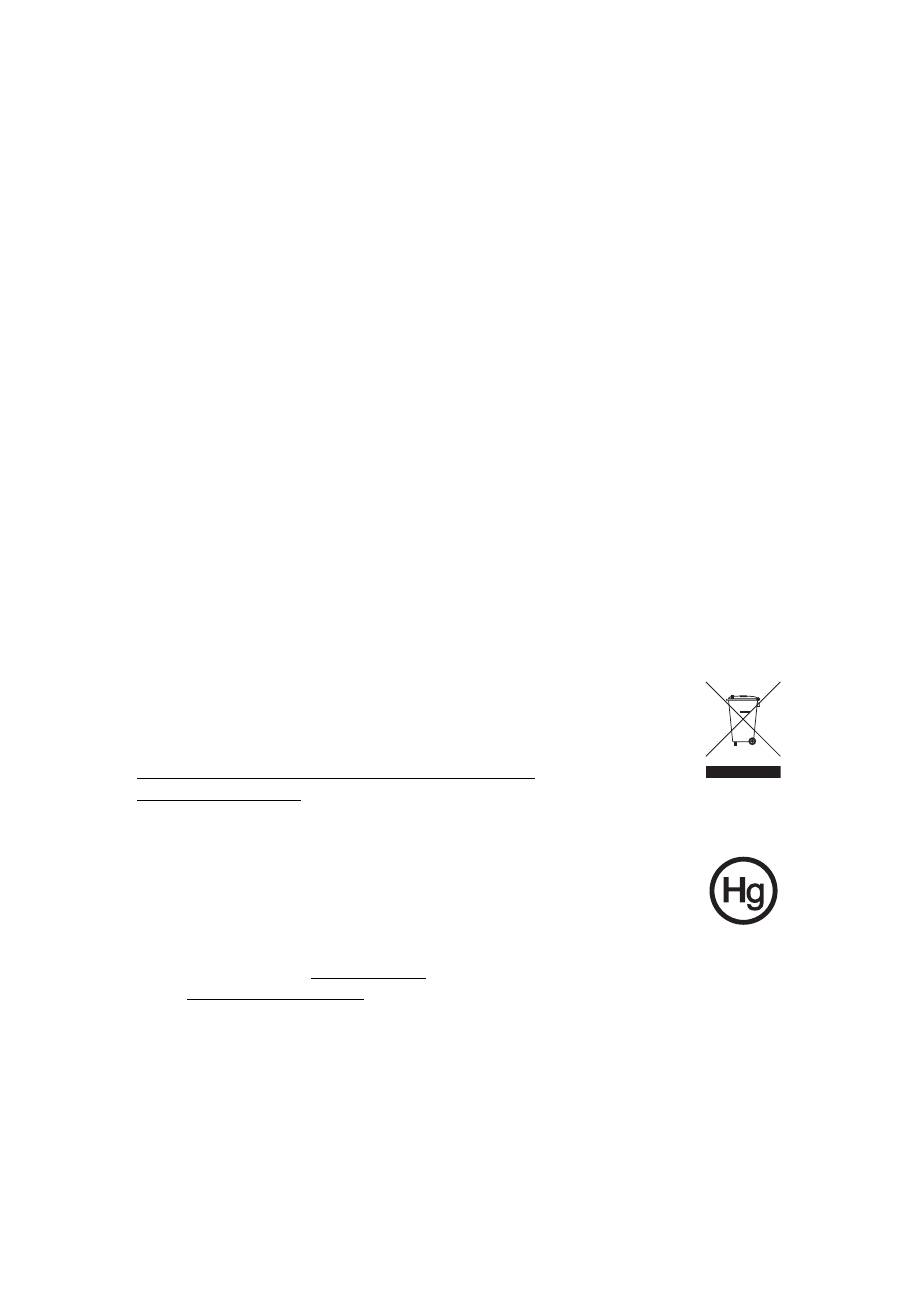
Do not throw this electronic device into the trash when discarding.
To minimize pollution and ensure utmost protection of the global
environment, please recycle. For more information on the Waste
from Electrical and Electronics Equipment (WEEE) regulations, visit
http://www.acer-group.com/public/Sustainability/
sustainability01.htm
Mercury advisory
For bulb-inside projectors or electronic products containing an non-
LED-backlit-LCD/CRT monito or display: Lamp(s) inside this product
contain mercury and must be recycled or disposed of according to
local, state or federal laws. For more information, contact the Electronic
Industries Alliance at www.eiae.org. For lamp-specific disposal information,
check www.lamprecycle.org.

x
ENERGY STAR
Acer's ENERGY STAR qualified products save your money by
reducing energy cost and protecting the environment without
sacrificing features or performance. Acer is proud to offer our
customers products with the ENERGY STAR mark.
What is ENERGY STAR?
Products that are ENERGY STAR qualified use less energy and
prevent greenhouse gas emissions by meeting strict energy efficiency guidelines
set by the U.S. Environmental Protection Agency. Acer is committed to offer
products and services worldwide that help customers save money, conserve
energy and improve the quality of our environment. The more energy we can
save through higher energy efficiency, the more we reduce greenhouse gases
and the risks of climate change. More information refers to
http://www.energystar.gov or http://www.energystar.gov/powermanagement
Acer ENERGY STAR qualified products:
•
Produce less heat and reduce cooling loads, and warmer climates.
•
Automatically go into "display sleep" and "computer sleep" mode
after 10 and 30 minute of inactivity respectively.
•
Wake the computer from sleep mode by pushing keyboard or moving
mouse.
•
Computers will save more than 80% energy at "sleep" mode.
ENERGY STAR and the ENERGY STAR mark are registered U.S. marks
Tips and information for comfortable use
Computer users may complain of eyestrain and headaches after prolonged use.
Users are also at risk of physical injury after long hours of working in front of a
computer. Long work periods, bad posture, poor work habits, stress,
inadequate working conditions, personal health and other factors greatly
increase the risk of physical injury.
Incorrect computer usage may lead to carpal tunnel syndrome, tendonitis,
tenosynovitis or other musculoskeletal disorders. The following symptoms may
appear in the hands, wrists, arms, shoulders, neck or back:
•
numbness, or a burning or tingling sensation
•
aching, soreness or tenderness
•
pain, swelling or throbbing
•
stiffness or tightness
•
coldness or weakness
If you have these symptoms, or any other recurring or persistent discomfort
and/or pain related to computer use, consult a physician immediately and
inform your company's health and safety department.
The following section provides tips for more comfortable computer use.

xi
Finding your comfort zone
Find your comfort zone by adjusting the viewing angle of the monitor, using a
footrest, or raising your sitting height to achieve maximum comfort. Observe
the following tips:
•
refrain from staying too long in one fixed posture
•
avoid slouching forward and/or leaning backward
•
stand up and walk around regularly to remove the strain on your leg
muscles
•
take short rests to relax your neck and shoulders
•
avoid tensing your muscles or shrugging your shoulders
•
install the external display, keyboard and mouse properly and within
comfortable reach
•
if you view your monitor more than your documents, place the display at
the center of your desk to minimize neck strain
Taking care of your vision
Long viewing hours, wearing incorrect glasses or contact lenses, glare, excessive
room lighting, poorly focused screens, very small typefaces and low-contrast
displays could stress your eyes. The following sections provide suggestions on
how to reduce eyestrain.
Eyes
•
Rest your eyes frequently.
•
Give your eyes regular breaks by looking away from the monitor and
focusing on a distant point.
•
Blink frequently to keep your eyes from drying out.
Display
•
Keep your display clean.
•
Keep your head at a higher level than the top edge of the display so your
eyes point downward when looking at the middle of the display.
•
Adjust the display brightness and/or contrast to a comfortable level for
enhanced text readability and graphics clarity.
•
Eliminate glare and reflections by:
•
placing your display in such a way that the side faces the window or
any light source
•
minimizing room light by using drapes, shades or blinds
•
using a task light
•
changing the display's viewing angle
•
using a glare-reduction filter
•
using a display visor, such as a piece of cardboard extended from the
display's top front edge
•
Avoid adjusting your display to an awkward viewing angle.
•
Avoid looking at bright light sources, such as open windows, for extended
periods of time.

xii
Developing good work habits
Develop the following work habits to make your computer use more relaxing
and productive:
•
Take short breaks regularly and often.
•
Perform some stretching exercises.
•
Breathe fresh air as often as possible.
•
Exercise regularly and maintain a healthy body.
Warning! We do not recommend using the computer on a couch
or bed. If this is unavoidable, work for only short periods, take
breaks regularly, and do some stretching exercises.
Note: For more information, please refer to "Regulations and
safety notices" on page 37.
Оглавление
- Information for your safety and comfort
- First things first
- Touchpad
- Using the keyboard
- Audio
- Using the system utilities
- Power management
- Acer eRecovery Management
- Battery pack
- Taking your notebook PC with you
- Securing your computer
- Expanding through options
- Frequently asked questions
- Regulations and safety notices
