
Acer TravelMate 8372Z: Touchpad
Touchpad: Acer TravelMate 8372Z

1
Eng
lis
h
Touchpad
The built-in touchpad is a pointing device that senses movement on its surface.
This means the cursor responds as you move your finger across the surface of
the touchpad. The central location on the palmrest provides optimum comfort
and support.
Touchpad basics (with fingerprint reader)
The following items show you how to use the
touchpad with Acer Bio-Protection fingerprint
reader.
•
Move your finger across the touchpad (1)
to move the cursor.
•
Press the left (2) and right (4) buttons
located beneath the touchpad to perform
selection and execution functions. These
two buttons are similar to the left and
right buttons on a mouse. Tapping on the
touchpad is the same as clicking the left button.
•
Use Acer Bio-Protection fingerprint reader (3) supporting Acer FingerNav
4-way control function (only for certain models) to scroll up or down and
move left or right a page. This fingerprint reader or button mimics your
cursor pressing on the right scroll bar of Windows applications.
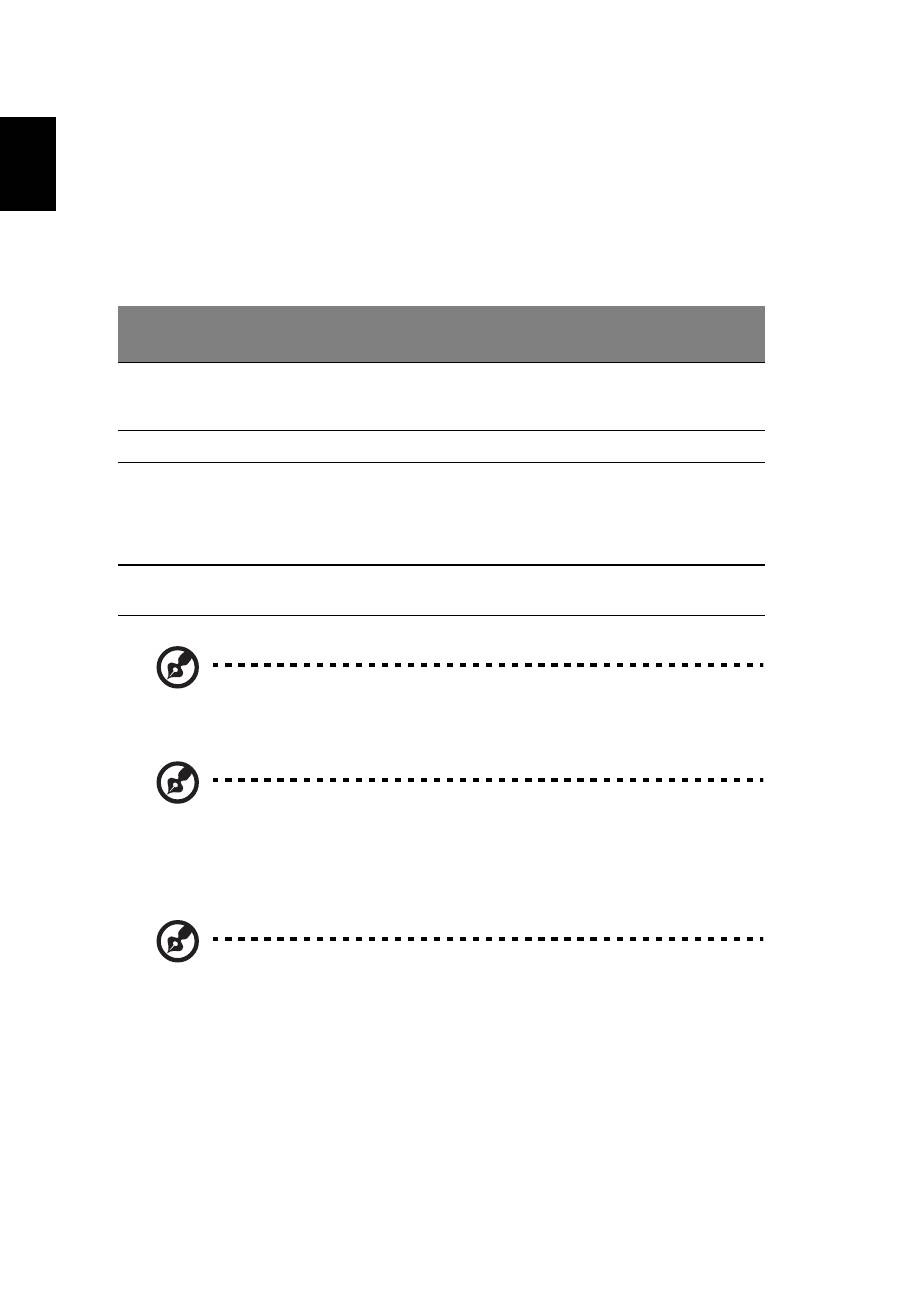
Function
Left
button (2)
Right
button (4)
Main touchpad (1)
Center button (3)
Execute
Quickly click
twice.
Tap twice (at the
same speed as
double-clicking a
mouse button).
Select
Click once.
Tap once.
Drag
Click and
hold, then
use finger
on the
touchpad to
drag the
cursor.
Tap twice (at the
same speed as
double-clicking a
mouse button); rest
your finger on the
touchpad on the
second tap and drag
the cursor.
Access
context
menu
Click once.
Scroll
Swipe up/down/left/
right using Acer
FingerNav 4-way
control function
(Manufacturing
option).
1 2
3
4
2
English
Touchpad basics (with two-click buttons)
The following items show you how to use the touchpad with two-click buttons.
•
Move your finger across the touchpad
to move the cursor.
•
Press the left
and right
buttons located beneath the touchpad to perform
selection and execution functions. These two buttons are similar to the left
and right buttons on a mouse. Tapping on the touchpad is the same as
clicking the left button.
Note: Illustrations for reference only. The exact configuration of
your PC depends on the model purchased.
Note: When using the touchpad, keep it — and your fingers — dry
and clean. The touchpad is sensitive to finger movement; hence,
the lighter the touch, the better the response. Tapping harder will
not increase the touchpad's responsiveness.
Note: By default, vertical and horizontal scrolling is enabled on
your touchpad. It can be disabled under Mouse settings in
Windows Control Panel.
Function
Left button
Right
button
Main touchpad
Execute
Quickly click twice.
Tap twice (at the same speed
as double-clicking a mouse
button).
Select
Click once.
Tap once.
Drag
Click and hold, then
use finger on the
touchpad to drag
the cursor.
Tap twice (at the same speed
as double-clicking a mouse
button); rest your finger on
the touchpad on the second
tap and drag the cursor.
Access context
menu
Click once.
Оглавление
- Information for your safety and comfort
- First things first
- Touchpad
- Using the keyboard
- Audio
- Using the system utilities
- Power management
- Acer eRecovery Management
- Battery pack
- Taking your notebook PC with you
- Securing your computer
- Expanding through options
- Frequently asked questions
- Regulations and safety notices
