Acer H6520BD: Introduction
Introduction: Acer H6520BD

1
English
Introduction
Product Features
®
This product is a single-chip DLP
projector. Outstanding features include:
®
• DLP
technology
• P1183/M403/PE-S42/X1183A/D603P/EV-S62T/X114/X1183/D603/EV-S62/
X113/D600/EV-S60/V10S/AS201 series: Native 800 x 600 SVGA resolution
P1283/M413/PE-X42/V12X/AX316/P1283n/M413T/PE-X42G/X1283/X1280/
D613/EV-X62 series: Native 1024 x 768 XGA resolution
P1383W/X1383WH/M423/PE-W42/V12W/AW316/P1380W/X1380WH/M420/
PE-W40/V11W/AW216 series: Native 1280 x 800 WXGA resolution
H5380BD/E230/HE-720 series: 1280x720 720p resolution
P1510/M450/PE-840 series: 1920x1080 1080p resolution
Full/4:3/16:9/L.Box aspect ratio supported
• Enables projecting 3D content via DLP Link Technology
• Acer ColorBoost technology delivers nature’s true colors for vivid, life-like
images
• High brightness and contrast ratio
• Versatile display modes (Bright, Presentation, Standard, Video, Game,
Education, Movie, Dark Cinema, Sports, User) enable optimum
performance in any situation
• NTSC / PAL / SECAM compatible and HDTV (720p, 1080i, 1080p) supported
• Lower power consumption and economy (ECO) mode extends lamp life
• Acer EcoProjeciton Technology delivers Intelligent power management
approach and physical efficiency improvement
• Equipped with HDMI™ & MHL connection supporting HDCP
• Advanced digital keystone correction optimizes presentations
• Smart detection delivers quick, intelligent source detection
• Multi-language onscreen display (OSD) menus
• Manual focus projection lens zooms up to 1.1x
• 2x digital zoom and pan function
®
®
®
• Microsoft
Windows
2000, XP, Vista
, Windows 7, Windows 8,
®
Macintosh
OS compliant
Note: Functions vary depending on model definition.
2
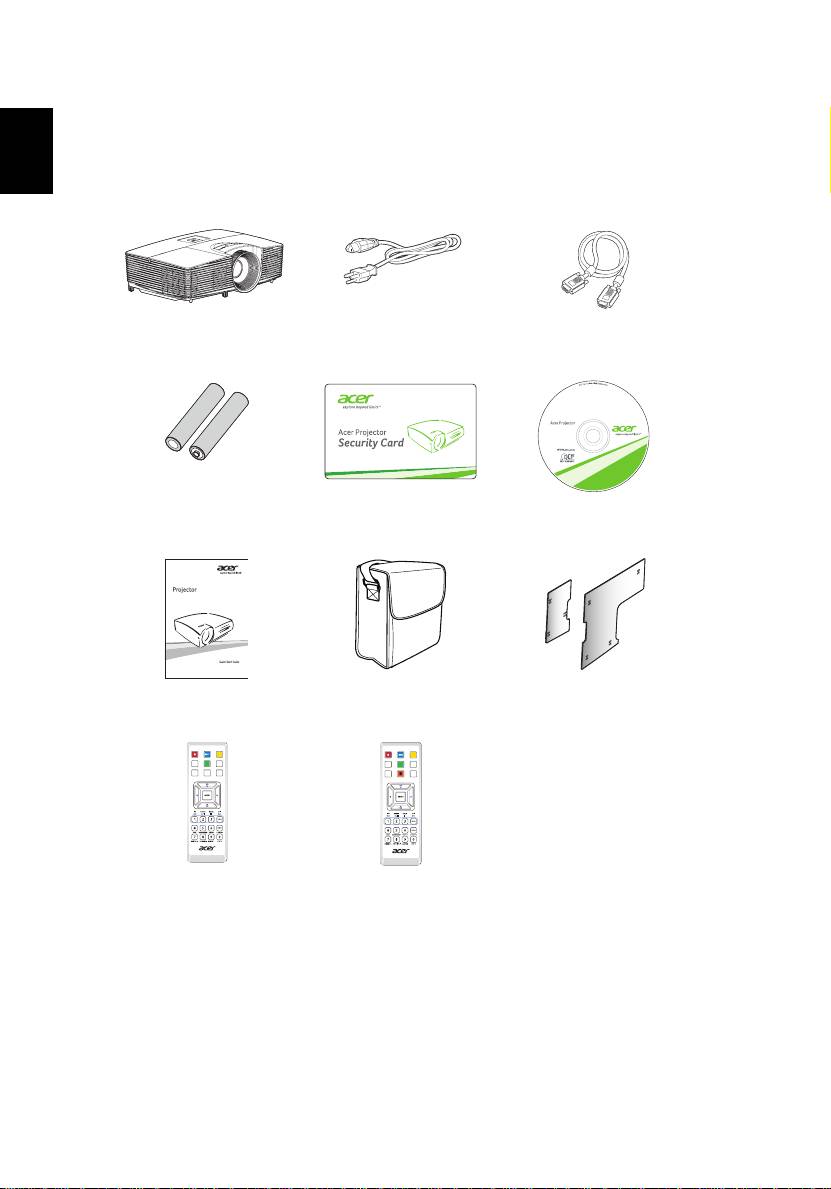
Package Overview
This projector comes with all the items shown below. Check to make sure your
unit is complete. Contact your dealer immediately if any thing is missing.
English
Projector Power cord VGA cable
2 x Batteries
Security card User’s guide
(option)
Quick start guide Carrying case
Dust filters
(option)
(option)
SOURCE
SOURCE
MEDIA
MODE
MEDIA
SETUP
HIDE
SETUP
MODE
HIDE
ZOOM
RATIO
FREEZE
ZOOM
FREEZE
Remote control
Remote control
(option)
(option)
3
English
Projector Overview
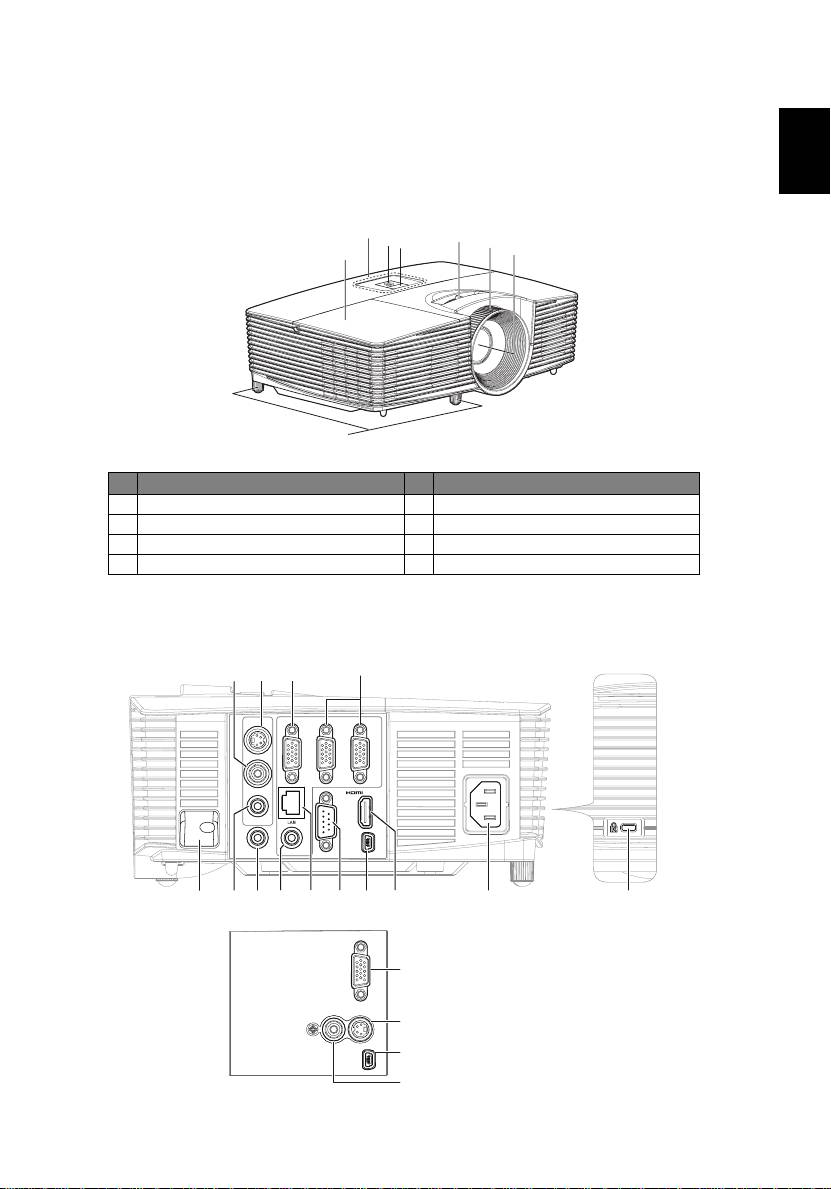
Projector Outlook
Front / upper side
3
5
2
1
6
7
4
8
# Description # Description
1 Remote control receiver 5 Zoom lever
2 Power button 6 Focus ring
3 Control panel 7 Projection lens
4 Lamp cover 8 Tilt adjusting wheels
Right / Rear side
<Right side>
<Rear side>
1
2
3
4
VGA OUT
VGA IN 2
VGA IN 1
S-VIDEO
VIDEO
/ MHL
AUDIO IN
AUDIO OUT
AUDIO IN
RS232
USB CTRL
5
6
109 1187
12
13
14
VGA IN
4
VIDEO
S-VIDEO
2
11
USB CTRL
1
4
# Description # Description
English
Audio in connector (VGA IN 1, VGA IN
1 Composite video input connector 8
2)
2 S-Video input connector 9 LAN (RJ45 Port for 10/100M Ethernet)
Monitor loop-through output
10
3
RS232 connector
connector (for VGA IN 2 only)
4 PC analog signal/HDTV/component
11
video input connector (VGA IN/VGA IN
Mini USB connector
1/VGA IN 2)
5 Security bar 12 HDMI/MHL connector
Audio input connector (S-Video,
13
6
Power socket
Composite)
TM
7 Audio out connector 14
Kensington
lock port
Note: Functions vary depending on model definition.
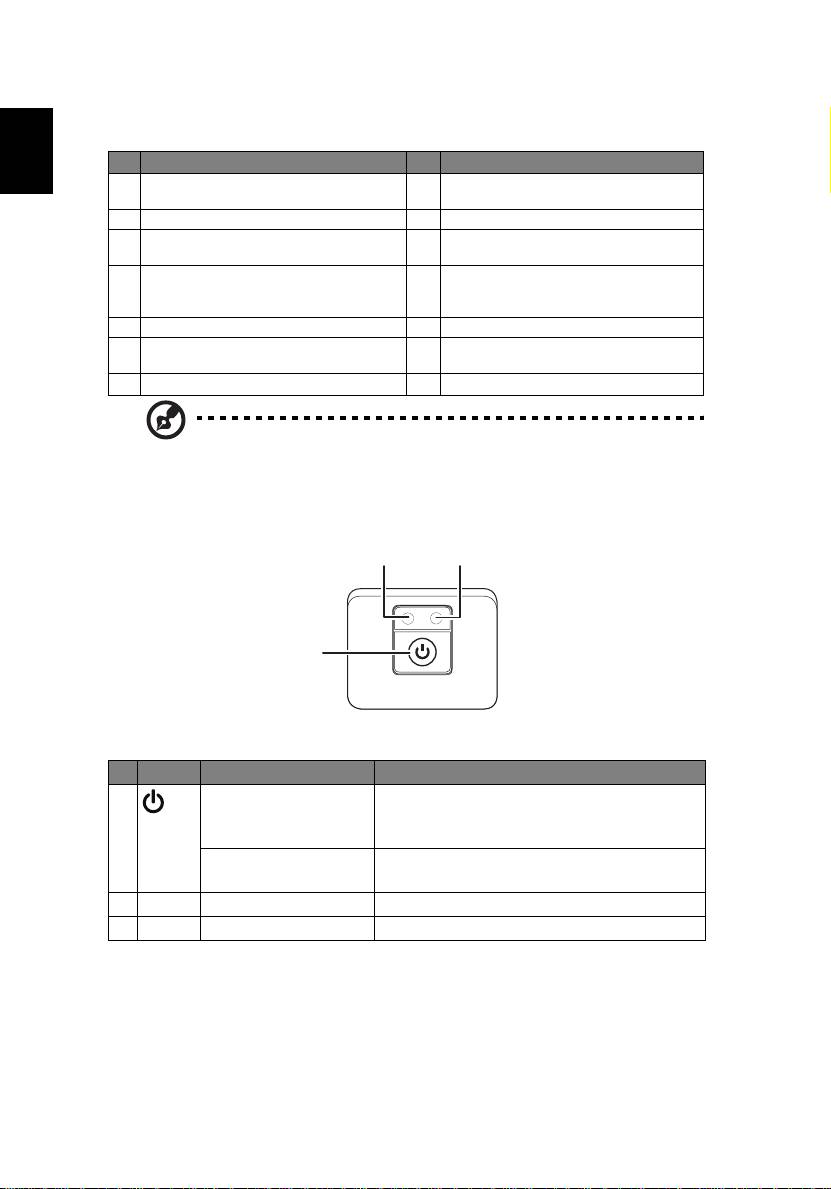
Control Panel
2 3
LAMP TEMP
1
# Icon Function Description
1 POWER Power Indicator LED
See the contents in "Turning the Projector
On/Off" section.
Source Changes the active source, short press the
button.
2 LAMP Lamp Indicator LED
3 TEMP Temp Indicator LED
5
English
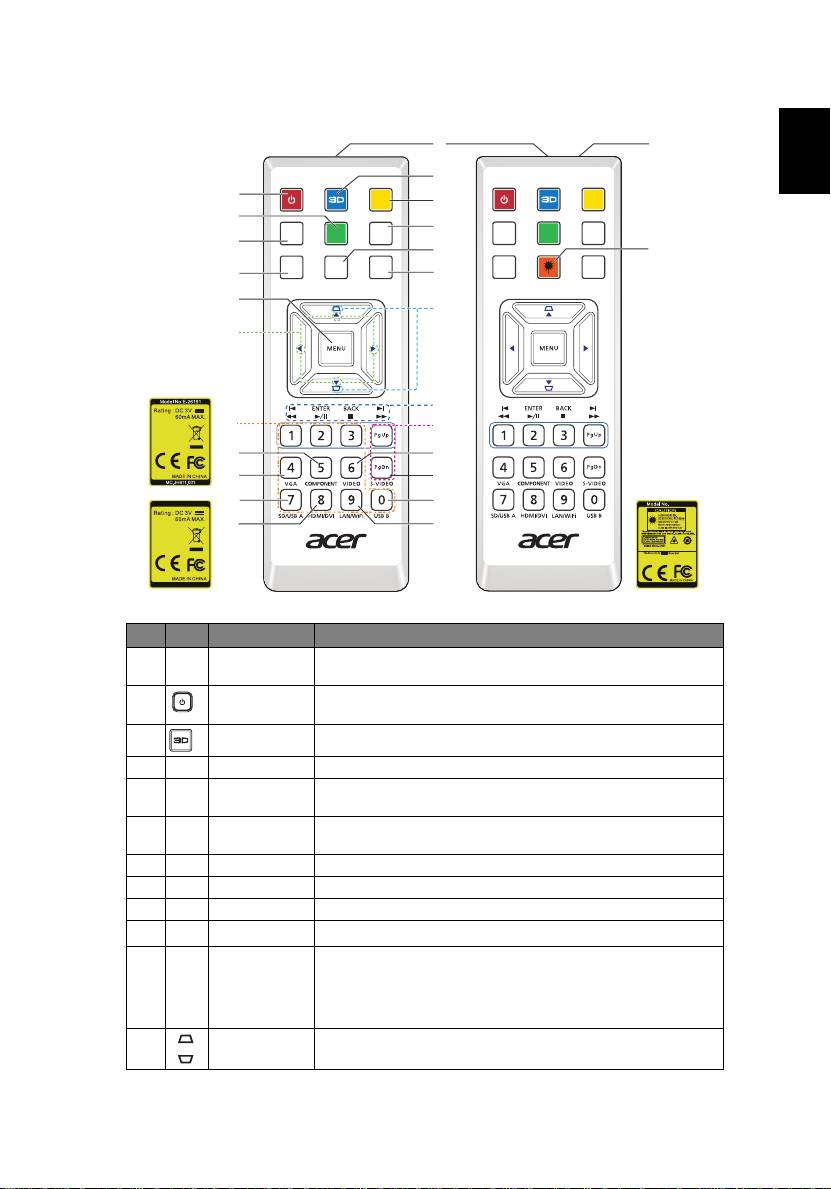
Remote Control Layout
1
25
3
2
SOURCE
SOURCE
4
5
MEDIA
MEDIA
6
SETUP
MODE
HIDE
SETUP
MODE
HIDE
7
8
26
ZOOM
RATIO
FREEZE
ZOOM
FREEZE
9
10
11
12
13
14
15
16
17
18
19
20
Model No:E-26171
21
22
E-26110
23
24
LASER MODULE : M-5.2-6.5x10-5.5x5.5
BONTECH ELECTRONICS(K.S) CO ., LTD .
No. 2018, Zhonghuayuan west road,
Yushan town,Kunshan city, China
MC.JG811.009
MC.JG811.008
# Icon Function Description
1 Infrared
Sends signals to the projector.
transmitter
2 POWER Refer to the "Turning the Projector On/Off" section.
3 3D Press "3D" to select 3D models.
4 SOURCE Changes the active source.
5 MODE Press "MODE" to select the display mode from Bright,
Presentation, Standard, Video, Game, Education and User.
6 HIDE Momentarily turns off the video. Press "HIDE" to hide the
image, press again to display the image.
7 MEDIA_SETUP No function.
8 RATIO To choose the desired aspect ratio.
9 ZOOM Zooms the projector display in or out.
10
To pause the screen image.
FREEZE
11 MENU
• Press "MENU" to launch the Onscreen display (OSD)
menu, back to the previous step for the OSD menu
operation or exit the OSD menu.
• Confirm your selection of items.
12 KEYSTONE Adjusts the image to compensate for distortion caused by
tilting the projector (± 40 degrees).
6
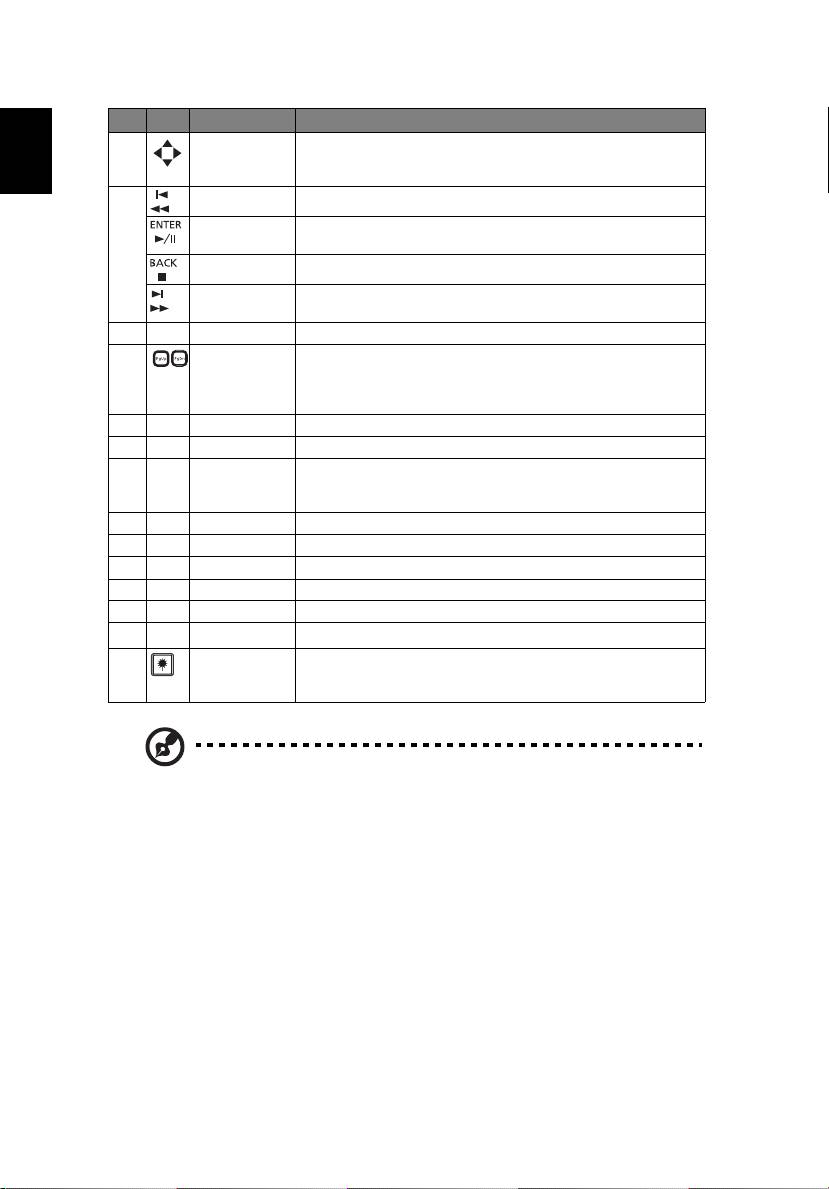
# Icon Function Description
13 Four
Use up, down, left, right buttons to select items or make
directional
adjustments to your selection.
select keys
English
14 Pre./Rewind No function.
Enter/ Play/
No function.
Pause
Back/Stop No function.
Next/Fast
No function.
forward
15 KeyPad 0~9 Press "0~9" to input a password in the "Security" OSD.
16 PgUp/PgDn For computer mode only. Use this button to select the next or
previous page. This function is only available when USB Ctrl
connector (mini type B) is connected to a computer via a USB
cable.
17 COMPONENT No function.
18 VIDEO To change source to COMPOSITE VIDEO.
19 VGA Press "VGA" to change source to the VGA connector. This
connector supports analog RGB, YPbPr (480p/576p/720p/
1080i), YCbCr (480i/576i) and RGBsync.
20 S-VIDEO To change source to S-Video.
21 SD/USB A No function.
22 USB B For USB control and firmware upgrade.
23 HDMI/DVI To change source to HDMI/MHL. (no DVI function)
24 LAN/WiFi No function.
Laser pointer Aim the remote at the viewing screen.
25
26 Laser button Aim the remote at the viewing screen, press and hold this
button to activate the laser pointer.
This function is not supported in Japanese market.
Note: Functions vary depending on model definition.
7
English
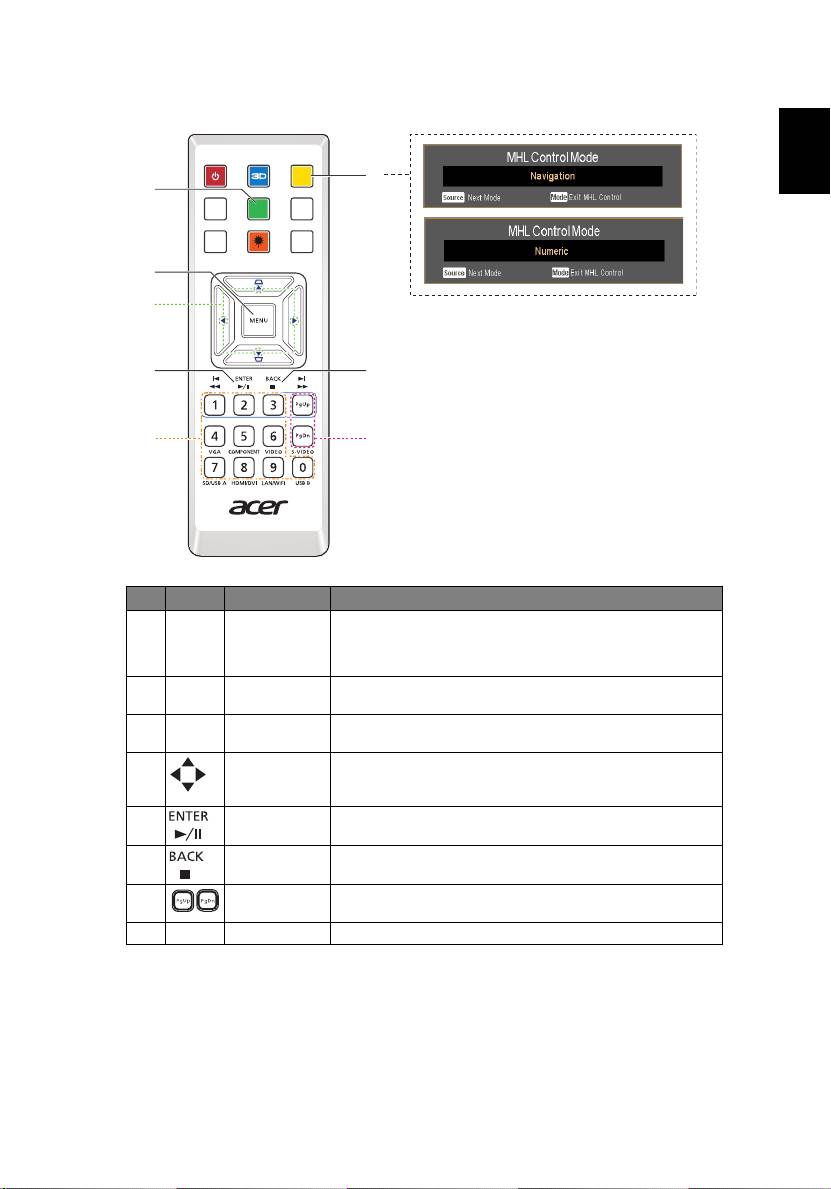
MHL (Mobile High-Definition Link) Control
SOURCE
2
1
MEDIA
SETUP
MODE
HIDE
ZOOM
FREEZE
3
4
65
8
7
# Icon Component Description
1MODE
• Press "MODE" button for one second to activate the
MHL Control Mode.
• To exit, press the "MODE" button again.
2 SOURCE Press the "SOURCE" button to toggle between Navigation
or Numeric mode.
3 MENU Press to launch the root memu.
(only for Navigation mode)
4 Direction Keys Use up, down, left, right buttons to select items or make
adjustments to your selection.
(only for Navigation mode)
5 Select To select the file. (only for Navigation mode)
6 Exit To exit the file. (only for Navigation mode)
7 PgUp/PgDn Use the button to select the next or previous
page. (only for Navigation mode)
8 KeyPad 0~9 Number buttons. (only for Numeric mode)