
Canon pixma pro-1: For Mac OS X v10.6 to v10.6.7 Do you prefer to apply a Mac OS software update?
For Mac OS X v10.6 to v10.6.7 Do you prefer to apply a Mac OS software update?: Canon pixma pro-1
Table of contents
- Contents■
- Printer Installation Flow■ Printer Preparation Software Installation Installation Complete
- Symbols Used in This Document
- Printed Manual■ On-screen Manual and Online Manual■ Getting Started (this manual)
- Devices Required for Wired Connection■ When using the printer over a wired connection, a commercial network device (router, etc.) and Ethernet cable are required.
- Preparation
- 1 2
- 3 4 5 6
- 7 When it is necessary to turn off the printer
- 1 2 Install the Ink Tanks
- 3 4
- 5 6
- 1 2 Install the Print Head
- 3 4
- 5
- 6
- 7 8
- 9
- Software Installation
- For Windows XP/Windows XP SP1/Windows XP SP2/Windows Vista
- For Windows XP/Windows XP SP1/Windows XP SP2/Windows Vista If you prefer not to apply a Windows service pack, install the printer driver and IJ Network Tool by following the procedure below.
- For Mac OS X v10.6 to v10.6.7 Do you prefer to apply a Mac OS software update?
- For Mac OS X v10.4.11 to v10.5 Perform the installation by following one of the methods below.
- For Mac OS X v10.4.11 to v10.5 Install the software (the printer driver and IJ Network Tool) stored on the Setup CD-ROM by following 1 to 3 below.
- Do not connect the USB Easy-WebPrint EX cable yet.
- 1 1. Make sure that the POWER lamp (white) (A) is lit. 2. Press the ON button (B) to TURN OFF THE PRINTER.
- 2 1. Make sure that the printer has turned off. 2. Turn on the computer. 3. Insert the Setup CD-ROM into the CD-ROM drive.
- 3 3
- 4
- When the second page of the pattern is printed, Print Head Alignment is At the end of the installation, Quick Menu starts up. You can open the Online complete. Manual and On-screen Manual from here when you want to know about the details of the functions and operations or when need arises.
- 5 Load Paper
- My Image Garden 6 Application Software
- CREATIVE PARK PREMIUM Print Studio Pro
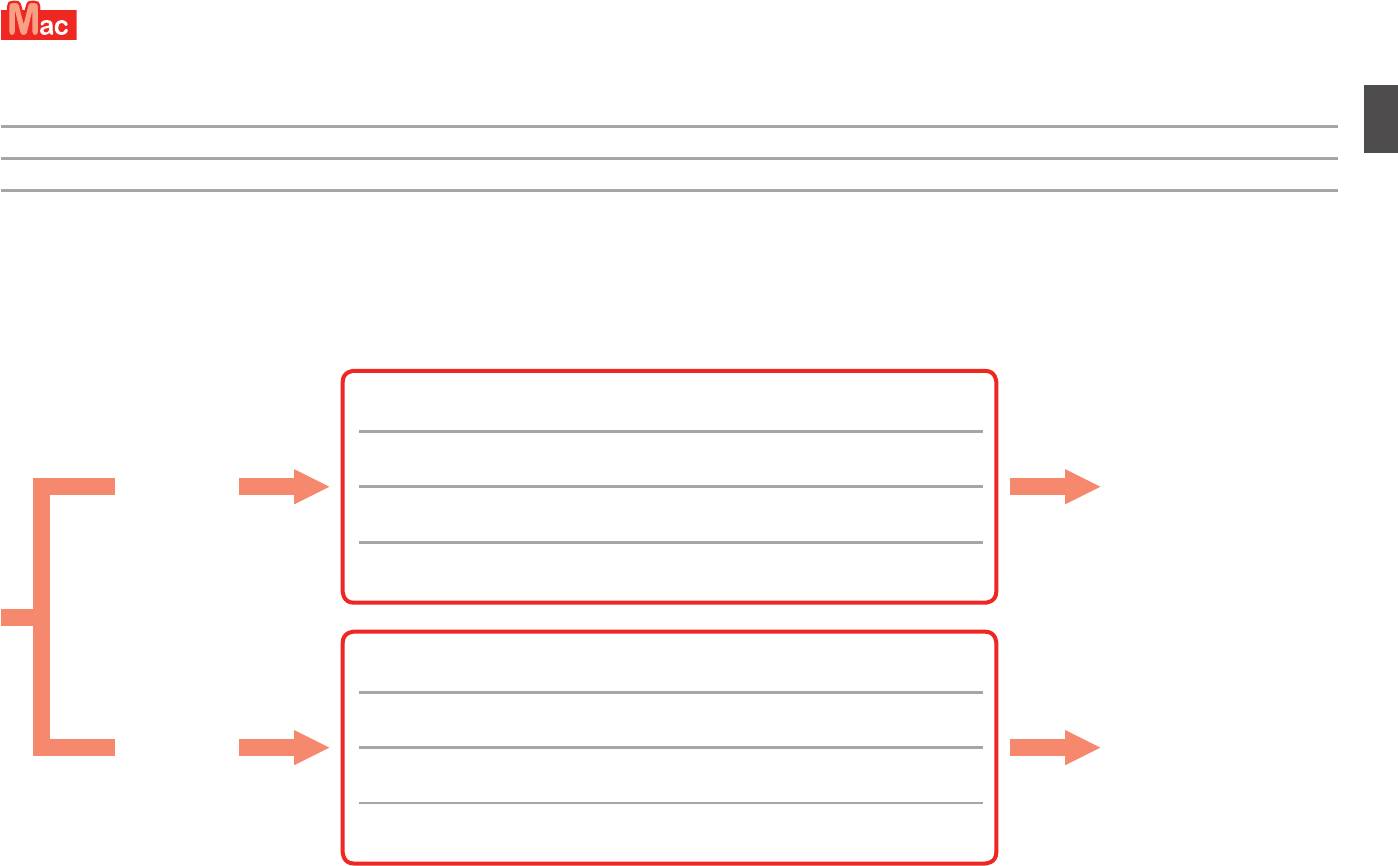
For Mac OS X v10.6 to v10.6.7
Sous Mac OS X v10.6 à v10.6.7
Für Mac OS X v10.6 bis v10.6.7
Per Mac OS X v10.6 a v10.6.7
It is recommended that you upgrade to Mac OS X v10.6.8 by applying a Mac OS software update.
Nous vous recommandons d’effectuer une mise à niveau vers Mac OS X v10.6.8 en appliquant une mise à jour du logiciel Mac OS.
Es wird empfohlen, dass Sie auf Mac OS X v10.6.8 aktualisieren, indem Sie eine Mac OS-Softwareaktualisierung verwenden.
Si consiglia di eseguire l’aggiornamento a Mac OS X v10.6.8 applicando un aggiornamento software Mac OS.
Do you prefer to apply a Mac OS software update?
Préférez-vous appliquer une mise à jour du logiciel Mac OS ?
Möchten Sie eine Mac OS-Softwareaktualisierung verwenden?
Applicare un aggiornamento software Mac OS?
After upgrading, perform the installation by following the procedure on and after
page 24.
Yes
Après la mise à niveau, effectuez l’installation en suivant la procédure indiquée
Go to page 24
Oui
page
24 et suivantes.
Passez à la page 24
Ja
Nach der Aktualisierung führen Sie die Installation gemäß den Anweisungen ab
Fahren Sie mit Seite 24 fort
Sì
Seite 24 durch.
Vai alla pagina 24
Al termine dell’aggiornamento, eseguire l’installazione seguendo la procedura a
pagina 24 e in quelle successive.
Perform the installation using the same method as Mac OS X v10.4.11 to v10.5.
No
Effectuez l’installation en utilisant la même méthode qu’avec Mac OS X v10.4.11 à
Go to page 22
Non
v10.5.
Passez à la page
22
Nein
Führen Sie die Installation gemäß den Anwendungen für Mac OS X v10.4.11 bis
Fahren Sie mit Seite 22 fort
No
v10.5 durch.
Vai alla pagina 22
Eseguire l’installazione utilizzando lo stesso metodo di Mac OS X v10.4.11 a
v10.5.
21


