
Canon i-SENSYS MF8080Cw: instruction
Class: Household, kitchen appliances, electronics and equipment
Type:
Manual for Canon i-SENSYS MF8080Cw
Table of contents
Starter Guide
English
Guide de démarrage
Guida all’avvio
Italiano
Handbuch für Starter
Základní příručka
Telepítési kézikönyv
Przewodnik wprowadzający
Úvodná príručka
Upute za početak korištenja
Ghid de punere rapidă în funcţiune
Začetna navodila
Кратко ръководство
Руководство по началу работы
Початок роботи
Başlangıç Kılavuzu
Darba sākšanas rokasgrāmata
Pradinė instrukcija
Alustusjuhend
Startvejledning
Startveiledning
Aloitusopas
Starthandbok
Guía de inicio
Español
Beknopte handleiding
Manual Inicial
Οδηγός πρώτων βημάτων
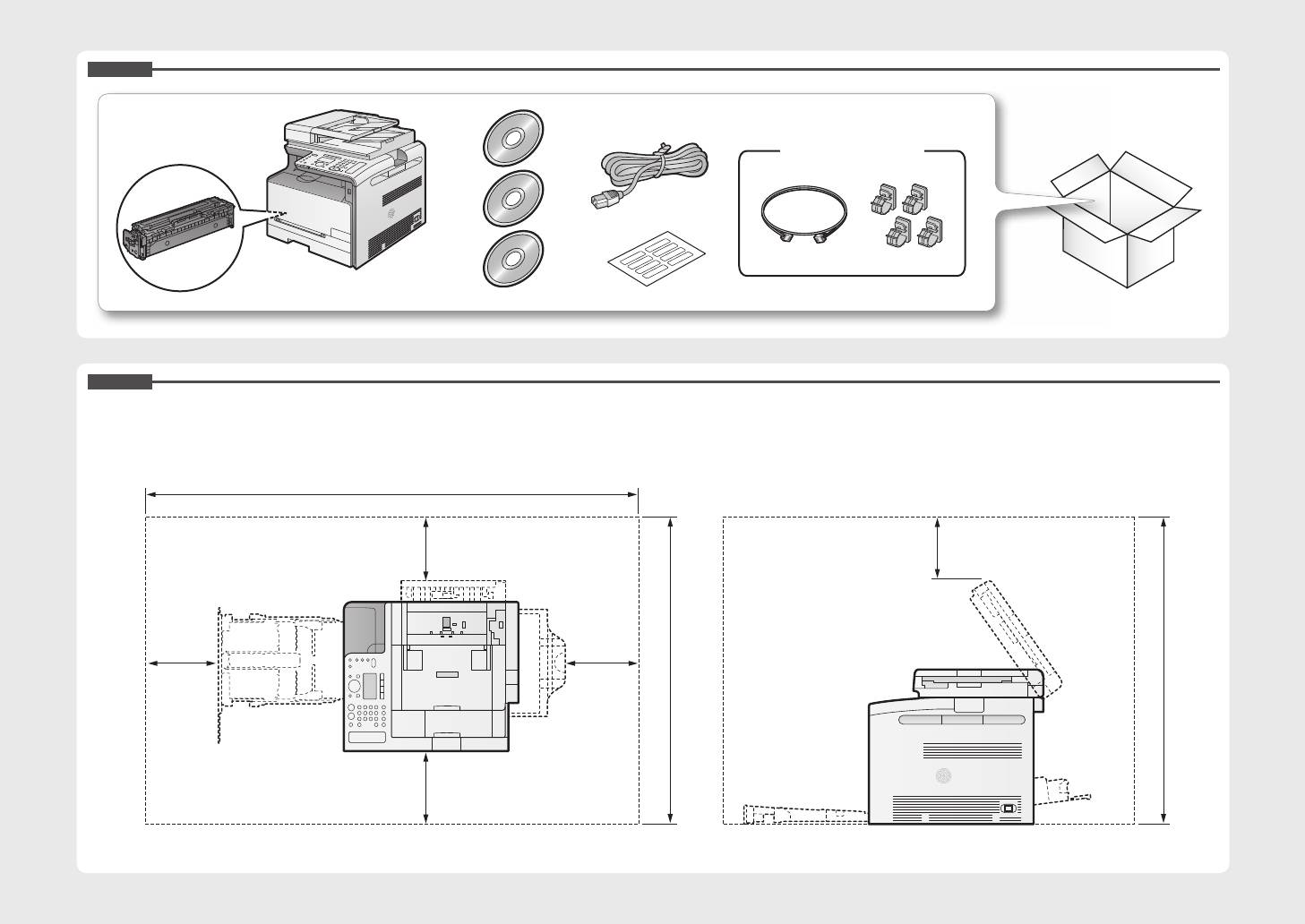
Check!
MF8080Cw Only
Check!
1229 mm
100 mm 100 mm
100
100
mm
mm
674 mm
801 mm
100 mm
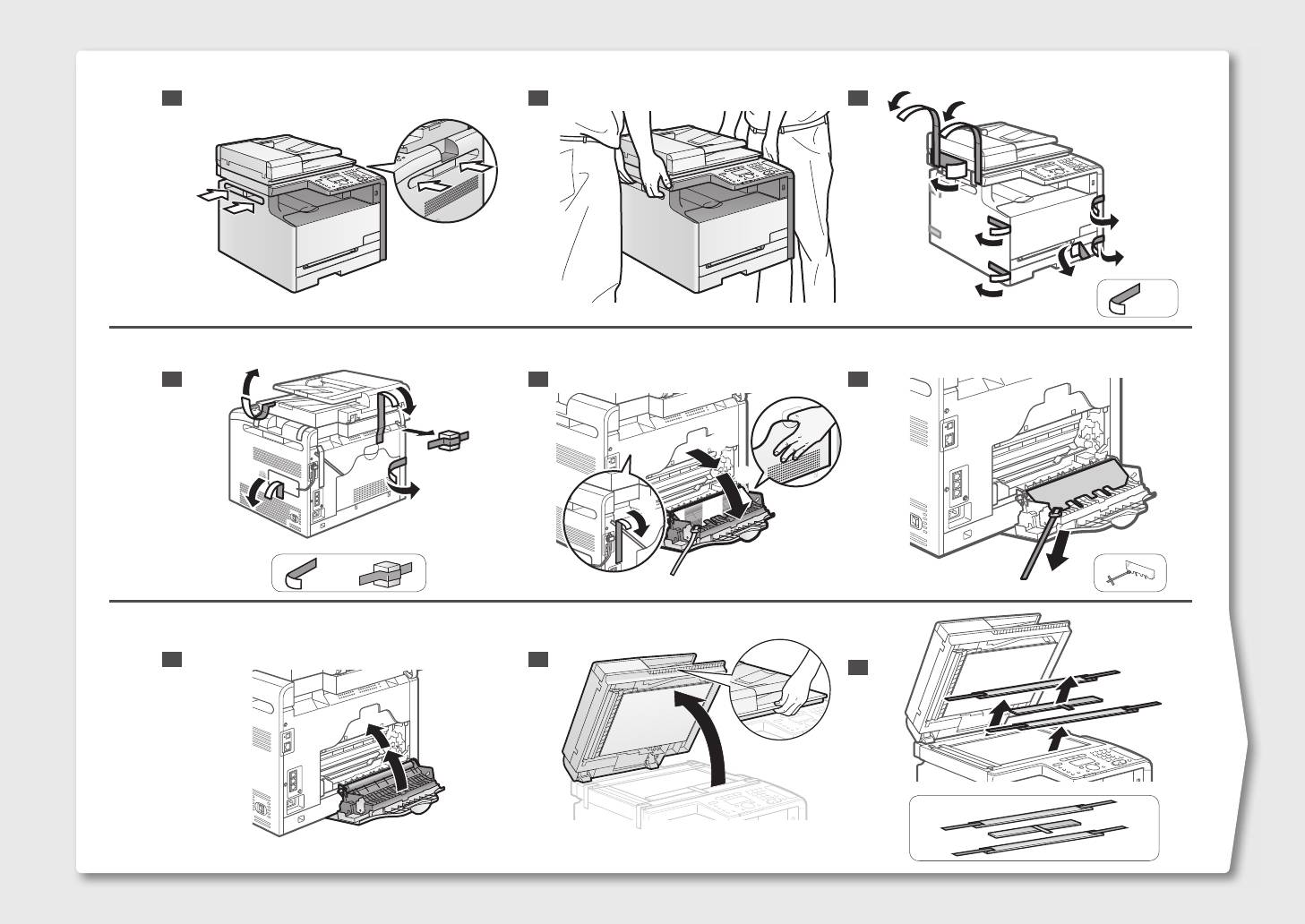
1 2
3
x 8
4
5 6
(2)
(3)
(1)
x 4
7
8
9
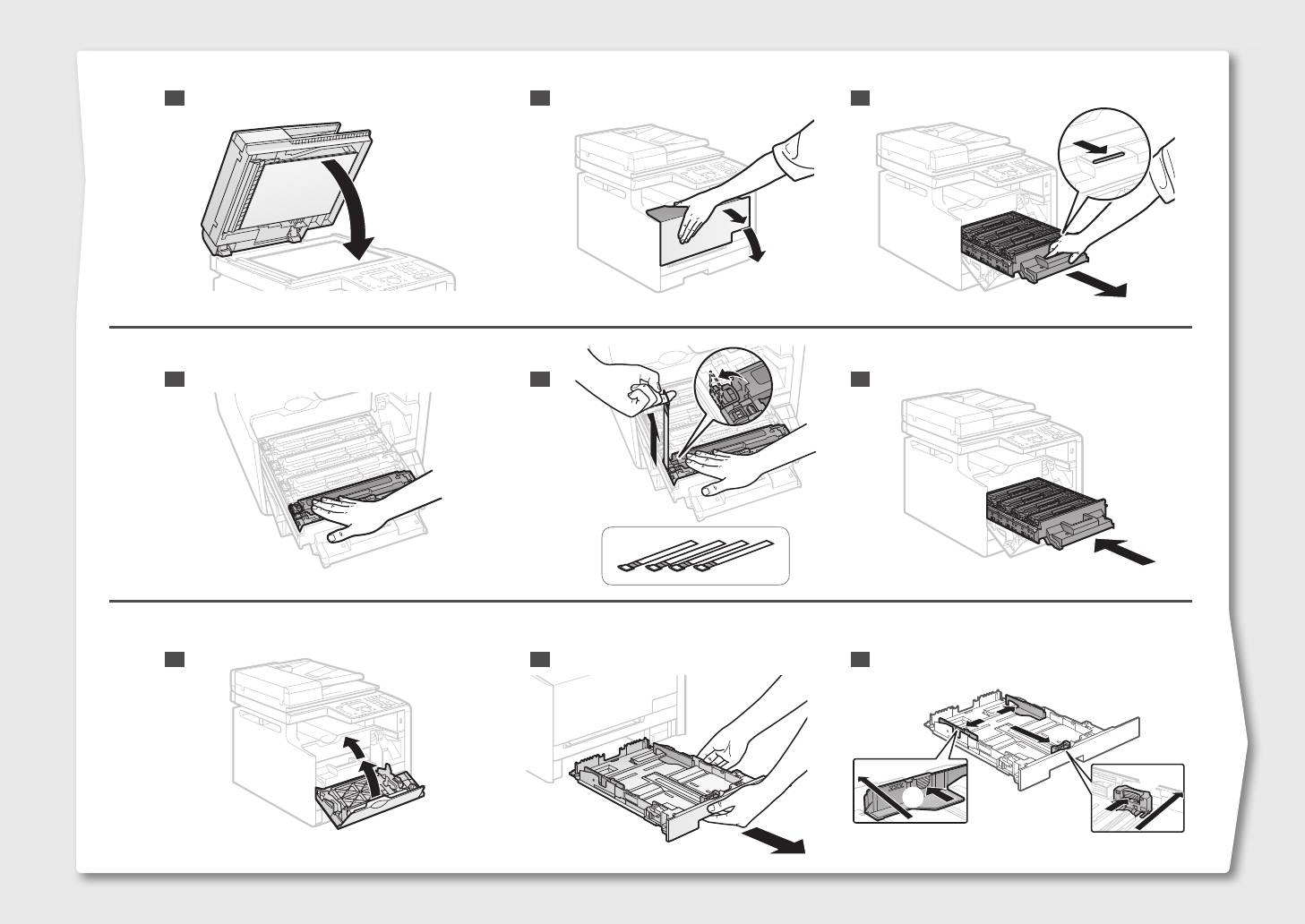
1210 11
13
14 15
16 17 18
(2)
(1)
19 20
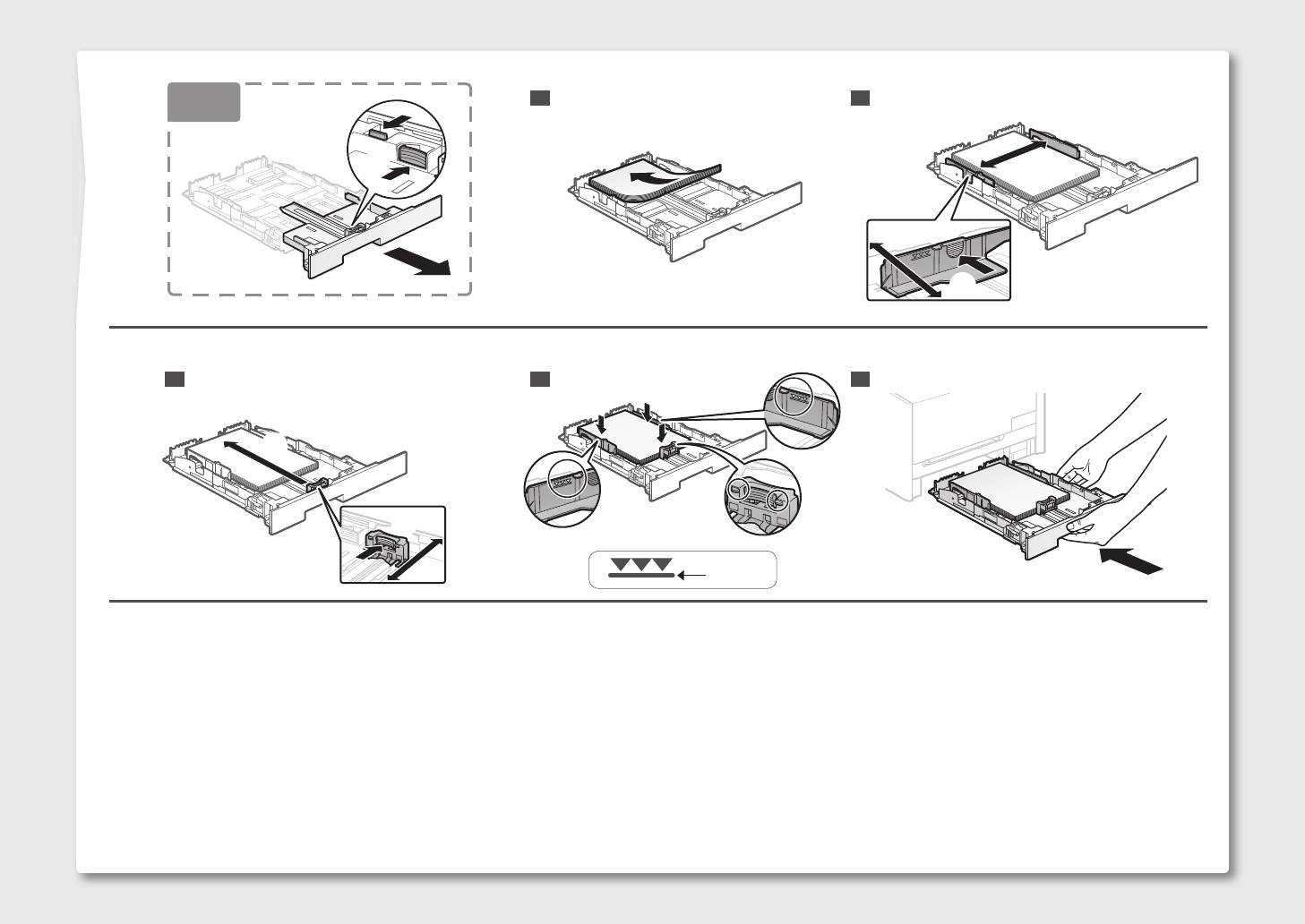
LGL
(1)
(2)
(2)
(1)
21 23
22
(2)
(1)
Option
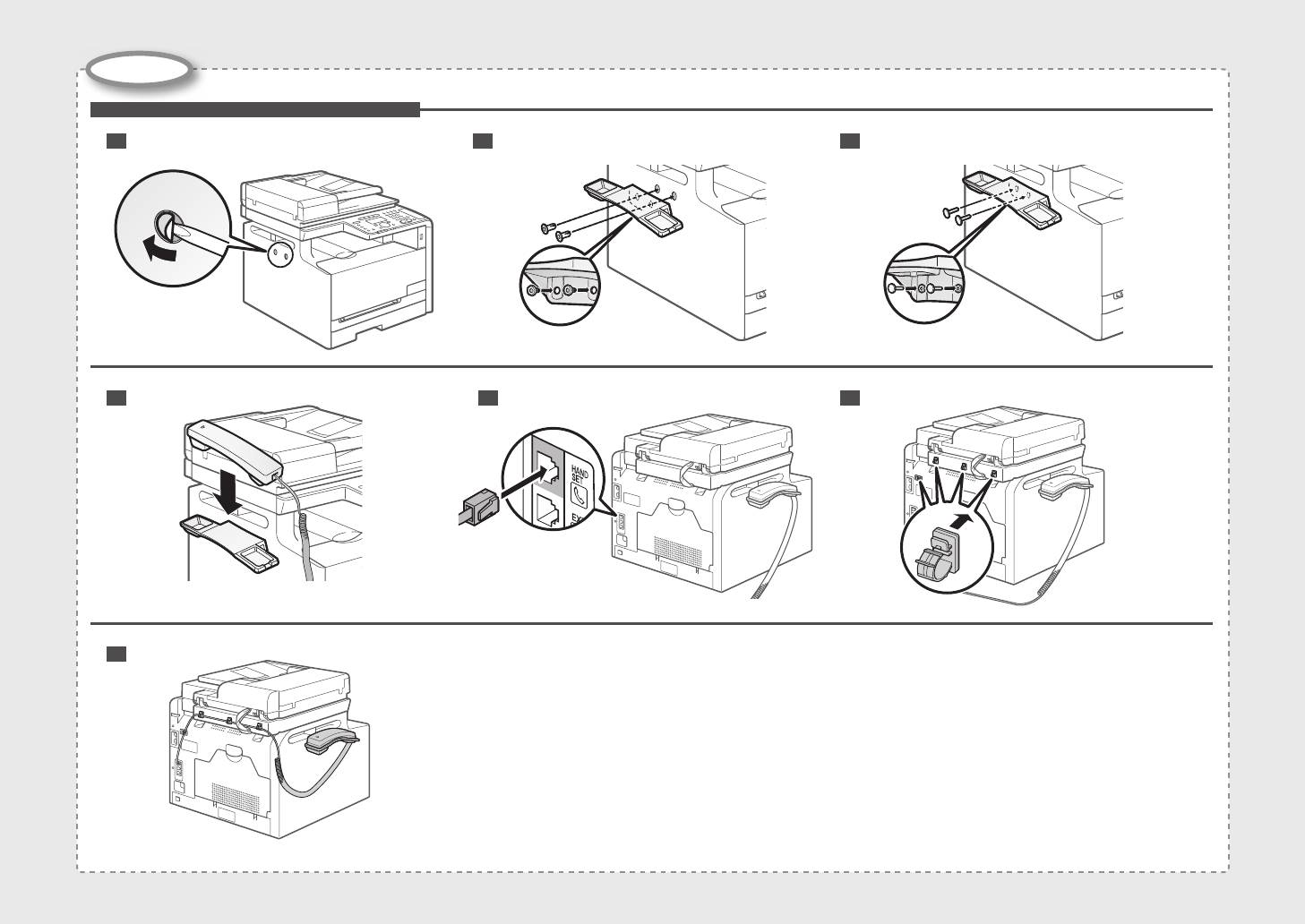
Installing the Handset (MF8080Cw Only)
2 31
4 5 6
7

English
Italiano
Español
1 2 3 4 5 6 7 8 9
10
Contents
Table des matières
Sommario
Inhalt
1 About the Supplied Manuals P2
6
Specifying Initial Settings for the Fax Functions and Connecting the Telephone Cable
P6
2 Navigating the Menu and Text Input Method P3
7 Selecting a Method for Connecting to the Machine P8
3 Connecting the Power Cord and Turning ON the Power P4
8 Connecting to Wired LAN P9
English
4 Specifying the Initial Settings P5
9 Installing the Driver/Software P10
5 Setting the Paper Size and Type P5
10
Perform Useful Tasks P11
1 A propos des manuels fournis P2
6
Spécication des paramètres de fax initiaux et connexion du câble téléphonique
P6
2 Navigation dans le menu et méthode de saisie de texte P3
7 Sélection de la méthode de connexion à la machine P8
3 Branchement du cordon d’alimentation et allumage de la machine P4
8 Connexion au réseau sans l P9
Français
4 Spécication des paramètres initiaux P5
9 Installation du pilote/logiciel P10
5 Réglage du format et du type de papier P5
10
Exécution de tâches utiles P12
1 Informazioni sui manuali forniti a corredo con il prodotto Pag2
6 Impostazioni iniziali del fax e collegamento del cavo telefonico Pag6
2 Navigazione del menu e metodo di input del testo Pag3
7 Selezione del metodo di collegamento della macchina Pag8
3 Collegamento del cavo di alimentazione e accensione della macchina Pag4
8 Collegamento alla LAN cablata Pag9
Italiano
4 Selezione delle impostazioni iniziali Pag5
9 Installazione di driver/software Pag10
5 Impostazione di un formato e di un tipo di carta Pag5
10
Attività utili Pag13
1 Informationen zu den mitgelieferten Handbüchern S2
6 Angeben der Anfangseinstellungen für die Faxfunktionen und Anschließen des
2 Navigieren durch das Menü und Texteingabemethode S3
Telefonkabels S6
3 Anschließen des Netzkabels und Einschalten des Geräts S4
7 Auswählen der Methode für das Herstellen einer Verbindung zum Gerät S8
4 Angeben der Anfangseinstellungen S5
8 Herstellen einer Verbindung zu einem Wired LAN S9
Deutsch
5 Einstellen eines Papierformats und Papiertyps S5
9 Installieren des Treibers bzw der Software S10
10
Hilfreiche Funktionen S14
1
1 2 3 4 5 6 7 8 9
10
About the Supplied Manuals
A propos des manuels fournis
1
Informazioni sui manuali forniti a corredo con il prodotto
Informationen zu den mitgelieferten Handbüchern
English Français
Italiano Deutsch
DCBA
A
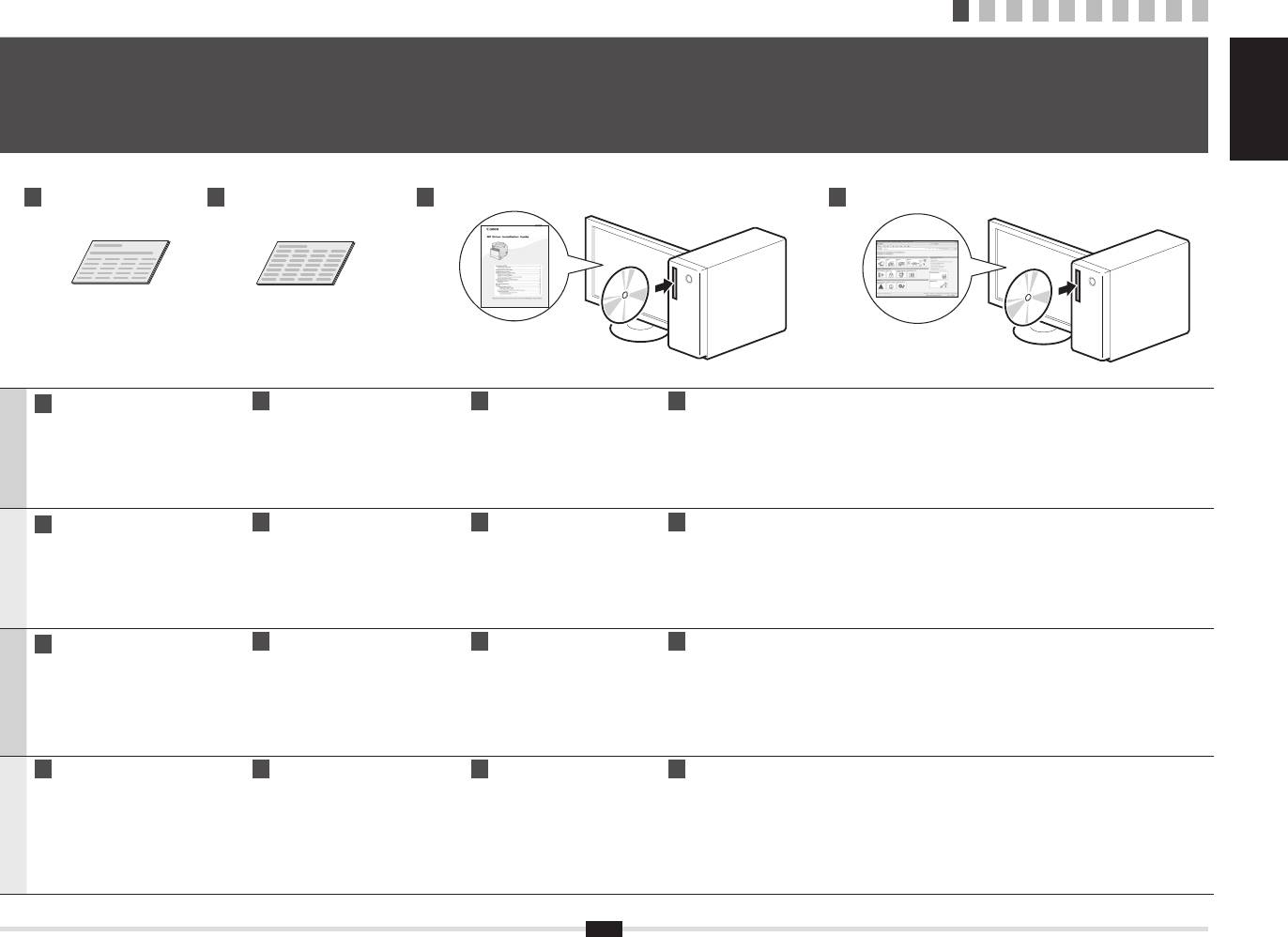
Starter Guide (This manual):
B
Wireless LAN Setting Guide
C
MF Driver Installation Guide
D
e-Manual (User Manual CD-ROM): Read the desired chapter to suit your needs
Read this manual rst
(MF8080Cw Only):
(User Software CD-ROM):
The e-Manual is categorized by subject to nd desired information easily.
This manual describes the
Read this manual with the Starter Guide
Read this manual next
installation of the machine, the
This manual describes the wireless
This manual describes
Displaying the e-Manual from the CD-ROM
settings, and a caution. Be sure to
LAN setup procedures and the causes
software installation.
1. Insert the User Manual CD-ROM in your computer.
English
read this manual before using the
and solutions for troubles you might
2. Select your language.
machine.
face during setup. Be sure to read this
3. Click [Display Manual].
manual before using the machine.
* Depending on the operating system you are using, a security protection message is displayed. Allow the contents to be displayed.
A
Guide de démarrage (ce manuel) :
B
Guide des paramètres du réseau
C
Guide d'installation des
D
Manuel électronique (CD-ROM "User Manual CD-ROM") : Lisez le chapitre qui répond à vos besoins
Veuillez d'abord lire ce guide
sans l (MF8080Cw uniquement) :
pilotes MF (CD-ROM "User
Le manuel électronique est divisé en catégories par sujet, ce qui permet de trouver facilement les informations voulues.
Ce manuel décrit l'installation de
Lisez ce manuel avec le Guide de démarrage
Software CD-ROM") :
la machine, les paramètres et les
Ce manuel décrit les procédures de conguration
Lisez ce guide ensuite
Afchage du manuel électronique directement depuis le CD-ROM
précautions à prendre. Veillez à
du réseau sans l, les causes et les solutions des
Ce manuel décrit l'installation
1. Insérez le CD-ROM "User Manual CD-ROM" dans l'ordinateur.
Français
lire attentivement ce manuel avant
problèmes que vous rencontrez éventuellement
du logiciel.
2. Sélectionnez votre langue.
d'utiliser la machine.
pendant la conguration. Veillez à lire attentivement
3. Cliquez sur [Afcher manuel].
ce manuel avant d'utiliser la machine.
* Selon votre système d'exploitation, un message de protection de la sécurité peut s'afcher. Autorisez l'afchage du contenu.
A
Guida all'avvio (questo manuale):
B
Guida alle impostazioni della
C
Guida di Installazione del
D
e-Manual (User Manual CD-ROM): Leggere il capitolo desiderato in base alle proprie esigenze
Leggere questa guida
LAN wireless (solo MF8080Cw):
Driver MF (User Software
L'e-Manual è suddiviso in una serie di categorie per argomento che consentono di trovare le informazioni desiderate più facilmente.
In questo manuale vengono
Leggere questo manuale con la
CD-ROM):
descritti l'installazione della
Guida all'avvio
Leggere quindi questo
Visualizzazione dell'e-Manual dal CD-ROM
macchina, le impostazioni e le
Questo manuale descrive le procedure di
manuale
1. Inserire l'User Manual CD-ROM nel computer.
Italiano
avvertenze da osservare. Leggere
congurazione della rete LAN wireless e le
Questo manuale descrive
2. Selezionare la lingua.
attentamente il manuale prima di
cause e soluzioni dei problemi che si potrebbero
l'installazione del software.
3. Fare clic su [Visual. manuale].
vericare durante la congurazione. Leggere
utilizzare la macchina.
questo manuale prima di utilizzare la macchina.
* A seconda del sistema operativo in uso, è possibile che venga visualizzato un messaggio di protezione. Consentire la visualizzazione dei contenuti.
A
Handbuch für Starter (dieses Handbuch):
B
Handbuch der WLAN-Einstellungen
C
Installationshandbuch zum
D
e-Anleitung (User Manual CD-ROM): Lesen Sie das gewünschte Kapitel entsprechend Ihren Anforderungen
Bitte lesen Sie dieses Handbuch zuerst
(nur
MF8080Cw
):
MF-Treiber (User Software
Die e-Anleitung ist thematisch gegliedert, sodass Sie die gewünschten Informationen problemlos nden.
In diesem Handbuch werden die
Lesen Sie dieses Handbuch zusammen
CD-ROM):
Geräteinstallation, die Einstellungen
mit dem Handbuch für Starter
Lesen Sie als Nächstes
Anzeigen der e-Anleitung von der CD-ROM
und Vorsichtshinweise beschrieben.
In diesem Handbuch werden die Arbeitsschritte
dieses Handbuch
1. Legen Sie die Bedienerhandbuch-CD-ROM in Ihren Computer ein.
Lesen Sie dieses Handbuch
für die WLAN-Einrichtung sowie die Ursachen
In diesem Handbuch wird
2. Wählen Sie Ihre Sprache aus.
Deutsch
vor Inbetriebnahme des Geräts
und Lösungen für Probleme beschrieben, die
die Softwareinstallation
3. Klicken Sie auf [Handbuch anzeigen].
Sie möglicherweise bei der Einrichtung haben.
unbedingt durch.
Vor der Verwendung des Geräts sollten Sie
beschrieben.
* Abhängig von dem von Ihnen verwendeten Betriebssystem wird eine Sicherheitswarnung angezeigt. Lassen Sie die Anzeige des Inhalts zu.
dieses Handbuch auf jeden Fall lesen.
2
1 2 3 4 5 6 7 8 9
10
Navigating the Menu and Text Input Method
Navigation dans le menu et méthode de saisie de texte
2
Navigazione del menu e metodo di input del testo
Navigieren durch das Menü und Texteingabemethode
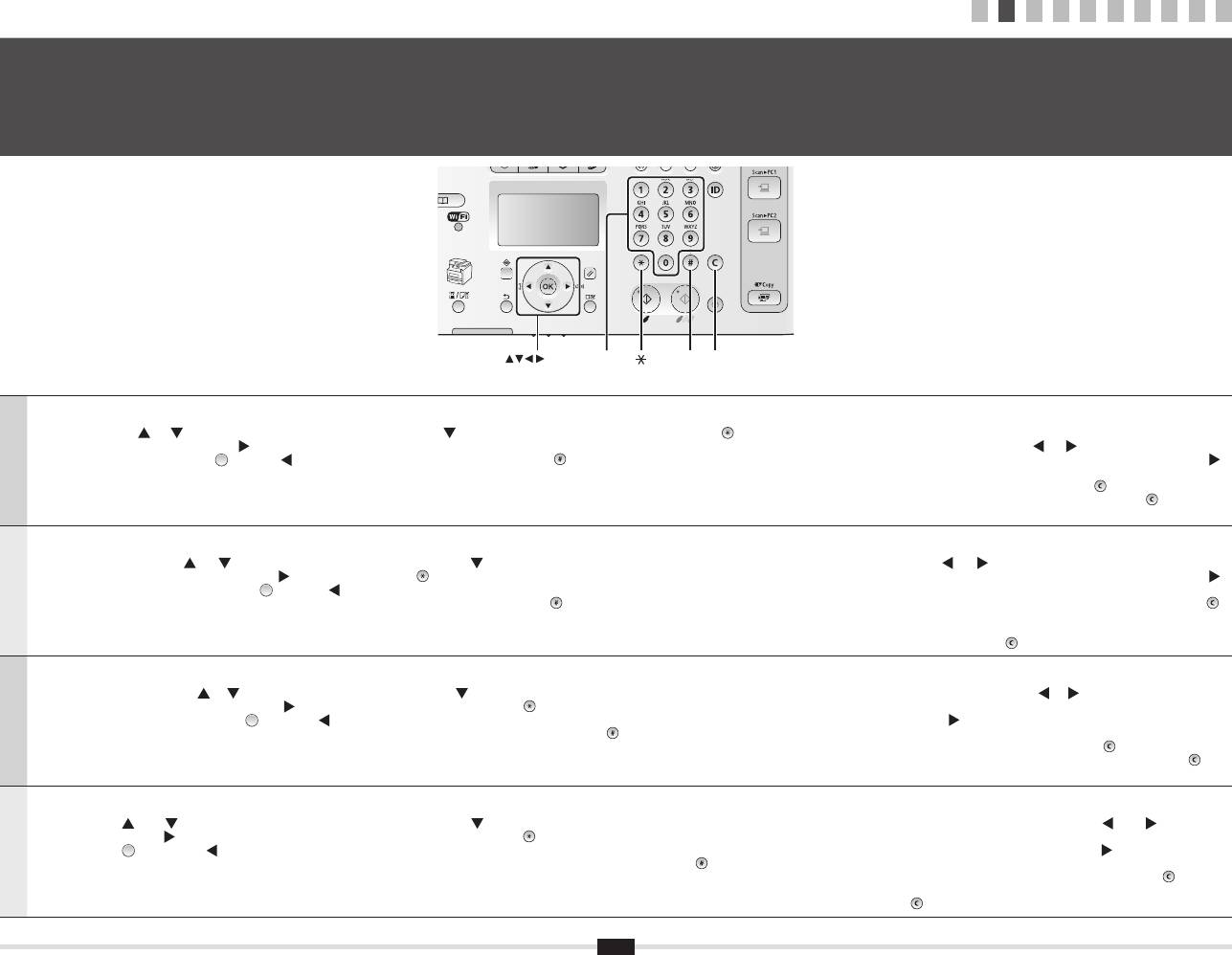
OK
Numeric
# C
keys
Navigating the Menu
Text Input Method
▪ Item selection or moving the cursor among the menu items
▪ Changing the entry mode
Select an item with [
] or [ ].
Press [
] to select <Entry Mode>, and press [OK]. You can also press [ ] (Tone) to change the entry mode.
▪ Moving the cursor (entering a space)
Proceed to the next hierarchy with [OK] or [
].
▪ Entering text, symbols, and numbers
Move the cursor by pressing [
] or [ ].
Return to the previous hierarchy with [
] (Back) or [ ].
Enter using the numeric keys or [
] (Symbols).
To enter a space, move the cursor to the end of the text, and then press [ ].
▪ Setting conrmation
For details on the switchable mode or the available text, see the next page.
▪ Deleting text, symbols, or numbers
English
Press [OK]. However, when <Apply> appears on the screen, select <Apply>,
To delete text, numbers, or symbols, press [
] (Clear).
and then press [OK].
To delete all text, numbers, or symbols, press and hold [ ] (Clear).
Navigation dans le menu
Méthode de saisie du texte
▪ Sélection d'éléments ou déplacement du curseur dans les éléments de menu
▪ Changement de mode de saisie
▪ Déplacement du curseur (ajout d'un espace)
Sélectionner un élément avec [
] ou [ ].
Appuyer sur [
] pour sélectionner <Mode de saisie>, puis appuyer sur [OK]. Vous pouvez également utiliser
Utiliser [
] ou [ ] pour déplacer le curseur.
Passer au niveau hiérarchique suivant avec [OK] ou [
].
[
] (Tonalité) pour changer de mode de saisie.
Pour entrer un espace, placer le curseur à la n du texte et appuyer sur [ ].
Revenir au niveau hiérarchique précédent avec [
] (Préc.) ou [ ].
▪ Saisie de texte, de symboles et de chiffres
▪ Suppression de texte, de symboles ou de nombres
▪ Conrmation du paramétrage
Utiliser le clavier numérique ou [
] (SYMBOLES).
Pour supprimer du texte, des symboles ou des nombres, appuyer sur [
]
Français
Appuyer sur [OK]. Lorsque le message <Appliquer> s'afche, sélectionner
Pour en savoir plus sur les modes ou le texte disponible, reportez-vous à la page suivante.
(Effacement).
<Appliquer>, puis appuyer sur [OK].
Pour supprimer l'ensemble de texte, des symboles ou des nombres,
appuyer sur la touche [ ] (Effacement) et la maintenir enfoncée.
Navigazione dei menu
Metodo d'immissione del testo
▪ Selezione di una voce o spostamento del cursore sulle voci dei menu
▪ Cambio della modalità d'immissione
▪ Spostamento del cursore (immissione di uno spazio)
Selezionare una voce utilizzando [
] e [ ].
Premere [
] per selezionare <Modo immissione> e premere [OK]. Per cambiare il modo d'immissione è
Spostare il cursore premendo [
] o [ ].
Procedere al livello gerarchico successivo con [OK] o [
].
anche possibile premere [
] (Tono).
Per inserire uno spazio, spostare il cursore alla ne del testo, quindi
Tornare al livello gerarchico precedente con [
] (Indietro) o [ ].
▪ Immissione di testo, simboli e numeri
premere [ ].
Italiano
▪ Conferma delle impostazioni
Immettere utilizzando i tasti numerici oppure [
] (Simboli).
▪ Cancellazione di testo, simboli o numeri
Premere [OK]. Tuttavia, quando sullo schermo appare <Applica>, selezionare
Per i dettagli relativi al modo selezionabile o al testo disponibile, vedere la pagina successiva.
Cancellare testo, numeri o simboli premendo [
] (Azzera).
<Applica>, quindi premere [OK].
Cancellare tutto il testo, tutti i numeri o i simboli tenendo premuto [ ]
(Azzera).
Navigieren durch das Menü
Texteingabemethode
▪ Elementauswahl oder Versetzen des Cursors zwischen den Menüelementen
▪ Ändern des Eingabemodus
▪ Versetzen des Cursors (Eingeben eines Leerzeichens)
Wählen Sie mit [
] oder [ ] ein Element aus.
Drücken Sie [
], um <Eingabemodus> auszuwählen, und drücken Sie [OK]. Sie können den Eingabemodus
Bewegen Sie den Cursor durch Drücken von [
] oder [ ].
Fahren Sie mit [OK] oder [
] mit der nächsten Hierarchie fort.
auch durch Drücken von [
] (Ton) ändern.
Wenn Sie ein Leerzeichen eingeben möchten, bewegen Sie den Cursor an
Kehren Sie mit [
] (Zurück) oder [ ] zur vorherigen Hierarchie zurück.
▪ Eingeben von Text, Symbolen und Zahlen
das Ende des Textes, und drücken Sie dann [ ].
▪ Bestätigung der Einstellung
Nehmen Sie die Eingabe über die numerischen Tasten oder über [
] (Symbole) vor.
▪ Löschen von Text, Symbolen oder Zahlen
Deutsch
Drücken Sie [OK]. Doch wenn die Meldung <Anwenden> auf dem Bildschirm
Nähere Informationen zur Modusänderung oder zum verfügbaren Text nden Sie auf der nächsten Seite.
Zum Löschen von Text, Zahlen oder Symbolen drücken Sie [
] (Löschen).
angezeigt wird, wählen Sie <Anwenden> aus, und drücken Sie dann [OK].
Zum Löschen von sämtlichem Text, allen Zahlen oder Symbolen halten Sie
[ ] (Löschen) gedrückt.
3
1 2 3 4 5 6 7 8 9
10
Connecting the Power Cord and Turning ON the Power
Branchement du cordon d'alimentation et allumage de la machine
3
Collegamento del cavo di alimentazione e accensione della macchina
Anschließen des Netzkabels und Einschalten des Geräts
English Français
Italiano Deutsch
English
Italiano
(1)
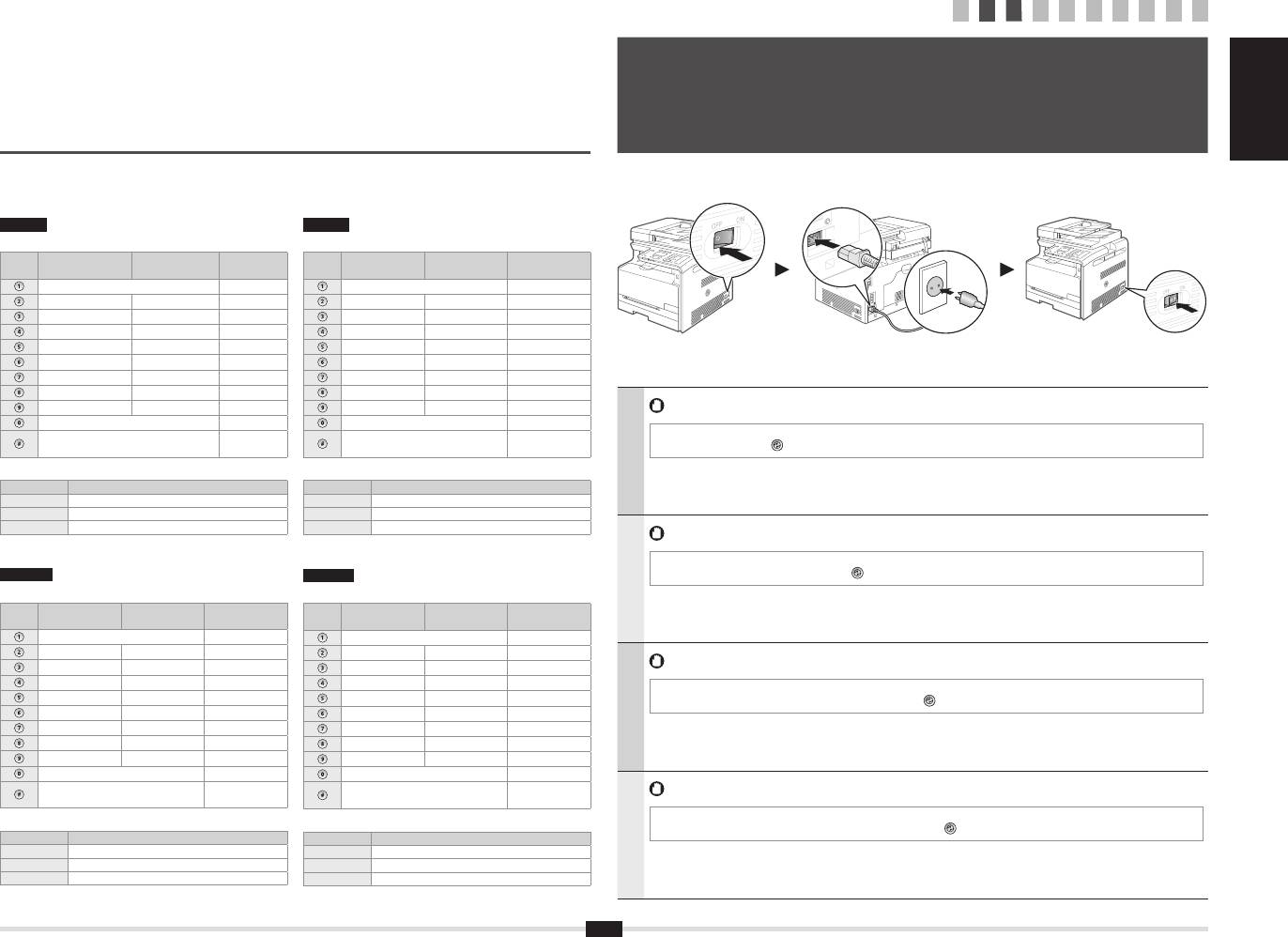
Entering text, symbols, and numbers
Immissione di testo, simboli e numeri
Entry mode:
Modo
Modo
Modo
Key Entry mode: <A> Entry mode: <a>
Tasto
<12>
d'immissione: <A>
d'immissione: <a>
d'immissione: <12>
(2)
@ . - _ / 1
@ . - _ / 1
ABC abc 2
AÀBC aàbc 2
DEF def 3
DEÈF deèf 3
GHI ghi 4
GHIÌ ghiì 4
JKL jkl 5
JKL jkl 5
MNO mno 6
MNOÒ mnoò 6
PQRS pqrs 7
PQRS pqrs 7
TUV tuv 8
TUÙV tuùv 8
WXYZ wxyz 9
WXYZ wxyz 9
Do not connect the USB cable. Connect the USB cable when installing the software.
(Not available) 0
(Non disponibile) 0
(space) @ . / - _ ! ? & $ % # ( ) [ ]
(spazio) @ . / - _ ! ? & $ % # ( ) [ ]
The machine enters the Sleep mode to conserve energy when no operations are performed for a certain period of time. To cancel
~
(Not available)
{ } < > * + = " , ; : ' ^ ` | \
{ } < > * + = " , ; : ' ^ ` | \
~
(Non disponibile)
the Sleep mode, press the [
] (Energy Saver) key on the operation panel.
Changing the entry mode
Cambio della modalità d’immissione
English
Entry mode Available text
Modo d'immissione
Testo disponibile
<A> Alphabet (capital letters) and symbols
<A> Alfabeto (lettere maiuscole) e simboli
<a> Alphabet (small letters) and symbols
<a> Alfabeto (lettere minuscole) e simboli
<12> Numbers
<12> Numeri
Ne branchez pas le câble USB. Vous le connecterez lors de l'installation du logiciel.
La machine passe en mode Veille pour économiser de l'énergie en l'absence d'activité pendant un certain laps de temps. Pour
Français
Deutsch
annuler le mode Veille, appuyez sur la touche [
] (Economie d'énergie) du panneau de commande.
Saisie de texte, de symboles et de chiffres
Eingeben von Text, Symbolen und Zahlen
Français
Touche
Mode de saisie:
Mode de saisie:
Mode de saisie:
Eingabemodus:
Eingabemodus:
Eingabemodus:
<A>
<a>
<12>
Taste
<A>
<a>
<12>
@ . - _ / 1
@ . - _ / 1
AÀÂBCÇ aàâbcç 2
AÄBC aäbc 2
DEËÉÈÊF deëéèêf 3
DEF def 3
Non collegare il cavo USB. Collegare il cavo USB quando si installa il software.
GHIÏÎ ghiïî 4
GHI ghi 4
La macchina entra in Modo riposo per risparmiare energia quando non viene eseguita alcuna operazione per un determinato
JKL jkl 5
JKL jkl 5
periodo di tempo. Per annullare il Modo riposo, premere il tasto [
] (Risparmio energetico) sul pannello di controllo.
MNOÔ mnoô 6
MNOÖ mnoö 6
PQRS pqrs 7
PQRSß pqrs 7
Italiano
TUÜÙÛV tuüùûv 8
TUÜV tuüv 8
WXYZ wxyz 9
WXYZ wxyz 9
(Non disponible) 0
(nicht verfügbar) 0
(Espace) @ . / - _ ! ? & $ % # ( ) [ ]
~
(Non disponible)
(Leerzeichen) @ . / - _ ! ? & $ % # ( ) [ ]
Schließen Sie nicht das USB-Kabel an. Schließen Sie das USB-Kabel bei der Installation der Software an.
{ } < > * + = " , ; : ' ^ ` | \
{ } < > * + = " , ; : ' ^ ` | \
~
(nicht verfügbar)
Modication du mode de saisie
Ändern des Eingabemodus
Wenn eine bestimmte Zeit lang kein Vorgang ausgeführt wird, wird das Gerät zur Einsparung von Energie in den Schlafmodus
geschaltet. Zum Abbrechen des Schlafmodus drücken Sie die Taste [
] (Stromsparmodus) auf dem Bedienfeld.
Mode de saisie
Texte disponible
Eingabemodus
Verfügbarer Text
<A> Lettres (majuscules) et symboles
<A> Alphabet (Großbuchstaben) und Symbole
Deutsch
<a> Lettres (minuscules) et symboles
<a> Alphabet (Kleinbuchstaben) und Symbole
<12> Chiffres
<12> Zahlen
4
Specifying the Initial Settings
Setting the Paper Size and Type
Spécication des paramètres initiaux
Réglage du format et du type de papier
4
Selezione delle impostazioni iniziali
5
Impostazione di un formato e di un tipo di carta
Angeben der Anfangseinstellungen
Einstellen eines Papierformats und Papiertyps
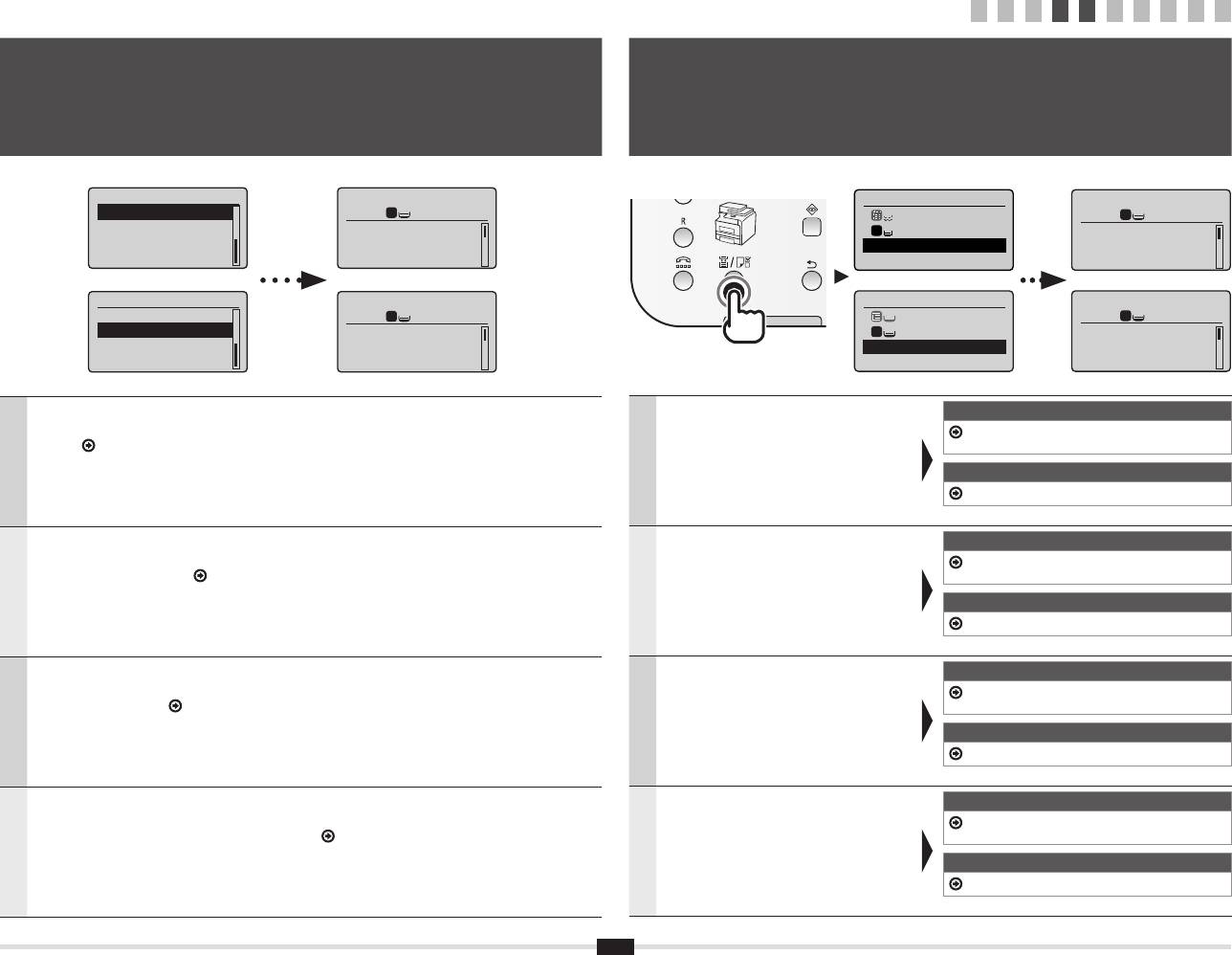
Language
Copy: Press Start
Copy: Press Start
English
100% A4
1
1
100% A4
French
Density: 0
+
-
Density: 0
Spanish
Original Type: Text
...
Original Type: Text
...
German
Copy Ratio: 100% 1:1
Copie: tche Copie
100% A4
1
1
Densité: 0
+
-
Type d'original: Te
...
Taux repro.: 100% 1
...
Follow the instructions on the screen, set the
Follow the instructions on the screen, set the language and time.
MF8080Cw
paper size and type.
For details on navigating the menu and how to input the numbers, see 2 "Navigating the Menu and Text Input
6 "Specifying Initial Settings for the Fax Functions and
After completing the setting, specify the following
Method" (
P.3).
Connecting the Telephone Cable" (P6)
settings.
MF8040Cn
English
English
9 "Installing the Driver/Software" (P10)
Suivez les instructions à l'écran pour dénir le
Suivez les instructions à l'écran pour dénir la langue et l'heure.
MF8080Cw
format et le type de papier.
Pour en savoir plus sur la navigation dans le menu et la saisie des nombres, voir 2 "Navigation dans le menu
6 "Spécication des paramètres de fax initiaux et
Une fois le paramétrage effectué, spéciez les
et méthode de saisie de texte" (
P.3).
connexion du câble téléphonique" (P6)
paramètres suivants.
MF8040Cn
Français
Français
9 "Installation du pilote/logiciel" (P10)
Seguire le istruzioni visualizzate per impostare il
Seguire le istruzioni visualizzate per impostare la lingua e l'orario.
MF8080Cw
formato e il tipo di carta.
Per i dettagli sulla navigazione del menu e su come immettere i numeri, vedere 2 "Navigazione del menu e
6 "Impostazioni iniziali del fax e collegamento del cavo
Dopo aver completato l'impostazione,
metodo di input del testo" (
Pag.3).
telefonico" (Pag6)
selezionare le impostazioni seguenti.
Italiano
Italiano
MF8040Cn
9 "Installazione di driver/software" (Pag10)
Folgen Sie den Anweisungen auf dem
Folgen Sie den Anweisungen auf dem Bildschirm, und stellen Sie die Sprache und die Uhrzeit ein.
MF8080Cw
Bildschirm, und stellen Sie das Papierformat und
Nähere Informationen zum Navigieren durch das Menü und zur Eingabe der Zahlen nden Sie unter 2
den Papiertyp ein.
6 "Angeben der Anfangseinstellungen für die
"Navigieren durch das Menü und Texteingabemethode" (
S.3).
Faxfunktionen und Anschließen des Telefonkabels" (S6)
Wenn Sie die Einstellung abgeschlossen haben,
geben Sie die folgenden Einstellungen an.
MF8040Cn
Deutsch
Deutsch
9 "Installieren des Treibers bzw der Software" (S10)
5
Copy Ratio: 100% 1:1
1 2 3 4 5 6 7 8 9
10
Select Paper
MP Tray
1
1
A4:Plain 2
1
+
-
Paper Settings
Language
Choisir le papier
Copie: tche Copie
English
Bac multifonct.
100% A4
1
1
French
A4:Ordinaire 2
1
Densité: 0
+
-
Spanish
Réglages du papier
Type d'original: Te
...
German
Taux repro.: 100% 1
...
English Français
Italiano Deutsch
Connect phone line.
Configurer le fax ?
Maintenant
Plus tard
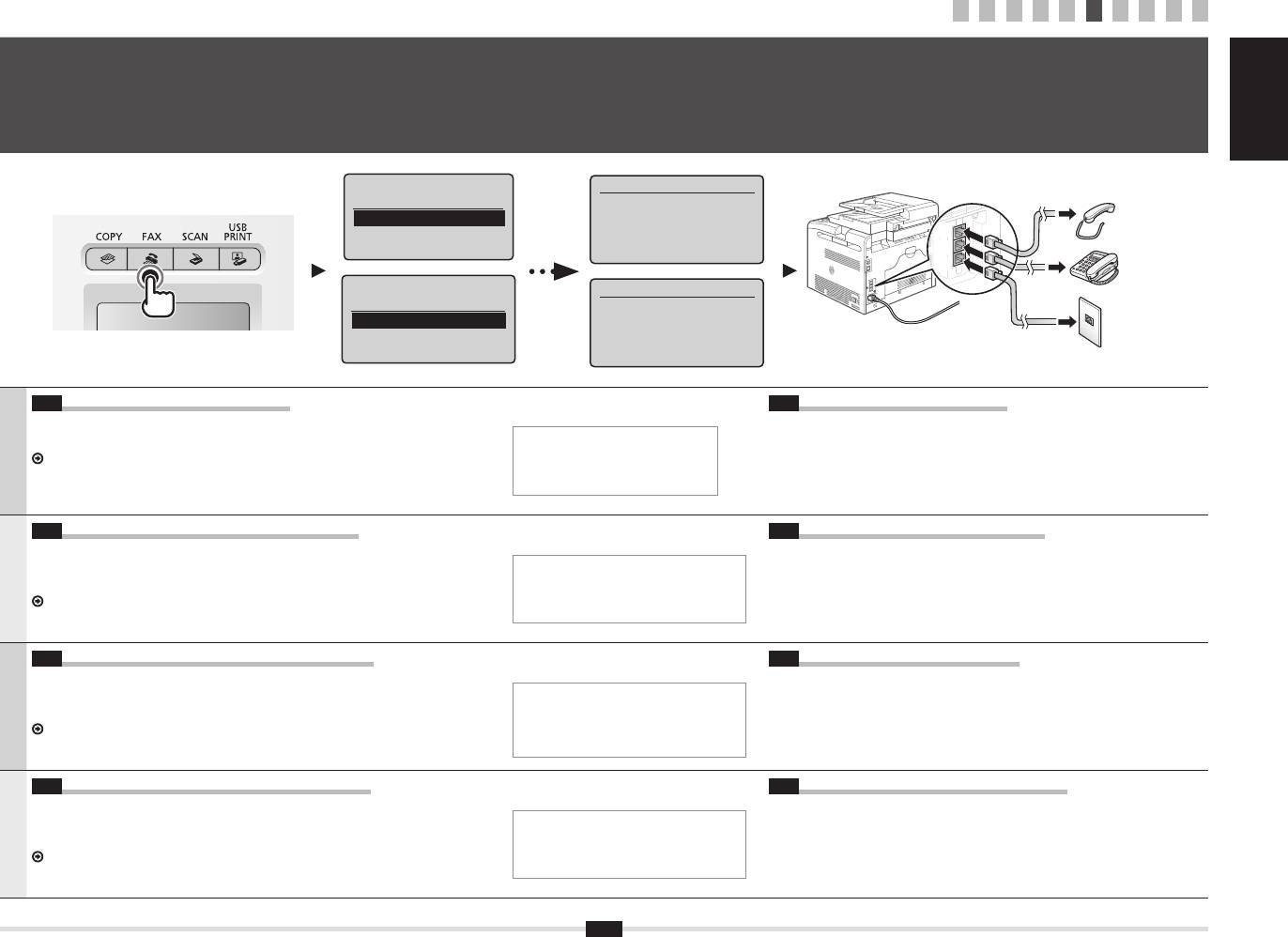
6-1 Specify the initial fax settings
6-2 Connect the telephone line
Follow the "Fax Setup Guide" to specify a fax number, a unit name, and a receive mode.
When <Connect phone line> appears on the display, connect the telephone line by
What happens with the unit name
For more details on the receive mode, see the e-Manual.
referring to the illustration.
e-Manual -> "Fax" -> "Using the Fax Functions" -> "Receiving Faxes" -> "RX Mode."
Once the information has been
English
registered, it is printed at the top of
When installing the optional handset
each page that you are sending.
For more details, see the supplied manual with the handset.
6-1 Spéciez les paramètres de fax initiaux
6-2 Raccordez la ligne téléphonique
Suivez les instructions du manuel "Guide de conguration du fax" pour spécier un numéro de
Lorsque l'afcheur indique <Connecter ligne tél.>, branchez le câble téléphonique en
fax, un nom d'unité et un mode de réception.
Traitement du nom d'unité
vous reportant à l'illustration.
Pour en savoir plus sur le mode de réception, reportez-vous au manuel électronique.
Une fois les informations enregistrées, elles
Lors de l'installation du combiné en option
Français
Manuel électronique -> "Fax" -> "Utilisation des fonctions fax" -> "Réception de fax" ->
sont imprimées en haut de chaque page que
"Mode RX".
vous envoyez.
Pour en savoir plus, reportez-vous au manuel fourni avec le combiné.
6-1 Specicare le impostazioni iniziali del fax
6-2 Collegare un cavo telefonico
Attenersi alle istruzioni della "Guida congurazione fax" per specicare il numero del fax, il
Alla visualizzazione del messaggio <Collegare linea telefonica> sul display, collegare il
nome dell'unità e la modalità di ricezione.
Operazioni eseguite con il nome dell'unità
cavo del telefono facendo riferimento all'illustrazione.
Per ulteriori dettagli sulla modalità di ricezione, consultare l'e-Manual.
Una volta registrate le informazioni, queste
Italiano
Quando si installa il ricevitore opzionale
e-Manual -> "Fax" -> "Utilizzo delle funzioni fax" -> "Ricezione di fax" -> "Modo RX".
vengono stampate nella parte superiore di
ogni pagina che si sta inviando.
Per ulteriori dettagli consultare il manuale fornito a corredo con il ricevitore.
6-1 eben Sie die Anfangsfaxeinstellungen an
6-2 Schließen Sie die Telefonleitung an
Folgen Sie den Anweisungen im "Fax Setup Handbuch", um eine Faxnummer, den Namen
Wenn <Telefonleitung anschl.> auf dem Display angezeigt wird, schließen Sie die
einer Einheit und einen Empfangsmodus anzugeben.
Verwendung des Namens der Einheit
Telefonleitung an, wie in der Abbildung dargestellt.
Weitere Informationen zum Empfangsmodus nden Sie in der e-Anleitung.
Nachdem die Informationen gespeichert
Deutsch
wurden, werden sie auf jeder von Ihnen
Wenn Sie den optionalen Hörer installieren
e-Anleitung -> "Fax" -> "Verwenden der Faxfunktion" -> "Empfangen von Faxen" ->
"Empfangsmodus".
gesendeten Seite oben gedruckt.
Nähere Informationen nden Sie in dem mit dem Hörer gelieferten Handbuch.
6
Follow illustrations
1 2 3 4 5 6 7 8 9
10
(MF8080Cw Only)
Specifying Initial Settings for the Fax Functions and Connecting the Telephone Cable
Spécication des paramètres de fax initiaux et connexion du câble téléphonique
6
Impostazioni iniziali del fax e collegamento del cavo telefonico
Angeben der Anfangseinstellungen für die Faxfunktionen und Anschließen des Telefonkabels
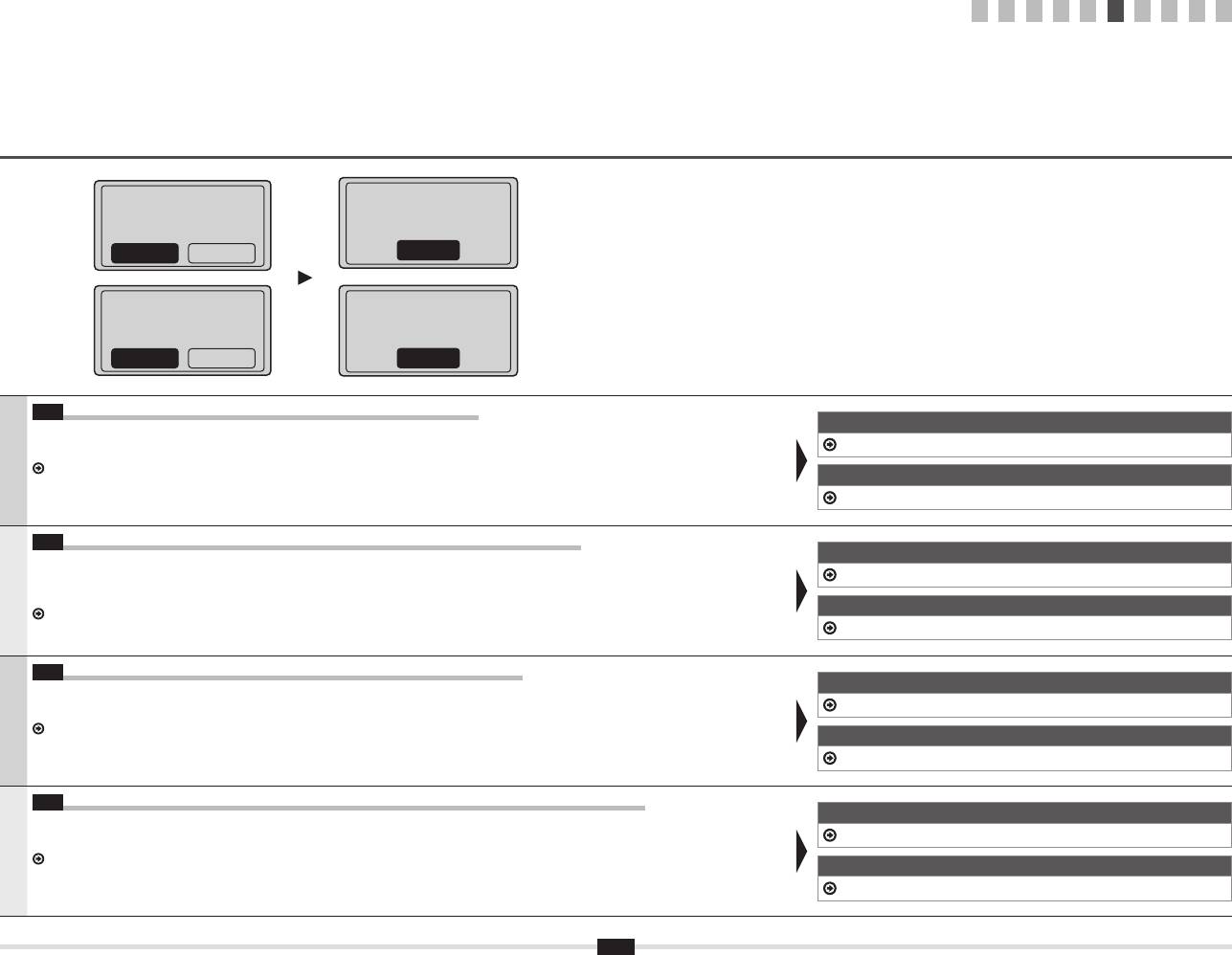
Perform Fax Setup?
Handset
Set up Now
on the next screen:
(optional)
Set up Later
(C)
Connect line to A.
(B)
*Next : Press OK
(A)
Telephone
Connecter ligne tél.
Suivre instructions
Telephone line
à l'écran suivant :
connector
Connecter ligne à A.
*Suivant: App sur OK
1 2 3 4 5 6 7 8 9
10
End Fax Setup
Turn the main power
Guide?
OFF and ON to apply
settings.
NoYes
OK
Terminer guide
Mettre la machine
d'installation fax ?
hors/ss tension pour
appliquer réglages.
NonOui
OK
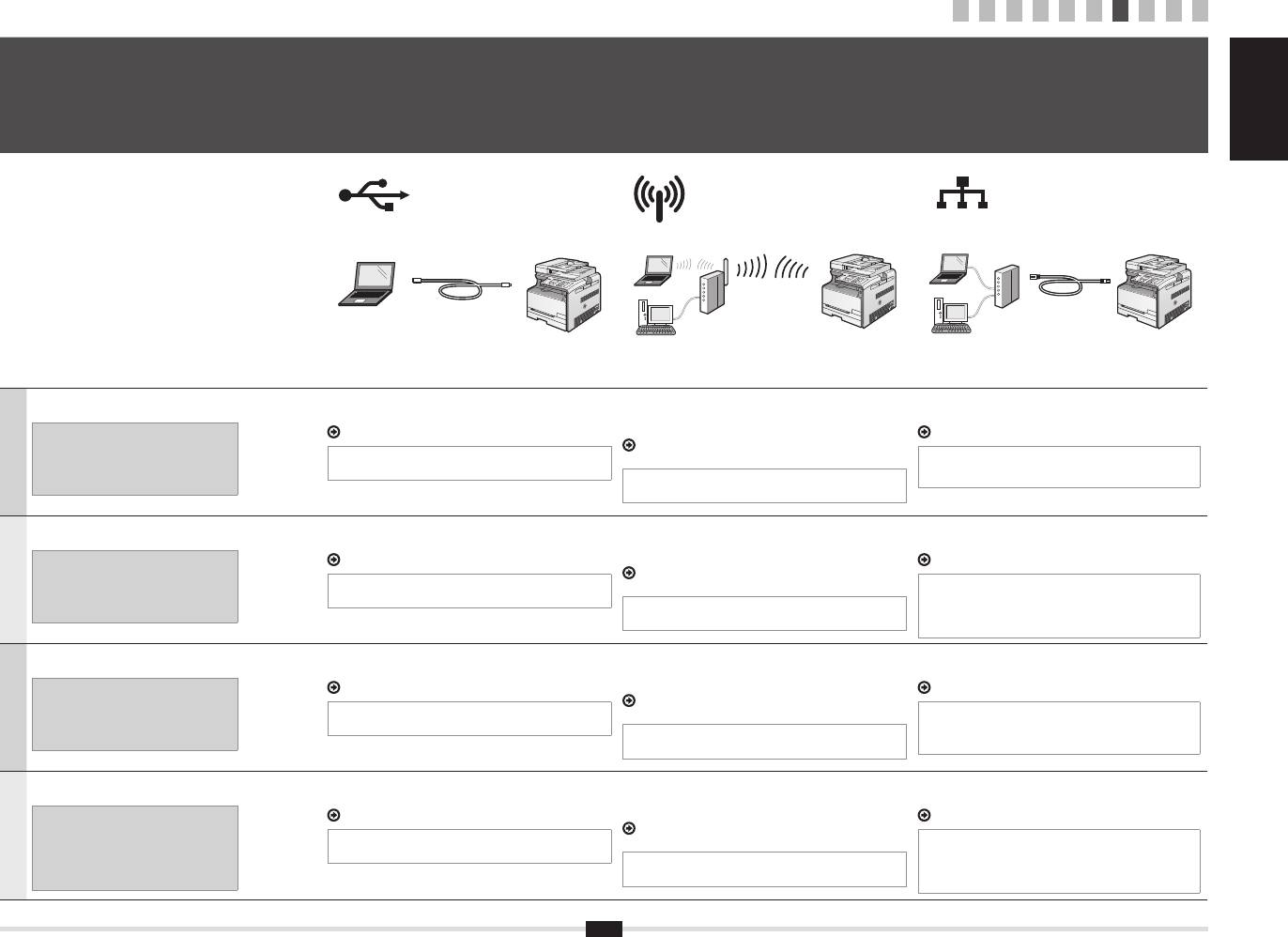
6-3 Exit the Fax Setup Guide, and then restart the machine
For Network Connection
Turn OFF the machine, wait for at least 10 seconds, and then it back ON.
8 "Connecting to Wired LAN" (P9)
The telephone line types are not detected automatically. See the e-Manual and set a telephone line manually.
e-Manual -> "Fax" -> "Using the Fax Functions" -> "Changing Fax Settings (Settings that Can Be Specied Using the [Menu] Button)" ->
English
For USB Connection
"Conguring Send Settings" -> "Select Line Type."
9 “Installing the Driver/Software” (P10)
6-3 Quittez le Guide de conguration du fax, puis redémarrez la machine
Pour la connexion réseau
Mettez la machine hors tension, puis attendez au moins 10 secondes avant de la remettre sous tension.
8 "Connexion au réseau sans l" (P9)
Les types de ligne téléphonique ne sont pas détectés automatiquement. Reportez-vous au manuel électronique et congurez manuellement la ligne
téléphonique.
Français
Avec une connexion USB
Manuel électronique -> "Fax" -> "Utilisation des fonctions de fax" -> "Modication des réglages de fax (Eléments pouvant être spéciés avec le
bouton [Menu])" -> "Conguration des réglages d'envoi" -> "Choix du type de ligne".
9 "Installation du pilote/logiciel" (P10)
6-3 Chiudere la Guida congurazione fax e riavviare la macchina
Per il collegamento di rete
Spegnere la macchina, attendere almeno 10 secondi e quindi riaccenderla.
8 "Collegamento alla LAN cablata" (Pag9)
Le tipologie di linea telefonica non vengono riconosciute automaticamente. Consultare l'e-Manual e impostare manualmente una linea telefonica.
e-Manual -> "Fax" -> "Utilizzo delle funzioni fax" -> "Modica delle impostazioni fax (impostazioni selezionabili utilizzando il pulsante [Menu])" ->
Italiano
Per il collegamento USB
"Congurazione delle impostazioni di invio" -> "Selezione tipo linea".
9 "Installazione di driver/software" (Pag10)
6-3 Beenden Sie das Fax Setup Handbuch, und starten Sie das Gerät dann erneut
Für Netzwerkverbindung
Schalten Sie das Gerät aus, warten Sie mindestens 10 Sekunden, und schalten Sie es dann wieder ein.
8 "Herstellen einer Verbindung zu einem Wired LAN" (S9)
Die Telefonleitungstypen werden nicht automatisch erkannt. Lesen Sie in der e-Anleitung nach, und legen Sie die Telefonleitung manuell fest.
e-Anleitung -> "Fax" -> "Verwenden der Faxfunktionen" -> "Ändern der Faxeinstellungen (Einstellungen, die über die Schaltäche [Menü]
Deutsch
Für USB-Verbindung
angegeben werden können)" -> "Kongurieren von Sendeeinstellungen" -> "Leitungstyp wählen".
9 "Installieren des Treibers bzw der Software" (S10)
7
1 2 3 4 5 6 7 8 9
10
Selecting a Method for Connecting to the Machine
Sélection de la méthode de connexion à la machine
7
Selezione del metodo di collegamento della macchina
Auswählen der Methode für das Herstellen einer Verbindung zum Gerät
English Français
Italiano Deutsch
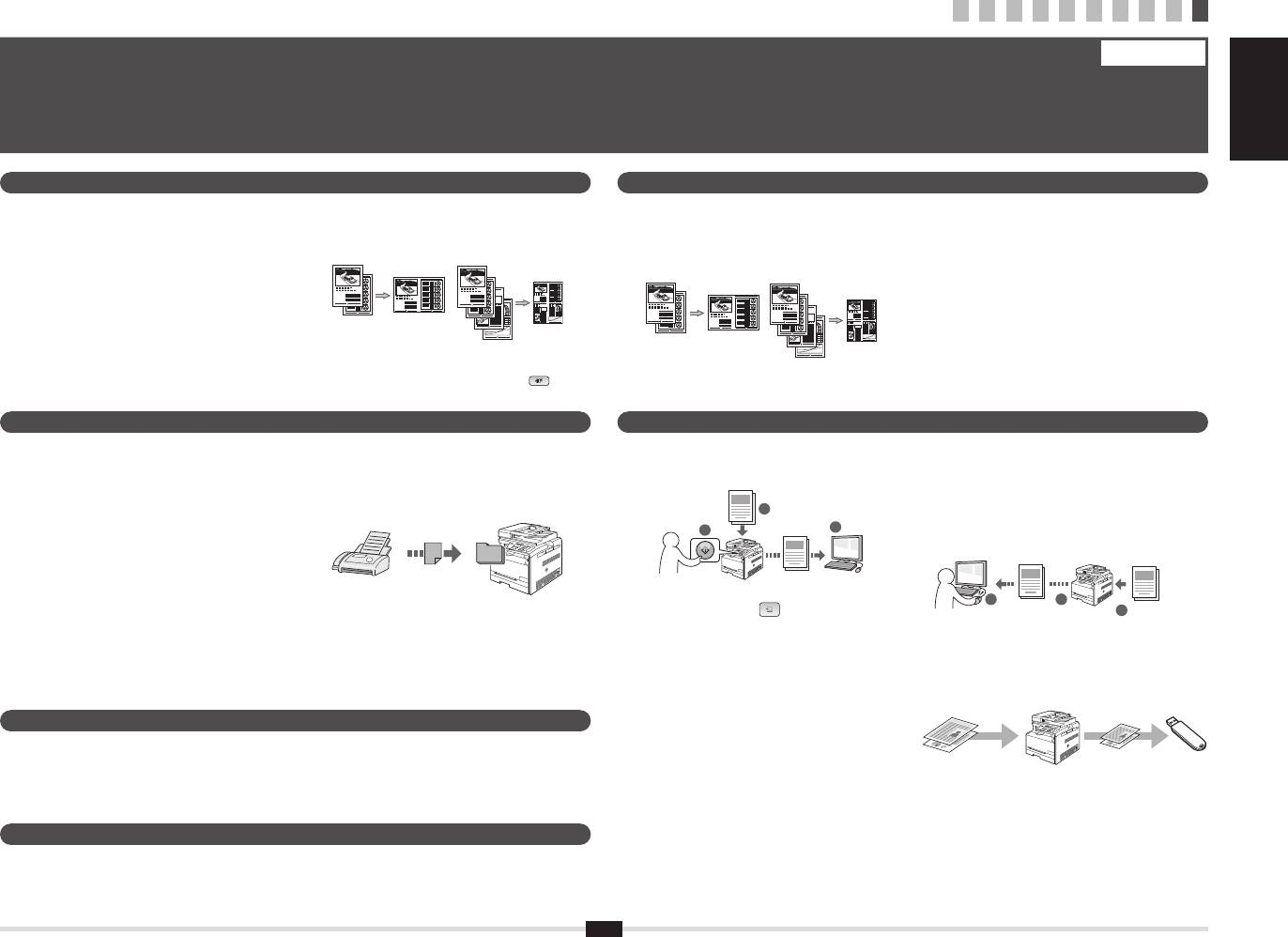
Select from the following three methods, depending on your
Connecting via a USB Cable
Wireless LAN (MF8080Cw Only)
Wired LAN
environment and devices.
Connect them using a USB cable.
Connect using wireless communication (radio frequency) without
Connect them using a LAN cable.
If you are not sure whether the router or
9 "Installing the Driver/Software" (P10)
using a cable.
8 "Connecting to Wired LAN" (P9)
access point you are using supports wireless
Connecting to Wireless LAN: Refer to the separate manual
LAN or wired LAN, see the instruction manual
* The machine does not come with a USB cable.
"Wireless LAN Setting Guide"
* Check to make sure that there is a free port for connecting the
English
provided with the network device you are
Have cables ready as needed.
machine or the computer you use to the router or hub.
* A wireless LAN or access point that supports IEEE802.11 (b/g
* Use a Category 5 or higher twisted pair cable for the LAN.
using, or contact the manufacturer.
or n) is required.
Sélectionnez l'une trois des méthodes suivantes, en fonction de
Connexion par câble USB
Réseau sans l (MF8080Cw uniquement)
Réseau laire
votre environnement et de vos périphériques.
Branchez-les avec un câble USB.
Connectez-vous par communication sans l (fréquence radio) sans
Connectez-vous avec un câble réseau (LAN).
Si vous ne savez pas si le routeur ou point
9 "Installation du pilote/logiciel" (P10)
utiliser de câble.
8 "Connexion au réseau sans l" (P9)
d'accès que vous utilisez prend en charge le
Connexion au réseau sans l : Reportez-vous au manuel
réseau sans l ou le réseau laire, consultez
* La machine est livrée sans câble USB.
spécique "Guide des paramètres du réseau sans l"
* Assurez-vous qu'il existe un port libre où connecter la
Français
le manuel d'instructions fourni avec votre
Procurez-vous les câbles nécessaires.
machine ou l'ordinateur que vous utilisez sur le routeur ou le
* Vous devez utiliser un réseau sans l ou un point d'accès
concentrateur.
périphérique réseau ou contactez le fabricant.
prenant en charge IEEE802.11 (b/g ou n).
* Utilisez un câble réseau (LAN) à paires torsadées CAT5 ou
supérieur.
Selezionare uno dei tre metodi seguenti in base all'ambiente
Collegamento tramite cavo USB
LAN wireless (solo MF8080Cw)
LAN cablata
operativo e ai dispositivi presenti.
Collegare utilizzando un cavo USB.
Collegare utilizzando la comunicazione wireless (frequenza radio)
Collegare utilizzando un cavo di rete LAN.
Se non si conosce il supporto per una rete
9 "Installazione di driver/software" (Pag10)
senza utilizzare un cavo.
8 "Collegamento alla LAN cablata" (Pag9)
LAN wireless o cablata del router o dell'Access
Collegamento a una LAN wireless: fare riferimento al
Point utilizzato, consultare il manuale delle
* Insieme alla macchina non viene fornito un cavo USB.
manuale separato "Guida alla congurazione LAN wireless"
* Veri care che vi sia una porta disponibile per collegare la
Italiano
istruzioni fornito a corredo con il dispositivo di
I cavi devono essere già disponibili e pronti.
macchina o il computer utilizzato al router o all'hub.
* È richiesta una LAN wireless o un Access Point che supporti lo
* Utilizzare un cavo a coppie ritorte di categoria 5 o superiore
rete utilizzato o rivolgersi al produttore.
standard IEEE802.11 (b/g oppure n).
per la rete LAN.
Wählen Sie abhängig von Ihrer Umgebung und Ihren Geräten eine
Herstellen einer Verbindung über ein USB-Kabel
Wireless LAN (nur MF8080Cw)
Wired LAN
der folgenden drei Methoden aus.
Stellen Sie die Verbindung über ein USB-Kabel her.
Stellen Sie die Verbindung über eine drahtlose Kommunikation
Stellen Sie die Verbindung über ein LAN-Kabel her.
Wenn Sie sich nicht sicher sind, ob der von
9 "Installieren des Treibers bzw der Software" (S10)
(Funkfrequenz) ohne Verwendung eines Kabels her.
8 "Herstellen einer Verbindung zu einem Wired LAN" (S9)
Ihnen verwendete Router oder Access Point
Herstellen einer Verbindung zu einem Wireless LAN: Siehe
Wireless LAN oder Wired LAN unterstützt,
* Im Lieferumfang des Geräts bendet sich kein USB-Kabel.
separates Handbuch "Handbuch der WLAN-Einstellungen"
* Vergewissern Sie sich, dass ein freier Anschluss für den
Deutsch
lesen Sie in der Bedienungsanleitung des von
Halten Sie die Kabel bei Bedarf bereit.
Anschluss des von Ihnen verwendeten Geräts oder Computers
* Es ist ein Wireless LAN oder Access Point erforderlich, der
an den Router oder Hub vorhanden ist.
Ihnen verwendeten Netzwerkgeräts nach, oder
IEEE802.11 (b/g oder n) unterstützt.
* Verwenden Sie ein Kabel der Kategorie 5 oder höher mit
wenden Sie sich an den Hersteller.
verdrilltem Adernpaar für das LAN.
8

1 2 3 4 5 6 7 8 9
10
Connecting to Wired LAN
Connexion au réseau sans l
8
Collegamento alla LAN cablata
Herstellen einer Verbindung zu einem Wired LAN
Connect the LAN cable. The machine sets the IP address automatically. Wait approximately two minutes.
If you want to set the IP address manually, see the following items.
e-Manual -> "Network Settings" -> "Basic Network Settings" ->
"Setting the IP Address" -> "Setting the IPv4 Address" or "Setting the
IPv6 Address"
English
Connectez le câble réseau (LAN). La machine dénit automatiquement l'adresse IP. Attendez environ deux minutes.
Si vous souhaitez dénir manuellement l'adresse IP, voir les rubriques
suivantes.
Manuel électronique -> "Réglages réseau" -> "Réglages réseau de
base" -> "Réglage de l'adresse IP" -> "Dénition de l'adresse IPv4" ou
Français
"Dénition de l'adresse IPv6".
Collegare il cavo LAN. La macchina imposta l'indirizzo IP automaticamente. Attendere circa due minuti.
Per impostare manualmente l'indirizzo IP vedere le voci seguenti.
e-Manual -> "Impostazioni di rete" -> "Impostazioni di rete di base"
-> "Impostazione dell'indirizzo IP" -> "Impostazione dell'indirizzo IPv4" o
"Impostazione dell'indirizzo IPv6".
Italiano
Schließen Sie das LAN-Kabel an. Das Gerät legt die IP-Adresse automatisch fest. Warten Sie ca. 2 Minuten.
Wenn Sie die IP-Adresse manuell festlegen möchten, lesen Sie die
folgenden Punkte.
e-Anleitung -> "Netzwerkeinstellungen" -> "Grundlegende
Netzwerkeinstellungen" -> "Festlegen der IP-Adresse" -> "Festlegen der
Deutsch
IPv4-Adresse" oder "Festlegen der IPv6-Adresse".
9

1 2 3 4 5 6 7 8 9
10
Installing the Driver/Software
Installation du pilote/logiciel
9
Installazione di driver/software
Installieren des Treibers bzw. der Software
English Français
Italiano Deutsch
A
B
A
B
A
Install the driver and software using the User Software CD-ROM.
B
For details on the installation procedures, see the MF Driver Installation Guide.
English
A
Installez le pilote et le logiciel avec le CD-ROM "User Software CD-ROM".
B
Pour en savoir plus sur les procédures d'installation, voir le Guide d'installation des pilotes MF.
Français
A
Installare il driver e il software dall'User Software CD-ROM.
B
Per i dettagli relativi alle procedure d'installazione, consultare la Guida di Installazione del Driver MF.
Italiano
A
Installieren Sie den Treiber und die Software über die User Software CD-ROM.
B
Nähere Informationen zur Vorgehensweise bei der Installation nden Sie im Installationshandbuch zum MF-Treiber.
Deutsch
10

Copy Print
●
Enlarged/Reduced Copies
●
Reduced Layout
Enlarged/Reduced Printing
●
●
Poster Printing
You can enlarge or reduce standard size documents to
You can reduce multiple documents to copy them onto
Reduced Layout
●
●
Watermark Printing
copy on standard size paper or specify the copy ratio in
one sheet.
You can reduce multiple documents to print them onto
●
Displaying a Preview before Printing
percentage.
one sheet.
●
Selecting a "Prole"
Collating
●
2 on 1 4 on 1
You can sort copies into sets arranged in page order.
Copying ID Card
●
You can make a copy of a 2-sided card onto one side of
paper.
Fax (MF8080Cw Only) Scan
Sending a Document Directly from a Computer
●
Saving the Documents Using the Operation Panel
●
(PC Fax)
of the Machine
In addition to the normal sending and receiving faxes, you
can use the PC fax.
1
Documents
●
Sending
2
Data
3
You can register fax destinations in the address book.
You can specify the destinations using various methods,
enabling you to send documents quickly and easily.
▪ Destination search
▪ Favorites list
Scanning with the [ ] (Scan to PC1)/(Scan to
●
▪ Coded dialing
PC2) key
▪ Destination Group
You can simplify the procedure for selecting the
destination and making the scan settings by registering
▪ Specifying from the sending history
them in the keys on the operation panel.
▪ Sequential broadcast
Network Settings
This machine comes equipped with a network interface that you can construct a network environment easily. If you
use the MF8080Cw, you can connect to the network using the wireless LAN. Also you can print a document, use the
PC fax (MF8080Cw only), and use the network scan from all computers which are connected with the machine. The
machine supports to increase work efciency as a shared machine in the ofce.
Remote UI
You can understand the condition of the machine from the computers on the network.
You can access the machine and manage jobs or specify various settings via network.
11
2 on 1 4 on 1
1 2 3 4 5 6 7 8 9
10
Perform Useful Tasks
English
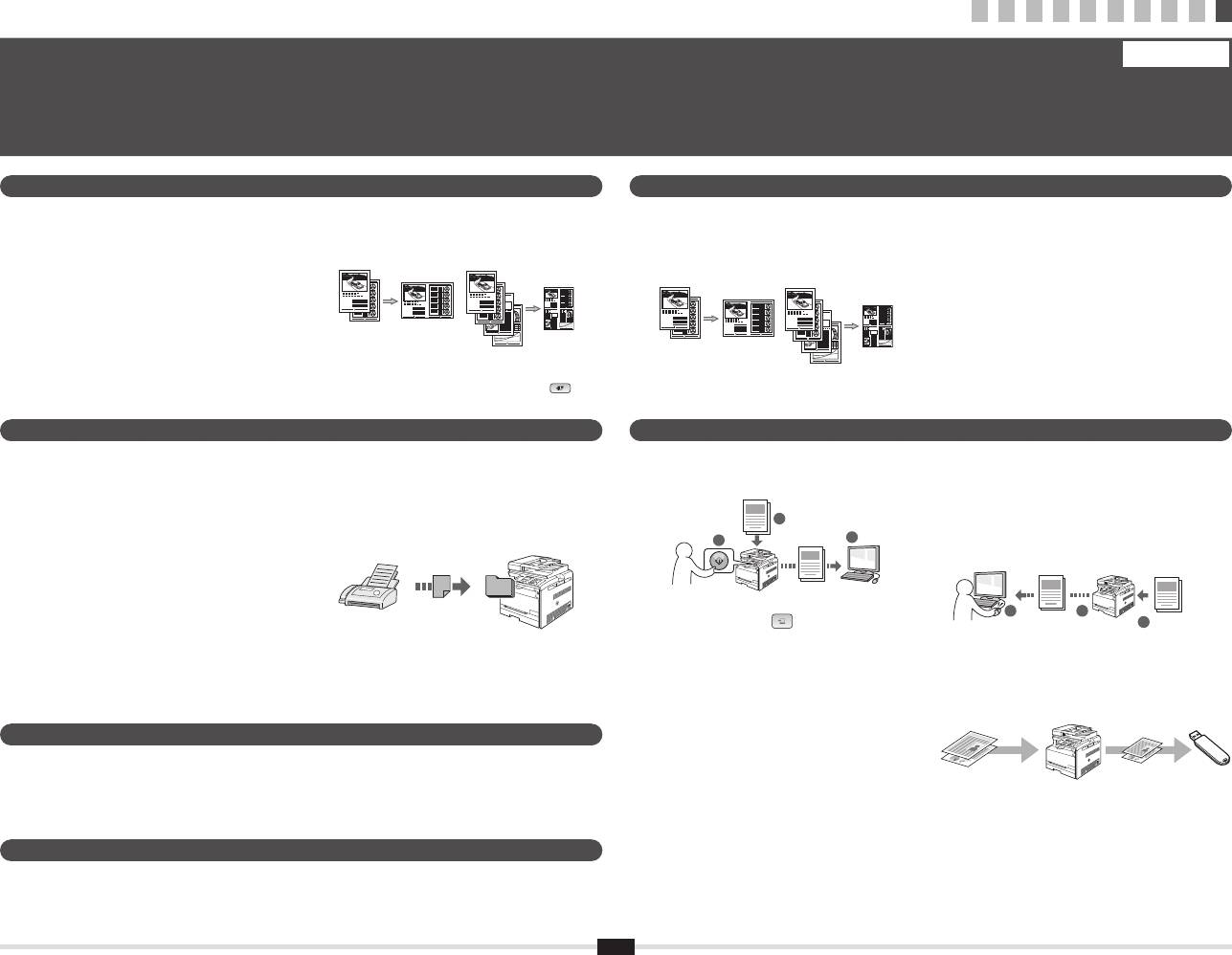
You can use various functions in this machine. Following functions are the overview of the main functions that you can use routinely.
For details on each function, see the e-Manual.
10
●
Paper Save Copy
You can choose the desired copy settings from the
options displayed when you select [
] (Paper Save
Copy) on the operation panel.
●
Receiving
●
Saving the Documents Using Operations from a
▪ Receiving in the memory
Computer
You can store the received documents in the memory.
▪ Scanning with the MF Toolbox
You can print the stored documents at any time or if
▪ Scanning from an Application
you do not need them, you can delete them.
▪ Scanning with the WIA Driver
(Windows XP/Vista/7 Only)
2 3
▪ Remote Receiving
Data
1
Documents
If an external telephone is connected, you can switch
to the fax receiving mode immediately by dialing the
●
Saving in a USB Memory
ID number for fax receiving using the dial buttons of
You can save scanned documents in a USB memory
the telephone during a phone call.
connected to the machine.
Documents
Data
1 2 3 4 5 6 7 8 9
10
Exécution de tâches utiles
Français
Vous pouvez utiliser les diverses fonctions de la machine. Voici les principales fonctions que vous utiliserez au quotidien.
Pour en savoir plus sur chaque fonction, voir le manuel électronique.
10
English Français
Italiano Deutsch
Copie Impression
Copie réduite/agrandie
●
●
Présentation réduite
Impression réduite/agrandie
●
●
Impression d'afche
Vous pouvez agrandir ou réduire les documents de
Vous pouvez réduire plusieurs document pour les copier
Présentation réduite
●
●
Impression avec ligrane
taille standard an de les copier sur du papier de format
tous sur une seule page.
standard, ou spécier un taux de reproduction en
Vous pouvez réduire plusieurs document pour les
●
Afchage d'un aperçu avant l'impression
pourcentage.
imprimer tous sur une seule page.
●
Sélection d'un "prol"
●
Tri séquentiel
2 sur 1 4 sur 1
Vous pouvez trier les copies par ensemble de pages,
dans l'ordre.
●
Copie d'une carte d'identité
Vous pouvez copier les deux faces d'une carte sur une
même face du papier.
Fax (MF8080Cw uniquement) Numérisation
●
Envoi d'un document directement depuis un
●
Enregistrement de documents avec le panneau de
●
Enregistrement de documents via des opérations
ordinateur (Fax PC)
commandes de la machine
réalisées depuis un ordinateur
Outre les modes normaux d'envoi et de réception de fax,
▪ Numérisation avec MF Toolbox
vous pouvez utiliser la fonction Fax PC.
▪ Numérisation depuis une application
1
Documents
▪ Numérisation avec le pilote WIA
Envoi
●
2
Données
3
(Windows XP/Vista/7 uniquement)
Vous pouvez enregistrer des destinataires de fax dans le
carnet d'adresses. Vous disposez de plusieurs méthodes
pour spécier les destinataires, ce qui vous permet
d'envoyer vos documents rapidement et facilement.
▪ Recherche de destinataires
2 3
Lecture avec la touche [ ] (LECT > PC1)/(LECT
●
Données
1
Documents
▪ Liste Favoris
> PC2)
▪ Composition codée
Vous pouvez simplier la procédure de sélection du
●
Enregistrement sur clé USB
▪ Groupe de destinataires
destinataire et dénir les paramètres de lecture en les
▪ Spécication depuis l'historique d'envoi
enregistrant dans les touches du panneau de commande.
Vous pouvez enregistrer les documents numérisés sur
une clé USB connectée à la machine.
▪ Multidiffusion
Réglages réseau
Cette machine est équipée d'une interface réseau qui vous permet de créer facilement un environnement réseau.
Si vous utilisez le modèle MF8080Cw, vous pouvez vous connecter au réseau par réseau sans l. Vous pouvez
Documents
Données
également imprimer un document, utiliser la fonction Fax PC (MF8080Cw uniquement) et utiliser la fonction de lecture
réseau sur tous les ordinateurs reliés à la machine. Utilisée en mode partagé au sein d'un bureau, cette machine
augmente votre productivité.
Interf dist
Vous pouvez connaître la condition de la machine à partir des ordinateurs du réseau.
Vous pouvez accéder à la machine sur le réseau an de gérer les tâches ou de spécier divers paramètres.
12
2 sur 1 4 sur 1
●
Copie en mode d'économie de papier
Vous pouvez choisir les paramètres de copie suivants à partir
des options à l'écran lorsque vous sélectionnez [
] (Copie
en mode d'économie de papier) sur le panneau de commande.
●
Receiving
▪ Réception en mémoire
Vous pouvez stocker les documents reçus dans la mémoire.
Vous pouvez imprimer les documents stockés à tout
moment ou les supprimer si vous n'en avez pas besoin.
▪ Réception à distance
Si un téléphone externe est connecté, vous pouvez
passer immédiatement en mode de réception de fax
en composant l'ID de réception de fax sur les touches
de votre téléphone au cours d'un appel téléphonique.
1 2 3 4 5 6 7 8 9
10
Attività utili
Italiano
La macchina dispone di una serie di funzioni utili. Le funzioni descritte sono una panoramica delle funzioni principali che si possono utilizzare tutti i giorni.
Per i dettagli relativi a ogni funzione, consultare l'e-Manual.
10
Copia Stampa
Copie ingrandite/rimpicciolite
●
●
Layout ridotto
Stampa ingrandita/rimpicciolita
●
●
Stampa di poster
È possibile ingrandire o rimpicciolire i documenti di
È possibile rimpicciolire più documenti in modo da poterli
Layout ridotto
●
●
Stampa di ligrane
formati standard per copiare su carta di formato standard
copiare su un unico foglio.
È possibile rimpicciolire più documenti in modo da poterli
●
Visualizzazione di un'anteprima prima della stampa
oppure selezionare le proporzioni in percentuale.
stampare su un unico foglio.
●
Fascicolazione
●
Selezione di un "prolo"
2 in 1 4 in 1
È possibile ordinare le copie in gruppi sistemati in ordine
di pagina.
●
Copia di documenti identità
È possibile fare una copia di un documento fronte/retro
su un unico lato del foglio di carta.
Fax (solo MF8080Cw) Scansione
Invio di un documento direttamente da un computer
●
Salvataggio dei documenti utilizzando il pannello di
●
●
Salvataggio dei documenti con operazioni svolte da
(invio fax da PC)
controllo della macchina
un computer
Oltre all'invio e alla ricezione normali dei fax è possibile
▪ Scansione con MF Toolbox
utilizzare il fax da PC.
▪ Scansione da un'applicazione
1
Documenti
▪ Scansione con il driver WIA
●
Invio
2
Dati
3
(solo Windows XP/Vista/7)
È possibile registrare destinazioni di fax nella rubrica. Le
destinazioni possono essere selezionate in vari modi, il
che consente di inviare i documenti in modo più rapido e
semplice.
▪ Ricerca di una destinazione
2 3
Scansione con il tasto [ ] (Scansione > PC1)/
●
Dati
1
Documenti
▪ Elenco preferiti
(Scansione > PC2)
▪ Selezione codicata
È possibile semplicare la procedura di selezione
●
Salvataggio in una memoria USB
▪ Gruppo di destinazione
della destinazione ed esecuzione delle impostazioni di
scansione registrandole nei tasti sul pannello di controllo.
È possibile salvare i documenti scansionati in un
▪ Selezione dalla cronologia degli invii
dispositivo di memoria USB collegato alla macchina.
▪ Trasmissione sequenziale
Documenti
Dati
13
2 in 1 4 in 1
●
Copia risparmio cartav
È possibile scegliere le impostazioni di copia desiderate
dalle opzioni visualizzate quando si seleziona [
]
(Copia risparmio carta) sul pannello di controllo.
●
Ricezione
▪ Ricezione in memoria
È possibile memorizzare i documenti ricevuti nella
memoria.
È possibile stampare i documenti memorizzati in
qualsiasi momento e, se non servono, è possibile
cancellarli.
▪ Ricezione remota
Se è collegato un telefono esterno, è possibile
passare immediatamente alla modalità di ricezione
fax durante una telefonata componendo il numero
identicativo per la ricezione fax con i pulsanti di
composizione del telefono.
Impostazioni di rete
La macchina è dotata di un'interfaccia di rete che consente di inserirla in un ambiente di rete con molta facilità. Se
si utilizza la MF8080Cw, è possibile collegarla a una rete LAN wireless. È inoltre possibile stampare un documento,
utilizzare il fax da PC (solo MF8080Cw) e la scansione tramite rete da tutti i computer collegati alla macchina. La
macchina ha una maggiore efcienza di lavoro in quanto progettata per essere una macchina da ufcio condivisa.
IU Remota
Dai computer presenti in rete è possibile leggere lo stato della macchina.
Attraverso la rete è possibile accedere alla macchina per gestire i lavori e specicare varie impostazioni.
