
Canon i-SENSYS MF4750: instruction
Class: Office Equipment
Type:
Manual for Canon i-SENSYS MF4750
Table of contents
- MF4890dw/MF4870dn/ MF4780w/MF4750 MF4890dw/MF4870dn MF4780w/MF4750/MF4730 MF4890dw/MF4780w
- MF4890dw MF4870dn MF4780w/MF4750/MF4730 Installing the Handset (Option)
- Contents
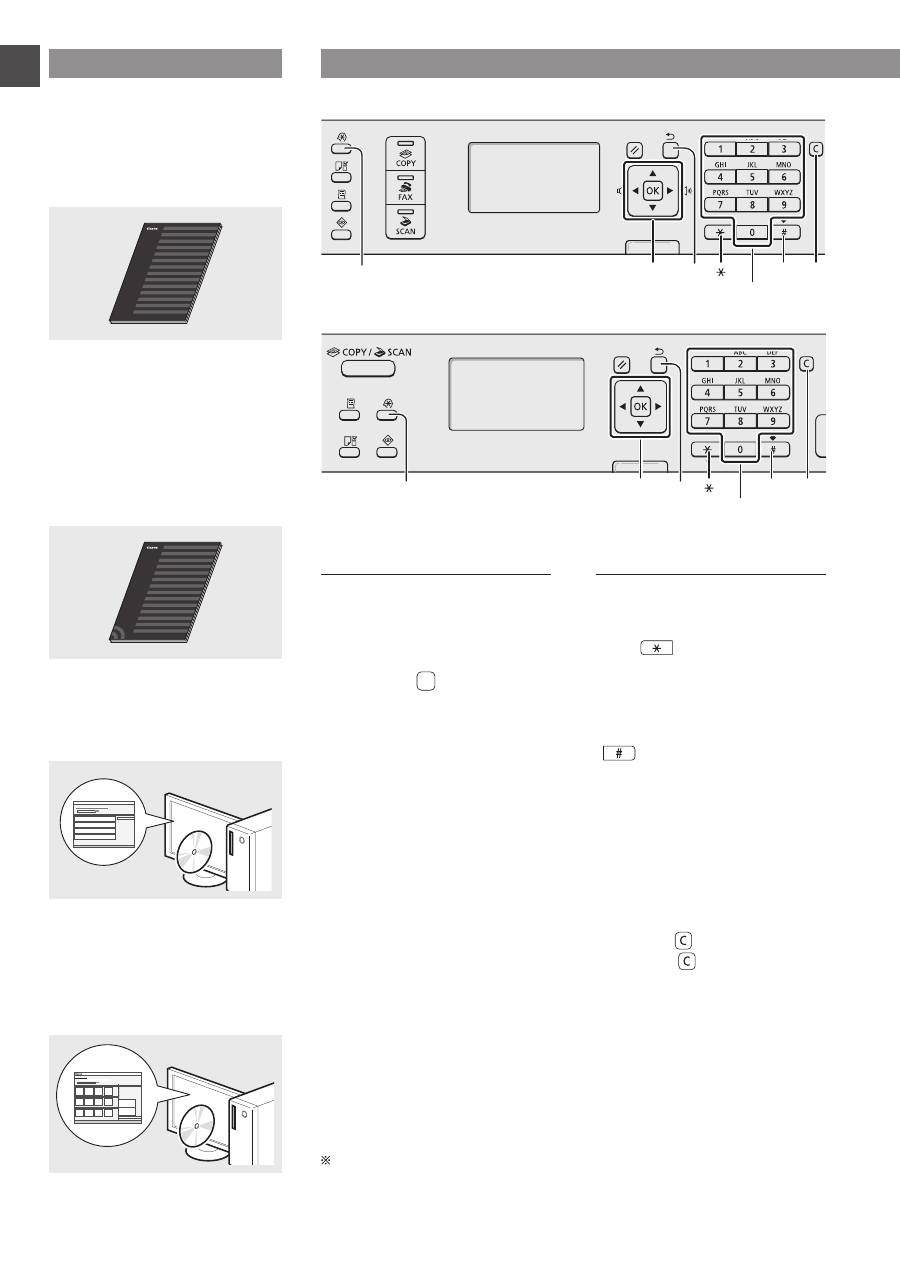
- About the Supplied Manuals Navigating the Menu and Text Input Method Navigating the Menu Text Input Method
- Connecting the Power Cord and Turning ON the Power Specifying the Initial Settings
- Choosing the Method to Connect the Machine to the Computer Connecting via a Wired LAN Connecting via a USB Cable
- Setting a Paper Size and Type Specifying Initial Fax Settings and Connecting a Telephone Cable
- Perform Useful Tasks
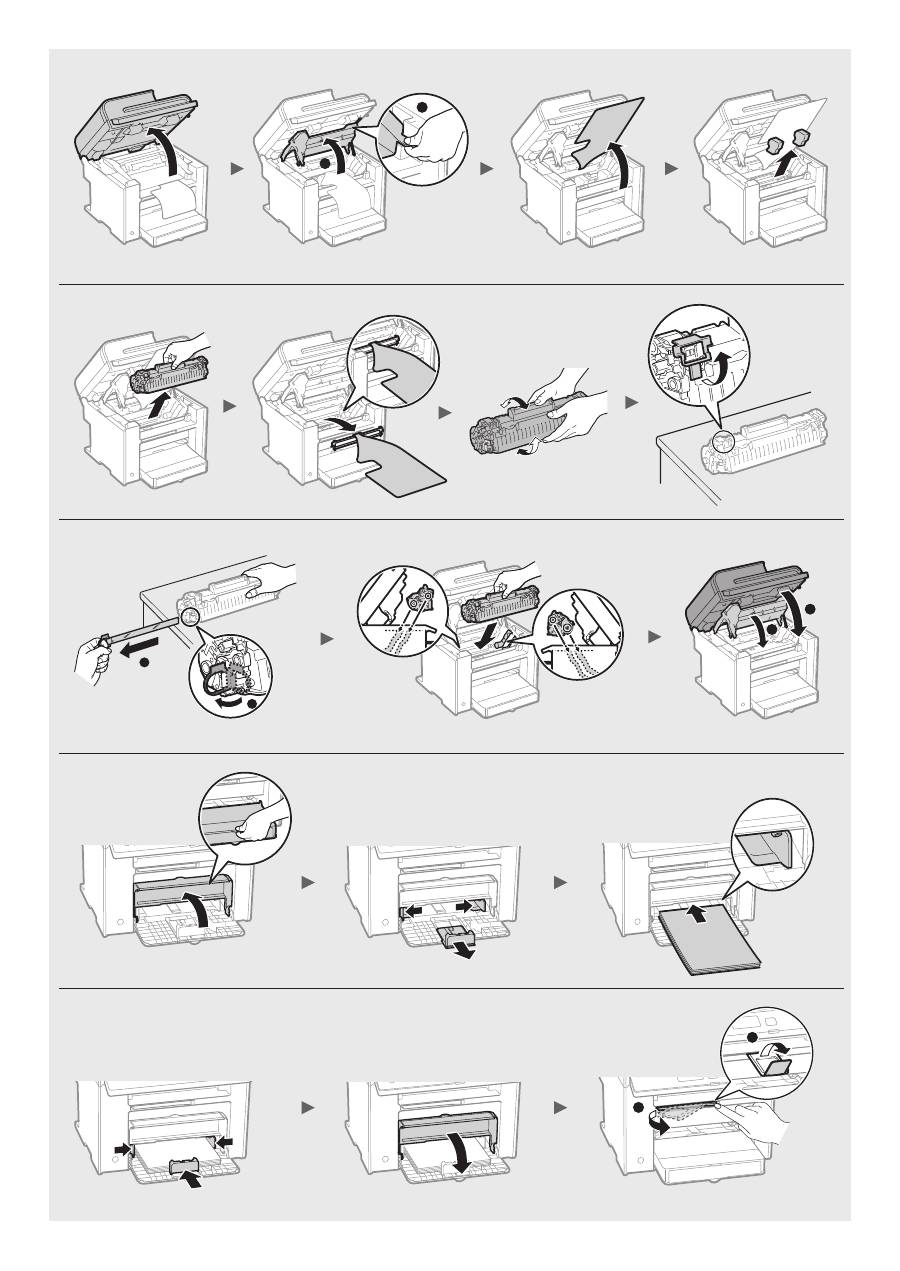
- Clearing Paper Jams
- Replacing Toner Cartridge
- Symbols Used in This Manual Keys and Buttons Used in This Manual Illustrations and Displays Used in This Manual Important Safety Instructions Installation Power Supply Handling
- Maintenance and Inspections Consumables Others Legal Notices Legal Limitations on Usage of Your Product and the Use of Images
Starter Guide
En
Guide de démarrage
Fr
Handbuch für Starter
De
Guida all’avvio
It
Guía de inicio
Es
Manual Inicial
Pt
Οδηγός πρώτων βημάτων
El
Startvejledning
Da
Beknopte handleiding
Nl
Startveiledning
No
Starthandbok
Sv
Aloitusopas
Fi
Руководство по началу работы
Ru
Початок роботи
Uk
Darba sākšanas rokasgrāmata
Lv
Pradinė instrukcija
Lt
Alustusjuhend
Et
Przewodnik wprowadzający
Pl
Základní příručka
Cs
Úvodná príručka
Sk
Začetna navodila
Sl
Upute za početak korištenja
Hr
Telepítési kézikönyv
Hu
Ghid de punere rapidă în funcţiune
Ro
Кратко ръководство
Bg
Başlangıç Kılavuzu
Tr
Ar
Fa
FT5-4634 (010)
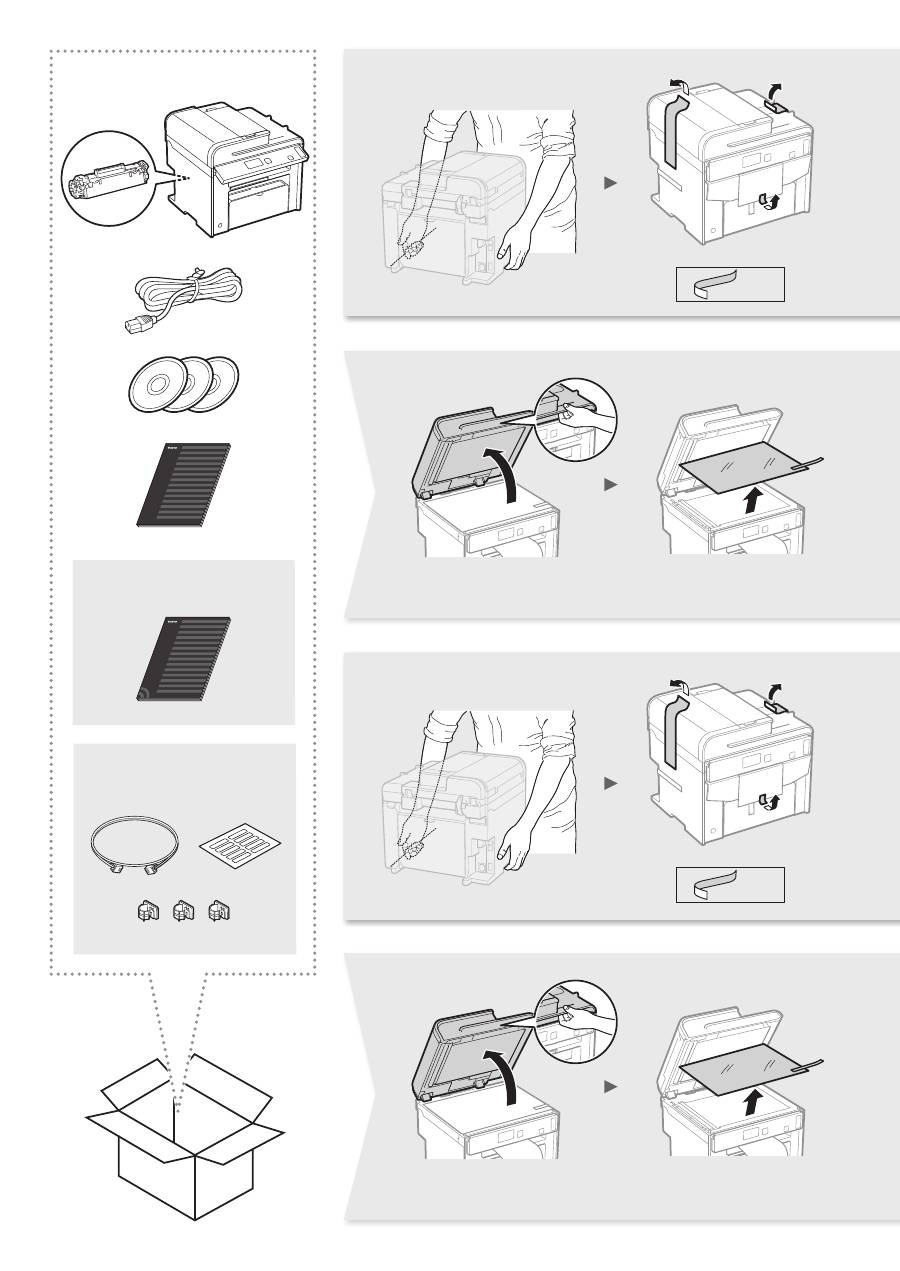
X 3
X 3
MF4890dw/MF4870dn/
MF4780w/MF4750
●
MF4890dw/MF4870dn
●
MF4780w/MF4750/MF4730
MF4890dw/MF4780w
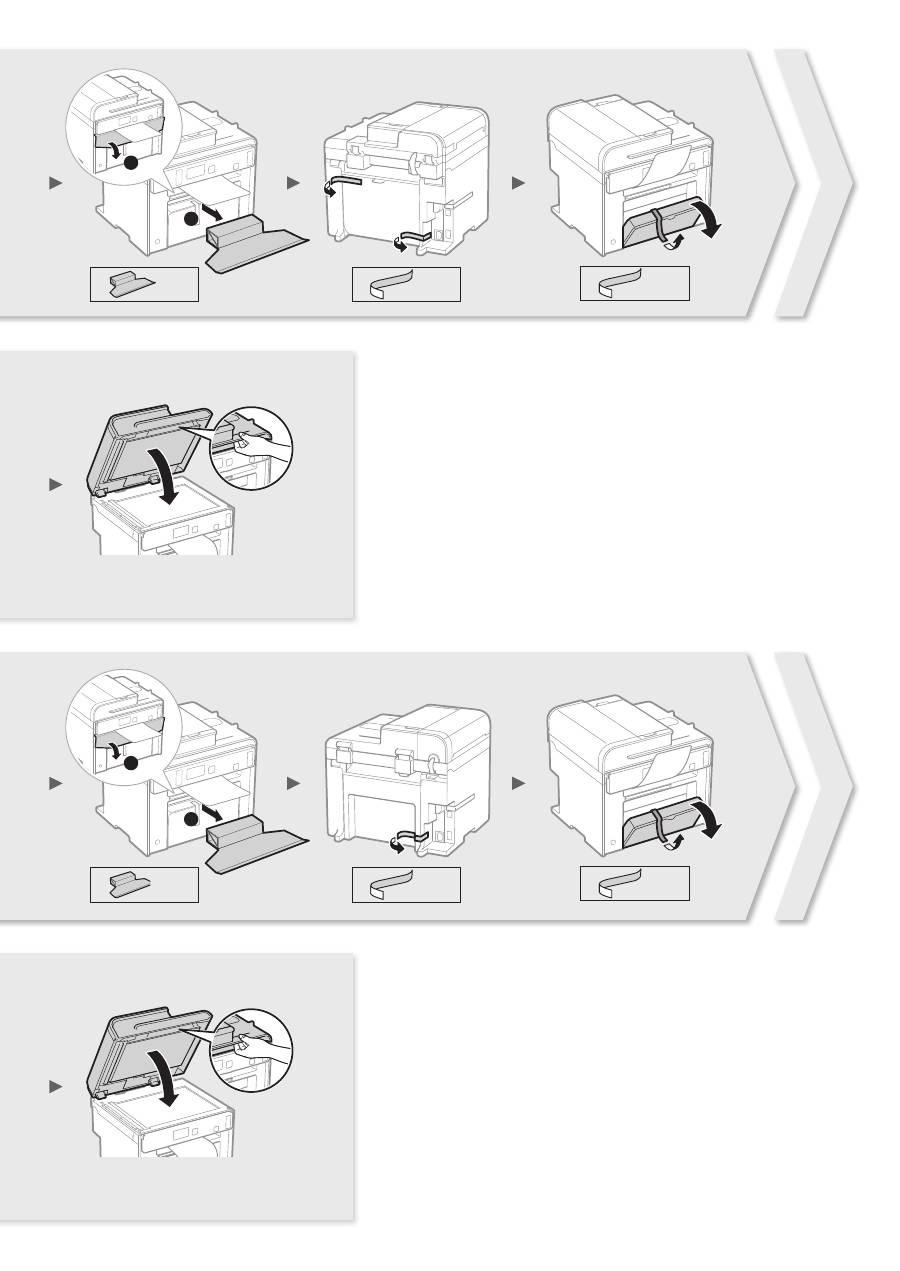
X 1
X 1
X 1
X 1
X 2
X 1
1
2
1
2
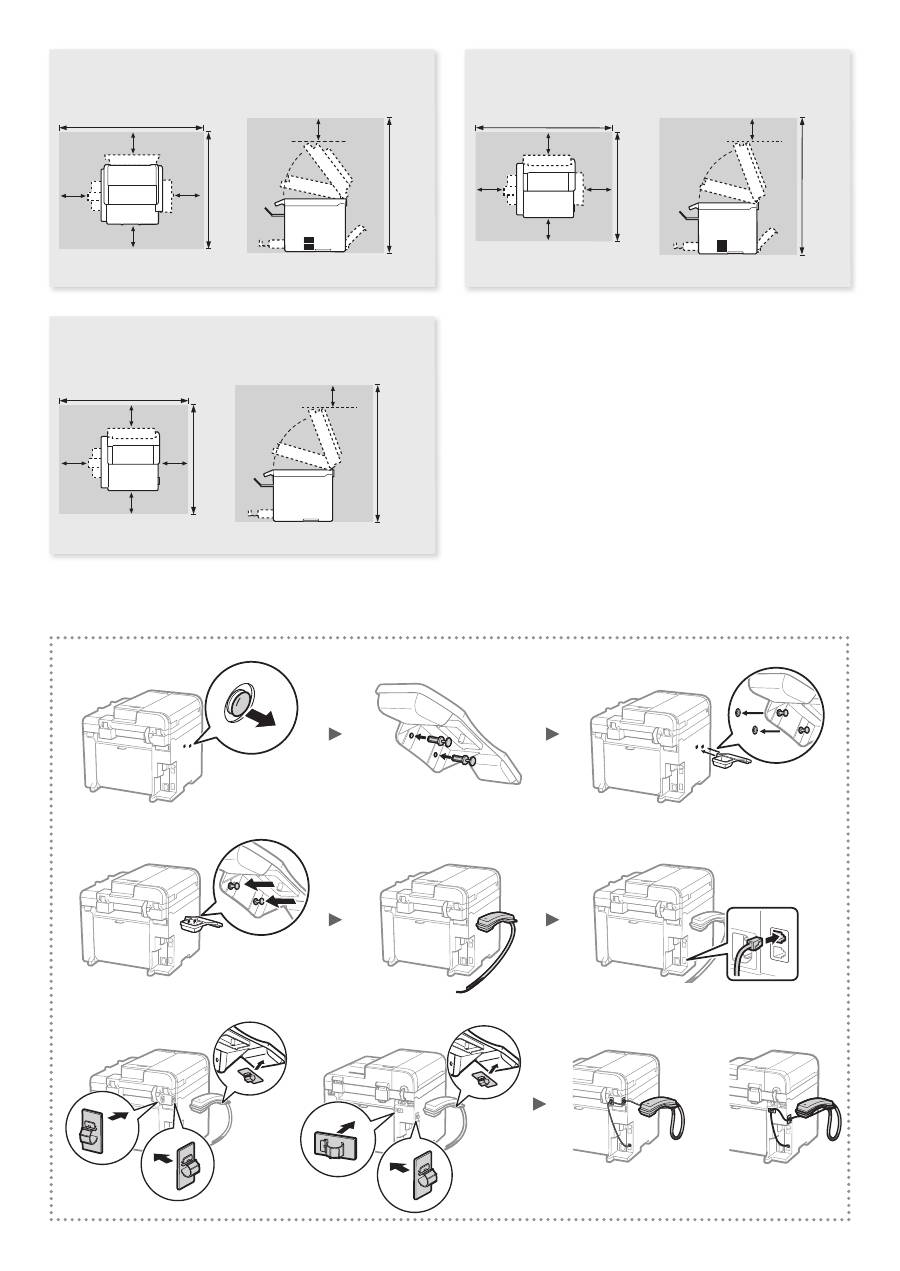
●
MF4890dw
★ =100 mm
793 mm
626 mm
741 mm
★
★
★
★
★
●
MF4870dn
★ =100 mm
793 mm
626 mm
723 mm
★
★
★
★
★
●
MF4780w/MF4750/MF4730
★ =100 mm
★
★
★
★
★
755 mm
626 mm
723 mm
Installing the Handset (Option)
●
MF4890dw
●
MF4890dw
●
MF4870dn/MF4780w/
MF4750
●
MF4870dn/MF4780w/
MF4750
1
2
1
2
1
2
1
2

6
Saturs
Зміст
Содержание
Περιεχόμενα
Indhold
Inhoudsopgave
Inhalt
Table des matières
Contents
About the Supplied Manuals ..........................10
Navigating the Menu and Text Input
Method ..........................................................10
Connecting the Power Cord and
Turning ON the Power ....................................11
Specifying the Initial Settings .........................11
Choosing the Method to Connect
the Machine to the Computer .........................12
Connecting via a Wired LAN
(MF4890dw/MF4870dn/MF4780w Only) .........................
12
Connecting via a USB Cable..........................12
Setting a Paper Size and Type .......................13
Specifying Initial Fax Settings and
Connecting a Telephone Cable
(MF4890dw/MF4870dn/MF4780w/MF4750 Only) ...........
13
Perform Useful Tasks .....................................14
Clearing Paper Jams......................................15
Replacing Toner Cartridge .............................16
Πληροφορίες για τα παρεχόμενα
εγχειρίδια ......................................................70
Περιήγηση στο μενού και τη μέθοδο
εισαγωγής κειμένου ......................................70
Σύνδεση του καλωδίου ρεύματος και
ΕΝΕΡΓΟΠΟΙΗΣΗ της ισχύος ........................71
Καθορισμός αρχικών ρυθμίσεων ...................71
Επιλογή του τρόπου σύνδεσης
της συσκευής στον υπολογιστή ....................72
Σύνδεση μέσω ενσύρματου LAN
(Μόνο MF4890dw/MF4870dn/MF4780w) .......................
72
Σύνδεση μέσω ενός καλωδίου USB ..............72
Καθορισμός μεγέθους και τύπου χαρτιού .....73
Καθορισμός των αρχικών ρυθμίσεων του φαξ
και σύνδεση του καλωδίου τηλεφώνου
(Μόνο MF4890dw/MF4870dn/MF4780w/MF4750) .........
73
Εκτέλεση χρήσιμων εργασιών ......................74
Αφαίρεση μπλοκαρισμένων χαρτιών ............75
Αντικατάσταση κασέτας γραφίτη ..................76
Сведения о входящих в комплект
руководствах ..............................................130
Поиск в меню и способ ввода текста .......130
Подсоединение кабеля питания
и включение аппарата ...............................131
Указание начальных параметров. ............131
Выбор метода подключения аппарата
к компьютеру ..............................................132
Подключение по проводной сети LAN
(только для моделей MF4890dw/
MF4870dn/MF4780w) ..................................................
132
Подключение с помощью кабеля USB .....132
Установка формата и типа бумаги ............133
Выбор начальных параметров факса и
подсоединение телефонного кабеля
(только для моделей MF4890dw/MF4870dn/
MF4780w/MF4750) ......................................................
133
Использование полезных функций ..........134
Устранение замятия бумаги ......................135
Замена картриджа с тонером ...................136
A propos des manuels fournis ........................20
Navigation dans le menu et méthode
de saisie du texte ...........................................20
Branchement du cordon d'alimentation
et mise sous tension ......................................21
Configuration des réglages initiaux ................21
Choix de la méthode de connexion de
la machine à l'ordinateur ................................22
Connexion via un réseau filaire
(MF4890dw/MF4870dn/MF4780w uniquement) ..............
22
Connexion via un câble USB .........................22
Réglage du format et du type de papier .........23
Configuration des réglages de fax initiaux
et connexion d'un câble téléphonique
(MF4890dw/
MF4870dn/MF4780w/MF4750 uniquement) ...................
23
Procédures utiles ...........................................24
Résolution des bourrages papier ...................25
Remplacement de la cartouche d'encre .........26
Om de medfølgende vejledninger ..................80
Navigation i menuen og
tekstindlæsningsmetode ................................80
Tilslutning af netledningen og AKTIVERING af
maskinen .......................................................81
Angivelse af startindstillingerne .....................81
Valg af metode til at slutte maskinen til
computeren ....................................................82
Forbindelse med kablet LAN
(Kun MF4890dw/MF4870dn/MF4780w) ..........................
82
Oprettelse af forbindelse med et
USB-kabel .....................................................82
Indstilling af papirformat og -type ...................83
Angivelse af startindstillinger for fax og
tilslutning af en telefonledning
(Kun MF4890dw/MF4870dn/MF4780w/MF4750) ............
83
Udfør nyttige opgaver .....................................84
Udbedring af papirstop ..................................85
Udskiftning af tonerpatronen ..........................86
Посібники з комплекту поставки ..............140
Переміщення між пунктами меню
та спосіб введення тексту .........................140
Підключення шнура живлення
та увімкнення живлення ............................141
Встановлення початкових параметрів .....141
Вибір способу підключення апарата
до комп’ютера ............................................142
Підключення через дротову LAN
(лише моделі MF4890dw/MF4870dn/MF4780w) ........
142
Підключення через кабель USB ...............142
Установлення формату та типу паперу .....143
Зазначення початкових настройок факсу
та підключення телефонного кабелю
(лише для моделей MF4890dw/MF4870dn/MF4780w/
MF4750) .......................................................................
143
Корисні функції ..........................................144
Усунення зминання паперу .......................145
Заміна картриджа з тонером ....................146
Informationen zu den mitgelieferten
Anleitungen ....................................................30
Navigieren durch das Menü und
Texteingabemethode .....................................30
Anschließen des Netzkabels und Einschalten
des Geräts über den Netzschalter .................31
Festlegen der anfänglichen Einstellungen .....31
Auswählen der Methode zum Herstellen
einer Verbindung zwischen Gerät und
Computer .......................................................32
Verbindung über ein LAN
(nur MF4890dw/MF4870dn/MF4780w) ...........................
32
Verbindung über ein USB-Kabel ....................32
Einstellen von Papierformat und Papiertyp.....33
Festlegen der anfänglichen Faxeinstellungen
und Anschließen eines Telefonkabels
(nur MF4890dw/MF4870dn/MF4780w/MF4750) ...............
33
Ausführen nützlicher Aufgaben ......................34
Beseitigen von Papierstaus ............................35
Austauschen der Tonerpatrone ......................36
Informatie over de meegeleverde
handleidingen ................................................90
Navigeren in het menu
en tekstinvoermethode...................................90
Het netsnoer aansluiten en het apparaat
INSCHAKELEN .............................................91
De begininstellingen opgeven ........................91
Kiezen hoe het apparaat met de computer
wordt verbonden ............................................92
Aansluiten via een bekabeld LAN
(alleen MF4890dw/MF4870dn/MF4780w) .......................
92
Verbinden via een USB-kabel ........................92
Papierformaat en type papier instellen ...........93
De eerste faxinstellingen opgeven en de
telefoonkabel aansluiten
(alleen MF4890dw/MF4870dn/MF4780w/MF4750) .........
93
Nuttige taken uitvoeren ..................................94
Papierstoringen verhelpen .............................95
Tonercartridge vervangen ..............................96
Par komplektācijā iekļautajām
rokasgrāmatām ............................................150
Naviģēšana izvēlnē un teksta ievades
metode.........................................................150
Strāvas vada pievienošana un iekārtas
IESLĒGŠANA ..............................................151
Sākotnējo iestatījumu norādīšana ................151
Savienojuma veida starp iekārtu
un datoru izvēle............................................152
Savienojuma izveide, izmantojot vadu LAN
(tikai MF4890dw/MF4870dn/MF4780w) .......................
152
Savienojuma izveide, izmantojot
USB kabeli ...................................................152
Papīra formāta un tipa iestatīšana ................153
Sākotnējo faksa iestatījumu norādīšana
un tālruņa kabeļa pievienošana
(tikai MF4890dw/MF4870dn/MF4780w/MF4750) .........
153
Noderīgu uzdevumu veikšana ......................154
Iestrēgušu lapu izņemšana ..........................155
Tonera kasetnes nomaiņa ............................156

7
Spis treści
Sisukord
Turinys
Innhold
Innehåll
Sisällys
Índice
Contenido
Sommario
Informazioni sui manuali in dotazione ............40
Esplorazione del menu e metodo
d'immissione del testo ...................................40
Collegamento del cavo di alimentazione e
accensione ....................................................41
Selezione delle impostazioni iniziali ...............41
Selezione del metodo di connessione della
macchina al computer ....................................42
Connessione tramite LAN via cavo
(solo MF4890dw/MF4870dn/MF4780w) ..........................
42
Connessione tramite cavo USB .....................42
Impostazione del formato e del tipo di carta ...43
Selezione delle impostazioni iniziali del fax
e connessione di un cavo telefonico
(solo MF4890dw/MF4870dn/MF4780w/MF4750)............
43
Attività utili ......................................................44
Rimozione degli inceppamenti di carta ..........45
Sostituzione della cartuccia del toner ............46
Om de medfølgende håndbøkene ...............100
Navigere i menyen
og tekstinnskrivingsmetode .........................100
Koble til strømledningen og slå
PÅ maskinen ................................................101
Angi oppstartsinnstillingene .........................101
Velge metode for å koble maskinen til
datamaskinen ..............................................102
Tilkobling via kablet LAN
(bare for MF4890dw/MF4870dn/MF4780w) .................
102
Koble til via en USB-kabel ............................102
Angi papirformat og -type .............................103
Angi oppstartsinnstillinger for faks
og koble til en telefonkabel
(bare for MF4890dw/MF4870dn/MF4780w/MF4750) ...
103
Utføre nyttige oppgaver ................................104
Fjerne fastkjørt papir ....................................105
Bytte tonerkassett ........................................106
Apie pateikiamas instrukcijas .......................160
Meniu naršymas ir teksto įvesties būdas ......160
Maitinimo laido prijungimas ir aparato
ĮJUNGIMAS .................................................161
Pradinių parametrų nustatymas ...................161
Aparato prijungimo prie kompiuterio būdo
pasirinkimas .................................................162
Prijungimas naudojant laidinį LAN
(tik MF4890dw/MF4870dn/MF4780w) ..........................
162
Prijungimas naudojant USB kabelį ...............162
Popieriaus formato ir tipo nustatymas ..........163
Pradinių fakso parametrų nustatymas
ir telefono kabelio prijungimas
(tik MF4890dw/MF4870dn/MF4780w/MF4750)............
163
Naudingų užduočių vykdymas .....................164
Įstrigusio popieriaus išėmimas .....................165
Dažomųjų miltelių kasetės keitimas .............166
Acerca de los manuales suministrados ..........50
Navegación por el menú y método de
introducción de texto ......................................50
Conexión del cable de alimentación y
encendido del interruptor de alimentación .....51
Especificación de la configuración inicial .......51
Selección del método para conectar
la máquina al ordenador ................................52
Conexión mediante una red LAN cableada
(solamente MF4890dw/MF4870dn/MF4780w) ................
52
Conexión con un cable USB ..........................52
Ajuste del tamaño y el tipo del papel ..............53
Especificación de la configuración inicial
de fax y conexión del cable del teléfono
(solamente MF4890dw/MF4870dn/MF4780w/MF4750) ..
53
Tareas útiles ...................................................54
Eliminación de atascos de papel ...................55
Reemplazo del cartucho de tóner ..................56
Om de medföljande handböckerna ..............110
Navigering i menyn
och textinmatningsmetod .............................110
Ansluta nätkabeln och slå PÅ strömmen ......111
Ange de inledande inställningarna ...............111
Välj metod för att ansluta enheten
till datorn ......................................................112
Anslutning via ett trådbundet nätverk
(endast MF4890dw/MF4870dn/MF4780w)...................
112
Ansluta via en USB-kabel ............................112
Ange pappersformat och -typ.......................113
Ange inledande faxinställningar
och ansluta en telefonsladd
(endast MF4890dw/MF4870dn/MF4780w/MF4750) ....
113
Använda praktiska funktioner .......................114
Ta bort papper som fastnat ..........................115
Byta tonerpatron ..........................................116
Komplekti kuuluvad juhendid .......................170
Menüüs liikumine ja tekstisisestusviis ..........170
Toitejuhtme ühendamine ja toite
SISSELÜLITAMINE .....................................171
Algsätete määramine ...................................171
Seadme arvutiga ühendamise
viisi valimine .................................................172
Ühendamine kaabelühendusega kohtvõrgu
kaudu
(ainult MF4890dw/MF4870dn/MF4780w)........
172
Ühendamine USB-kaabli abil .......................172
Paberiformaadi ja -tüübi määramine ............173
Faksi algsätete määramine ja telefonikaabli
ühendamine
(ainult MF4890dw/MF4870dn/MF4780w/MF4750) .......
173
Kasulike toimingute tegemine ......................174
Paberiummistuste kõrvaldamine ..................175
Toonerikasseti vahetamine ..........................176
Acerca dos manuais fornecidos .....................60
Navegar no menu e método de introdução
de texto ..........................................................60
Ligar o cabo de alimentação e a
ALIMENTAÇÃO .............................................61
Especificar as definições iniciais....................61
Selecionar o método de ligação da máquina
ao computador ...............................................62
Ligar através de LAN com fios
(apenas MF4890dw/MF4870dn/MF4780w) .....................
62
Ligar através de um cabo USB ......................62
Definir um tipo e tamanho de papel ...............63
Especificar as definições iniciais de fax
e ligar um cabo telefónico
(apenas MF4890dw/MF4870dn/MF4780w/MF4750) ......
63
Executar tarefas úteis ....................................64
Retirar papel encravado .................................65
Substituir uma cartridge de toner ...................66
Tietoja laitteen mukana toimitettavista
oppaista .......................................................120
Valikossa siirtyminen ja tekstinsyöttötapa ....120
Virtajohdon liittäminen ja virran
KYTKEMINEN .............................................121
Perusasetusten määrittäminen ....................121
Laitteen ja tietokoneen välisen
kytkentätavan valitseminen ..........................122
Kytkeminen langallisen lähiverkon kautta
(vain MF4890dw/MF4870dn/MF4780w) .......................
122
Kytkeminen USB-kaapelilla ..........................122
Paperikoon ja -tyypin määrittäminen ............123
Perusfaksiasetusten määrittäminen ja
puhelinjohdon kytkeminen
(vain MF4890dw/MF4870dn/MF4780w/MF4750) .........
123
Päätoimintojen käyttäminen .........................124
Paperitukosten poistaminen .........................125
Väriainekasetin vaihtaminen ........................126
Informacje o dostarczonych
podręcznikach .............................................180
Poruszanie się po menu i sposób
wpisywania tekstu ........................................180
Podłączanie przewodu zasilania
i WŁĄCZANIE urządzenia ............................181
Konfigurowanie ustawień początkowych ......181
Wybór metody podłączenia urządzenia do
komputera ....................................................182
Podłączanie za pomocą sieci
przewodowej LAN
(wyłącznie modele MF4890dw/
MF4870dn/MF4780w) ..................................................
182
Podłączanie za pomocą kabla USB .............182
Ustawianie formatu i rodzaju papieru ...........183
Konfigurowanie ustawień początkowych
faksu i podłączanie kabla telefonicznego
(wyłącznie modele MF4890dw/MF4870dn/MF4780w/MF4750) ....
183
Wykonywanie przydatnych zadań ................184
Usuwanie zaciętego papieru ........................185
Wymiana zasobnika z tonerem ....................186
8
Dodané příručky ..........................................190
Navigace v nabídce a metoda zadávání
textu .............................................................190
Připojení napájecího kabelu a ZAPNUTÍ
přístroje ........................................................191
Zadání počátečního nastavení .....................191
Volba způsobu připojení přístroje
k počítači......................................................192
Připojení přes kabelovou síť LAN
(pouze model MF4890dw/MF4870dn/MF4780w) .........
192
Připojení pomocí kabelu USB ......................192
Nastavení velikosti a typu papíru ..................193
Určení počátečního nastavení faxu
a připojení telefonního kabelu
(pouze model MF4890dw/MF4870dn/MF4780w/MF4750) ...
193
Provádění užitečných úkolů .........................194
Odstraňování zachyceného papíru...............195
Výměna tonerové kazety ..............................196
Информация за предоставените
ръководства ...............................................250
Придвижване в менюто и метод на
въвеждане на текст ...................................250
Свързване на захранващия кабел и
ВКЛЮЧВАНЕ на захранването .................251
Указване на първоначалните
настройки ...................................................251
Избор на метод за свързване на машината
към компютър ............................................252
Свързване чрез LAN кабел
(само за MF4890dw/MF4870dn/MF4780w) ................
252
Свързване чрез USB кабел.......................252
Задаване на формата и типа
на хартията .................................................253
Указване на първоначалните настройки на
факса и свързване на телефонен кабел
(само за MF4890dw/MF4870dn/MF4780w/MF4750) ..
253
Изпълнение на полезни задачи ................254
Отстраняване на заседналата хартия ......255
Подмяна на тонер касета ..........................256
Informácie o dodaných príručkách ...............200
Navigácia v ponuke a spôsob zadávania
textu .............................................................200
Pripojenie napájacieho kábla a ZAPNUTIE
zariadenia ....................................................201
Zadanie počiatočného nastavenia ...............201
Výber spôsobu pripojenia zariadenia
k počítaču ....................................................202
Pripojenie prostredníctvom káblovej siete LAN
(iba modely MF4890dw/ MF4870dn/ MF4780w) ............
202
Pripojenie pomocou kábla USB ...................202
Nastavenie formátu a typu papiera...............203
Zadanie počiatočného nastavenia faxu
a pripojenie telefónneho kábla
(iba modely MF4890dw/MF4870dn/MF4780w/MF4750)...
203
Vykonávanie užitočných úloh .......................204
Odstraňovanie zachyteného papiera ...........205
Výmena kazety s tonerom ............................206
Makineyle Birlikte Gelen Kılavuzlar
Hakkında......................................................260
Menüde Gezinme ve Metin Giriş Yöntemi ....260
Güç Kablosunu Bağlama ve Makineyi
AÇIK Konuma Getirme.................................261
Başlangıç Ayarlarını Belirleme ......................261
Makineyi Bilgisayara Bağlama Yöntemini
Seçme .........................................................262
Kablolu LAN aracılığıyla bağlama
(Yalnızca MF4890dw/MF4870dn/MF4780w) ................
262
USB Kablosu ile Bağlama ............................262
Kağıt Boyutu ve Türü Ayarlama ....................263
Başlangıç Faks Ayarlarını Belirleme
ve Telefon Kablosunu Bağlama
(Yalnızca MF4890dw/MF4870dn/MF4780w/MF4750) ..
263
Kullanışlı Görevler Gerçekleştirme ...............264
Kağıt Sıkışmalarını Giderme .........................265
Toner Kartuşunu Değiştirme ........................266
O priloženih navodilih ...................................210
Krmarjenje po meniju in način vnosa
besedila .......................................................210
Priključitev napajalnega kabla in VKLOP......211
Določanje začetnih nastavitev ......................211
Izbor načina povezave naprave
z računalnikom .............................................212
Povezava po žičnem lokalnem omrežju
(samo MF4890dw/MF4870dn/MF4780w).....................
212
Vzpostavljanje povezave prek kabla USB ....212
Nastavitev velikosti in vrste papirja...............213
Določanje začetnih nastavitev faksa
in priključitev telefonskega kabla
(samo MF4890dw/MF4870dn/MF4780w/MF4750) ......
213
Izvajanje uporabnih opravil ..........................214
Odpravljanje zastojev papirja .......................215
Zamenjava kartuše s tonerjem .....................216
270 .........................صنلا لاخدإ ةقيرطو ةمئاقلا برع لقنتلا
270 .................................................ةقفرلما ةلدلأا لوح
271 ....................................ليغشتلاو ةقاطلا كلس ليصوت
271 ...........................................ةيلولأا تادادعلإا ديدحت
272 .........................رتويبمكلاب زاهجلا لاصتا ةقيرط رايتخا
ةيكلس LAN ةكبش للاخ نم لاصتا
272
.........................)طقف MF4780w/MF4870dn/MF4890dw)
272 .........................................USB لباك برع ليصوتلا
273 .........................................قرولا عونو ساقم طبض
فتاه لباك ليصوتو ةيلولأا سكافلا تادادعإ ديدحت
273
.......... )طقف MF4750/MF4780w/MF4870dn/MF4890dw)
274 ..................................................ةديفم ماهم ذيفنت
275 ....................................... قرولا راشحنا نم صلختلا
276 ..........................................برحلا ةشوطرخ لادبتسا
Съдържание
İçindekiler
Obsah
Obsah
Obsah
9
O priloženim priručnicima ............................220
Kretanje po izborniku i način unosa teksta ...220
Povezivanje kabela za napajanje
i uključivanje napajanja ................................221
Određivanje početnih postavki .....................221
Odabir načina povezivanja uređaja
s računalom .................................................222
Povezivanje pomoću kabelske LAN veze
(samo MF4890dw/MF4870dn/MF4780w).....................
222
Povezivanje putem USB kabela ...................222
Postavljanje vrste i veličine papira ................223
Određivanje početnih postavki faksa
i povezivanje telefonskog kabela
(samo modeli MF4890dw/MF4870dn/MF4780w/MF4750) ...
223
Provođenje korisnih zadataka ......................224
Otklanjanje zaglavljenog papira ...................225
Zamjena spremnika za toner ........................226
280 ....................... نتم ندرک دراو شور و ونم ندرک رورم
280 .......................هدش هضرع یامنهار یاه هچترفد هرابرد
281 ..................هاگتسد ندرک نشور و قرب لباک ندرک لصو
281 ..............................................هیلوا تامیظنت نییعت
282 ....................هنایار هب هاگتسد لاصتا یارب شور باختنا
راد میس LAN کی قیرط زا لاصتا
282
.........................)MF4780w/MF4870dn/MF4890dw طقف(
282 .....................................USB لباک قیرط زا لاصتا
283 .........................................ذغاک عون و هزادنا میظنت
نفلت لباک لاصتا و سکاف هیلوا تامیظنت نییعت
283
.......... )MF4750/MF4780w/MF4870dn/MF4890dw طقف(
284 ............................................... دیفم یاهراک ماجنا
285 ..........................................ذغاک ریگ ندرک فرطرب
286 .......................................نوت یاه جیرتراک ضیوعت
A mellékelt kézikönyvek ...............................230
Navigálás a menüben és
a szövegbeviteli mód megadása ..................230
A tápkábel csatlakoztatása és a készülék
BEKAPCSOLÁSA ........................................231
A kezdeti beállítások megadása ..................231
A készülék számítógéphez csatlakozási
módjának kiválasztása .................................232
Csatlakozás vezetékes helyi hálózaton keresztül
(csak MF4890dw/MF4870dn/MF4780w típus esetén) ..
232
Csatlakozás USB-kábellel............................232
A papírméret és a papírtípus beállítása ........233
Kezdeti faxbeállítások megadása
és a telefonkábel csatlakoztatása
(csak MF4890dw/MF4870dn/MF4780w/MF4750
típus esetén) .................................................................
233
Hasznos feladatok végrehajtása ..................234
A papírelakadások megszüntetése ..............235
A festékkazetta cseréje ................................236
Despre manualele furnizate .........................240
Navigarea prin meniu şi metoda
de introducere a textului ...............................240
Conectarea cablului de alimentare şi
PORNIREA alimentării .................................241
Specificarea setărilor iniţiale ........................241
Alegerea metodei de conectare
a aparatului la computer...............................242
Conectarea printr-o reţea LAN cu fir
(numai pentru MF4890dw/MF4870dn/MF4780w) .........
242
Conectarea printr-un cablu USB ..................242
Setarea dimensiunii şi a tipului de hârtie ......243
Specificarea setărilor iniţiale de fax şi
conectarea unui cablu telefonic
(numai pentru MF4890dw/MF4870dn/MF4780w/MF4750) ....
243
Efectuaţi activităţi utile .................................244
Soluţionarea blocajelor de hârtie .................245
Înlocuirea cartuşului de toner .......................246
Cuprins
Tartalom
Sadržaj
10
En
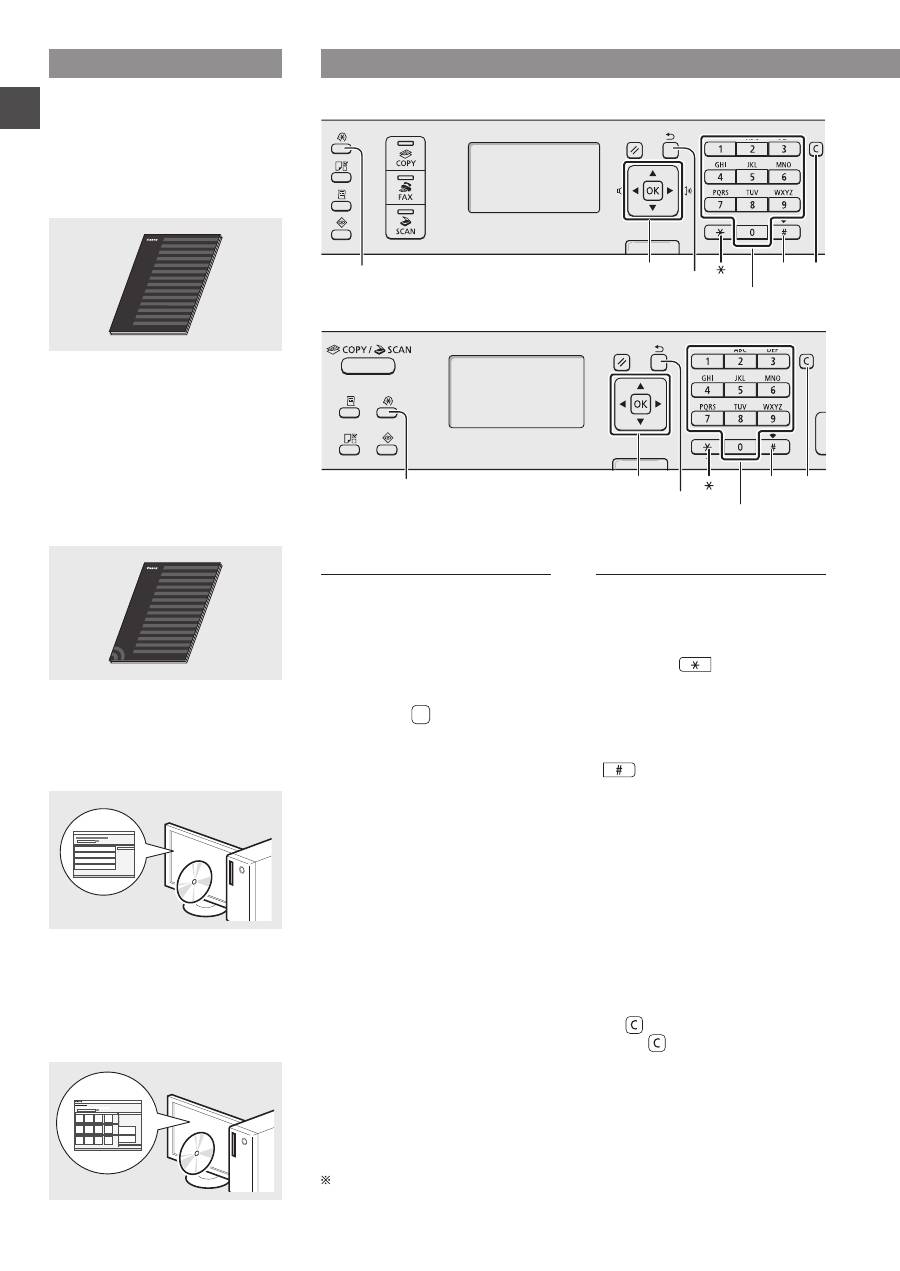
About the Supplied Manuals
Starter Guide (This manual):
Read this manual first. This manual
describes the installation of the
machine, the settings, and a caution.
Be sure to read this manual before
using the machine.
Wireless LAN Setting Guide
(MF4890dw/MF4780w Only):
Read this manual with Starter Guide.
This manual describes Wireless LAN
setup procedures and causes and
countermeasures for troubles you
might face during the setup. Be sure
to read this manual before using the
machine.
MF Driver Installation Guide
(User Software CD-ROM):
Read this manual next. This manual
describes software installation.
e-Manual
(Multi-lingual User Manual CD):
Read the desired chapter to suit your
needs. The e-Manual is categorized
by subject to find desired information
easily.
Navigating the Menu and Text Input Method
●
MF4890dw/MF4870dn/MF4780w/MF4750
OK
▲▼◀▶
#
Numeric keys
C
Menu
Back
●
MF4730
OK
▲▼◀▶
Menu
Back
#
Numeric keys
C
Navigating the Menu
Item selection or moving the
cursor among the menu items
Select an item with [▲] or [▼].
Proceed to the next hierarchy with
[OK] or [▶]. Return to the previous
hierarchy with [ ] (Back) or [◀].
Setting confirmation
Press [OK]. However, when <Apply>
appears on the display, select
<Apply>, and then press [OK].
Text Input Method
Changing entry mode
Press [▼] to highlight <Entry Mode>,
and then press [OK]. You can also
press [
] (Tone) to change the
entry mode.
Entering text, symbols, and
numbers
Enter with the numeric keys or
[
] (SYMBOLS).
For details on the switchable mode or
the available text, see the next page.
Moving the cursor (Entering a
space)
Move with [◀] or [▶]. Move the cursor
to the end of the text and press [▶] to
enter a space.
Deleting characters
Delete with [ ] (Clear). Pressing
and holding [ ] (Clear) key deletes
all characters.
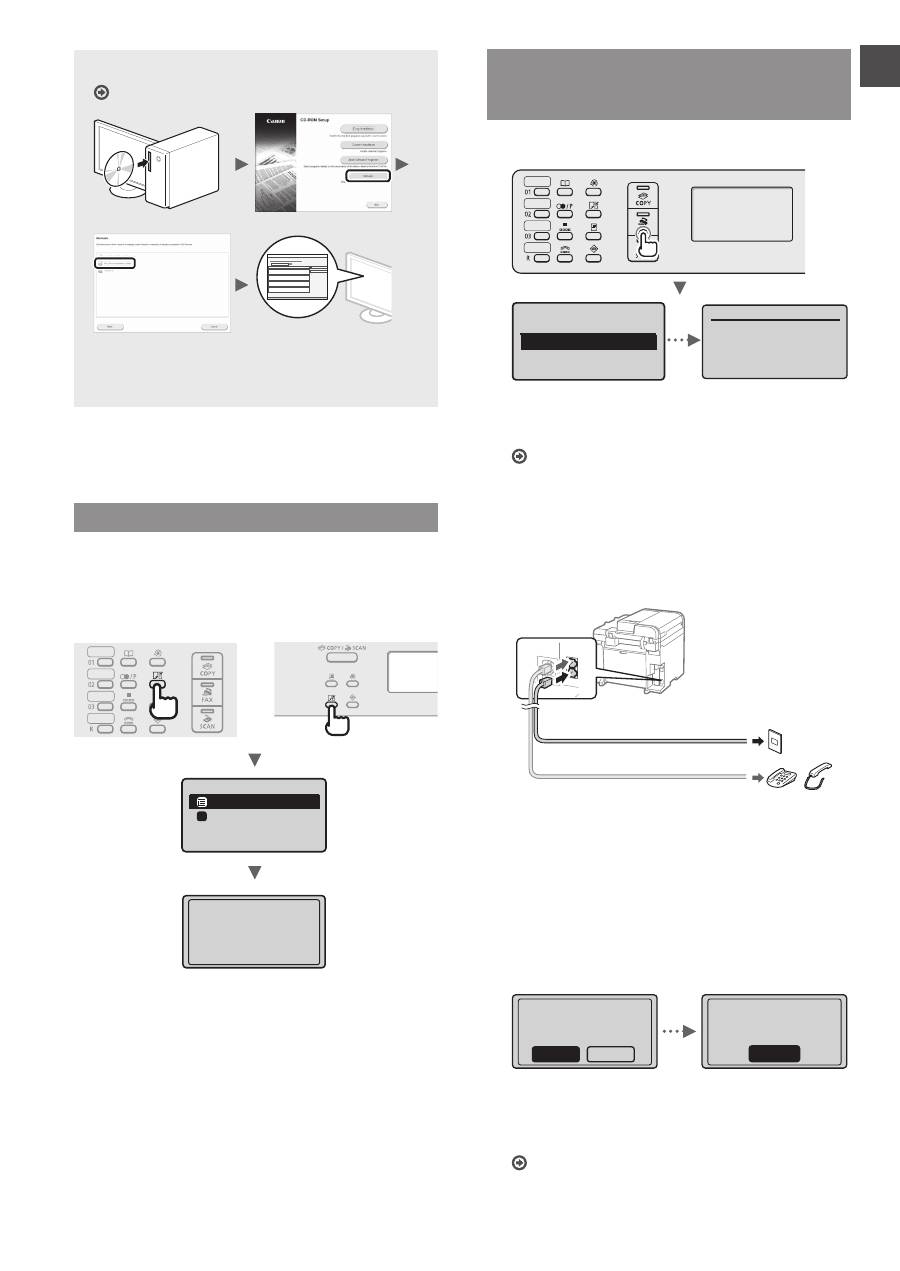
Viewing the e-Manual from the CD-ROM
1 Insert the Multi-lingual User Manual CD in your computer.
2 Select your language.
3 Click [Display Manuals].
Depending on the operating system you are using, a security protection message appears.
11
En
Entering text, symbols, and
numbers
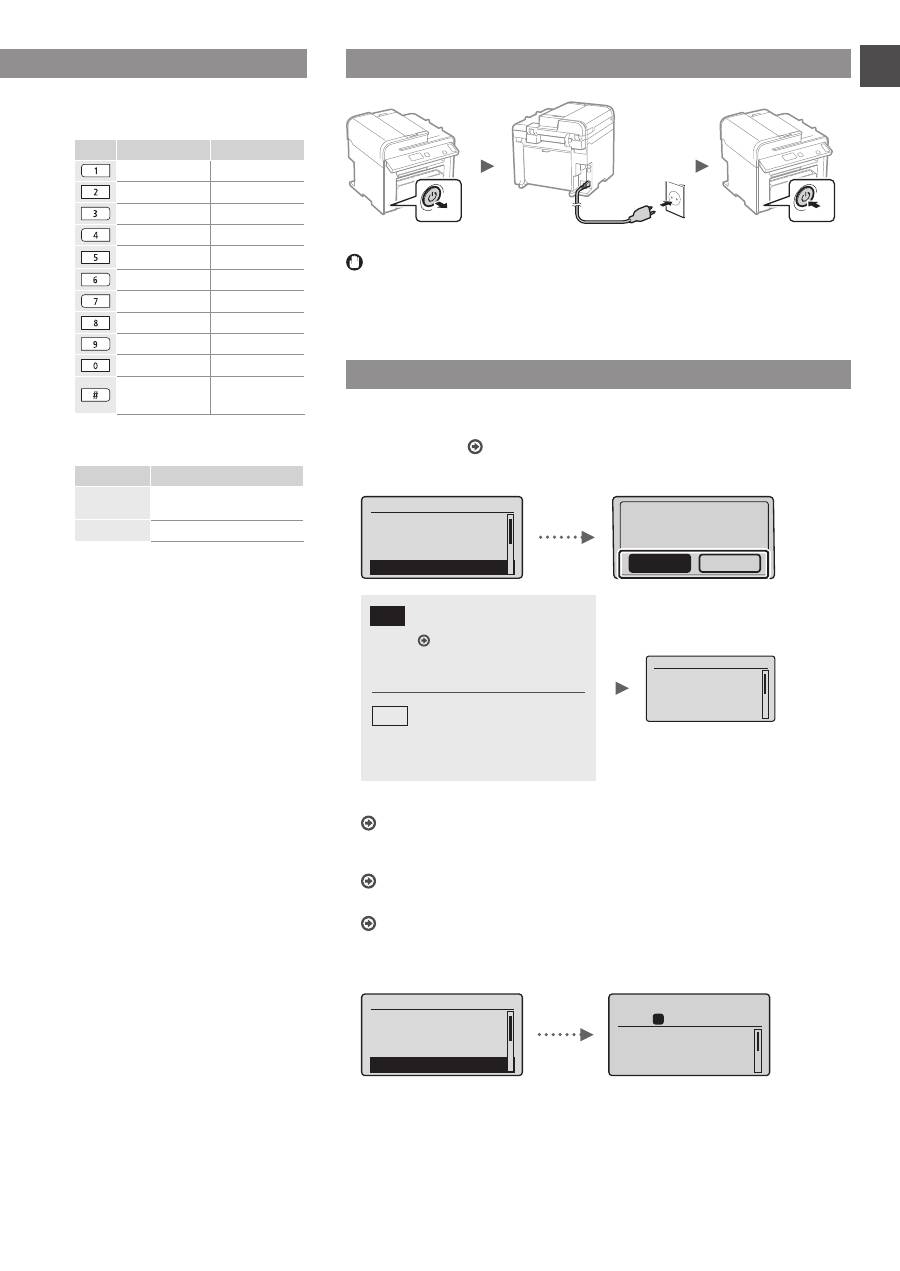
Entry mode: <aA> Entry mode: <12>
@ . - _ /
1
ABCabc
2
DEFdef
3
GHIghi
4
JKLjkl
5
MNOmno
6
PQRSpqrs
7
TUVtuv
8
WXYZwxyz
9
(Not available)
0
@ . / - _ ! ? & $ %
# ( ) [ ] { } < > * +
= “ , ; : ‘ ^ ` | \
(Not available)
Changing entry mode
Entry mode
Available text
<aA>
Alphabet (capital and small
letters) and symbols
<12>
Numbers
Connecting the Power Cord and Turning ON the Power
OFF
ON
Do not connect the USB cable at this time. Connect it when installing software.
Specifying the Initial Settings
Follow the instructions on the screen, set the language and time. For details on
navigating the menu and how to input the numbers, see “Navigating the Menu and
Text Input Method” ( P.10).
●
MF4890dw/MF4780w
Language
Czech
Danish
Dutch
English
Use wireless LAN to
connect computer?
(Can config. later.)
No
Yes
Current Time set.
Must rechg. battery
for 24 hrs. to save
time settings.
After turning main
●
Connect to the computer via a wired LAN
Proceed to “Connecting via a Wired LAN
(MF4890dw/MF4870dn/MF4780w Only)” (P.12).
●
Connect to the computer via a USB cable
Proceed to “Connecting via a USB Cable” (P.12).
●
Do not connect to PC
Proceed to “Specifying Initial Fax Settings and Connecting a Telephone Cable
(MF4890dw/MF4870dn/MF4780w/MF4750 Only)” (P.13).
●
MF4870dn/MF4750/MF4730
Language
Czech
Danish
Dutch
English
Copy: Press Start
100% A4
Density: 0
Original Type: Text
...
2-Sided: Off
1
+
-
01
Navigating the Menu and Text Input Method
●
MF4890dw/MF4870dn/MF4780w/MF4750
●
MF4730
Yes
No
Connect to the computer via
a wireless LAN immediately
Start from step 4 of “Setting
Wireless LAN” in the
Wireless LAN Setting Guide
Proceed to the next step.
Select <No> also when you
connect to the computer via a
wireless LAN later.
12
En
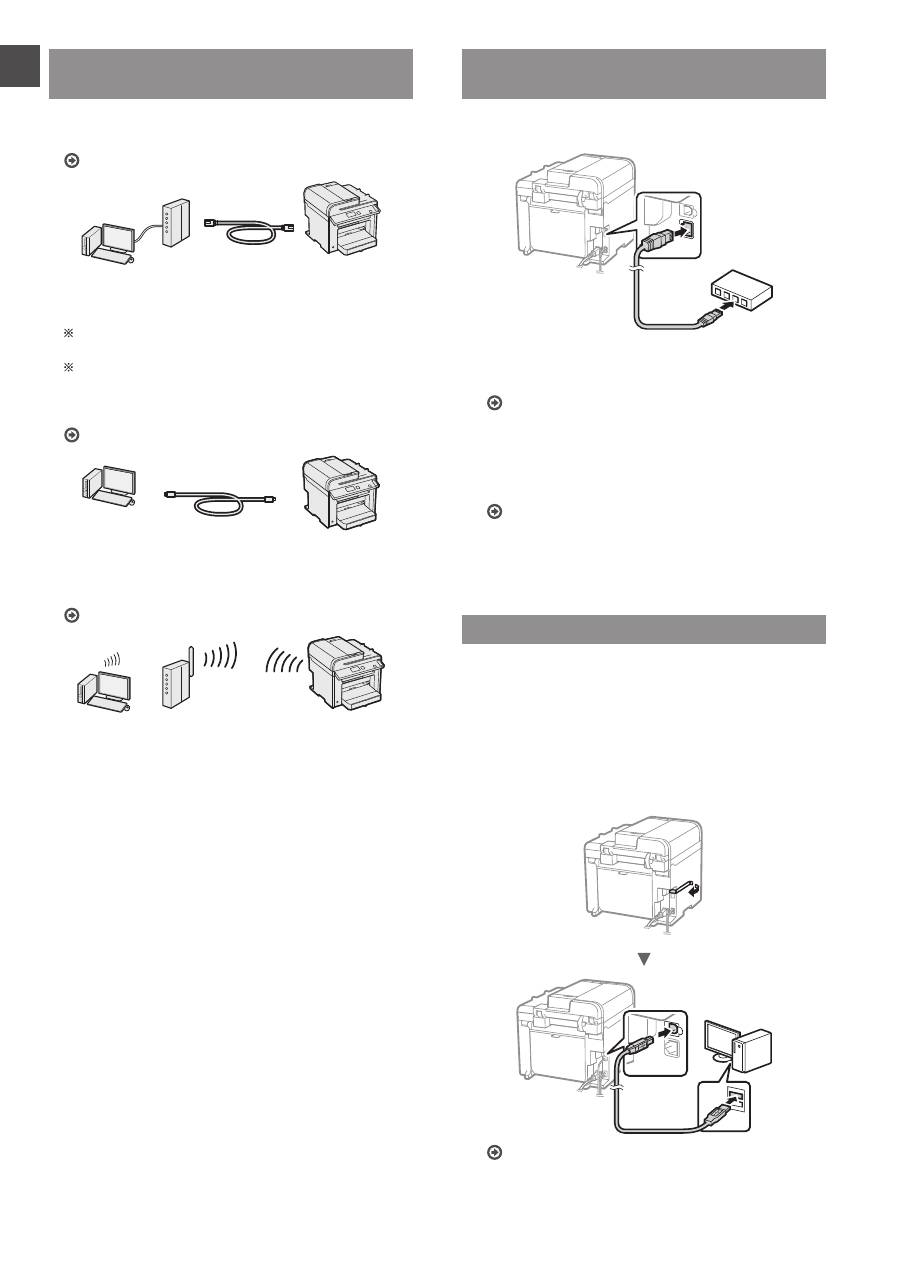
Choosing the Method to Connect the
Machine to the Computer
●
Connecting via a Wired LAN
(MF4890dw/MF4870dn/MF4780w Only)
See “Connecting via a Wired LAN”
You can connect the machine to the computer through a
wired router. Use the LAN cables to connect the machine
to the wired router (access point).
Make sure that there is an available port in the router to
connect the machine and the computer.
Have a LAN Cable of Category 5 twisted-pair cable or higher
ready.
●
Connecting via a USB cable
See “Connecting via a USB Cable”
You can connect the machine to the computer using a
USB cable.
●
Connection via a Wireless LAN
(MF4890dw/MF4780w Only)
See the Wireless LAN Setting Guide.
You can connect the machine to the computer through
a wireless router*. Since it is connected to wireless, no
LAN cables are needed.
* A wireless router (or access point), which supports
IEEE802.11b/g/n, is required.
If you do not sure whether your router is wireless or
wired:
See the instruction manual provided with your network
device, or contact the manufacturer.
Connecting via a Wired LAN
(MF4890dw/MF4870dn/MF4780w Only)
1
Connect the LAN cable.
The IP address will be automatically configured in 2
minutes. If you want to set the IP address manually, see
the following items.
e-Manual “Network Settings” ▶ “Basic Network
Settings” ▶ “Setting the IP Address”
2
Install the driver and software using the User
Software CD-ROM.
Proceed to “Setting a Paper Size and Type” (P.13).
Connecting via a USB Cable
Connect the USB cable after installing the MF Drivers and
the MF Toolbox.
1
Install the driver and software using the User
Software CD-ROM .
2
Connect the USB cable.
Proceed to “Setting a Paper Size and Type” (P.13).
13
En
For details on the installation procedures:
See the MF Driver Installation Guide
•
We ask for the user’s cooperation for the Product
Extended Survey Program. For details, see the
descriptions on the screen.
Setting a Paper Size and Type
Follow the instructions on the screen, set the paper size
and type.
●
MF4890dw/MF4870dn/
MF4780w/MF4750
●
MF4730
Paper Settings
MP Tray
Drawer 1
1
Applying settings
...
Wait a moment.
Specifying Initial Fax Settings and
Connecting a Telephone Cable
(MF4890dw/MF4870dn/MF4780w/MF4750 Only)
1
Specify the initial fax settings.
Perform fax setup?
Set up Now
Set up Later
Connect phone line.
Follow illustrations
on the next screen:
Connect line to A.
*Next : Press OK
Follow the “Fax Setup Guide” to specify a fax number, a
unit name, and a receive mode. For more details on the
receive mode, see the e-Manual.
e-Manual “Fax” ▶ “Using the Fax Functions” ▶
“Receiving Faxes” ▶ “RX Mode”
How to use a username
When you send a document, the sender information
that you registered is printed on the recipient’s paper.
2
Connect a telephone cable.
B
A
Telephone line connector
Telephone/Handset (Optional)
When <Connect phone line.> appears on the display,
connect the telephone cable by referring to the
illustration.
When installing the optional handset:
For more details, see the supplied manual with the
handset.
3
Exit the Fax Setup Guide, and then restart the
machine.
End Fax Setup
Guide?
No
Yes
OK
Setting is complete.
Turn the main power
OFF and ON.
Turn OFF the machine and wait for at least 10 seconds
before turning it ON again. The telephone line types are
not detected automatically. See the e-Manual and set a
telephone line manually.
e-Manual “Fax” ▶ “Using the Fax Functions” ▶
“Changing Fax Settings (Settings that Can Be Specified
Using the [Menu] Button)” ▶ “Configuring Send
Settings” ▶ “Select Line Type”
14
En
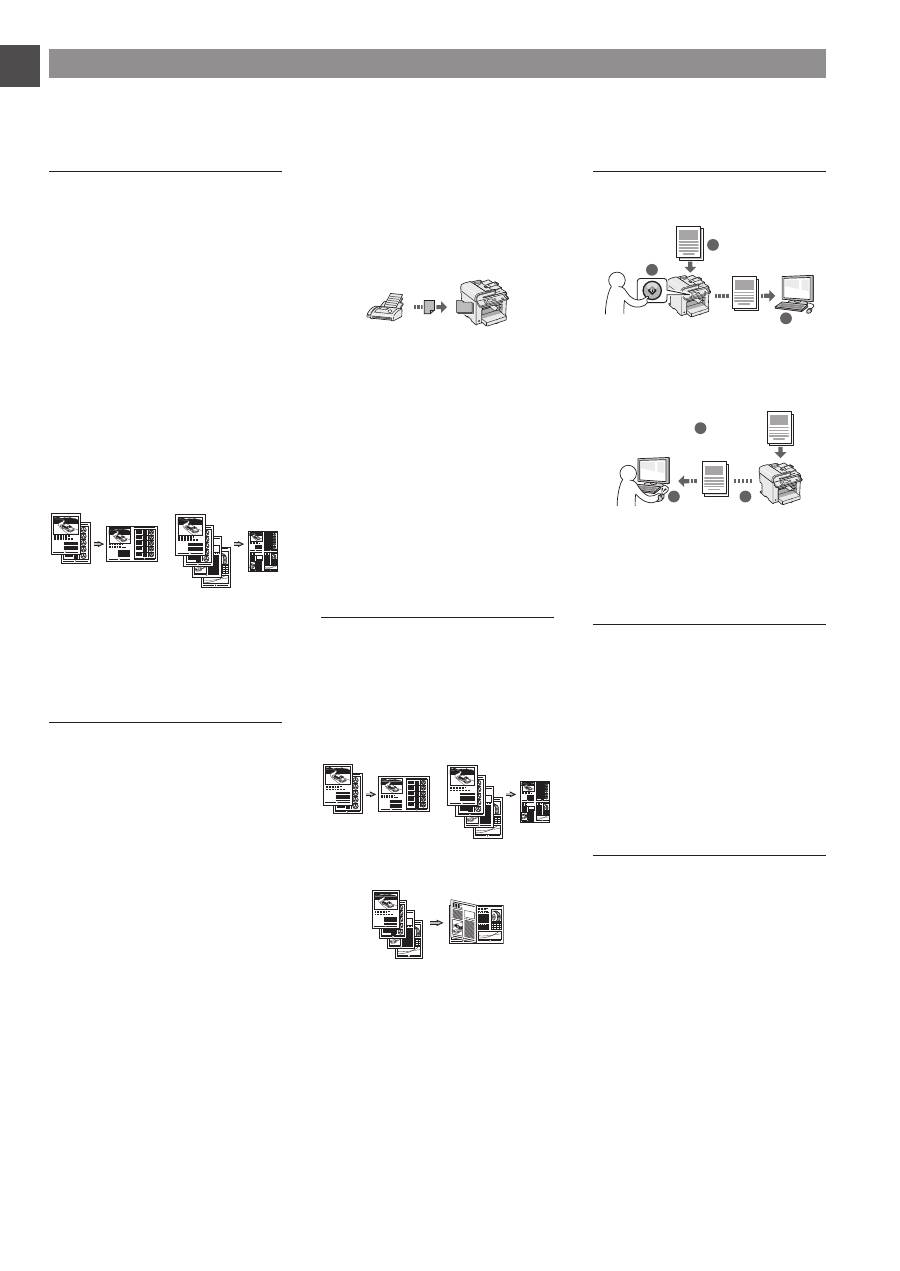
Copy
Enlarged/Reduced Copies
You can enlarge or reduce standard
size documents to copy on standard
size paper or specify the copy ratio in
percentage.
2-Sided Copying*
You can copy 1-sided documents on
both sides of paper.
Collating
You can sort copies into sets
arranged in page order.
Reduced Layout
You can reduce multiple documents
to copy them onto one sheet.
2 on 1
4 on 1
Copying ID Card
You can make a copy of a 2-sided
card onto one side of paper.
Fax**
Sending a Document Directly from
a Computer (PC Fax)
In addition to the normal sending and
receiving faxes, you can use the PC
fax.
Sending
You can register fax destinations in
the address book. You can specify the
destinations using various methods,
enabling you to send documents
quickly and easily.
•
Destination search
•
One-touch keys
•
Coded dialing
•
Destination Group
•
Specifying from the sending history
•
Sequential broadcast
•
Delayed sending
Receiving
●
Receiving in the memory
You can store the received
documents in the memory. You can
print the stored documents at any
time, and if you do not need them, you
can delete them.
●
Remote Receiving
If an external telephone is connected,
you can switch to the fax receiving
mode immediately by dialing the ID
number for fax receiving using the
dial buttons of the telephone during a
phone call.
●
Polling Receiving
You can retrieve pre-loaded
documents from a sender’s fax
machine when you want to receive
the fax.
Enlarged/Reduced Printing
2-Sided Printing*
Reduced Layout
You can reduce multiple documents
to print them onto one sheet.
2 on 1
4 on 1
Booklet Printing*
Poster Printing
Watermark Printing
Displaying a Preview before
Printing
Selecting a “Profile”
Scan
Saving the Documents Using the
Operation Panel of the Machine
1
2
3
Data
Documents
Saving the Documents Using
Operations from a Computer
●
Scanning with the MF Toolbox
1
2
3
Data
Documents
●
Scanning from an Application
●
Scanning with the WIA Driver***
Network Settings****
This machine comes equipped with
a network interface that you can
construct a network environment
easily. You can print a document,
use the PC fax, and use the network
scan from all computers which are
connected with the machine. The
machine supports to increase work
efficiency as a shared machine in the
office.
Remote UI****
You can understand the condition
of the machine from the computers
on the network. You can access the
machine and manage jobs or specify
various settings via network.
Perform Useful Tasks
You can use various functions in this machine. Following functions are the overview of the main functions that you can use
routinely.
* MF4890dw/MF4870dn Only ** MF4890dw/MF4870dn/MF4780w/MF4750 Only *** Windows XP/Vista/7/8 Only **** MF4890dw/MF4870dn/MF4780w Only
15
En
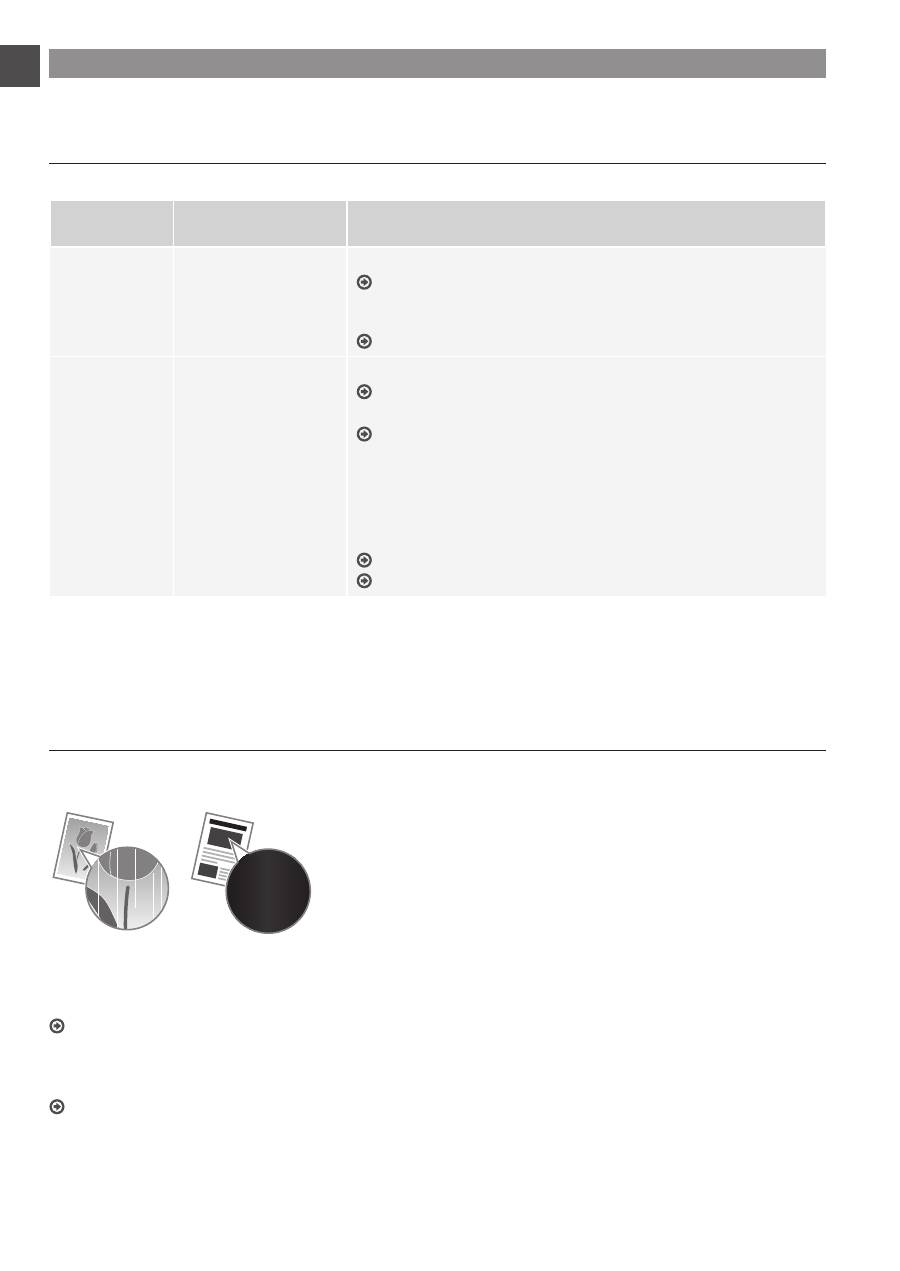
Clearing Paper Jams
If the following screen appears, a paper jam has occurred in the feeder or inside
the machine. Follow the procedure displayed on the screen to remove the jammed
document or paper. This manual indicates only areas where paper jams occur. For
details on each function, see the e-Manual.
Paper jam.
Press [ ] to
display steps.
Inside the machine
Multi-purpose tray
Paper Cassette
Back cover
(MF4890dw/MF4870dn only)
●
MF4890dw
●
MF4870dn/MF4780w/MF4750/MF4730
Feeder
16
En
Replacing Toner Cartridge
Toner cartridges are consumables. When the toner becomes nearly empty or has run out completely in the middle of a job run,
a message appears on the screen, or the following problems may occur. Take the appropriate action accordingly.
When a Message Appears
When the toner becomes nearly empty in the middle of a job run, a message appears on the screen.
Message
When the message is
displayed on the screen
Description and Solutions
<Prepare toner
cartridge.>
When the toner cartridge
needs a replacement
soon.
Shake the toner cartridge to evenly distribute the toner inside the cartridge.
e-Manual “Before Replacing the Toner Cartridge”
We recommend that the toner cartridge be replaced before printing high-
volume documents.
e-Manual “Replacing the Toner Cartridge”
<Toner is nearly
out.>
When the toner cartridge
has reached the end of
its life.
Shake the toner cartridge to evenly distribute the toner inside the cartridge.
e-Manual “Before Replacing the Toner Cartridge”
If this message does not disappear, replace the toner cartridge.
e-Manual “Replacing the Toner Cartridge”
If this message is displayed, the incoming fax will be stored in the memory
without being printed. Also, reports may not be printed, even if they are set
to be printed automatically.
If <Continue Print. When Toner Is Nearly Out> in <RX Print Settings> is set
to <On>, however, printing will be continued, but white streaks or smudges
may appear on printouts.
e-Manual “Printing the Report Automatically”
e-Manual “Continue Print. When Toner Is Nearly Out”
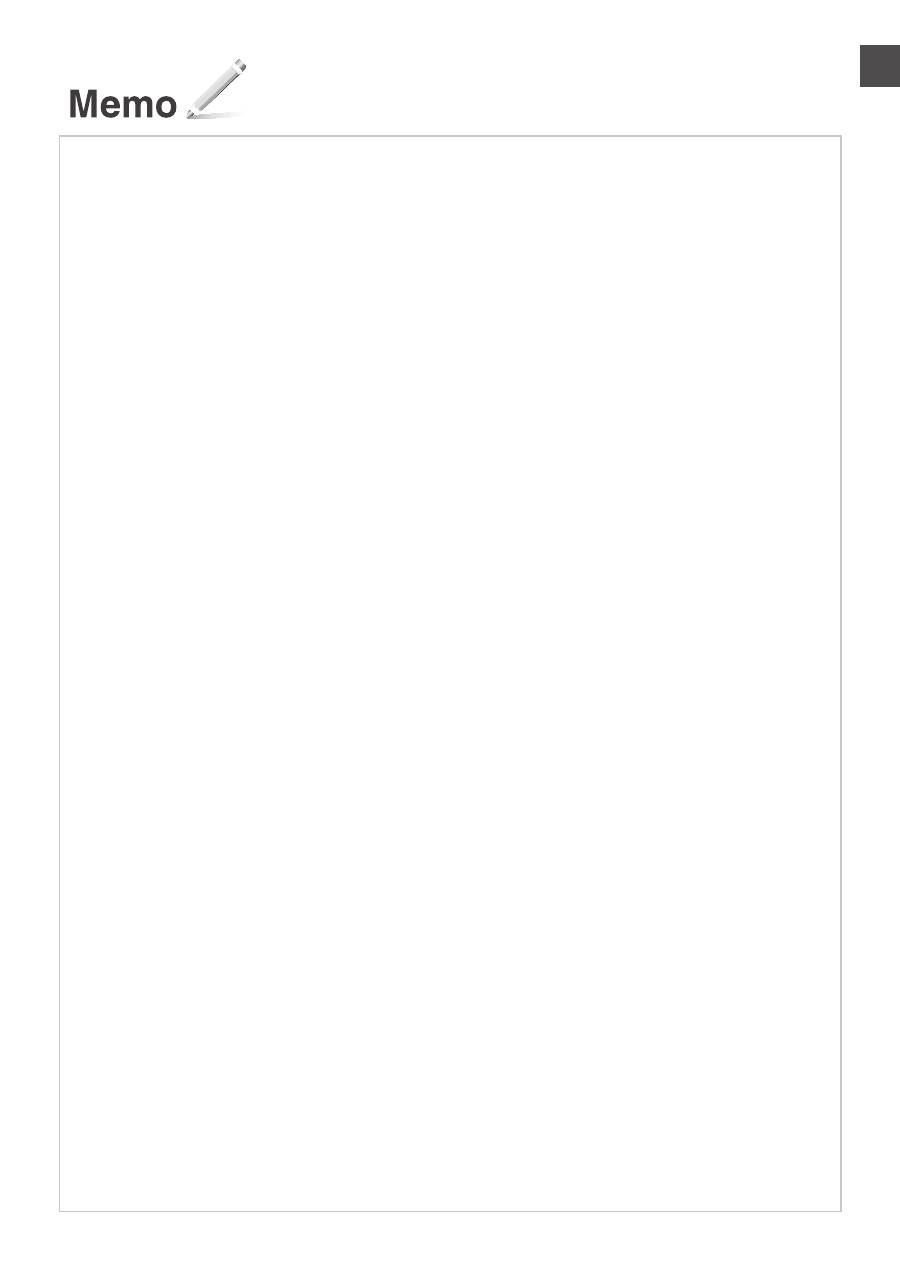
When white streaks appear on the output, or the output is partially faded:
When white streaks appear on the output or the output is partially faded, the toner cartridge has almost reached the end of
its life, even if no message appears on the screen. When the print quality becomes unacceptable, see the following to fix the
problem.
When White Streaks Appear on the Output or the Output Is Partially Faded
When the toner nearly runs out, white streaks appear on the output, or the output is partially faded.
No message appears on the screen, if the toner nearly runs out.
Replace the toner cartridge when white streaks appear on the
output, or the output is partially faded.
When this problem occurs:
Follow the steps in the procedure below before replacing the toner cartridge. The machine continues printing until the toner runs
out completely.
e-Manual “Before Replacing the Toner Cartridge”
When the print quality is still unacceptable:
If the problem persists after you have followed the steps in the procedure below, replace the toner cartridge.
e-Manual “Replacing the Toner Cartridge”
17
En
18
En
Symbols Used in This Manual
WARNING
Indicates a warning concerning operations that may lead to death
or injury to persons if not performed correctly. To use the machine
safely, always pay attention to these warnings.
CAUTION
Indicates a caution concerning operations that may lead to injury to
persons if not performed correctly. To use the machine safely, always
pay attention to these cautions.
Keys and Buttons Used in This Manual
The following symbols and key names are a few examples of how
keys to be pressed are expressed in this manual.
• Operation panel keys: [Key icon] + (Key name)
Example: [ ] (Stop)
• Display: <Specify destination.>
• Buttons and items on the computer display: [Preferences]
Illustrations and Displays Used in This Manual
Illustrations and displays used in this manual are which of MF4890dw
unless specified.
WARNING
To avoid the risk of personal injury or damage to the equipment
and for legal information, read the Legal Notice and Important
Safety Information in Multi-lingual User Manual CD that is
included with the product.
Important Safety Instructions
Please read the “Important Safety Instructions” in this manual and in
the e-Manual thoroughly before operating the machine.
As these instructions are intended to prevent injury to the user and
other persons or to prevent destruction of property, always pay
attention to these instructions and operational requirements.
Please note that you are responsible for all damages caused by
failure to follow the directions provided herein, using the device for
any purpose for which it was not intended, or repairs or alterations
made by anyone other than a Canon-approved technician.
Installation
WARNING
• Do not install the machine near flammable substances such as
alcohol-based products or paint thinners. If these substances
come in contact to the electrical parts inside the machine could
ignite these substances and cause a fire or increase your risk of
electric shock.
• Do not place necklaces and other metal objects or containers
filled with liquid on the machine. If foreign substances come into
contact with electrical parts inside the machine, this may result in
a fire or electrical shock.
If any of these substances falls into the machine, turn off the
power to the machine immediately and contact your local Canon
dealer.
• Do not use near any medical equipment. Radio wave emitted from
this machine may interfere with medical equipments, which may
result in serious accidents.
CAUTION
• Do not install the machine in the following locations. Doing so may
result in personal injury, fire or electrical shock.
− Unstable location
− A location subject to excessive vibrations
− A location where block the ventilation slots (too close to walls,
bed, shaggy rug, and other similar objects)
− A damp or dusty location
− A location exposed to direct sunlight or an outside place
− A location subject to high temperatures
− A location near open flames
− A location with poor ventilation system
• Although ozone is generated from the machine during operation,
it does not have any affect on the human body. However, if you
intend to use the machine for long periods of time, ensure that the
installation location is well ventilated.
• Do not connect unapproved cables to this machine. Doing so may
result in a fire or an electric shock.
• Machines with a hard disk may not operate properly when used at
high altitudes of about 3,000 meters above sea level, or higher.
Power Supply
WARNING
• Do not use power cords other than the one provided, as this can
result in a fire or electrical shock.
• Do not modify or bend the power cord and do not pull on it with
great force. Do not place heavy objects on the power cord.
Damaging the power cord may result in a fire or an electric shock.
• Do not plug or unplug the power plug with wet hands, as this can
result in electrical shock.
• Do not use extension cords or multi-plug power strips with this
machine. Doing so may result in a fire or electric shock.
• Do not bundle up or tie up the power cord in a knot, as this can
result in a fire or electrical shock.
• Insert the power plug completely into the AC power outlet. Failure
to do so can result in a fire or electrical shock.
• Remove the power plug completely from the power outlet during a
thunder storm. Failure to do may result in a fire, electric shock, or
malfunction.
CAUTION
• Use only a power supply that meets the voltage requirements
listed herein. Failure to do so may result in a fire or electric shock.
• Do not obstruct the power outlet where this machine is connected,
so that you can unplug the power cord easily in an emergency.
Handling
WARNING
• Do not disassemble or modify the machine. There are high-
temperature and high-voltage components inside the machine
which may result in a fire or electrical shock.
• Do not allow children to touch or play with the power cord and
cables or internal or electrical parts. Doing so may result in serious
personal injury.
• Please contact an authorized Canon dealer if the machine makes
an unusual noise, emits an unusual smell, or emits smoke or
excessive heat. Continued use may result in a fire or electric
shock.
• Do not use flammable sprays near the machine. If flammable
substances come into contact with electrical parts inside the
machine, this may result in a fire or electric shock.
19
En
CAUTION
• For your safety, please unplug the power cord if the machine will
not be used for a long period of time.
• Use caution when opening and closing covers to avoid injury to
your hands.
• Keep hands and clothing away from the rollers in the output
area. If the rollers catch your hands or clothing, this may result in
personal injury.
• The inside of the machine and the output slot is very hot during
and immediately after use. Avoid contact with these areas to
prevent burns. Also, printed paper may be hot immediately after
being output, so use caution when handling it. Failure to do so
may result in burns.
Maintenance and Inspections
WARNING
• Turn off the machine and unplug the power cord from the outlet
before cleaning. Failure to do so may result in a fire or an electric
shock.
• Unplug the power plug from the power outlet periodically and
clean the area around the base of the power plug’s metal pins and
the power outlet with a dry cloth to remove dust and grime. When
damp, accumulated dust may cause short circuiting or fires.
• Use a damp, well wrung-out cloth to clean the machine. Dampen
cleaning cloths with water only. Do not use alcohol, benzenes,
paint thinners, or other flammable substances. If these substances
come into contact with electrical parts inside the machine, this
may result in a fire or electric shock.
• Check the power cord and plug regularly for damage. Check the
machine for rust, dents, scratches, cracks, or excessive heat
generation. Use of poorly-maintained equipment may result in a
fire or electric shock.
Consumables
WARNING
• Do not dispose of used toner cartridges in open flames. This may
cause an ignition, and result in burns or fire.
• If you accidentally spill or scatter toner, carefully wipe up the loose
toner with a damp, soft cloth and avoid inhaling any toner dust.
Never use a vacuum cleaner to clean up loose toner. Doing so
may cause a malfunction in the vacuum cleaner or result in a dust
explosion due to static discharge.
CAUTION
• Keep the toner cartridges and other consumables out of the reach
of small children. If toner is ingested, consult a physician or poison
control center immediately.
• Do not attempt to disassemble the toner cartridge. The toner may
scatter and get into your eyes or mouth. If toner gets into your eyes
or mouth, wash them immediately with cold water and consult a
physician.
• If toner spills from the toner cartridge, avoid inhaling it or allowing
it to come into contact with your skin. If the toner comes into
contact with your skin, wash immediately with soap. If you inhale
the toner or your skin becomes irritated due to contact with the
toner, consult a physician or poison control center immediately.
Others
WARNING
• If you are using a cardiac pacemaker:
This machine generates a low level magnetic field. If you feel any
abnormalities in your body while using this machine, please move
away from the machine and consult your physician immediately.
Legal Notices
Legal Limitations on Usage of Your Product
and the Use of Images
Using your product to scan, print or otherwise reproduce certain
documents, and the use of such images as scanned, printed or
otherwise reproduced by your product, may be prohibited by law
and may result in criminal and/or civil liability. A non-exhaustive list of
these documents is set forth below. This list is intended to be a guide
only. If you are uncertain about the legality of using your product to
scan, print or otherwise reproduce any particular document, and/or
of the use of the images scanned, printed or otherwise reproduced,
you should consult in advance with your legal advisor for guidance.
− Paper Money
− Traveler’s Checks
− Money Orders
− Food Stamps
− Certificates of Deposit
− Passports
− Postage Stamps (canceled or uncanceled)
− Immigration Papers
− Identifying Badges or Insignias
− Internal Revenue Stamps (canceled or uncanceled)
− Selective Service or Draft Papers
− Bonds or Other Certificates of Indebtedness
− Checks or Drafts Issued by Governmental Agencies
− Stock Certificates
− Motor Vehicle Licenses and Certificates of Title
− Copyrighted Works/Works of Art without Permission of
Copyright Owner
Considerable effort has been made to make sure that the manuals
for the machine are free of inaccuracies and omissions. However,
as we are constantly improving our products if you need an exact
specification, please contact Canon.
20
Fr
A propos des manuels fournis
Guide de démarrage
(ce manuel) :
Commencez par lire ce manuel.
Il explique comment installer et
configurer la machine, et indique les
précautions à suivre. Veillez à bien lire
ce manuel avant d'utiliser la machine.
Guide des paramètres du
réseau sans fil (MF4890dw/
MF4780w uniquement) :
Lisez ce manuel avec le Guide de
démarrage. Il décrit la procédure
de réglage du réseau sans fil, et
indique les raisons et les mesures à
prendre en cas de problème lors de
la configuration. Veillez à bien lire ce
manuel avant d'utiliser la machine.
Guide d'installation du
pilote MF (User Software
CD-ROM) :
Vous devez ensuite lire ce manuel. Il
explique comment installer le logiciel.
Manuel électronique
(Multi-lingual User Manual CD) :
Lisez le chapitre de votre choix. Le
manuel électronique est divisé en
rubriques afin de faciliter la recherche
d'informations.
Navigation dans le menu et méthode de saisie du texte
●
MF4890dw/MF4870dn/MF4780w/MF4750
OK
▲▼◀▶
#
Clavier numérique
C
Menu
Précédent
●
MF4730
OK
▲▼◀▶
Menu
Précédent
#
Clavier numérique
C
Navigation dans le menu
Sélection des options ou
déplacement du curseur dans les
options de menu
Sélectionnez une option en appuyant
sur [▲] ou [▼]. Accédez au niveau
suivant en appuyant sur [OK] ou
[▶]. Revenez au niveau suivant en
appuyant sur [ ] (Précédent) ou
[◀].
Validation des réglages
Appuyez sur [OK]. Toutefois, lorsque
<Appliquer> s'affiche, sélectionnez
<Appliquer>, puis appuyez sur [OK].
Méthode de saisie du texte
Modification du mode de saisie
Appuyez sur [▼] pour sélectionner
<Mode de saisie>, puis appuyez
sur [OK]. Vous pouvez également
appuyer sur [
] (Tonalité) pour
modifier le mode de saisie.
Saisie de texte, de symboles et de
chiffres
Utilisez le clavier numérique ou
[
] (SYMBOLES).
Pour en savoir plus sur le
changement de mode ou le texte
disponible, reportez-vous à la page
suivante.
Déplacement du curseur (ajout
d'un espace)
Déplacez le curseur en appuyant
sur [◀] ou [▶]. Déplacez le curseur à
la fin du texte, puis appuyez sur [▶]
pour ajouter un espace.
Suppression de caractères
Supprimez un caractère en appuyant
sur [ ] (Effacer). Maintenez la
touche [ ] (Effacer) enfoncée pour
effacer tous les caractères.
Affichage du manuel électronique depuis le CD-ROM
1 Insérez le CD-ROM “Multi-lingual User Manual CD” dans le lecteur de l'ordinateur.
2 Sélectionnez votre langue.
3 Cliquez sur [Afficher les manuels].
En fonction de votre système d'exploitation, un message d'avertissement de sécurité apparaît
parfois.
