
Canon Legria HF G25: instruction
Class: Video Audio Photo Equipment
Type:
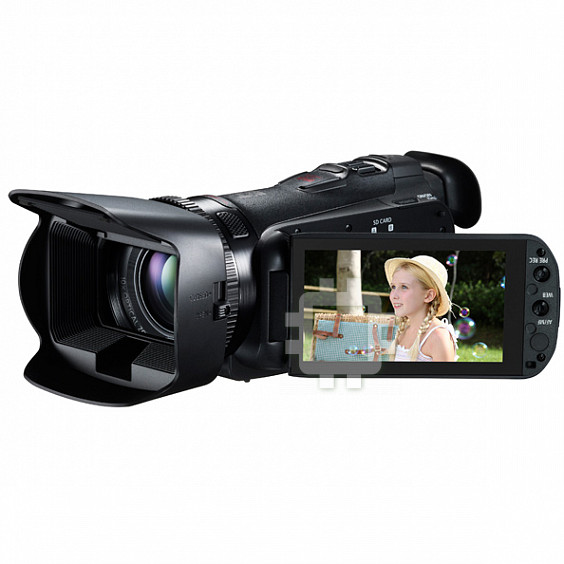
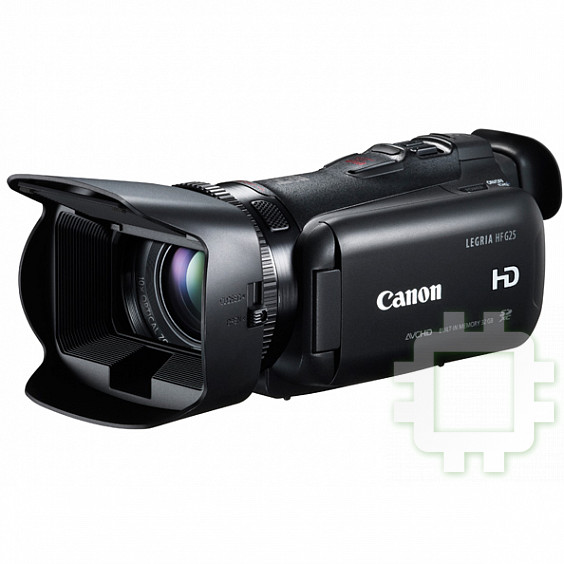
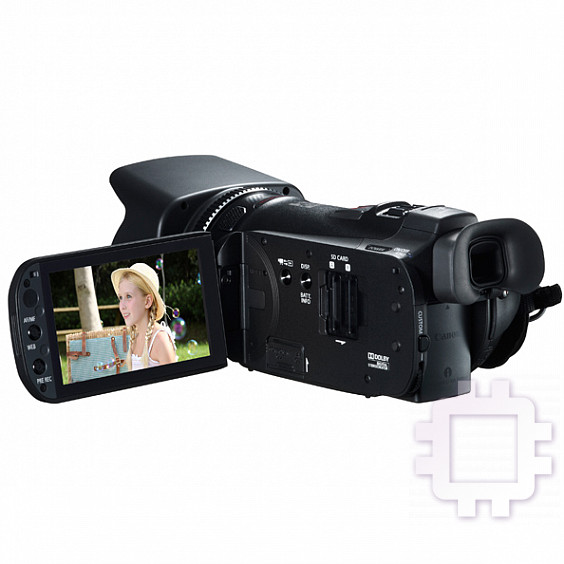
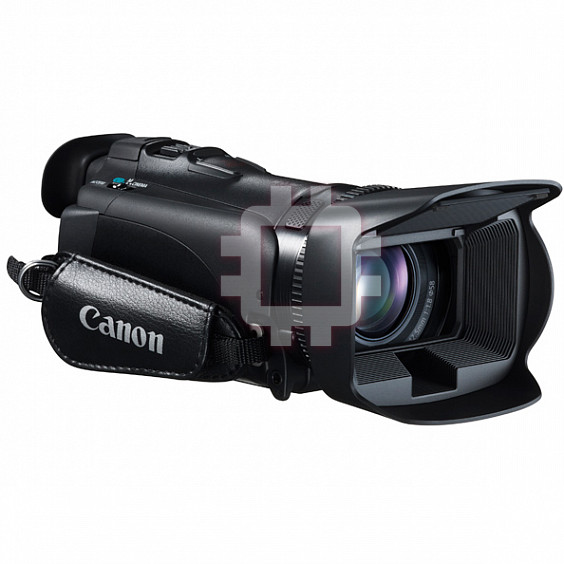
Manual for Canon Legria HF G25
Table of contents

PUB. DIM-1069-000
En
Fr
De
It
Es
Ru
Jp
Startup Guide
Guide de démarrage
Startanleitung
Guida introduttiva
Guía de inicio
Вводное руководство
インストールの前に
VideoBrowser
COP
Y

Jp
02
VideoBrowser
を
インストール
すると
何
が
できるの?
PIXELA 社製のソフトウェア VideoBrowser をパソコンにインストール
すると撮影した映像ファイル (AVCHD 動画 /SD 動画 ) をさまざまな形
で楽しむことができます。
● 映像ファイルの保存と管理
− ビデオカメラから映像ファイルをパソコンに取り込んで、管理でき
ます。
● 映像ファイルの編集と変換
− パソコンに取り込んだ映像ファイルを編集したり、iTunes 用のファ
イルに変換したりすることができます。
● 映像ファイルのディスク作成とアップロード
− 取り込みや編集をした映像ファイルで DVD(AVCHD 規格)のディ
スクを作成できます。
− 編集や変換した映像ファイルを YouTube や Facebook などの動画
共有サイトにアップロードできます。
機能やインストールについては、あらかじめ VideoBrowser*
1
の取扱説
明書 *
2
の「VideoBrowser でできること」と動作環境をご確認ください。
*
1
VideoBrowser は Windows
®
専用です。
*
2
ソフトウェアディスクの [¥Manual¥Japanese] フォルダーの中に PDF
ファイルとして収納されています。PDF をご覧いただくには、Adobe
®
Reader
®
6 以降が必要です。
COP Y
Jp
03
インストールするときは
●
インストールの操作手順については、VideoBrowser の取扱説明書
(PDF ファイル)をご覧ください。
●
インストールは、インターネット接続が可能な環境で行ってください。
主なシステム要件
* MXP モードの映像を使用する場合は、Intel
®
Core
™
2 Duo/2.33 GHz 以
上を推奨。
OS
Windows 8
(デスクトップ
モードのみ)
Windows 7
SP1
Windows
Vista SP2
Windows XP
SP3(32 bit
版のみ)
CPU
Intel
®
Pentium
®
D/3.0 GHz 以上
Intel
®
Core
™
2 Duo/2.13 GHz 以上 *
Intel
®
Core
™
i3 /2.13 GHz 以上
メモリ
2 GB 以上
1 GB 以上
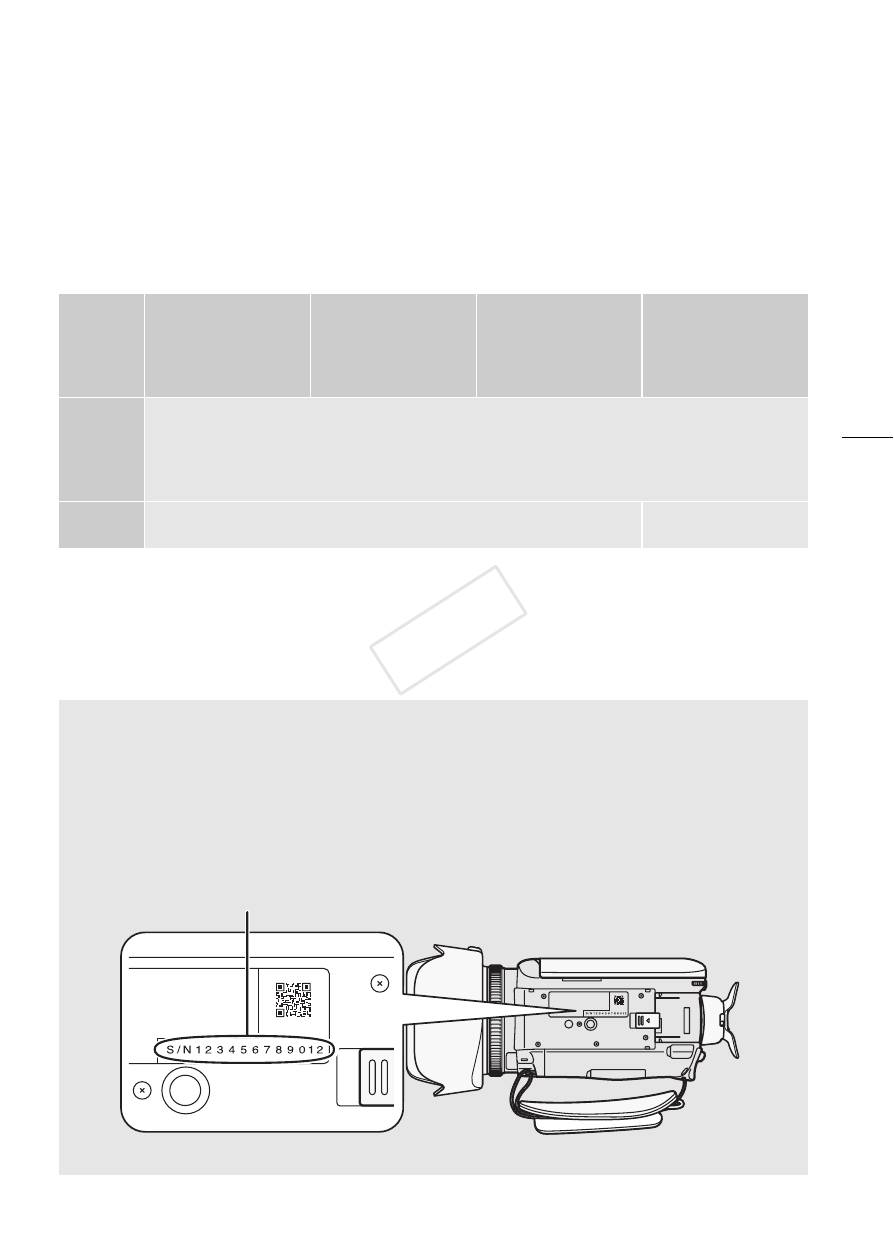
ビデオカメラのシリアル番号について
インストールの操作手順の中で、ビデオカメラ底面にあるシリアル番
号の入力が必要です。
「S/N」を除く 12 桁の数字を入力してください。
( 底面図 )
シリアル番号(12 桁)
COP Y

En
04
The supplied PIXELA’s software
VideoBrowser
, which is exclusively for
computers running Windows OS, offers various options for organizing and
manipulating your AVCHD movies and movies you converted to standard
definition. These are just some of the exciting functions available to you.
• Saving and managing movies
You can save your AVCHD movies on a computer and then manage them
by, for example, organizing them by date or event.
• Editing and converting movies
Experience the versatility of
VideoBrowser
by editing your movies or
converting them for use with your portable media player.
• Creating discs from your movies
Create a disc of the movies you saved on your computer. These discs can
be played back on standard DVD players.
• Uploading your movies
Upload your movies to YouTube and Facebook to share your videos with
your friends and family!
For more details, check the
VideoBrowser
Software Guide, a PDF file* in the
[\Manual\English] folder of the supplied
PIXELA
CD-ROM. Specifically, see
What you can do with VideoBrowser
for available options.
* Adobe
®
Reader
®
6 or later is required to view the PDF file.
COP Y
En
05
Installing the software
See
Installation
and
System requirements
in the
VideoBrowser
Software
Guide (PDF file) for step-by-step installation instructions and full system
requirements. Below are the main system requirements.
OS:
Windows 8 (Desktop only), Windows 7 SP1, Windows Vista SP2,
Windows XP SP3 (32-bit only)
CPU:
Intel
®
Pentium
®
D, 3.0 GHz / Intel
®
Core™2 Duo, 2.13 GHz
(Intel
®
Core™2 Duo, 2.33 GHz for handling recordings in MXP mode)
Intel
®
Core™ i3, 2.13 GHz
RAM:
2 GB (Windows 8, Windows 7 and Windows Vista);
1 GB (Windows XP)
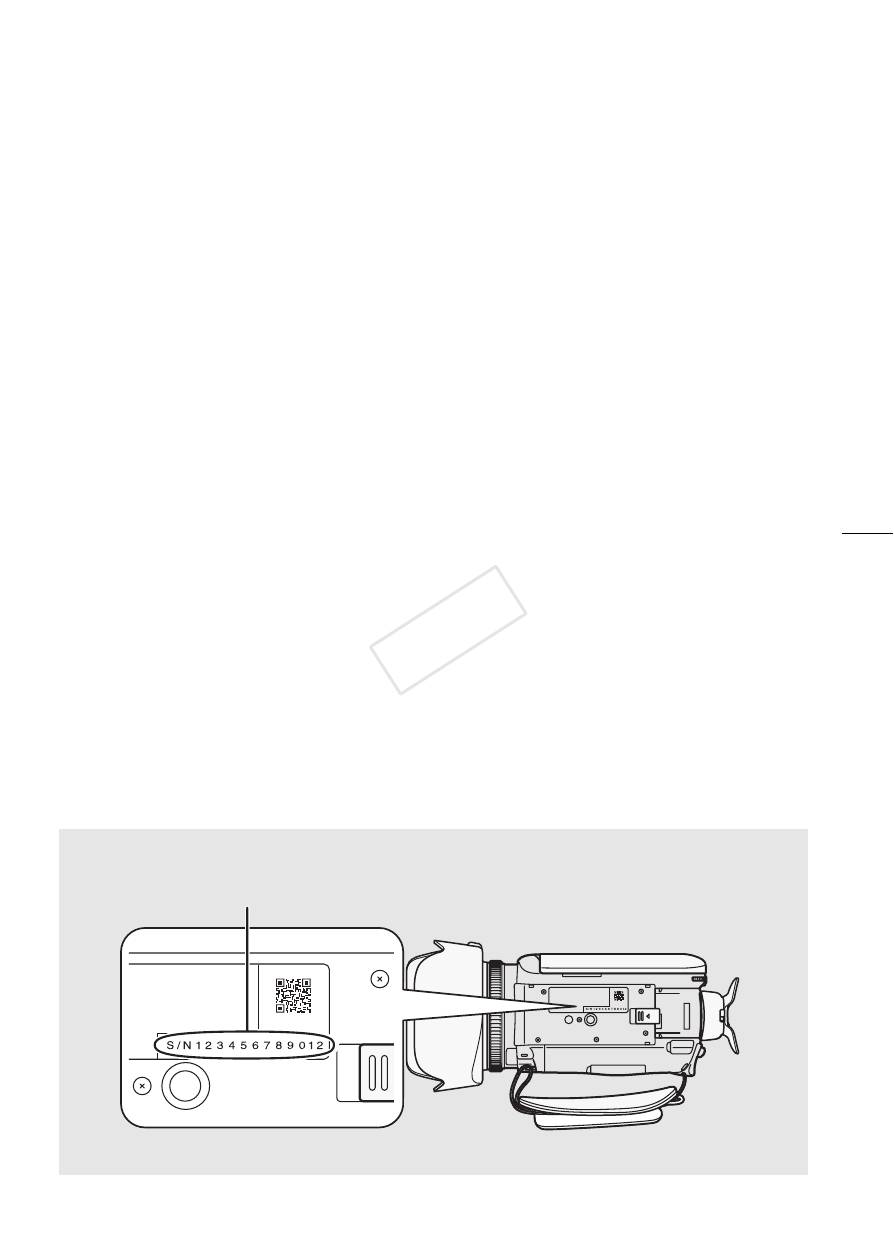
Furthermore, you will need to validate the software online. You will need to
enter your camcorder’s serial number as part of the software validation
process. Enter only the 12 digits (without the “S/N” prefix).
Your camcorder’s serial number
Enter only the 12 digits
(bottom view)
COP Y

Fr
06
Le logiciel fourni
VideoBrowser
de PIXELA, qui est exclusivement pour les
ordinateurs fonctionnant sous Windows OS, offre diverses options pour
organiser et manipuler vos séquences vidéo AVCHD et les séquences vidéo
converties en définition standard. Voici quelques unes des fonctions
passionnantes disponibles pour vous.
• Sauvegarde et gestion des séquences vidéo
Vous pouvez sauvegarder vos séquences vidéo AVCHD sur un ordinateur et
puis les gérer, comme par exemple les organiser par date ou événement.
• Édition et conversion des séquences vidéo
Faites l’expérience de la polyvalence de
VideoBrowser
en éditant vos
séquences vidéo ou en les convertissant pour les utiliser avec votre lecteur
multimédia portable.
• Création de disques à partir de vos séquences vidéo
Créez un disque à partir des séquences vidéo que vous avez sauvegardées
sur votre ordinateur. Ces disques peuvent être lus sur des lecteurs DVD
standards.
• Téléchargement de vos séquences vidéo
Téléchargez vos séquences vidéo sur YouTube et Facebook pour les
partager avec vos amis et votre famille !
Pour plus de détails, consultez le Guide du logiciel
VideoBrowser
, un fichier
PDF * se trouvant dans le dossier [\Manual\French] du CD-ROM
PIXELA
fourni. En particulier, consultez
Que pouvez-vous faire avec VideoBrowser
pour connaître les options disponibles.
* Adobe
®
Reader
®
6 ou supérieur est requis pour afficher le fichier PDF.
COP Y

Fr
07
Installation du logiciel
Consultez
Installation
et
Configuration système requise
dans le Guide du
logiciel de
VideoBrowser
(fichier PDF) pour connaître les instructions
d’installation étape par étape ainsi que les configurations système complètes.
Voici les exigences système principales.
OS :
Windows 8 (Bureau uniquement), Windows 7 SP1, Windows Vista
SP2, Windows XP SP3 (32 bits uniquement)
CPU :
Intel
®
Pentium
®
D, 3,0 GHz / Intel
®
Core™2 Duo, 2,13 GHz
(Intel
®
Core™2 Duo, 2,33 GHz pour traiter les enregistrement en
mode MXP)
Intel
®
Core™ i3, 2,13 GHz
RAM :
2 Go (Windows 8, Windows 7 et Windows Vista) ; 1 Go (Windows XP)
Vous devez aussi valider le logiciel en ligne. Vous aurez besoin d’entrer le
numéro de série de votre caméscope dans le cadre du processus de
validation du logiciel. Saisissez uniquement les 12 chiffres (sans le préfixe
“S/N”).
Le numéro de série de votre caméscope
Saisissez uniquement les 12 chiffres
(vue de dessous)
COP Y

De
08
Die mitgelieferte PIXELA-Software
VideoBrowser
, bestimmt ausschließlich für
Computer mit Windows-Betriebssystem, bietet Ihnen eine Reihe von
Optionen zum Verwalten und Bearbeiten Ihrer AVCHD-Filme und Filme, die
Sie in Standardauflösung konvertiert haben. Dies sind nur einige der
spannenden Funktionen, die Ihnen zur Verfügung stehen.
• Filme speichern und verwalten
Sie können Ihre AVCHD-Filme auf einem Computer speichern und sie dann
verwalten, indem Sie sie zum Beispiel nach Datum oder Ereignis ordnen.
• Filme bearbeiten und konvertieren
Erleben Sie die Vielseitigkeit von
VideoBrowser
beim Bearbeiten oder beim
Konvertieren Ihrer Filme, um sie mit einem transportablen Mediaplayer zu
nutzen.
• Disks von Filmen erstellen
Erstellen Sie Disks von den Filmen, die Sie auf Ihrem Computer gespeichert
haben. Diese Disks können auf Standard-DVD-Playern wiedergegeben
werden.
• Filme in das Internet hochladen
Laden Sie Ihre Filme auf YouTube oder Facebook hoch, um sie mit
Freunden und Familie zu teilen!
Ausführliche Informationen finden Sie im
VideoBrowser
Software-Handbuch,
eine PDF-Datei* im Ordner [\Manual\German] der mitgelieferten
PIXELA
CD-
ROM. Informieren Sie sich unter
Die Funktionen von VideoBrowser
über
verfügbare Optionen.
* Adobe
®
Reader
®
6 oder höher ist zum Lesen der PDF-Datei erforderlich.
COP Y

De
09
Installieren der Software
Eine schrittweise Anleitung sowie die vollständigen Systemanforderungen
finden Sie unter
Installation
und
Systemanforderungen
im Software-Handbuch
(PDF-Datei) zu
VideoBrowser
. Im Folgenden sind die
Mindestsystemanforderungen angegeben.
OS:
Windows 8 (nur Desktop), Windows 7 SP1, Windows Vista SP2,
Windows XP SP3 (nur 32-Bit-Version)
CPU:
Intel
®
Pentium
®
D, 3,0 GHz / Intel
®
Core™2 Duo, 2,13 GHz
(Intel
®
Core™2 Duo, 2,33 GHz zur Verarbeitung von Aufzeichnungen
im MXP-Modus)
Intel
®
Core™ i3, 2,13 GHz
RAM:
2 GB (Windows 8, Windows 7 und Windows Vista); 1 GB (Windows XP)
Außerdem müssen Sie die Software online bestätigen. Als Teil des
Bestätigungsvorgangs für die Software müssen Sie die Seriennummer Ihres
Camcorders eingeben. Geben Sie dabei nur die 12 Stellen (ohne das Präfix
“S/N”) ein.
Die Seriennummer Ihres Camcorders
Nur die 12 Ziffern eingeben
(Ansicht von unten)
COP Y

It
10
Il software
VideoBrowser
PIXELA, da utilizzare esclusivamente con sistemi
operativi Windows, offre numerose opzioni per organizzare e modificare i
filmati AVCHD e quelli convertiti a definizione standard. Tra le interessanti
opzioni troverete anche:
• Salvataggio e gestione di filmati
Potete salvare i vostri filmati AVCHD su un computer e poi metterli in ordine,
ad esempio, organizzandoli per data o evento.
• Editing e conversione di filmati
Sfruttate appieno la versatilità di
VideoBrowser
editando i filmati o
convertendoli per l’uso con lettori portatili.
• Creazione di dischi con i vostri filmati
Create dischi con i filmati salvati sul computer. I dischi potranno essere
riprodotti con lettori DVD standard.
• Caricamento di filmati
Caricate i vostri filmati su YouTube e Facebook per condividerli con gli amici
e la famiglia!
Per ulteriori dettagli, consultate la Guida del software
VideoBrowser
che
trovate come file in formato PDF* nella cartella [\Manual\Italian] del CD-ROM
PIXELA
. Riguardo alle funzioni disponibili consultate in particolare
Cosa è
possibile fare con VideoBrowser
.
* Per aprire il file PDF è necessario Adobe
®
Reader
®
6 o una versione più recente.
COP Y
It
11
Installazione del software
Per istruzioni dettagliate e i requisiti di sistema completi consultate
Installazione
e
Requisiti di sistema
nella Guida del software
VideoBrowser
(file
PDF). I requisiti minimi per il sistema sono:
OS:
Windows 8 (solo Desktop), Windows 7 SP1, Windows Vista SP2,
Windows XP SP3 (solo 32-bit)
CPU:
Intel
®
Pentium
®
D, 3,0 GHz / Intel
®
Core™2 Duo, 2,13 GHz
(Intel
®
Core™2 Duo, 2,33 GHz per registrazioni nella modalità MXP)
Intel
®
Core™ i3, 2,13 GHz
RAM:
2 GB (Windows 8, Windows 7 e Windows Vista); 1 GB (Windows XP)
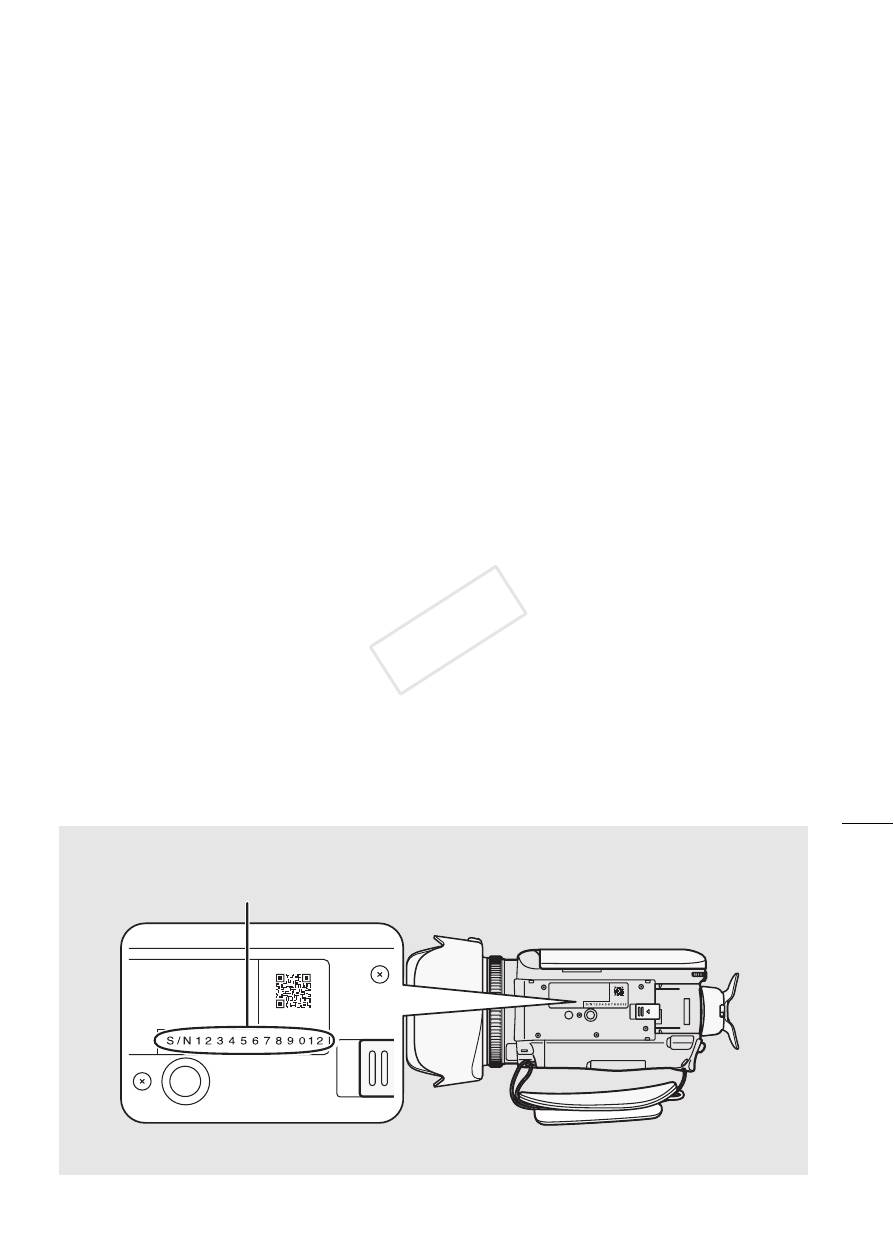
Inoltre, sarà necessario convalidare il software online. La procedura prevede
anche l’inserimento del numero di serie della videocamera (solo le 12 cifre,
senza il prefisso S/N).
Il numero di serie della videocamera
Immettere solo le 12 cifre
(vista dal basso)
COP Y

Es
12
El software
VideoBrowser
de PIXELA suministrado, para utilizar
exclusivamente con ordenadores ejecutando Windows OS, ofrece varias
opciones para organizar y gestionar sus vídeos AVCHD y vídeos que ha
convertido a definición estándar. Estas son solo algunas de las emocionantes
funciones que tiene a su disposición.
• Guardar y gestionar vídeos
Puede guardar sus vídeos AVCHD en un ordenador y luego gestionarlos,
por ejemplo, organizándolos por fecha o por evento.
• Editar y convertir vídeos
Disfrute de la versatilidad de
VideoBrowser
editando sus vídeos o
convirtiéndolos para usarlos con su reproductor de medios portátil.
• Crear discos a partir de sus vídeos
Cree un disco de los vídeos que guardó en su ordenador. Estos discos
pueden reproducirse en reproductores de DVD normales.
• Cargar sus vídeos
¡Cargue sus vídeos a YouTube y Facebook para compartirlos con los
amigos y la familia!
Para obtener más información, consulte la Guía de software
VideoBrowser
,
un archivo PDF* que se encuentra en la carpeta [\Manual\Spanish] del CD-
ROM
PIXELA
suministrado. Específicamente, consulte
Qué se puede hacer
con VideoBrowser
para obtener las opciones disponibles.
* Se requiere Adobe
®
Reader
®
6 o posterior para poder visualizar el archivo PDF.
COP Y
Es
13
Instalación del software
Consulte
Instalación
y
Requisitos del sistema
en la Guía de software
VideoBrowser
(archivo PDF) para obtener las instrucciones de instalación
paso a paso y los requisitos del sistema completos. A continuación puede
encontrar los principales requisitos del sistema.
SO:
Windows 8 (solamente Escritorio), Windows 7 SP1, Windows Vista
SP2, Windows XP SP3 (solo de 32 bits)
CPU:
Intel
®
Pentium
®
D a 3,0 GHz / Intel
®
Core™2 Duo a 2,13 GHz
(Intel
®
Core™2 Duo a 2,33 GHz para gestionar grabaciones en el
modo MXP)
Intel
®
Core™ i3 a 2,13 GHz
RAM:
2 GB (Windows 8, Windows 7 y Windows Vista); 1 GB (Windows XP)
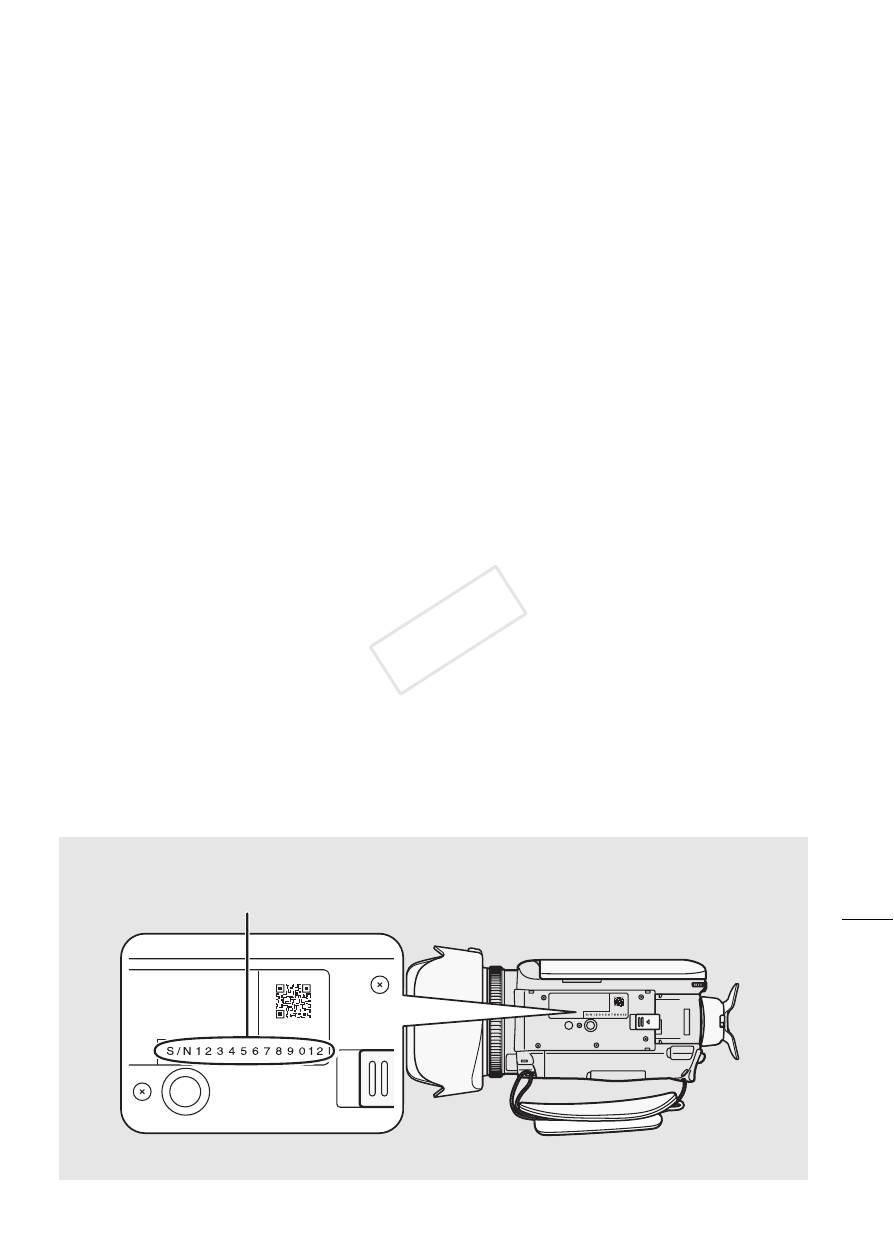
Además, deberá validar el software en línea. Deberá introducir el número de
serie de la videocámara como parte del proceso de validación del software.
Introduzca solo los 12 dígitos (sin el prefijo “S/N”).
El número de serie de la videocámara
Introduzca sólo los 12 dígitos
(vista inferior)
COP Y

Ru
14
В поставляемой программе
VideoBrowser
корпорации PIXELA,
предназначенной исключительно для компьютеров, работающих с ОС
Windows, предусмотрены различные варианты для организации
фильмов в формате AVCHD и фильмов, преобразованных в фильмы
стандартной четкости, и для управления ими. Вот некоторые из
замечательных функций, которыми можно воспользоваться.
• Сохранение видеофильмов и управление ими
Видеофильмы в формате AVCHD можно сохранить на компьютере,
чтобы затем управлять ими, например систематизируя их по дате или
какому-либо событию.
• Редактирование и преобразование видеофильмов
Воспользуйтесь разносторонними функциями ПО
VideoBrowser
,
редактируя видеофильмы или преобразуя их для воспроизведения на
портативном проигрывателе.
• Создание дисков с собственными видеофильмами
Создайте диск с видеофильмами, сохраненными на компьютере. Эти
диски можно воспроизводить на стандартных DVD-проигрывателях.
• Загрузка видеофильмов
Загрузите свои собственные видеофильмы в YouTube и Facebook,
чтобы показать их Вашим родным и друзьям!
Более подробная информация приведена в руководстве по
использованию программного обеспечения
VideoBrowser
, файле
формата PDF* из папки [\Manual\Russian] на прилагаемом компакт-диске
PIXELA
. Сведения об имеющихся возможностях см. в разделе
Возможности использования VideoBrowser
.
* Для просмотра PDF-файла необходима программа Adobe® Reader® 6 или ее
более поздняя версия.
COP Y

Ru
15
Установка программного обеспечения
Пошаговые указания по установке и полную информацию о системных
требованиях см. в разделах
Установка
и
Tребования к системе
в
руководстве по использованию программного обеспечения
VideoBrowser
(PDF-файл). Ниже приведены основные требования к
системе.
ОС:
Windows 8 (только рабочий стол), Windows 7 SP1, Windows
Vista SP2, Windows XP SP3 (только 32-битовая версия)
Процессор:
Intel®Pentium® D, 3,0 ГГц / Intel®Core™2 Duo, 2,13 ГГц
(Intel®Core™2 Duo, 2,33 ГГц для обработки записей в
режиме MXP)
Intel®Core™ i3, 2,13 ГГц
ОЗУ:
2 Гбайта (Windows 8, Windows 7 и Windows Vista);
1 Гбайт (Windows XP)
Кроме того, потребуется проверка подлинности программного
обеспечения в режиме онлайн. В качестве одной из мер проверки
подлинности необходимо ввести серийный номер видеокамеры.
Введите только 12 цифр (без «S/N» в начале).
Серийный номер видеокамеры
Введите только 12 цифр
(вид снизу)
COP Y
PUB. DIM-1069-000
© CANON INC. 2013
PRINTED IN JAPAN
IMPRIMÉ AU JAPON
IMPRESO EN JAPÓN
•
•


