
Canon pixma pro-1: 3 3
3 3: Canon pixma pro-1
Table of contents
- Contents■
- Printer Installation Flow■ Printer Preparation Software Installation Installation Complete
- Symbols Used in This Document
- Printed Manual■ On-screen Manual and Online Manual■ Getting Started (this manual)
- Devices Required for Wired Connection■ When using the printer over a wired connection, a commercial network device (router, etc.) and Ethernet cable are required.
- Preparation
- 1 2
- 3 4 5 6
- 7 When it is necessary to turn off the printer
- 1 2 Install the Ink Tanks
- 3 4
- 5 6
- 1 2 Install the Print Head
- 3 4
- 5
- 6
- 7 8
- 9
- Software Installation
- For Windows XP/Windows XP SP1/Windows XP SP2/Windows Vista
- For Windows XP/Windows XP SP1/Windows XP SP2/Windows Vista If you prefer not to apply a Windows service pack, install the printer driver and IJ Network Tool by following the procedure below.
- For Mac OS X v10.6 to v10.6.7 Do you prefer to apply a Mac OS software update?
- For Mac OS X v10.4.11 to v10.5 Perform the installation by following one of the methods below.
- For Mac OS X v10.4.11 to v10.5 Install the software (the printer driver and IJ Network Tool) stored on the Setup CD-ROM by following 1 to 3 below.
- Do not connect the USB Easy-WebPrint EX cable yet.
- 1 1. Make sure that the POWER lamp (white) (A) is lit. 2. Press the ON button (B) to TURN OFF THE PRINTER.
- 2 1. Make sure that the printer has turned off. 2. Turn on the computer. 3. Insert the Setup CD-ROM into the CD-ROM drive.
- 3 3
- 4
- When the second page of the pattern is printed, Print Head Alignment is At the end of the installation, Quick Menu starts up. You can open the Online complete. Manual and On-screen Manual from here when you want to know about the details of the functions and operations or when need arises.
- 5 Load Paper
- My Image Garden 6 Application Software
- CREATIVE PARK PREMIUM Print Studio Pro
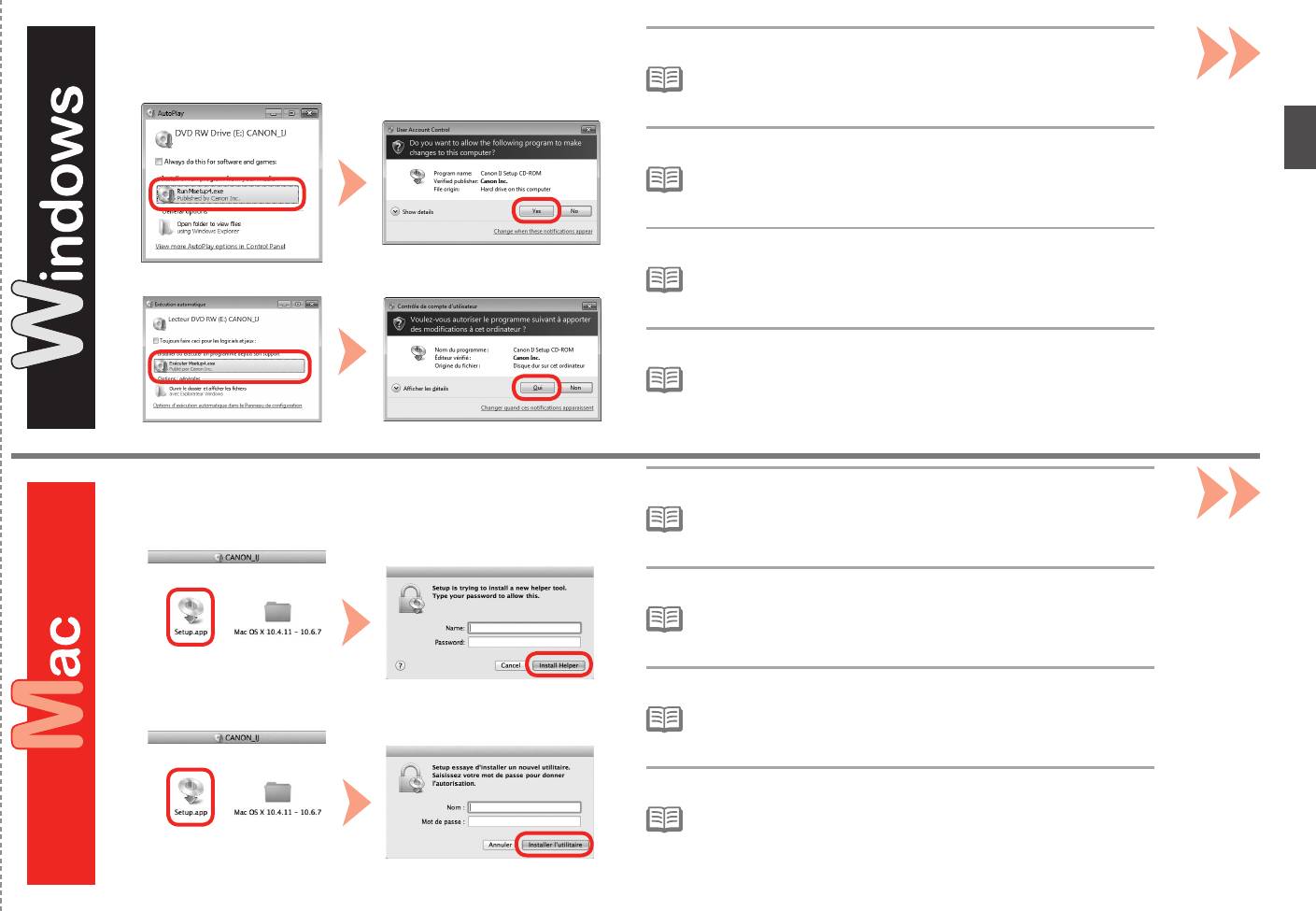
Follow the on-screen instructions to proceed.
3
If the CD-ROM does not autorun:
Double-click (My) Computer > CD-ROM icon > MSETUP4.EXE.•
Suivez les instructions à l’écran pour continuer.
Si le CD-ROM ne s’exécute pas automatiquement :
•
Double-cliquez sur Poste de travail/Ordinateur > icône du CD-ROM >
MSETUP4.EXE.
Befolgen Sie die Anweisungen auf dem Bildschirm, um fortzufahren.
Falls die CD-ROM nicht automatisch gestartet wird:
•
Doppelklicken Sie auf Computer bzw. Arbeitsplatz ((My) Computer) > CD-
ROM-Symbol > MSETUP4.EXE.
Seguire le istruzioni a video per continuare.
Se il CD-ROM non viene avviato automaticamente:
•
Fare doppio clic su (Risorse del computer) Computer ((My) Computer)>
icona CD-ROM > MSETUP4.EXE.
Follow the on-screen instructions to proceed.
If the CD-ROM does not autorun:
3
Double-click the CD-ROM icon on the desktop.•
Suivez les instructions à l’écran pour continuer.
Si le CD-ROM ne s’exécute pas automatiquement :
Double-cliquez sur l’icône CD-ROM située sur le bureau.•
Befolgen Sie die Anweisungen auf dem Bildschirm, um fortzufahren.
Falls die CD-ROM nicht automatisch gestartet wird:
Doppelklicken Sie auf das CD-ROM-Symbol auf dem Desktop.•
Seguire le istruzioni a video per continuare.
Se il CD-ROM non viene avviato automaticamente:
Fare doppio clic sull’icona del CD-ROM sul desktop.•
27


