
Yamaha BRX-610: Remote control 4 PROGRAM : Sets the order of playback
Remote control 4 PROGRAM : Sets the order of playback: Yamaha BRX-610
Table of contents
- CAUTION: READ THIS BEFORE OPERATING YOUR UNIT.
- WHAT YOU CAN DO WITH THIS UNIT SUPPLIED PARTS
- ABOUT DISCS AND FILES Types of discs/files that can be used with this unit
- Loading a disc Notice for watching 3D video images Disc precautions
- Front panel
- Remote control 4 PROGRAM : Sets the order of playback
- I ZOOM : Zooms in/out. The
- S TOP MENU : Displays the top menu screen
- Rear panel
- Installing the batteries in the remote control Using the remote control
- 5.1-channel speaker layout Connecting speakers
- Connecting the FM antenna Connecting iPod
- Connecting to a TV
- Connecting audio devices (such as a CD or MD player) Connecting a satellite/cable TV tuner Connecting a portable digital music player other than iPod
- NETWORK AND USB CONNECTION Connecting to the NETWORK terminal Connecting to the USB port
- OTHER CONNECTION Connecting the power cable
- INITIAL WIZARD/EASY SETUP Setting with the Initial Wizard/Easy Setup
- BASIC OPERATION
- BASIC OPERATION
- BASIC OPERATION Playing back photo/music/video
- BASIC OPERATION ■ Operations for viewing photos
- BASIC OPERATION Using network content Using network services
- Operation for iPod Operation for CDs
- ADVANCED PLAYBACK OPERATION On Screen menu
- Status menu
- Using Bookmark Using search Program play
- Enjoying BONUSVIEW™ and BD- Live™
- LISTENING TO FM RADIO STATIONS Tuning to radio stations Selecting preset radio stations Presetting radio stations
- Deleting preset stations Displaying Radio Data System information (Russia model only)
- USING USEFUL FUNCTIONS Setting the sleep timer Operating this unit by TV remote control (the HDMI control function)
- USING USEFUL FUNCTIONS ■ Registering HDMI components to TV ■ Changing the connection method and connected components
- SETUP MENU Menu/Submenu Item Function Page
- Menu/Submenu Item Function Page
- Operation for SETUP menu
- SETUP MENU General Setting
- SETUP MENU ■ Playback ■ Network ■ Security
- Display Setting ■ TV
- SETUP MENU ■ Video Process
- Audio Setting ■ Audio Output ■ Post Process ■ System Information ■ Speaker Setting
- About the video output formats When [TV System] is set to [PAL] When [TV System] is set to [Multi]
- SOFTWARE UPGRADE Upgrading the software
- TROUBLESHOOTING General Problem Cause Remedy Page
- Problem Cause Remedy Page
- Radio reception Problem Cause Remedy Page iPod Status message Cause Remedy Page Problem Cause Remedy Page
- Problem Cause Remedy Page USB Status message Cause Remedy Page Problem Cause Remedy Page
- Disc playback ■ General Problem Cause Remedy Page
- ■ Picture Problem Cause Remedy Page Remote control Problem Cause Remedy Page Network Problem Cause Remedy Page
- TROUBLESHOOTING Problem Cause Remedy Page
- Messages on the screen Error message Cause Remedy Page Others Problem Cause Remedy Page
- GLOSSARY
- SPECIFICATIONS
- SPECIFICATIONS
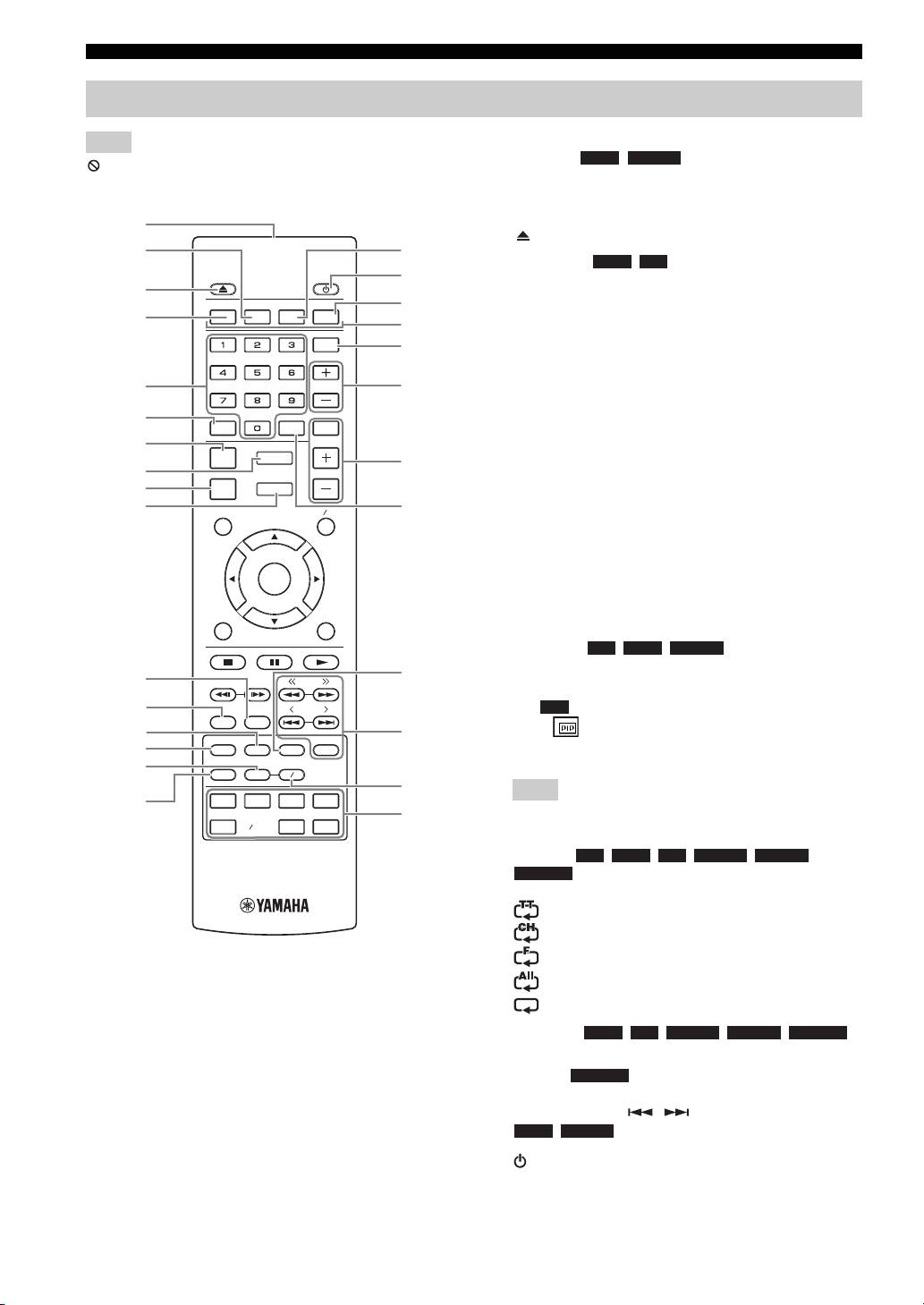
PART NAMES AND FUNCTIONS
Remote control
1 Infrared signal transmitter (p. 10)
Note
2 MARKER : Sets Bookmark at a specified
DVD VIDEO
will appear on the top left corner of the screen when the
point of a movie (p. 26). After Bookmark is set, press
pressed button is not available.
DIGEST to select the set point you want to jump to. You can
set up to 12 Bookmarks.
1
3 : Opens/Closes the disc tray.
2
G
4 PROGRAM : Sets the order of playback
DVD CD
H
(p. 26). You can set up to 15 tracks of an audio disc or titles/
3
chapters of a DVD-Video disc.
PROGRAM MARKER DIGEST ZOOM
I
4
J
5 Numeric buttons: Enters numbers, or during playback,
SLEEP
jumps to the track/chapter corresponding to the number you
K
input. These buttons may not be available depending on the
disc type and playback condition.
5
SW
L
6 CLEAR: Clears entered number/set item.
6
MUTESEARCHCLEAR
7 DISPLAY: Switches the information shown on the front
7
panel display (p. 23, 29).
DISPLAY
SETUP
M
8
VOLUME
8 SETUP: Displays SETUP menu screen (p. 32).
9
OPTION
HOME
9 OPTION: Enters option menu mode (p. 29).
0
TOP MENU
POP-UP MENU
N
0 HOME: Displays HOME menu screen (p. 20).
A STATUS: Displays the playback information on the screen
(p. 25).
ENTER
B DIMMER: Changes brightness of the front panel display.
Choose brightness from normal (bright), mid dim, or dim by
RETURN ON SCREEN
pressing this button repeatedly.
C SUBTITLE : Changes subtitle
BD DVD VIDEO
languages (p. 50) if available. You can also select this item
O
A
TUNING
from On Screen menu (p. 24).
B
PRESET
D PIP : Turns on/off the Picture in Picture (p. 27). PIP
BD
DIMMER
STATUS
Mark ( ) is displayed on the screen when this function is
C
P
D
PIP
SUBTITLE
AUDIO
MEMORY
available. You can also select this item from On Screen menu
(p. 24).
E
SHUFFLE
REPEAT
A B
Q
Note
F
iPod
TV
STB
TUNER
R
PIP Mark is displayed only when [PIP Mark] is set to [On]
DISC
USB NET
AUX
PORTABLE
(p. 36).
E REPEAT
BD DVD CD VIDEO MUSIC
PHOTO
: Selects repeat mode. Repeat mode shown below
will change each time you press the button (p. 23, 25).
: Repeats the title being played back.
: Repeats the chapter being played back.
: Repeats the folder being played back.
: Repeats all tracks/files on the disc/folder.
: Repeats the track/file being played back.
F SHUFFLE :
DVD CD VIDEO MUSIC PHOTO
Selects shuffle play mode (p. 23, 24).
G DIGEST : Shows 12 photo thumbnails. When
PHOTO
thumbnails are displayed, you can proceed to the next/
previous page with / .
DVD VIDEO
: Displays Bookmark select bar (p. 26).
H : Turns this unit on or sets it to standby mode.
6 En
