
Yamaha BRX-610: ADVANCED PLAYBACK OPERATION On Screen menu
ADVANCED PLAYBACK OPERATION On Screen menu: Yamaha BRX-610
Table of contents
- CAUTION: READ THIS BEFORE OPERATING YOUR UNIT.
- WHAT YOU CAN DO WITH THIS UNIT SUPPLIED PARTS
- ABOUT DISCS AND FILES Types of discs/files that can be used with this unit
- Loading a disc Notice for watching 3D video images Disc precautions
- Front panel
- Remote control 4 PROGRAM : Sets the order of playback
- I ZOOM : Zooms in/out. The
- S TOP MENU : Displays the top menu screen
- Rear panel
- Installing the batteries in the remote control Using the remote control
- 5.1-channel speaker layout Connecting speakers
- Connecting the FM antenna Connecting iPod
- Connecting to a TV
- Connecting audio devices (such as a CD or MD player) Connecting a satellite/cable TV tuner Connecting a portable digital music player other than iPod
- NETWORK AND USB CONNECTION Connecting to the NETWORK terminal Connecting to the USB port
- OTHER CONNECTION Connecting the power cable
- INITIAL WIZARD/EASY SETUP Setting with the Initial Wizard/Easy Setup
- BASIC OPERATION
- BASIC OPERATION
- BASIC OPERATION Playing back photo/music/video
- BASIC OPERATION ■ Operations for viewing photos
- BASIC OPERATION Using network content Using network services
- Operation for iPod Operation for CDs
- ADVANCED PLAYBACK OPERATION On Screen menu
- Status menu
- Using Bookmark Using search Program play
- Enjoying BONUSVIEW™ and BD- Live™
- LISTENING TO FM RADIO STATIONS Tuning to radio stations Selecting preset radio stations Presetting radio stations
- Deleting preset stations Displaying Radio Data System information (Russia model only)
- USING USEFUL FUNCTIONS Setting the sleep timer Operating this unit by TV remote control (the HDMI control function)
- USING USEFUL FUNCTIONS ■ Registering HDMI components to TV ■ Changing the connection method and connected components
- SETUP MENU Menu/Submenu Item Function Page
- Menu/Submenu Item Function Page
- Operation for SETUP menu
- SETUP MENU General Setting
- SETUP MENU ■ Playback ■ Network ■ Security
- Display Setting ■ TV
- SETUP MENU ■ Video Process
- Audio Setting ■ Audio Output ■ Post Process ■ System Information ■ Speaker Setting
- About the video output formats When [TV System] is set to [PAL] When [TV System] is set to [Multi]
- SOFTWARE UPGRADE Upgrading the software
- TROUBLESHOOTING General Problem Cause Remedy Page
- Problem Cause Remedy Page
- Radio reception Problem Cause Remedy Page iPod Status message Cause Remedy Page Problem Cause Remedy Page
- Problem Cause Remedy Page USB Status message Cause Remedy Page Problem Cause Remedy Page
- Disc playback ■ General Problem Cause Remedy Page
- ■ Picture Problem Cause Remedy Page Remote control Problem Cause Remedy Page Network Problem Cause Remedy Page
- TROUBLESHOOTING Problem Cause Remedy Page
- Messages on the screen Error message Cause Remedy Page Others Problem Cause Remedy Page
- GLOSSARY
- SPECIFICATIONS
- SPECIFICATIONS
ADVANCED PLAYBACK OPERATION
This chapter explains playback of commercially available
DVD
BD/DVD/CD discs, and recorded DVD-RW/R discs.
– Normal
– Shuffle CH (chapter)
Note
– Shuffle TT (title)
– Shuffle All
For the basic playback operation, refer to page 6.
– Random CH (chapter)
– Random TT (title)
– Random All
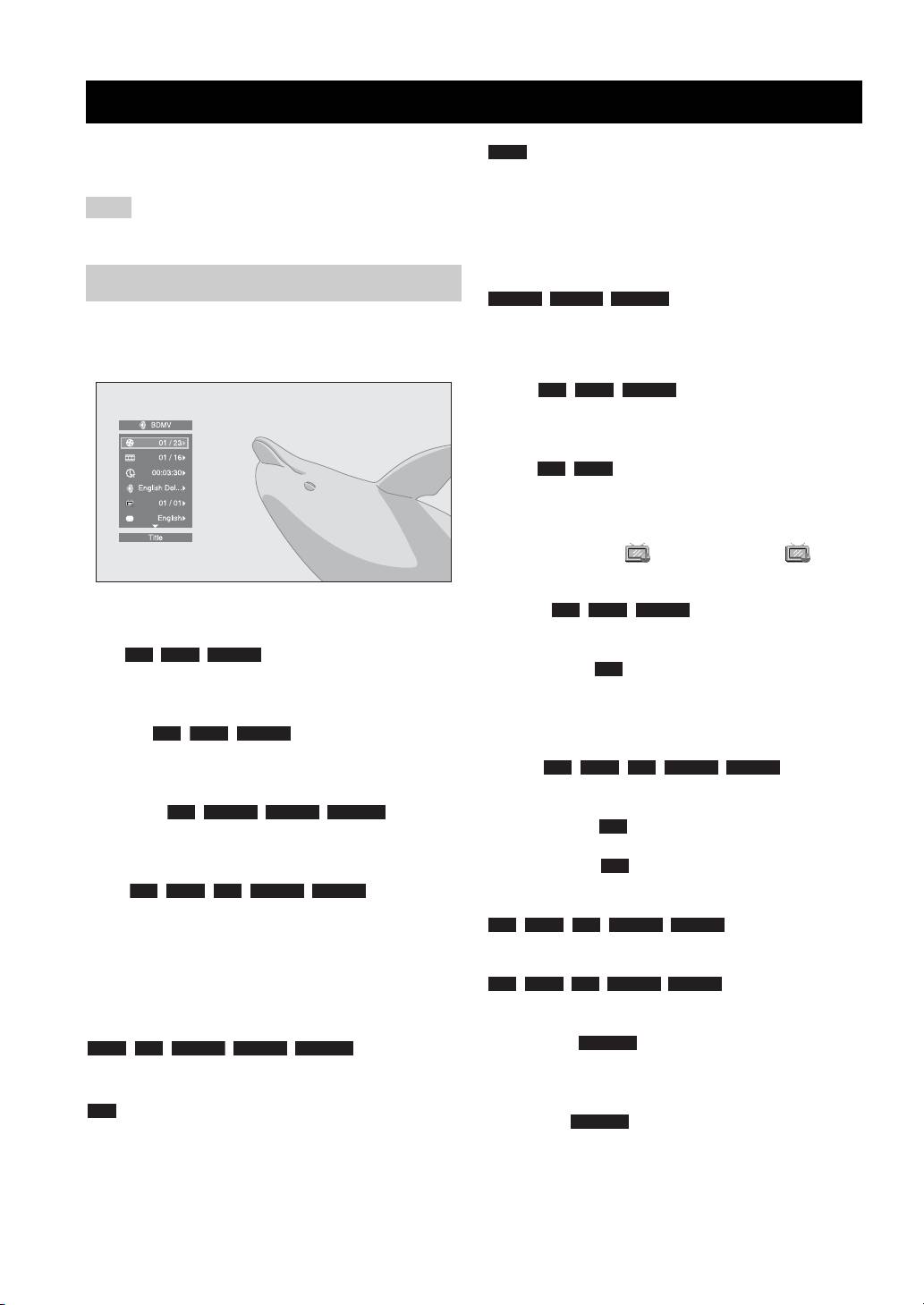
On Screen menu
VIDEO MUSIC PHOTO
– Normal
To display On Screen menu, press ON SCREEN. After
– Shuffle F (folder)
that, press 5/a /2/3 to select an item, then press
– Random F (folder)
ENTER to operate the desired function.
Audio : Shows audio language/
BD DVD VIDEO
signal of a BD/DVD disc currently selected. You can
select the desired type of audio.
Angle : Shows the currently-selected angle
BD DVD
number. If the video is recorded with multiple angles, you
can change the angle.
y
When the Angle Mark ( ) is set to [On] (p. 36), is
displayed on the screen when this function is available.
Subtitle : Shows the currently-
BD DVD VIDEO
On Screen menu contains following items.
selected subtitle language when the subtitle is provided.
Title : Shows the title number being
BD DVD VIDEO
Subtitle Style : Shows the currently-selected
BD
played back. You can skip to the desired title by selecting
subtitle style. This function is available only for Video-file
it from this item.
external subtitle. You can select the desired text style of
subtitle.
Chapter : Shows the chapter
BD DVD VIDEO
number being played back. You can skip to the desired
Bitrate : Shows
BD DVD CD VIDEO MUSIC
chapter by selecting it from this item.
bitrate of the audio/video signal.
Track/File : Shows
CD VIDEO MUSIC PHOTO
Second Video : Turns the PIP on/off (p. 6).
BD
track/file number being played back. You can skip to the
desired track/file by selecting it from this item.
Second Audio : Turns the secondary audio on/off.
BD
Time : Shows the
BD DVD CD VIDEO MUSIC
Ins Search
playback time. Select display type from the following:
BD DVD CD VIDEO MUSIC
: Skips 30 seconds.
– Elapsed playback time of the title, chapter, disc,
track or file.
Ins Replay
– Remaining playback time of the title, chapter, disc,
BD DVD CD VIDEO MUSIC
: Replays the content
track or file.
from 10 seconds before.
Mode/Play Mode
Slide Show :
PHOTO
DVD CD VIDEO MUSIC PHOTO
: Shows current
Shows slide show speed. You can select the slide show
playback mode. You can select playback mode from the
speed from Slow/Medium/Fast.
following:
CD
Transition : Shows how photo appears on the
PHOTO
–Normal: Normal playback.
screen. You can select the transition type.
– Shuffle: Random playback without repetition.
– Random: Random playback with repetition.
24 En
