
Yamaha BRX-610: NETWORK AND USB CONNECTION Connecting to the NETWORK terminal Connecting to the USB port
NETWORK AND USB CONNECTION Connecting to the NETWORK terminal Connecting to the USB port: Yamaha BRX-610
Table of contents
- CAUTION: READ THIS BEFORE OPERATING YOUR UNIT.
- WHAT YOU CAN DO WITH THIS UNIT SUPPLIED PARTS
- ABOUT DISCS AND FILES Types of discs/files that can be used with this unit
- Loading a disc Notice for watching 3D video images Disc precautions
- Front panel
- Remote control 4 PROGRAM : Sets the order of playback
- I ZOOM : Zooms in/out. The
- S TOP MENU : Displays the top menu screen
- Rear panel
- Installing the batteries in the remote control Using the remote control
- 5.1-channel speaker layout Connecting speakers
- Connecting the FM antenna Connecting iPod
- Connecting to a TV
- Connecting audio devices (such as a CD or MD player) Connecting a satellite/cable TV tuner Connecting a portable digital music player other than iPod
- NETWORK AND USB CONNECTION Connecting to the NETWORK terminal Connecting to the USB port
- OTHER CONNECTION Connecting the power cable
- INITIAL WIZARD/EASY SETUP Setting with the Initial Wizard/Easy Setup
- BASIC OPERATION
- BASIC OPERATION
- BASIC OPERATION Playing back photo/music/video
- BASIC OPERATION ■ Operations for viewing photos
- BASIC OPERATION Using network content Using network services
- Operation for iPod Operation for CDs
- ADVANCED PLAYBACK OPERATION On Screen menu
- Status menu
- Using Bookmark Using search Program play
- Enjoying BONUSVIEW™ and BD- Live™
- LISTENING TO FM RADIO STATIONS Tuning to radio stations Selecting preset radio stations Presetting radio stations
- Deleting preset stations Displaying Radio Data System information (Russia model only)
- USING USEFUL FUNCTIONS Setting the sleep timer Operating this unit by TV remote control (the HDMI control function)
- USING USEFUL FUNCTIONS ■ Registering HDMI components to TV ■ Changing the connection method and connected components
- SETUP MENU Menu/Submenu Item Function Page
- Menu/Submenu Item Function Page
- Operation for SETUP menu
- SETUP MENU General Setting
- SETUP MENU ■ Playback ■ Network ■ Security
- Display Setting ■ TV
- SETUP MENU ■ Video Process
- Audio Setting ■ Audio Output ■ Post Process ■ System Information ■ Speaker Setting
- About the video output formats When [TV System] is set to [PAL] When [TV System] is set to [Multi]
- SOFTWARE UPGRADE Upgrading the software
- TROUBLESHOOTING General Problem Cause Remedy Page
- Problem Cause Remedy Page
- Radio reception Problem Cause Remedy Page iPod Status message Cause Remedy Page Problem Cause Remedy Page
- Problem Cause Remedy Page USB Status message Cause Remedy Page Problem Cause Remedy Page
- Disc playback ■ General Problem Cause Remedy Page
- ■ Picture Problem Cause Remedy Page Remote control Problem Cause Remedy Page Network Problem Cause Remedy Page
- TROUBLESHOOTING Problem Cause Remedy Page
- Messages on the screen Error message Cause Remedy Page Others Problem Cause Remedy Page
- GLOSSARY
- SPECIFICATIONS
- SPECIFICATIONS
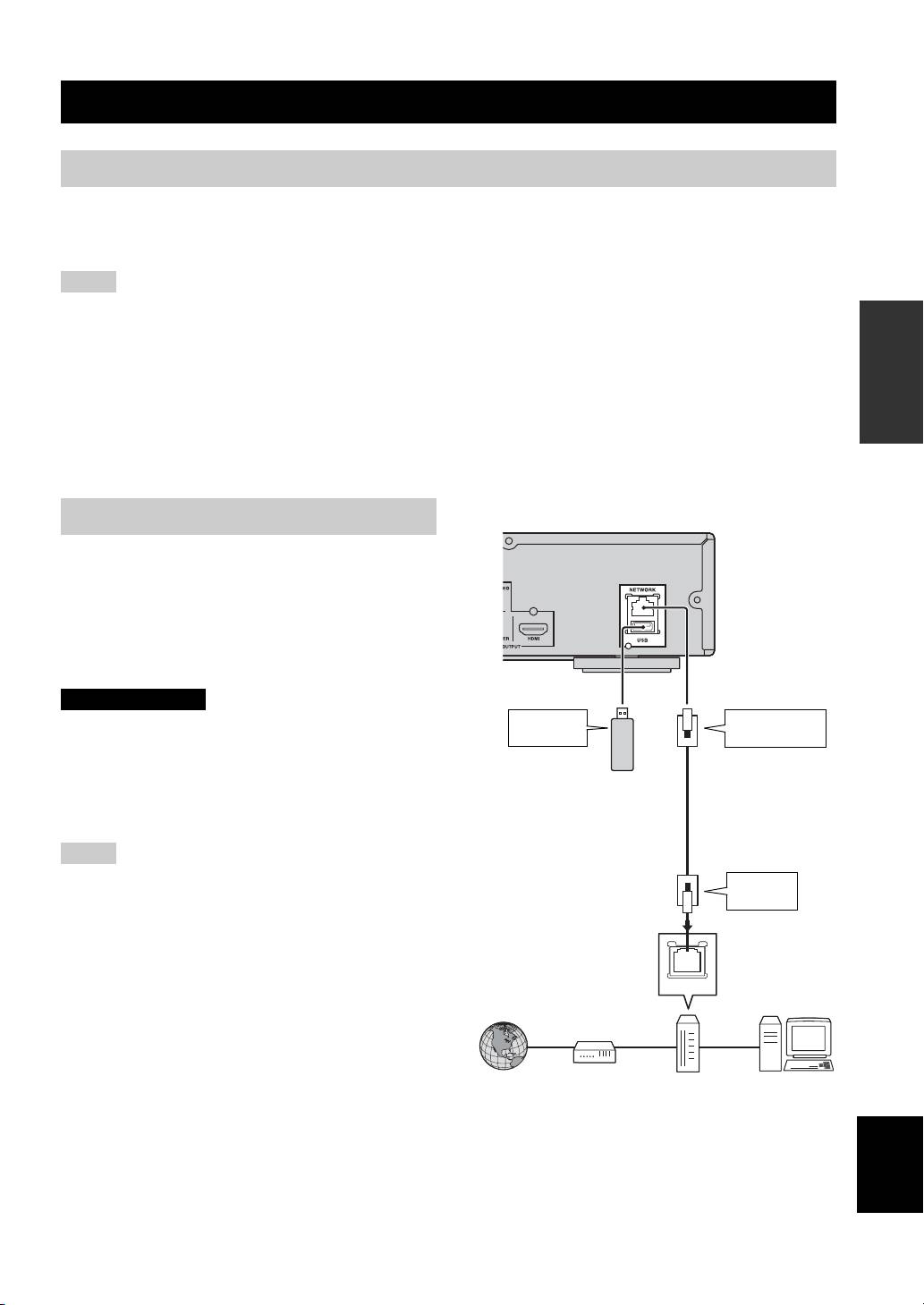
NETWORK AND USB CONNECTION
Connecting to the NETWORK terminal
• PC contents can be played back by connecting this unit to the network.
• You can enjoy a variety of contents with interactive functions by connecting to the internet when playing BD-Live
compatible discs. Refer to page 27 for information on BD-Live functions.
Notes
PREPARATIONS
• Firmly connect a network cable (commercially available) to the NETWORK terminal.
• Use only an STP (shielded twisted pair) network cable.
• When using the internet, a broadband internet connection as shown below is required.
• Connect the other connector of the network cable to the hub/broadband router.
• When using a broadband internet connection, a contract with an internet service provider is required. For more details, contact your
nearest internet service provider.
• Refer to the operation manual of the equipment you have as the connected equipment and connection method may differ depending on
your internet environment.
• Use a network cable/router supporting 10BASE-T/100BASE-TX.
This unit
Connecting to the USB port
• You can connect a USB memory device (2 GB or
greater and formatted with FAT 32/16) for BD Local
Storage to the USB port on the rear panel (or front
panel) of this unit to save the BD-Live data (p. 27) or to
upgrade the software of this unit (p. 41).
• Firmly connect a USB memory device (commercially
available) to the USB port.
CAUTION
To USB
To NETWORK
• Do not remove the USB memory device or unplug the power
port
terminal
cable while the operations for BD-Live or software upgrade are
being performed.
• Do not use a USB extension cable when connecting a USB
USB memory
device
Network cable
memory device to the USB port of this unit. Using a USB
(commercially
(commercially
extension cable may prevent the unit from performing correctly.
available)
available)
Notes
y
To save BD-Live data on the USB
• Yamaha cannot guarantee that all brands’ USB memory devices
memory device on the front
To LAN
will operate with this unit.
terminal
panel, set [Local Storage] to
• For more notes on using USB memory devices, refer to
[Front USB] (p. 35).
page 18.
LAN
Internet
Modem
Hub or
PC
broadband router
■ After connecting
English
• When you set the Network setting manually, refer to “Network” (p. 36).
• To play back the PC contents on your network, refer to “Using network content” (p. 22).
15 En
